Known Participant
February 22, 2017
Question

How do i use variable frame rates when doing a project in Premiere elements 15 without jerkiness or jumping

  • February 22, 2017
  • 2 replies
  • 1089 views

Good morning

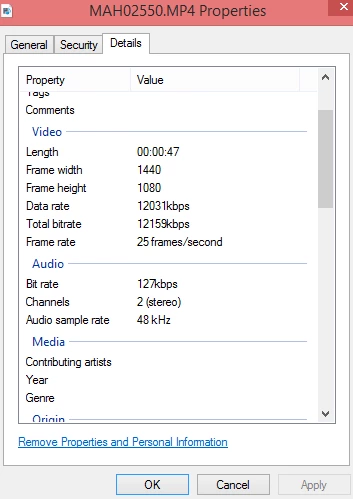
I am trying to do a new project in PRE 15 and a lot of my clips are different frame rates, see below
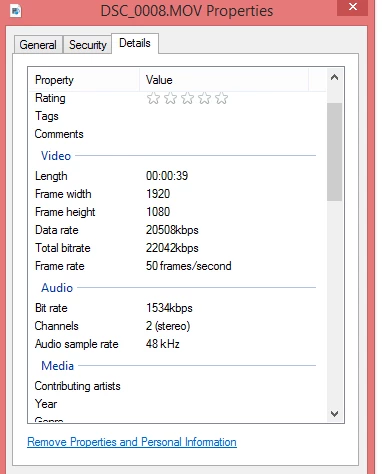
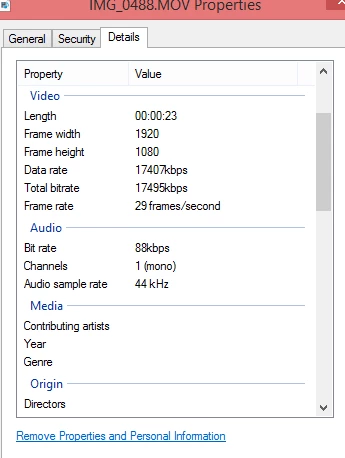
Some are with a Nikon D3300, another is with a Sony Cybershot and the other is with an iphone

So when I put the different clips onto my timeline they are jerky

See below for what it looks like on my timeline
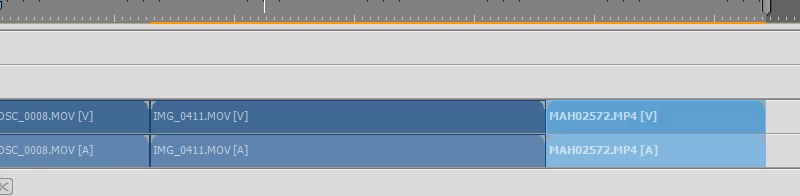
Clip one is the 50FPS, clip 2 (middle clip) is the 29 FPS nad the right one is the 25FPS

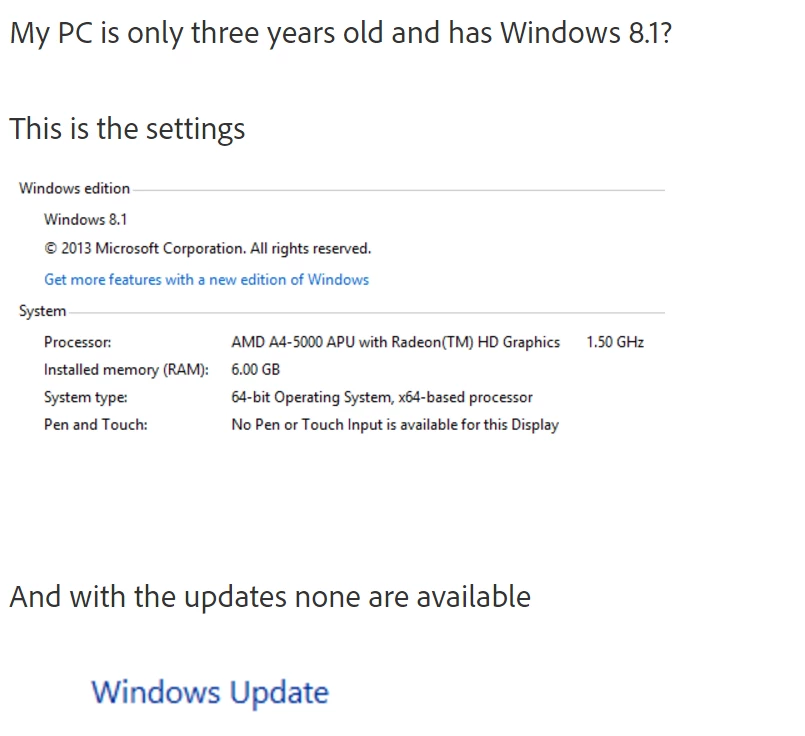
These are the settings for my PC
These are my settings if I start a new project
Please could anyone help?

Jilly Lowe

    This topic has been closed for replies.

    2 replies

    Brainiac
    February 24, 2017

    Yes, Jilly. The only real solution is a new computer.

    Well, not necessarily NEW, but faster. Refurbished computers are available a number of places online, including Amazon. I've found adequately powered i5 quad cores for under $200. Just use the chart to pick out a good processor.

    Known Participant
    February 24, 2017

    Thanks Steve

    Ann Bens
    Adobe Expert
    February 25, 2017

    Which country do you live. Gathering a PAL country.

    You will have several issues

    50, 25 and 29.97 is going be a pita regardless computer power (and yes yours is way underpowered).

    29,97 does not mix well with 25 or 50 fps. Try to avoid 29,97.

    The Phone footage will also give issues as its probably variable framerate, needs to be converted to Constant framerate.

    Last there is this 1440x1080 footage if it has a PAR (pixel aspect ratio) of 1,33 you are ok. If it has a PAR of 1.0 you will have black bars.

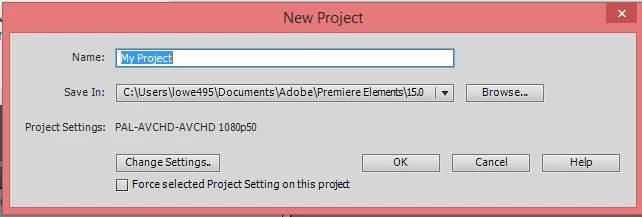
    Your project settings needs to be 25p and not 50p to get the least issues.

    Adobe Expert
    February 22, 2017

    In short, "render" the timeline so that the orange bar shown in your frame grab goes away.  Do it by pressing the Return/Enter key. 

    Premier Elements, as well as the other editing systems, require use preview or "proxy" files.  In other words what you see on your screen is a real time interpretation of the original footage.  When everything comes from the same source, the preview job is easier on your computer.

    When file types vary, stills are used, transition are used and various adjustment are added, the computer has to work harder at giving you something to see as you work.  In Premier Elements you get a warning by having an orange line display above the affected footage.  Premiere Elements is asking you to "re-render" the previews.  You do that by pressing the Return/Enter key or tapping the "Render" button on the screen that is located toward the right directly above the timeline.   Once you do that, the previews should flow smoothly unless you have an exceptionally weak computer.

    To make this work best, your project settings should match what you consider your "primary" footage.  You can cause that to happen manually when you start a project or let it happen automatically.   The automatic and probably best way is to make sure the first clip you put on the timeline is from your primary source.  You can move it later, but that will start the project. 

    At final output,  it will probably be best to select setting that are close to the original primary footage.  Premiere Elements again renders all the footage from scratch and will take its time to do better than the preview footage.  Therefore, you final product will normally be better (smoother) than your previews.

    Premier Elements should do a pretty good job.  But, mixing frame rates may not always end up perfect.

    Good luck with your project!

    Bill

    Brainiac
    February 22, 2017

    Your processor is also pretty seriously underpowered for this type of video editing. As you can see from this chart, your processor rates about 1900. I recommend a benchmark rating of at least 6000 for smooth HD editing.

    http://www.cpubenchmark.net/midlow_range_cpus.html

    With that machine, you're just not going to get smooth performance editing that mix of videos.

    Known Participant
    February 24, 2017

    Thank you for getting back to me Steve

    Can you tell me how to increase the processor? Do I have to buy a new PC or is there something I can just add in?

    Jilly