
Inspiring
December 15, 2019
Answered

rotating the cropping lines, not the pic

  • December 15, 2019
  • 4 replies
  • 820 views

I want to crop myself, while standing up singing, so that I can then have another scene around me. Thus, I want to rotate the crop lines from their landscape config to a more portrait view. I have tried and tried to rotate the crop lines, to no avail---thought I do remember once being able to do so. When I hit most of the rotation tools, the whole pic rotates, which is, of course, what I don't want to occur. I just want the crop lines to be more vertical, so I can just crop my body, get rid of the surrounding background in my video, and replace it with another background.

I should add I did trying unclicking the box that allows the pic size to be changed in a uniform way. However, when I unclicked this and tried to change the vertical and horizontal lines independently, there was signif distortion of the image.

Thanks.

LNovik
This topic has been closed for replies.
Correct answer Bill Sprague

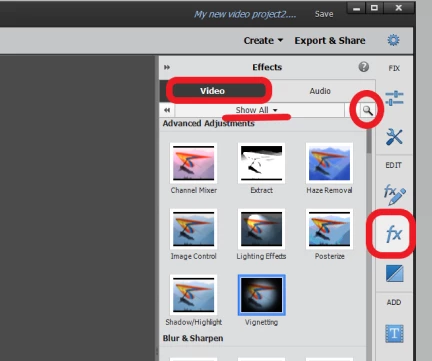
Poke the "fx" button.  Then "Video".  Select "Show All" or do a search for Crop.


4 replies

Community Expert
December 22, 2019

"Wow, YouDaMan (or, perhaps, the woman)"


The name is Bill and you are very welcome.

Bill SpragueCommunity ExpertCorrect answer
Community Expert
December 22, 2019

Poke the "fx" button.  Then "Video".  Select "Show All" or do a search for Crop.


Inspiring
December 22, 2019

Wow, YouDaMan (or, perhaps, the woman), whsprague

Thanks very much. That didn't reorient the crop lines, but I was of course easably able to crop only along the horizontal axis.

LNovik

Community Expert
December 21, 2019

Have you tried the Crop Effect?

Inspiring
December 21, 2019

I opened my Applied Effects, but all it has are Motion and Opacity. I don't have Adobe Prof, just Premiere  2019.


Community Expert
December 15, 2019

Open "Applied Effects" and pick "Motion".  


Then use the Scale and Rotation sliders.

Inspiring
December 15, 2019

Thanks for the what seems to be a clear and well illustrated reply. However, I don't think this helps me. The scale slider makes the inset picture larger and smaller. The Rotation slider rotates the picture. I don't want to rotate the picture. I only want to rotate the crop markers while leaving the picture in the upright postition. I want to rotate the crop markers so I can have them be postioned in a portrait mode rather than the landscape mode. This way, I can better just zoom in on myslef standing playing the keytar. I could then get rid of the boring background on either side of me and replace it with something else. I can explain this further if necessary.

LNovik

Inspiring
December 21, 2019

I'm writing again just to see if anyone else can reply to this. In the example pic above, with the big moose or elk-like animal, note that an animal is longer in the horizontal direction. Thus, if you pinch in the cropping tool, you can, ie, crop until the left and right of the animal, and not miss anything from top to bottom. That is because the cropping tool  has a landscape format. However, if you  try to do the same with a person standing, and you then pinch in the cropping to just get the left and right of that person, you end up with just a small protion of the person's body. However, if I could turn around the cropping outline, it would be perfect. As I said, I remember doing that in the past, so it might be a particular key to press. As I've also said, if I uncheck the box that something about uniform cropping, and I then attempt to crop, it  distorts the picture, so I don't think that's the solution.

Thanks.

LNovik