


Participating Frequently
May 24, 2020
Question

What should i do when HEVC media can be imported, but becomes blurry and gets stripes?

  • May 24, 2020
  • 7 replies
  • 1264 views

After finally being able to import HEVC media i get problems when i start playing it. It becomes blurry and gets stripes all over the screen. So all in all it's completely useless ..

Does anyone have a solution for this problem?

The footage is shot with a GoPro Hero 8 Black, in 2.7k 100fps and the lense is set to wide. I'm not sure if the 100fps could be a problem.
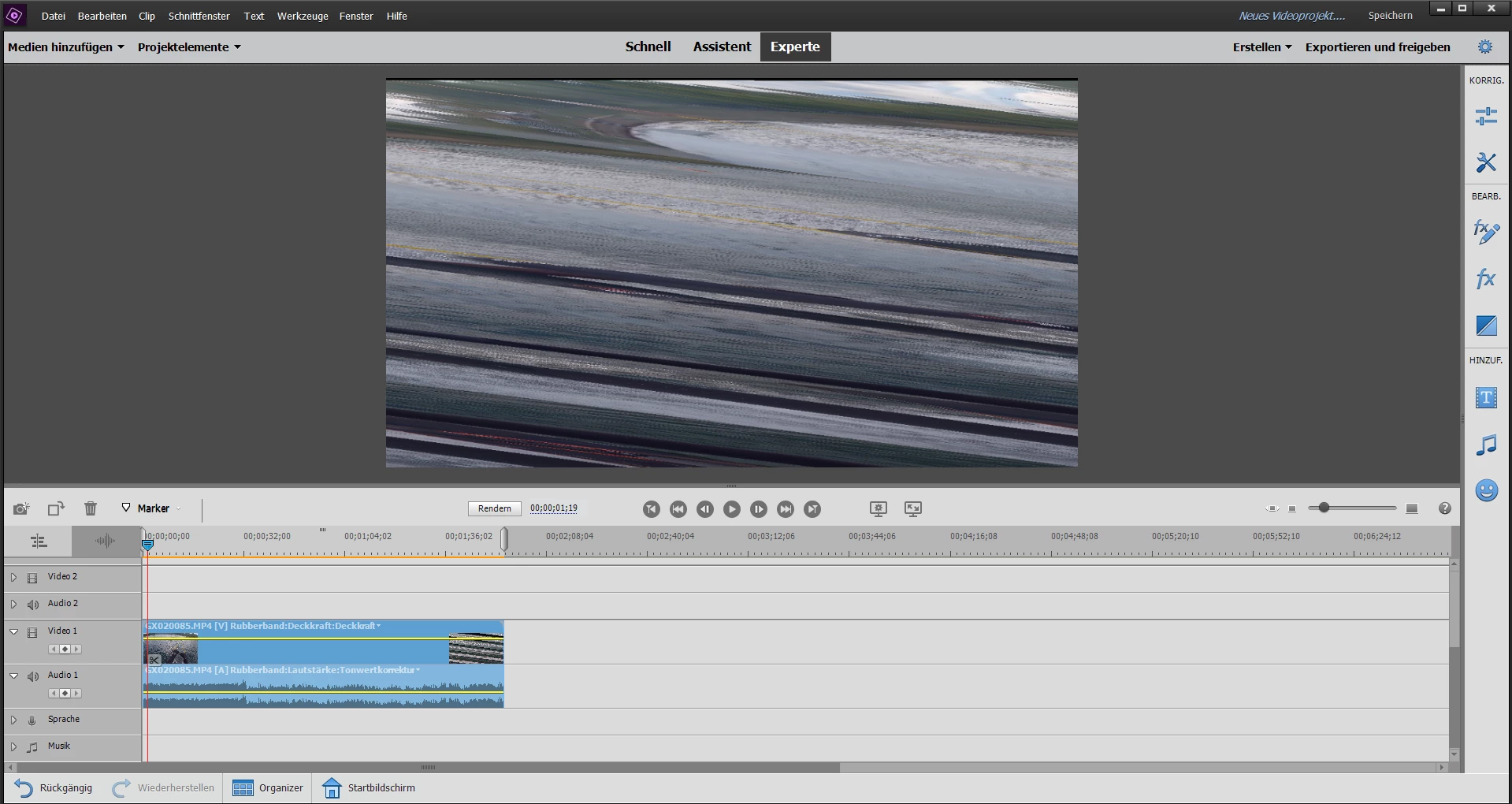


Any other media player works just fine with the same file ..


I doubt that it's a hardware problem.

My specs: i7-9700, MSI RTX 2060 6GB, 16 GB DDR4 RAM 3000 MHZ, M.2 SSD

Windows 10 Pro 64 Bit, Version 1903

This topic has been closed for replies.

7 replies

Community Expert
May 26, 2020

After getting the same results, I tried the (free) Handbrake program.  The two clips that wouldn't work natively with Premiere Elements went through Handbrake.  For the 100fps HEVC clip, I set Handbrake to H.264 and 100 fps.  Premiere Elements accepted it at 100 fps.  


So, it (apparantly) is not the 100 fps all by itself that doesn't work.  It is the combination of HEVC and 100fps that trips up PrE.  


I also tried the three clips in Premiere Pro on the same computer and they were useable as is without Handbrake conversion.   


Community Expert
May 26, 2020

I'm getting the same results.  GoPro seems to be always leading with "cutting edge" formats and codecs.   I'm going to try Handbrake and Premiere Pro.  More to come....

Icy_x3Author
Participating Frequently
May 25, 2020

Okay so i formatted my SD card that i use in the GoPro and shot for all of you 3 test Clips

https://www.dropbox.com/sh/u2g2r39aza86xyy/AACesMz5mQZ-rdULMjQbcX_Sa?dl=0


1) 50fps H.264

2) 100fps HEVC

3) 50fps HEVC


Clip 1 works just finde in Adobe Premiere Elements.

Clip 2 and 3 don’t work in Adobe Premiere Elements


So my computer obviously has a problem with the HEVC codec. Please tell me if the clips work on your computer 🙂


Icy_x3Author
Participating Frequently
May 25, 2020

Reinstalling the nVidia driver didn't work either ..


I'm running out of ideas ...

Community Expert
May 25, 2020

Ann is right.  If it works on my computer it is likely the driver.  If it doesn't work on mine and looks like yours, then Premiere Elements isn't up to the task.  Don't shorten an existing clip.  Either take a short new clip with the same camera settings or put up a "big" one.  

Community Expert
May 25, 2020

Can you put a shorter clip on DropBox or similar?  I would like to try it on my computer to see if there is something to learn that would be useful.

Icy_x3Author
Participating Frequently
May 25, 2020

I would if i were able to shorten a clip 😄

I'll try to work something out.


Ann Bens
Community Expert
Community Expert
May 25, 2020

Not shorten a clip that would defeat the purpose but a short clip.

Community Expert
May 24, 2020

The intended way to establish project settings is to add some media and put a primary clip on the timeline.  Premiere Elements then picks the best match.   How are you doing it?

Icy_x3Author
Participating Frequently
May 24, 2020

Thats the way i do it.

When it didn't work i began to create new projects and change the settings. But it never worked. Could the 100fps be the Problem?

Legend
May 25, 2020

Absolutely. Premiere Elements does not have project presets for 100 fps video.

Legend
May 24, 2020

When you first add your HEVC clip to your timeline, is there a yellow-orange "render" line over it? Ideally there should not be -- at least until you add effects. A render line indicates that the program is not able to match its project settings to your video's specs, and that can result is the playback issues you're seeing.


Icy_x3Author
Participating Frequently
May 24, 2020

Hey Steve,


yes there is a yellow line. I've been experimenting with the project settings, but i wasn't successfull.

Can you help me with the settings? I shot the footage with my GoPro Hero 8 Black in 2.7k 100fps and the objective was set to "wide".


I didn't really find a matching setting in Elements 2020