



mattchristensen
Community Manager
Community Manager
August 22, 2025
質問

Now in Beta: Cleaner, More Organized Menus Across Premiere Pro

  • August 22, 2025
  • 返信数 36.
  • 6709 ビュー

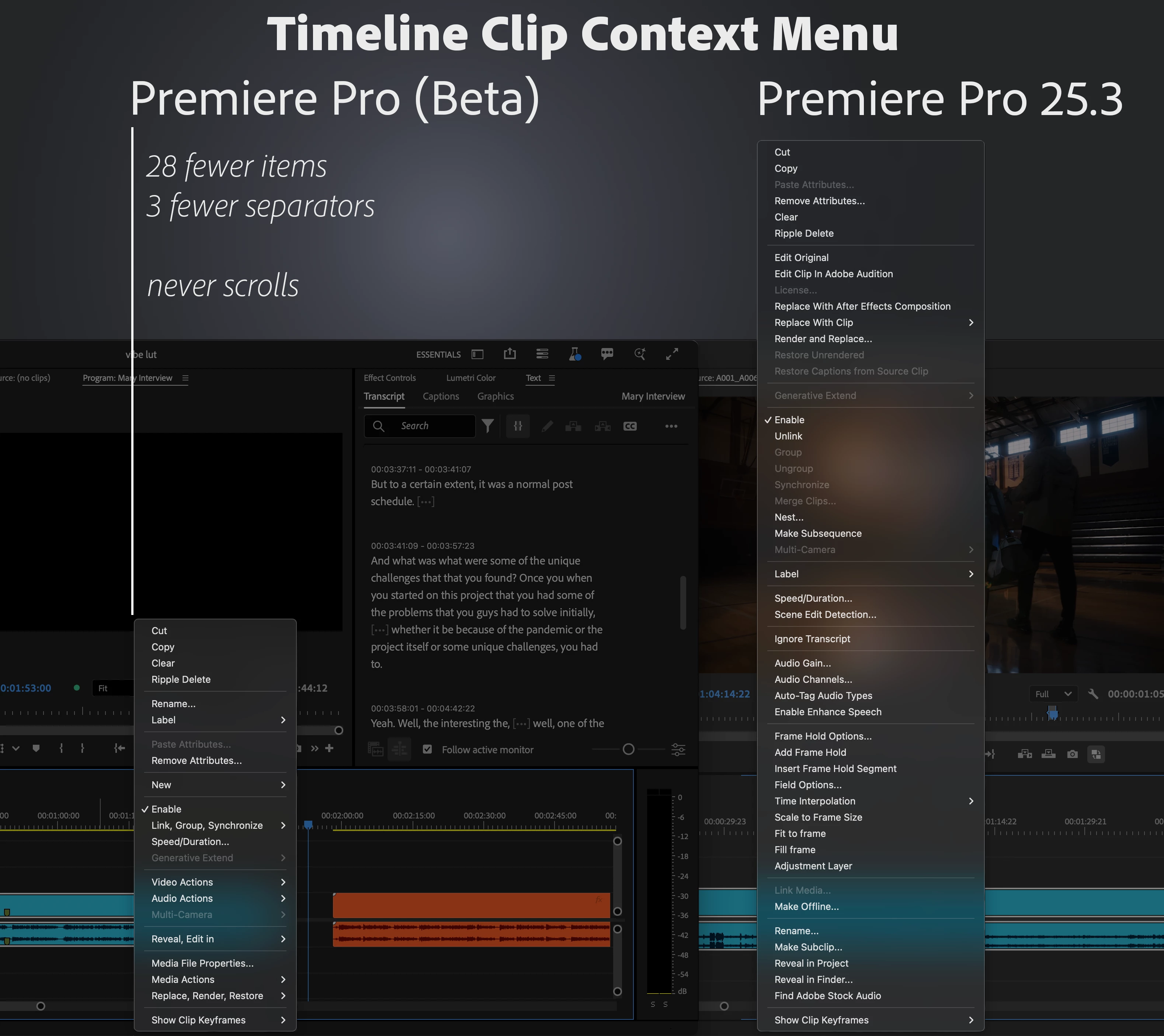
We’ve taken a fresh look at the application, panel, and context menus across Premiere Pro and developed a new organizational system to bring editors all the same functionality in a more concise and discoverable way. Even on a 13-inch laptop, you’ll never have to scroll a menu to get your work done.


Our approach to organizing the menus:

  1. Aggressively organize into submenus. Commands stay in the same menu as before, but the submenus mean the menu stays short and readable.
  2. Give useful names to the new submenus. Editors new to Premiere Pro can more quickly learn what the menu items do.
  3. Be consistent when similar items appear in different menus. Whether in the Project or Timeline panel, common items like “Label” or “Media File Properties” appear in the same parts of menus.


Across the application, menus that were updated average a 40% reduction in height, with some menus shrinking by half.


This is a big change to the feel of using Premiere Pro, and while we took time and care with these new menus, some parts may still need more work. Try them out while they’re in beta [version 25.6 build 39 or later] and let us know how they are working for you. Thank you!
 

返信数 36

Inspiring
November 20, 2025

I have worked with the new nested menus for a bit.


On the one hand it is great that the context menu isn't completely overloaded. On the other hand a lot of things you could quickly access are now sometimes hidden 2 layers deep. This really messes with your mind.

Like why must frame interpolition has to be under video actions and frmae interpolation.


If you could customize what is and isn't grouped in the context menu I think it would be a lot more helpful. Otherwise it is just so bad that this forces you to get a better workflow with keyboard shortcuts. Which should be faster in the long run anyways. 🙂


I think I have to use it a bit more before I can really judge the change. But so far it slows me down a lot more than it helps me.

Participating Frequently
November 2, 2025

not a fan of how nest, and fit to fill are hidden in another menu 

MyerPj
Community Expert
Community Expert
November 2, 2025

Yes, having those hidden is a hinderance. How about a small button on the program monitor, toggle even.

Inspiring
November 2, 2025

Hi @mattchristensen is it possible to enable the sequence settings menu (the menu from the spanner tool bar in the timeline window) to stay active, so that you can alter multiple settings from within the sequence settings menu at once.  I usually have several of the sequence settings menu options set to different options than the default settings; and when I've reset my system preferences, it's very slow having to go through this menu and change seven or eight settings one by one.  Alternatively, could we have a setting panel for the sequence settings in the system settings; perhaps all of these sequence settings options could be accessible via th timeline settings panel?


MyerPj
Community Expert
Community Expert
November 2, 2025

Good point, but it's definetly the timeline menu and not sequence settings.

Inspiring
November 2, 2025

I stand corrected. 

Christian Leibig
Inspiring
October 24, 2025

I was willing to give this a chance and tried it for a while and I like it a lot better than the old "wall of menu items". So much better that I do not want to go back to the release version right now.


For commands I rarely used I could never remember if an item was on top, at the bottom or somwehere in between, so I was scanning the list a lot. The new approach is miles better. 


And guys: for anything that's hidden too deep for your workflow just go create a custom shortcut. Not everyone's workflow is the same, some of those options you guys want in the top level I rarely use, and probably vice versa. The right-click menu is a last resort option for me for stuff I don't need often.

RECXFX
Participant
October 24, 2025

No please...it takes longer to find things. Some minimal cascaded menus are fine. But now everything is inside something else. The whole process is so much slower. Like - to go to Fit To Frame, I have to go on inside another menu and then select. Please please revert this feature lol

hellopaul4
Inspiring
October 21, 2025

One thing that I find REALLY annoying, is the total absence of hotkeys/shortcuts appearing in the right-click menus. If we had the shortcuts shown in the right-click menus, we'd be able to easily learn what the shortcuts are and never have to go near the badly-organised thing ever again. PLEASE have the hotkeys shown next to ALL menu items!

(And it's not an OS-thing; I'm typing this in Chrome on Windows 11*, and if I right-click to bring up a contextual menu, each item with a shortcut has the shortcut shown in the menu).

*I was forced to downgrade from Windoze 10 to 11 because Microsoft say they're stopping security updates for 10. What a bag of total crap Windoze 11 is!

Mike McCarthy
Community Expert
Community Expert
October 21, 2025

I really hate the new submenus when right clicking, to the point of no longer using the Beta version, (unless I am using the new masking tool, which is great).


I can see the design behind the change, and that it was also applied to the top Clip menu. In that top menu bar context, the new menus are great. Lots of functionality options in a fairly organized fashion, that can be accessed even on a smaller screen. But that same solution being re-used on the right click menus, is NOT the right approach. I agree that a list of 49 options is too many, but the solution is not to just hide those items behind further sub-menus. That frustrates EVERY user, instead of just the two people who want to Restore Captions from Source Clip without going to the Clip menu. Not every function needs to be available in that right click context, only ones that are used FREQUENTLY. As long as users know to go to the Clip Menu for any function they can't find, anything could be removed from the right click menu.


So which actions should be available in the right click menu? User customization would be ideal, where any item in the top Clip menu could be CTRL clicked and become bold, denoting that it has been added to the right-click menu. (And CRTL clicking it again would remove it from that menu.) Selecting a submenu heading would add that submenu to the right click menu, otherwise the selected items within that submenu, would appear directly in the right click menu, so they are EASY to access. That quick access is key, and the whole point of a right click menu in the first place, which the designers lost sight of when implementing this current change. You could also design a dedicated UI for customizing the right click menu, but that is more work to create and learn to use, and is less intuitive.


Or you just remove from that list of 49, the items that are less likely to be needed on a frequent basis. I humbly submit my preferred 20 in the attached image, but obviously there will be some disagreement about that between users. No one is going to request Auto-tag Audio Types or Find Adobe Stock Audio. Those were added by the marketing department with no regard for actual users. On the flip side, Cut and Copy don't have Premiere keyboard shortcuts, they have OS shortcuts that EVERYONE knows. There isn't even a Paste option in the right click menu, and no one has missed it. Same with Clear, as there is a Delete key that every computer user knows how to use, before they learn Premiere. Ripple Delete is less intuitive, and is the only option when right clicking dead space, so maybe worth keeping.  The 5 users who run Replace with AE Comp on every clip should just learn the KB shortcut, everyone else can look in the top menu, same with Edit in Audition. I don't use Render and Replace, but it is possible that some users could need that frequently. But if they need to Restore Unrendered to a lot of clips, select them all at once and use the top menu. The rest of us don't need to visually scan past that greyed out item 100 times a day. Any item that is greyed out should be removed. I rarely use Rename, Group, Sync, Make SubClip, or Frame Hold, but I can imagine that other users may use those functions on every clip in their sequence, so they are probably worth keeping, if the menu can't be user customized.


The current submenu path is really destructive to existing users' muscle memory, and the added obstacles to finding what they need mean that they will never 'get used to' the new approach, like they would if you just rearranged the list. (Placing Time Interpolation directly below Speed/Duration would be an IMPROVEMENT, which could take some getting used to, hiding them in separate submenus, is a CHANGE, not an improvement in any way.)


As implemented, excessive right click submenus will sit right above the new Export panel on the list of things that existing users will NEVER stop hating.  The difference is, they will be reminded of this frustrating betrayal every time they right-click, and are digging through the sub menus, instead of just when they are finished and ready to export.

R Neil Haugen
Legend
October 21, 2025

Well thought out comments there! Thanks for posting ...

Everyone's mileage always varies ...
Known Participant
October 16, 2025

This just seems to slow me down more since I have to dig deeper into menus and submenus for tasks. 

Talented-MrZhang
Participant
October 16, 2025

Is there a compromise solution that allows users to choose to use the collapsed menu or the original menu mode? I think the collapsed menu really wastes a lot of my time looking for the corresponding function. Every time I use it, I have to think about where the function is. So, can users be allowed to choose by themselves?

aaron-d
Participant
October 15, 2025

Just want to chime in that this design change is awful and unnecessary. 


At least give us the option to turn it off.