


Abhi Singh Principal PM
Adobe Employee
Adobe Employee
June 13, 2024
Answered

Now in Beta: Properties panel for Premiere Pro

  • June 13, 2024
  • 27 replies
  • 24332 views

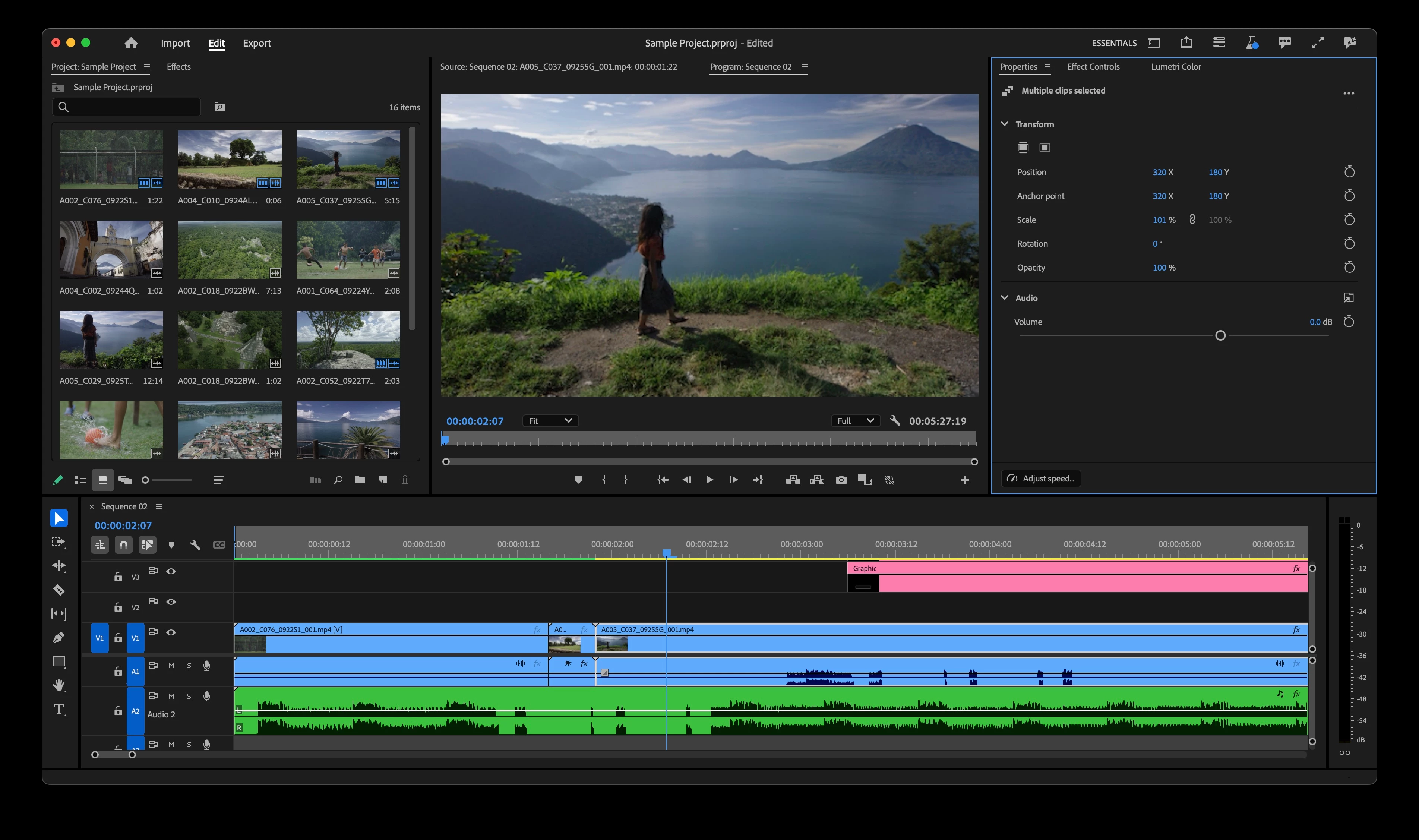
Now you can easily access frequently needed controls in Premiere Pro using the new Properties panel. As you select clips in the timeline, the most relevant controls and quick actions will automatically display in the Properties panel.


Need to change the scale of multiple video clips and graphics? Or change the volume of multiple audio clips? You can now select multiple clips in the timeline and change properties on all of them at once.


Need access to more advanced controls? The Properties panel will guide you to the additional panels that you need.


How do you enable the Properties panel in Premiere Pro?

To access the Properties panel, select the Window menu in Premiere Pro and then choose Properties:
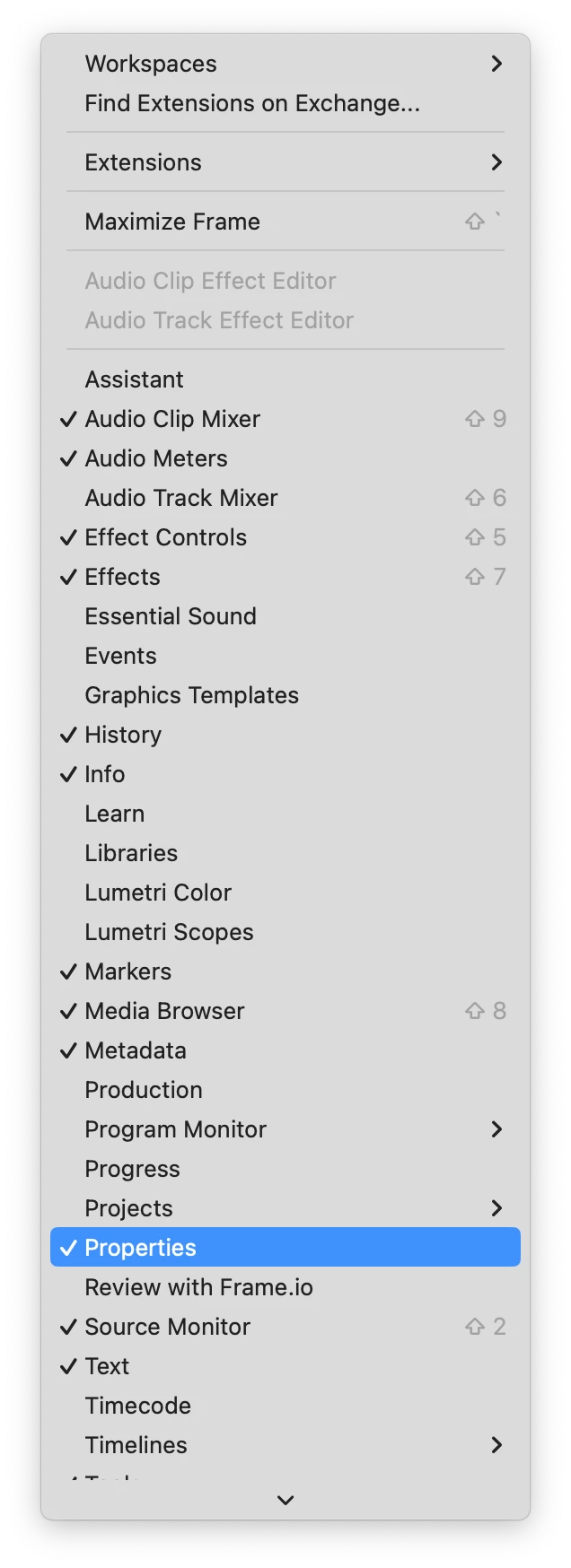
 

You can add the Properties panel to your existing workspace by docking it wherever you like. The Properties panel is now automatically docked in all default workspaces and will be visible when you Reset to Saved Layout.  


What has changed?

  • Controls for editing Graphics and Captions have moved completely to the Properties panel.  
  • You can access your Motion Graphics Templates from the Graphics Templates panel.
  • Properties Window for source clips has been renamed to Media File Properties.


Which controls are available via the Properties panel?

The following controls are available via the Properties panel based on the type of clip that you have selected in the timeline:

  • Video
    • Transform
    • Position
    • Scale
    • Anchor Point
    • Rotation
    • Opacity
  • Audio
    • Volume
    • Pan
  • Graphics:
    • All Graphics Controls
  • Captions
    • All Captions Controls
  • Speed Quick Action
  • Fill Frame and Fit to Frame


How do I change multiple clips at once using the Properties panel?

If you select clips that have the same property value (for instance, if the scale of two graphics is 100%) then you will see the value of the property in the Properties panel and can modify the property for the multiple clips that you have selected.


If the properties for multiple clips are different (for instance, the scale of one graphic is 90% and the scale of the other graphic is 100%), you will see ‘–’ in the input field. Entering a number will change the absolute value for all selected clips. Dragging the number control will change the values relative to the amount that you entered. If you increase the values, you will see a plus (+) in front of the number while dragging and if you decrease the values, you will see a minus (-) in front of the values while dragging.


What is coming soon?

We plan to continue adding features while the Properties panel is in beta. The following are coming soon:

  • Crop
  • Direct Manipulation Controls for Crop and Transform in the Program Monitor
  • Mute


We want to hear from you about what you would like to see added. Please try it and give us feedback!


Abhi Singh

Principal Product Manager, Adobe Premiere Pro


Correct answer Anna Lehman

Anna

@Anna Lehman 


Thanks for your response on this.


"Other Adobe apps such as After Effects and Photoshop have Properties Panels ... we felt it was appropriate to adopt the term as well to maintain congruity across apps."


This is a desirable ideal. Adobe does indeed struggle with an inconsistent and opaque lexicon, some baroque design principles, and a history of poor documentation.


Consider that Premiere Pro has Properties (now "Media File Properties" as you have indicated), new Properties, and Info panels. Can you distinguish for me the difference between the (new) "media file properties" and "info", for example? Why is "media file properties" (a panel) accessible from a contextual menu while "info"(which seems to be a subset of media filel properties?) is a panel listed under the "window" menu? Note also that copy/paste "attributes" involves a subset of "properties" with the addition of effects.


Such issues are exacerbated by the dearth of documentation from Adobe (find me anything in the online guide about the "info panel" and you win a prize).


Some clean up of the lexicon and design would be welcome. This new properties panel does indeed seem to have potential along these lines (notwithstanding issues I've outlined above).


However, any communication from Adobe around these issues (like this announcement) should take care to communicate not just "new features", but the implications and changes in the design (like the renaming of the old "properties" to "media file properties"). Absent that, Adobe risks antagonizing users with these announcements.


R.


@Remote Index thank you for highlighting these challenges – the confusion between Media File Properties and Info panels, along with the way they're accessed, is a definitely a valid concern. As the app evolves we hope to clear up any overlap and redundancies that exist, including what you've mentioned above.


We will update the original post to include the change in nomenclature and be mindful of incorporating useful information like this in future announcements to avoid frustration! Thanks again for bringing this up.

27 replies

MyerPj
Community Expert
Community Expert
September 10, 2024

The TABing thru the properties on both the properties and effects control panel is working very well in 25.1.0 b8.

Participating Frequently
August 24, 2024

As a Final Cut Pro and Motion user, I appreciate the idea of a Properties panel. Adding it to Adobe apps certainly makes them consistent with the apps I have used for many years. Perhaps Premiere users on macOS could try the free fully functional 90 day trial of Final Cut Pro and see what other properties are in the Final Cut Inspector (and its various tabs) that might be useful in Premiere (in case the Adobe team haven't seen it over the last 13 years).

MyerPj
Community Expert
Community Expert
August 23, 2024

Yes, Tab doesn't work in the properties panel for the numeric properties like Position, Anchor Point, etc, and will not tab to the next property either. I looked in 24.6 amd beta 25.0b32

MyerPj
Community Expert
Community Expert
August 23, 2024

Effects Controls work as normal.

Participant
August 23, 2024

Cool.  Please be sure that keyboard tab navigation between numeric fields works. 
This is needed for efficiency and accessibility.

Inspiring
August 2, 2024

One thing I feel I am missing from the properties panel vs the EG panel is that there is no way to start a new graphic from this panel. 


OLD EG PANEL


NEW PROPETIRES PANEL has no way of creating a graphic.


I guess we are all forced to use the menu command now? Would be nice to add back the ability to create a new graphic layer to the properties panel instead of adding a bunch of mouse milage to fly up to the menu bar, which for people with dual dispalce can be a a LONG ways away from where you are trying to edit whatever graphic you are trying to start. 


Inspiring
August 3, 2024

There is also no way to create a new graphic from the browse graphic panel so some functionality has been lost while splitting the two.

Sven Brencher
Community Expert
Community Expert
July 30, 2024

This is so helpful. I just wish you could add Audio Gain as well. It would be much easier to see it instantly compared to open a dialog window. 

Participant
July 1, 2024

Since this update, all the transformations I had set in the effect controls in older files has been reset to defaults, effectively undoing a huge amount of work. Any suggestions?

Remote Index
Inspiring
July 1, 2024

Hello _mu110_,


I'd suggest rolling back to the previous version of Premiere Pro and working from a saved (or auto-saved) version of your project.


I know it's easy to be seduced by all the "update now!" messaging that Adobe puts out, but generally it is not recommended you update in the middle of a project; there's just too much precedent and possibility for new problems to be introduced into your work.


R.

Randune23
Inspiring
July 1, 2024

Thanks R!  That is a great idea that i hadn't thought of. I'm glad I was able to finish the project in beta. I wasnt able to add as many mogrts as i would have liked. But the important thing is I was able to render it out a day before the project deadline. 

Next time i will not be seduced by some of the cool new features in beta and just stick to the normal version. 

It does make me very apprehensive for the newest version if in favt they do get rid of rhe essebtial graphics panel. 

One of the cool features that works in the full version is installing the Epidemic Sound plug-in. I could do a whole review video for this anazing plug-in. 

No longer do I have to search the 4-5 royalty-free music sites looking for the perfect song. With Epidemic Sound llug-in i can search genre, length, and BBPM right in PP!  Its such a time saver. 

Randy

Known Participant
June 25, 2024

I commonly copy and paste different "properties" between clips.

In Effect Controls, I can click on any property title and it becomes highlighted, which allows me to copy using keyboard shortcuts, which is nice. Context clicking brings up a menu with a number of options.

The Properties panel only has a singular "Reset" option in it's context menus for items. Are there plans to add in copy/paste?

Most importantly for me, though, is being able to copy ALL of the "Motion" Properties in one go, which you're now calling "Transform".

Context-clicking on the "Transform" button right now just twirls open the dialogue, and doesn't open a context menu for copy/pasting all the Transforms at once.

Inspiring
June 21, 2024

In the PROPERTIES PANEL, I think when selecting a text,

the ALIGN AND TRANSFORM should be placed ABOVE the Appearance.
Because moving the text is needed much more then Setting the styling.
I think moving the text with ALIGN and TRANSFORM needs to be under the TEXT directly. They are used together. 
For instance align left, right, centre for text and then align in center in comp with the ALIGN and TRANSFORM settings.
I hope this can be changes. Saves a lot of scrolling time.

Remote Index
Inspiring
June 17, 2024

@Abhi Singh Principal PM 


"Properties" not "Properties"?


Is it really necessary for Adobe to ignore / confuse the lexicon they already use in Premiere Pro?


These "properties" are some of the same "attributes" that are copied and pasted, are they not?


These "properties" are not the "properties" that available to show for clips.


I am assuming then, that the "Properties" Panel (found under the "Window" menu even though it is a panel not a window), does not in fact show the "Properties" that can be shown from the "Properties" contextual menu function.


Is this a considered choice of language? Part of a larger revision of how the word "properties" is used in Premiere Pro? Or was this not considered in the wider context of the software?


R.


Edit for additional info:

I guess this panel which shows properties (and is titled "Properties") is not the Properties Panel?


Anna Lehman
Adobe Employee
Adobe Employee
June 17, 2024

Hi @Remote Index,

Thanks for calling this out! In the latest update, what used to be the Properties window is now called Media File Properties.

– Anna

Inspiring
June 18, 2024

The "old" Properties closely resembles the Windows "Properties" in File Explorer, which simply shows stats on the file (size/bitrate/duration, etc.). On Mac the terminology is "Get Info" for the same thing.  So when Windows users think "properties" they think of a static readout of information, which is the confusion with properties.  "Media File Properties is a good compromise, if wordy, if you're going to call the new one Properties too.


I think the new properties window might be better labeled "Attributes," since the "paste attributes"  command is common in the Premier lexicon, and wouldn't be confused for a static list in either OS.


Just my opinion...