



Abhi Singh Principal PM
Community Manager
Community Manager
June 13, 2024
Answered

Now in Beta: Properties panel for Premiere Pro

  • June 13, 2024
  • 27 replies
  • 24332 views

Now you can easily access frequently needed controls in Premiere Pro using the new Properties panel. As you select clips in the timeline, the most relevant controls and quick actions will automatically display in the Properties panel.


Need to change the scale of multiple video clips and graphics? Or change the volume of multiple audio clips? You can now select multiple clips in the timeline and change properties on all of them at once.


Need access to more advanced controls? The Properties panel will guide you to the additional panels that you need.


How do you enable the Properties panel in Premiere Pro?

To access the Properties panel, select the Window menu in Premiere Pro and then choose Properties:
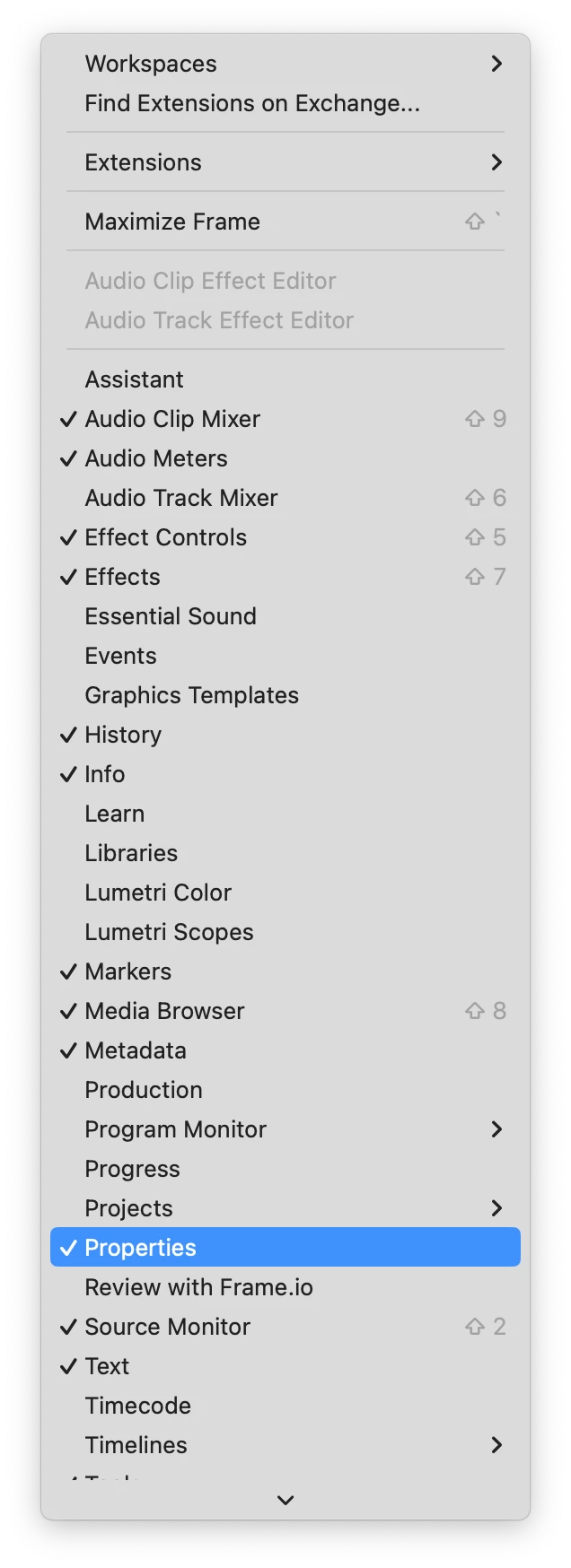
 

You can add the Properties panel to your existing workspace by docking it wherever you like. The Properties panel is now automatically docked in all default workspaces and will be visible when you Reset to Saved Layout.  
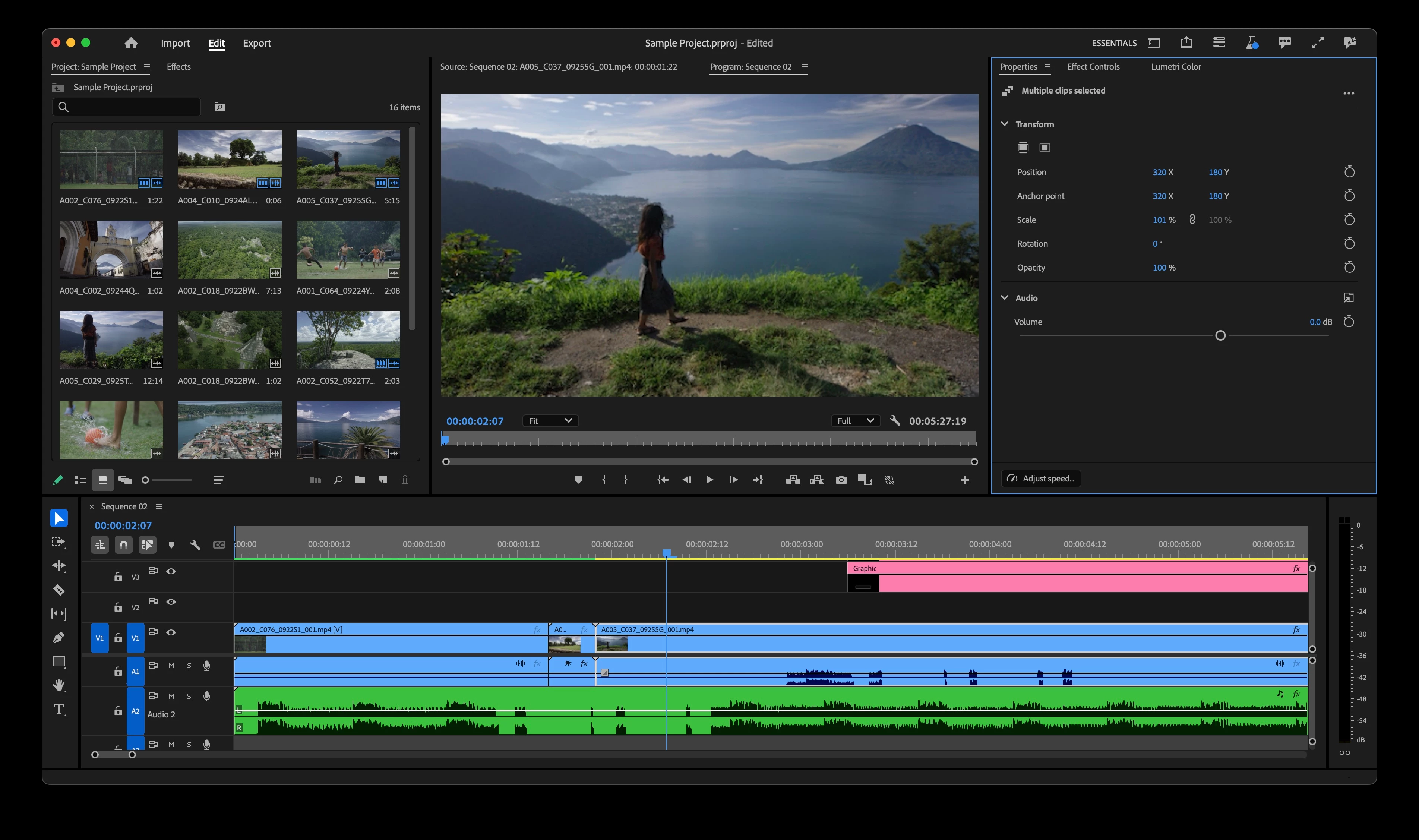


What has changed?

  • Controls for editing Graphics and Captions have moved completely to the Properties panel.  
  • You can access your Motion Graphics Templates from the Graphics Templates panel.
  • Properties Window for source clips has been renamed to Media File Properties.


Which controls are available via the Properties panel?

The following controls are available via the Properties panel based on the type of clip that you have selected in the timeline:

  • Video
    • Transform
    • Position
    • Scale
    • Anchor Point
    • Rotation
    • Opacity
  • Audio
    • Volume
    • Pan
  • Graphics:
    • All Graphics Controls
  • Captions
    • All Captions Controls
  • Speed Quick Action
  • Fill Frame and Fit to Frame


How do I change multiple clips at once using the Properties panel?

If you select clips that have the same property value (for instance, if the scale of two graphics is 100%) then you will see the value of the property in the Properties panel and can modify the property for the multiple clips that you have selected.


If the properties for multiple clips are different (for instance, the scale of one graphic is 90% and the scale of the other graphic is 100%), you will see ‘–’ in the input field. Entering a number will change the absolute value for all selected clips. Dragging the number control will change the values relative to the amount that you entered. If you increase the values, you will see a plus (+) in front of the number while dragging and if you decrease the values, you will see a minus (-) in front of the values while dragging.


What is coming soon?

We plan to continue adding features while the Properties panel is in beta. The following are coming soon:

  • Crop
  • Direct Manipulation Controls for Crop and Transform in the Program Monitor
  • Mute


We want to hear from you about what you would like to see added. Please try it and give us feedback!


Abhi Singh

Principal Product Manager, Adobe Premiere Pro


Correct answer Anna Lehman

Anna

@Anna Lehman 


Thanks for your response on this.


"Other Adobe apps such as After Effects and Photoshop have Properties Panels ... we felt it was appropriate to adopt the term as well to maintain congruity across apps."


This is a desirable ideal. Adobe does indeed struggle with an inconsistent and opaque lexicon, some baroque design principles, and a history of poor documentation.


Consider that Premiere Pro has Properties (now "Media File Properties" as you have indicated), new Properties, and Info panels. Can you distinguish for me the difference between the (new) "media file properties" and "info", for example? Why is "media file properties" (a panel) accessible from a contextual menu while "info"(which seems to be a subset of media filel properties?) is a panel listed under the "window" menu? Note also that copy/paste "attributes" involves a subset of "properties" with the addition of effects.


Such issues are exacerbated by the dearth of documentation from Adobe (find me anything in the online guide about the "info panel" and you win a prize).


Some clean up of the lexicon and design would be welcome. This new properties panel does indeed seem to have potential along these lines (notwithstanding issues I've outlined above).


However, any communication from Adobe around these issues (like this announcement) should take care to communicate not just "new features", but the implications and changes in the design (like the renaming of the old "properties" to "media file properties"). Absent that, Adobe risks antagonizing users with these announcements.


R.


@Remote Index thank you for highlighting these challenges – the confusion between Media File Properties and Info panels, along with the way they're accessed, is a definitely a valid concern. As the app evolves we hope to clear up any overlap and redundancies that exist, including what you've mentioned above.


We will update the original post to include the change in nomenclature and be mindful of incorporating useful information like this in future announcements to avoid frustration! Thanks again for bringing this up.

27 replies

New Participant
April 7, 2025

this is no good at all !!! The effects panel used to have everythin in it nad was simple to use especially with the keyframesnowyou have to navigate between properties and effects to do any kind of keyframe animation ... etc... and the properties panel is so crowded and busy to look at.. basically it sucks.. is there any way to switch back ???

Stan Jones
Community Expert
April 8, 2025

@CourtneyNewman,


What version are you looking at? What is different in the Effect Controls panel?


Stan


_nicdean
Community Expert
March 17, 2025

Hi Abhi,


Properties panel is a great addition and I like editing multiple clips properties. I have a feature request to edit multiple identical MOGRTs from the Properties panel. We currently have to edit one by one. Here's the FR post: https://community.adobe.com/t5/premiere-pro-beta-discussions/properties-panel-gt-multiple-clips-selected-gt-mogrts/m-p/15215895#M11442

New Participant
March 10, 2025

How in the world did yo think this would be an improvement? Instead of having a wonderful graphics panel on the side you could do all your editing from, you now have this little, completely non-functional properties pop up. I am trying to edit text on a graphic and it won't allow me to do that. What about this is supposed to be good? It is certainly good at making us scream and yell at Adobe as it totally screws up our workflow. 

MyerPj
Community Expert
March 10, 2025

Arin, how about a screen shot. The properties panel can be as big as the essential graphics panel was, and in the same place. Its hardly and difference?

MyerPj
Community Expert
February 6, 2025

Hey @alexandrac76430671 

There's a lot of steps there in @Michael at UNCP explanation.

It's so simple, it doesn't matter what is selected or even being on the frame where you want it to appear.

Just select the Text tool (by default Ctrl-T) and click on the program monitor.

It will create a graphic text layer for you and even open it in the Properties panel.

Then you just change it like you want to, and can move it around your timeline like any graphic.

That's it!

Cheers! 🙂


alexandrac76430671
New Participant
February 6, 2025

This is really difficult to understand and manage for me. I want to write text onto my video - not with the templates but just directly on the frame to identify what's in it. I used to use the Text tool, but now I can't make it work. I did make it work once but I can't remember the exact sequence I used. I've clicked on Windows/Properties but something pops up that I don't understand and  it doesn't seem to relate to text. Also where has Essential Graphics gone? Thank you, Alexandra

Theresa Rostek
Community Manager
Community Manager
February 6, 2025

@alexandrac76430671 Essential Graphics is now renamed to Graphics Templates. All customizing of text/mogrts/Premiere shapes will be done from the new Properties panel. You can access the panel from the top menu bar -> Window -> Properties 

If you double click on your text clip layer in the timeline, it should open the Properties panel for you.


If anything else still isn't working for you, a screenshot or video is helpful to be able to see what's going on.


Cheers,

Theresa

Michael at UNCP
Inspiring
February 6, 2025

Theresa,

This issue seems to be that there's no way to start a graphic from scratch. If we don't want to use a template, there's no way to make an empty graphic that is obvious. The only way I've found is to use the text tool in the Program window with nothing selected. But that's not in any way intuitive. Adding graphc as an option in File > New > Graphic would solve this but, as of now, it's frustrating.


Michael at UNCP
Inspiring
December 12, 2024

Excellent change. Excellent summary. Thanks.

Stan Jones
Community Expert
December 10, 2024

Is there a better place for this post? Is the reorganization of the properties panel now complete enough that it should be its own post?

See this thread:

https://community.adobe.com/t5/premiere-pro-ideas/revert-font-size-settings-to-original-in-version-25-1/idc-p/15030203#M18093


The reorganization of the Text section in text/caption properties put Font size on its own line and moved the editable number to the right and above the slider. The slider line expands with panel width, and moves the number with it - until it scrolls out of view. The panel is still wide enough for almost every other function, and the number could be moved back to the left, or set not to scroll out of view.


Stan


New Participant
December 3, 2024

This feature is not working properly in v25 and I absolutely DESPISE trying to find it each time. I'm already frustrated with the captioning process and this DOES NOT HELP. I have followed the directions to a T for multiple forums and there IS NO GRAPHICS PANEL FOR MY CAPTIONS. What am I missing and PLEASE CHANGE IT BACK.

MyerPj
Community Expert
December 3, 2024

@RiDances , what problem are you having? If you open the Properties panel, and make it part of your Workspace, then it should open each time with the other panels and be there.

New Participant
December 3, 2024

Here is what my premiere files look like. There used to be a graphics box that I could find eventually inside the properties panel with captions - I found it once - and never again. I've tried everything - the only thing that worked was convert EACH caption file to graphic and manually changing all the text. It wouldn't paste all attributes and I do not have time for that. If you have a solution...let me know. It's like the essential graphics literally disappeared.


Inspiring
October 10, 2024

@Abhi Singh Principal PM Love this new panel, it'll speed things up for sure!


I think Opacity and Blend Mode would be great additions too. Also colour Labels perhaps?

Additional: Can we group the individual Crop effects under the Effects Control panel as its own effect? So we can collapse it like Motion/Opacity/TimeRemapping effects.

lbernier
Known Participant
September 12, 2024

Can you please add a reset button for every properties? Could be right beside the keyframe button.
Often times, I will have to reset a single properties and resetting all is undoing all of the reframing etc.


Here's what it's like in the Effects Controsl panel.

Theresa Rostek
Community Manager
Community Manager
September 12, 2024

Hey @lbernier,


The resets are available when you right click on the property. If you've enabled animation, toggling animation (like the stopwatch icon in the ECP) will become available.