



Stan Jones
Community Expert
Community Expert
November 22, 2025

P: 25.6.2 Missing Text Panel; Empty UXP Panels

  • November 22, 2025
  • 80 replies
  • 16181 views

Update 2, 12/13/25: See staff post indicating that this is fixed without updating the PR version:
https://community.adobe.com/t5/premiere-pro-bugs/p-25-6-2-missing-text-panel-empty-uxp-panels/idc-p/15630125#M59800


To test, you only need to open the stock panel: Window -> New Adobe stock. It should load with content. If it does not, and hangs with the spinning circle frozen, post back here. The workarounds should still be working if you have any issues.


Update 12/3/25: This update is based on my tests as of this morning. This does not appear fixed by updating to 25.6.3. This bug report focused on workspaces and the text panel. The list of symptoms is longer. There is another long thread that focuses on failure of export commands:
https://community.adobe.com/t5/premiere-pro-bugs/p-premiere-pro-won-t-export-ui-frozen-need-help/idi-p/15608051


Trigger: For some users, when the Adobe Stock panel is open, whether it is in focus or not, after 10-15 seconds, it fails to load and causes one or more of the symptoms identified. The Stock Panel is open by default in the Essentials, Learning, Editing, and Libraries workspaces, and perhaps others. Once the problem is triggered, you cannot recover without restarting PR. Reloading the project alone does not work.


Symptoms (Incomplete list):

  • The Export mode/dialogue window cannot be accessed using Ctrl+M; File -> Export -> Media; Quick Export; or clicking on the Export tab. File -> Export -> Send to media encoder still works.
  • Text panel is empty, shows as unchecked in the Window submenu.
  • Text panel is missing, shows as unchecked, and clicking it in the Window submenu does nothing.
  • Text panel transcript and captions become unresponsive.
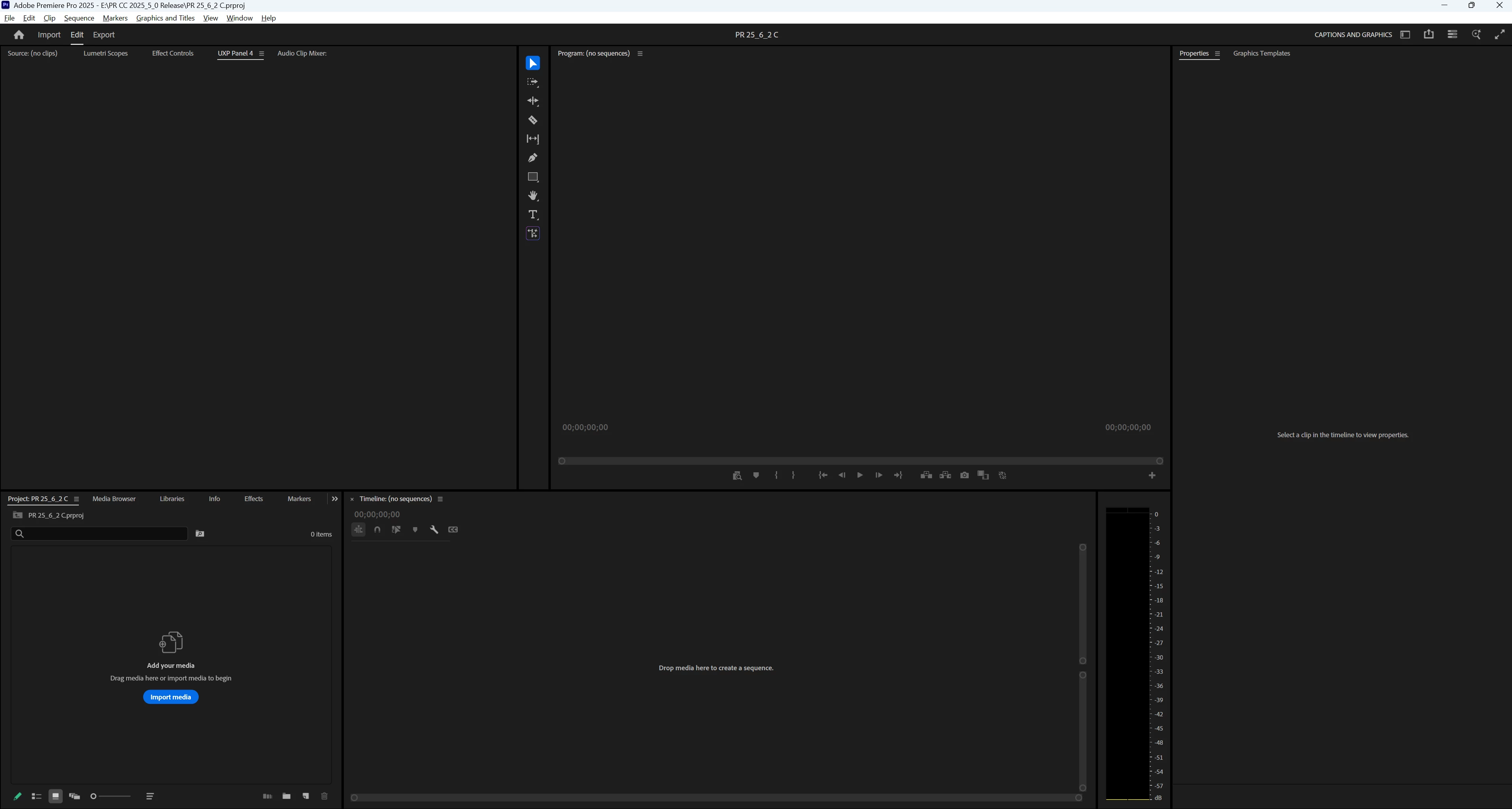
  • “UXP Panel n” (where n is an increasing number as you change workspaces) appear instead of an actual panel (for me this has included the Text and the Adobe Stock panels).


Best Workaround:

  • The most effective and least limiting workaround is to avoid opening the stock panel by modifying your workspaces.
  • Set Window -> Workspace -> "Import Workspace from Projects" OFF. You can set it on, but then each project must be set up correctly.
  • Close the Adobe stock panel in any workspace you use. You can do this in PR even when the problems are present. Do not later use "reset to saved layout" unless you want to redo that process.
  • Or create custom workspaces once you close the stock panel.
  • Note that these workspace changes are in your preferences, so if you reset preferences you lose them.


Other Workarounds:

  • Resetting preferences, creating a new project, uninstalling/reinstalling 25.6.2, and other steps may result in PR “working,” but it may be because you have not loaded the Adobe Stock panel. As soon as you do, it fails.
  • Install PR 25.5.0. This works, but I believe it is not necessary to avoid this bug.
  • Open in the Captions and Graphics workspace and do not change workspace. This works because it does not open the stock panel, but it is unnecessarily limiting.


Original bug report 11/22/25:

When changing workspaces, the Text panel no longer appears; various empty panels show, e.g. "UXP Panel 3," "UXP Panel 4," etc. I do not see the problem in Beta 26.0.0.36.


I updated to 25.6.2 from 25.6.1. As always, when opening the first time, I reset preferences, cache, and plugin loading cache, and I created a new project. After seeing this problem, I restarted my PC and reset preferences, cache, and plugin loading cache, disabled third-party plugins, and created a new project. Same result. I then repeated that a third time to get more details. I confirmed I am in 25.6.2 Build 1.


"Import workspace" is off. I note that even with disabling plugins, 5 plugins are still available. I will explore that further.


PR opens in the Learning workspace. The Text panel is present, and is checked in the Window menu. I switched to the Captions and Graphics workspace, and the Text panel is still present, unlike each of the previous 2 times. I now switched to the Editing menu. In the panel group with the Project Panel, there is an empty panel "UXP Panel 3." There is no Text panel visible, and the Text panel is not checked in the Window menu. When I switch back to the Captions and Graphics workspace, the Text panel is not present, there is an empty panel "UXP Panel 4" in the Source monitor group, and the Text panel is not checked in the Window menu. (See screenshot.) I switched to the Learning workspace, the Text panel is not present, there is an empty panel "UXP Panel 5" in the Source monitor group, an empty panel "UXP Panel 6" in the Project Panel group, and the Text panel is not checked in the Window menu. 


I closed and reopened PR, and opened the last project. It was (as expected) in the Learning workspace, and the Text panel was present. I changed to Captions and Graphics, then Editing, then Captions and Graphics, and then Learning. The same problems occurred with the exact results.


PR 25.6.2 PR Beta 26.0.0.36.

Win 11 Pro v11 25H2
i7-11700K, RAM: 640 GB. Single UHD monitor. NVIDIA GeForce RTX 3070, Driver: 566.36.


Stan
 

80 replies

Community Manager
November 27, 2025

Thanks for all this information @Stan Jones. Just to clarify, you are not seeing or have not seen this in the 26.0 Beta, only 25.6.2. And the workaround you've been able to find is to start the project up already within the Captions and Graphics workspace and not switching, or by saving a new workspace from it directly (which is allowing you to switch)? 

Do you have a project you could share for the team to take a look?

Stan Jones
Community Expert
Community Expert
November 26, 2025

@Dani_V.,


This morning, related to another issue, I reset preferences by renaming the entire documents\adobe folder and manually deleting the cache folders. When a new project opens in 25.6.2, the Learning workspace has no Text panel, the Text panel is not checked in the Window submenu, and clicking on it does not open it. Changing to the CG workspace results in UXP Panel 2 instead of the Text panel.


In Beta 26.0.0.39, the Learning panel does not have the Text panel open, but it opens if selected in the Window submenu.


Stan


November 26, 2025

Hi, I have updated my Adobe Premiere pack to the newest version today and since then the 'Text' tool doesn't show up anymore in my project. When I klick on 'text', nothing happens. I need the window to create transcripts and subtitles for my videos. Does anyone know how to fix this? 

Thanks in advance and all the best!

Ann Bens
Community Expert
Community Expert
November 26, 2025

Reset workspace?

Stan Jones
Community Expert
Community Expert
November 26, 2025

@Dani_V.,


> this is specific to the Text panel only?

I think no, but that has been my focus. In a test tonight, a switch from Captions and Graphics Workspace (CG) to the Learning Workspace resulted in "UXP Panel 4" replacing Adobe Stock in the in Project panel group.

> Are you able to close the UXP panels

Yes.


> check/select the Text panel in the Window menu when it's deselected

Once deselected with a "UXP" panel anywhere, clicking Window -> Text does not open it.


One time, I got the UXP error for the Adobe Stock, and when I switched back to CG, the Text panel was there with no UXP panel, but Text was empty (no captions/transcript tabs), and showed in Window submenu as not open.


Closing and reopening the project does not reset the UXP panel numbers. Closing and opening PR starts fresh.


Opening PR in the CG workspace allows working in it until there is a change of workspace.


I created a new workspace from CG without changing anything. Going back and forth there did not produce the UXP panels.


Stan


November 25, 2025

Same issue, MacOS Tahoe 26.1, M4 Mac Mini, 32GB ram

Participating Frequently
November 25, 2025

BUG: When students in our lab try to export or import nothing happens; its like the features is broken; Editing seems to works.
BUG: Education licensed installer apparently cant install older version; so we can't back rev to an older version easily.

OSX Sequoia with the newsest version of Adobe Premier  25.6.2

So I have more then 50 Macs with broken Adobe Premier, that will need to manual uninstalled and force back to an older state with package installer.  (grrrr)

Stan Jones
Community Expert
Community Expert
December 1, 2025

Update on my stock panel comments.


The Stock Panel is open by default in the Learning, Essentials, and Editing workspaces. I now suspect that it triggers the various problems if it is open.


Since my primary workaround (start in Captions and Graphics workspace and stay there) involves a workspace that does not open the Stock panel, it works.


My previous tests did not take into account part of the way workspaces work.


I am using the default setting OFF for Window -> Workspace -> "Import Workspace from Projects." The workspace that is loaded when reopening PR is the last one used with any changes from its default state. So, for example, if I am in the CG WS and open Adobe stock, close and open PR, and open an old, or create a new, project it will be in the CG WS with Adobe stock open (perhaps in focus, perhaps not depending). I think that panel tries to load its content, even if it is not in focus.


In any event, if I open the Editing, Learning, and Essentials workspaces, and close Adobe stock in each one, I do not see the problems. Once the problem is triggered, you may get any of the UI problems described in my symptoms list. 


I can now add to the symptoms list the text panel transcript and captions becoming unresponsive.


I do not know if this is a root cause or only one of multiple, but it does look like another workaround.


Stan


November 25, 2025

Same problem!

November 25, 2025

I’m trying to export an video in Premiere Pro but it's not working and I’m out of ideas.


  • When I press Cmd + M, nothing happens.

  • If I click Export in the top menu, the interface doesn't switch to the tab, only when I restart Premiere Pro but on the tab the entire export screen is frozen — none of the buttons respond.

  • Even worse:

    • If I start a new project, I get stuck on the Import screen.

    • I can’t select any sample media or skip the import.

    • UI is just unresponsive.

Troubleshooting I’ve already done:

  • Reset preferences

  • Cleared cache

  • Uninstalled and reinstalled Premiere Pro

  • Tried opening different projects

  • Restarted machine multiple times

  • Updated to MacOs Tahoe

After reinstalling I can sometimes reach the Export page, but the buttons stay frozen and I can’t actually export anything.

This has been going on for hours and nothing fixes it. 

I can still make edits to the video when I'm in the project but can't export it
Does anyone know what could be causing this or what else I can try?

Community Manager
November 25, 2025

Hi @karien_2070

Welcome to the Premiere Pro forums and sorry you're experiencing issues. We need a few more details to help like the exact version of Premiere Pro you are on. Did this start before or after you updated to Tahoe, and what kind of Mac are you using?


Can you switch or reset your workspaces? 

Do you see the same behavior if you try exporting within the Project panel by right-clicking your sequence > Export Media? 


As a workaround, are you able to go to the top menu File > Export > Send to Adobe Media Encoder, and export through there instead? 

Sorry for the frustration, 
Dani

Community Manager
November 24, 2025

Hi @Stan Jones

Thank you for reporting a problem. Just to confirm, this is specific to the Text panel only? Are you able to close the UXP panels at all or check/select the Text panel in the Window menu when it's deselected? 

For all the workspaces that seem affected, are you able to 'Reset to saved layout' for each of them, and does this make any difference? 

It sounds like every time you switched workspaces the UXP Panel # went up in that given session... (So the Text panel is visible in the first workspace you open the project with, visible at the second workspace switch, and then disappears and starts increasing as UXP Panel 3, 4, 5, etc, in the subsequent switches—is this accurate?) 


Sorry for the frustration, 
Dani

November 25, 2025

Hi Premiere community,


I have been trying to use the Text transcription tool, but there seems to be an issue with my system or the software itself. I am not sure which.

When I freshly launch Premiere and go to the Transcribe button on my source clips, it will open up the "Text" panel for text based editing. This panel shows correctly once, but cannot be clicked and stops responding immediately. When I close the Text panel then go to Window > Text, it does not open again (no freeze, no error, no delay, no loading icons, it just closes the dropdown). When I restore my layout to the original one after closing it, or go to Window > Workspaces > Text-based Editing, it does try to reopen the window but only shows a blank panel with a "UXP Panel" title (placeholder?).

I am on a brand new Mac M4 Mini running Tahoe 26.1. I have restarted my computer, ran without plugins (launched with Alt/Option key), reinstalled Premiere Pro completely,  and reimported my source content. Does anyone know how to fix this?

I have never used this panel before but the features it advertises would reduce my workload for my project tenfold, so I would like to find a solutiom.

Community Manager
November 25, 2025

Hi @Jeff24223909ekxx

Welcome to the Premiere Pro forums. Thank you for reporting a problem and sorry you've been experiencing issues.

If you switch workspaces again afterwards, does the 'UXP Panel' go away or do you see its number go up?

Does the issue sound similar to this post here

Sorry for the frustration,
Dani

R Neil Haugen
Legend
November 22, 2025

Ouch. Haven't gone that far yet, but that don't look good ...

Everyone's mileage always varies ...