js_chicago
Known Participant
August 23, 2011
Answered

Add stroke or border to still image or video clip

  • August 23, 2011
  • 12 replies
  • 225285 views

Hi,

Is there a simple way to add a white border around a still image or video clip in Premiere Pro CS 5.5? I've seen the suggestions for adding a radial shadow and am unsatisfied with the results; it's nearly impossible to center the image within the border and many other suggestions out there do not address CS 5.5.

Thanks!

-jason
This topic has been closed for replies.
Correct answer Ann Bens

So many ways to do this:

12 replies

FLUXLX
Participant
June 16, 2024
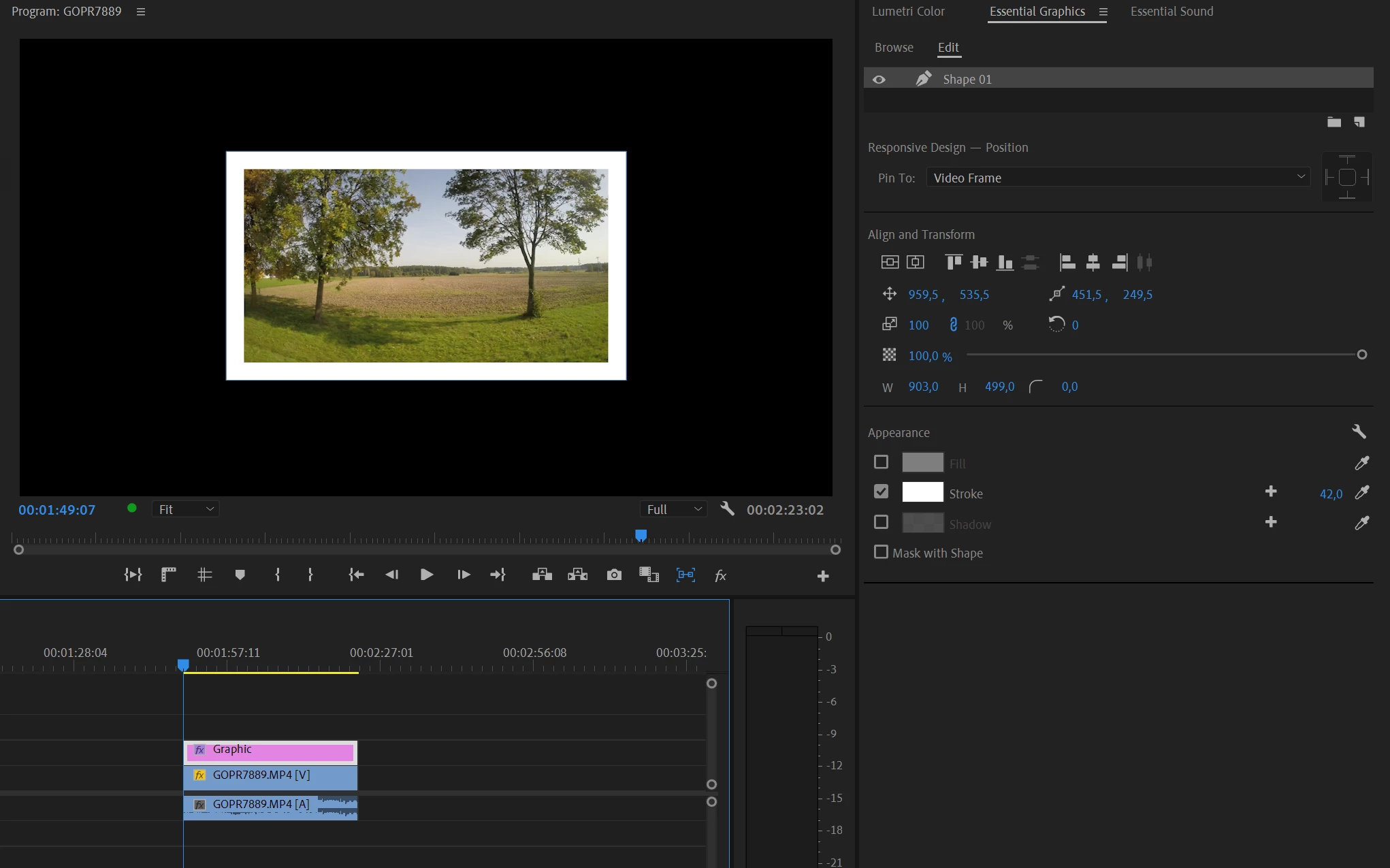
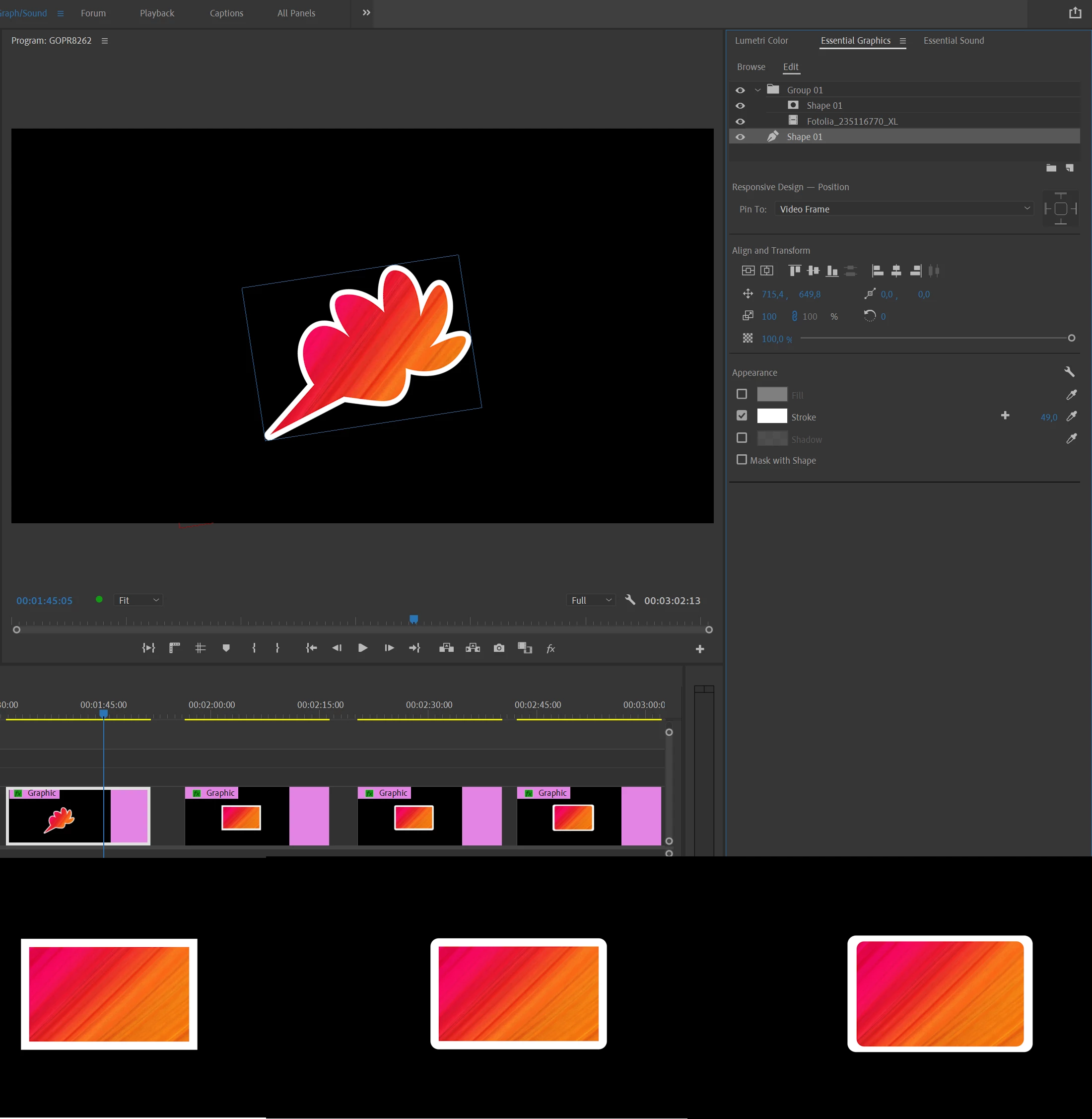
  1. Add a Rectangle layer
  2. Untick the Fill box
  3. Tick the Stroke box
  4.  Select Inner
  5.  Use the numerics slider to increase the size and dropper to change the colour 
Participant
September 7, 2023

In 2023 you can just add an Alpha glow and set the brightness all the way up, change the glow size to dictate how thick you want it, and even pick 2 colors if you like the idea of it changing. I use this for png photos that I want some definition on. 

For videos or photos, just drawing a rectangle shape and editing it to be a stroke rather than a fill is by far the quickest and easiest way. Came here searching for answers and didn't find what I was looking for so I dug around myself and found it lolol

Participant
February 21, 2022

After getting frustrated with trying to find a very fast solution to this problem, I finally came up with a solution of my own.  It does not require nesting timelines or more essential graphic layers.  It's simply using the Drop Shadow filter (x4) on your video layer.


1) apply the Drop Shadow filter, select the color you want for your border, distance, feather, etc.  then set your direction to 0 degrees.

2) Copy/Paste that Drop Shadow filter, and change the direction to 90 degrees. 

3) Do this a total of four times, with the directions being 0, 90, 180, 270 degrees respectively.


Now if you have multiple clips in the timeline that all need this treatment, you can just copy/paste attributes, and away you go. 

Ann Bens
Community Expert
Ann BensCommunity ExpertCorrect answer
Community Expert
February 21, 2022

So many ways to do this:

kirynp57461627
Known Participant
May 19, 2020

Way easier soltion! 
1. Duplicate the layer
2. On the bottom layer use the scale (uncheck uniform scale) to make your bottom layer slightly larger.
3. Use curves and exposure in lumetri colour to make the bottom layer white

June 5, 2017

The best option is Newbluefx plugins -PIP; Photo grid more Premiere had those options in Premiere 6.5 years but lost in upgrades

Ann Bens
Community Expert
Community Expert
June 5, 2017

Mine is for free.

Yes we use to have the Clip effect up to CS2.

June 5, 2017

That is very creative and takes a bit of time for frame shapes and sizes. Check youtube and there are other too. Pity Adobe has no border even to their PIP effects. Most editing program have.

Inspiring
April 19, 2017

Use paint bucket

fill selector :opacity

stroke:  stroke

Participant
April 18, 2017

I had a crop with a circular mask that I wanted a stroke on and had success using 2 drop shadows, one along the top and bottom edge.  It gave it a nice style effect as it wasn't a perfect stroke around the whole clip.  I could see using 4 drop shadows for perfection, but two did the trick for me.  

Participating Frequently
October 31, 2013

Yosik's solution is great, but difficult to implement if your image is cropped.

Solution = 4x Drop Shadows

Opacity: 100%

Softness: 0

Direction(s): 0, 90, 180, 270

Have a nice day.

Participant
January 22, 2014

Hello guys !

I did it adding Drop Shadow 4 times, each at 0, 90, 180, 270 degrees. And the effect moves with the clip, that was my interest in the matter.

As for Cropping, the border (drop shadow) stais next to the Crop factor you implement.

Good Luck !

Inspiring
January 22, 2014

Because my inset moves and grows, I ended up using a "glow" in CS6. Worked great!

Participating Frequently
March 17, 2013

Try adding a drop shadow and setting the opacity to 100%.

Participant
August 24, 2013

EASIEST way:

1. Add a grid to the clip.

  • Anchor Point 0,0.
  • Size from Width and Height.
  • Width = clip width.
  • Height = clip height
  • Color, Feather and Opacity to taste
  • ! Important. Blending Mode = Normal

2. Add Crop (so the grid does not expand to the sequence size)

THAT'S IT!

You can resize and position to your taste, add a Drop shadow etc...

Am I the only one who "discovered" this??

Participant
August 25, 2013

I think Yosik wins the contest.  The grid is magic, and what is amazing is the frame resizes along with the picture if the clip is later scaled up or down.  One for the recipe book.

Thanks Yosik.

Known Participant
December 13, 2012

Here's another way. put the clip on it's own timeline, then add a background color and scale the video down to the desired border size. Now just nest it in your main timeline.

scottf82225499
Participant
March 8, 2023

I like this method the best.