


- Home
- Premiere Pro
- Discussions
- Re: Adding Fixed Number of Markers at Fixed Durati...
- Re: Adding Fixed Number of Markers at Fixed Durati...
Adding Fixed Number of Markers at Fixed Durations

Copy link to clipboard
Copied
Is there a way to add 21 markers to a sequence at 05:25 minutes in duration per each marker without having to manually start from 00:00:00 add 00:05:25, then go to a calculator and add 5.25 more to that number, and repeat that process 21 times? It seems a little excessive to have to manually add 5.25, 21 times to a sequence.
I have 21 clips I want at the same length for 5 minutes and 25 seconds per clip.
Is it easier to make 21 sequences for 5.25 each
OR
Manually insert a Marker by pressing M to add a marker every 5.25 minutes in duration 21 times?
What is the easiest and fastest way to add clips for a set duration, so they all fit within a certain fixed amount of time?
I have like 4 minutes to add 21 clips at the same duration. I came up with a 5.25 per clip (which may be inaccurate as this is my first time trying to create multiple clips in markers as a guide like I can add in Photoshop every x value, then bring in my photos at those guides. Is there a better and more effective way to handle this type of operation in PPCC 2017?
Sincerely,
Christopher


 28
Replies
28
28
Replies
28


Copy link to clipboard
Copied
I have 21 clips I want at the same length for 5 minutes and 25 seconds per clip.
this is you original question: should that not be 5 seconds and 25 frames.
Yes your stills are much longer as you changed them from 4 seconds and 29 frames to 3 minutes, 31 seconds and 11 frames.
I think you calculations are off. Timecode is set to hours:minutes:seconds:frames.
Looking at your sceenshot guessing you are in NTSC land (usa?) that means there are 30 (29,97) frames in a second for a standard sequence.
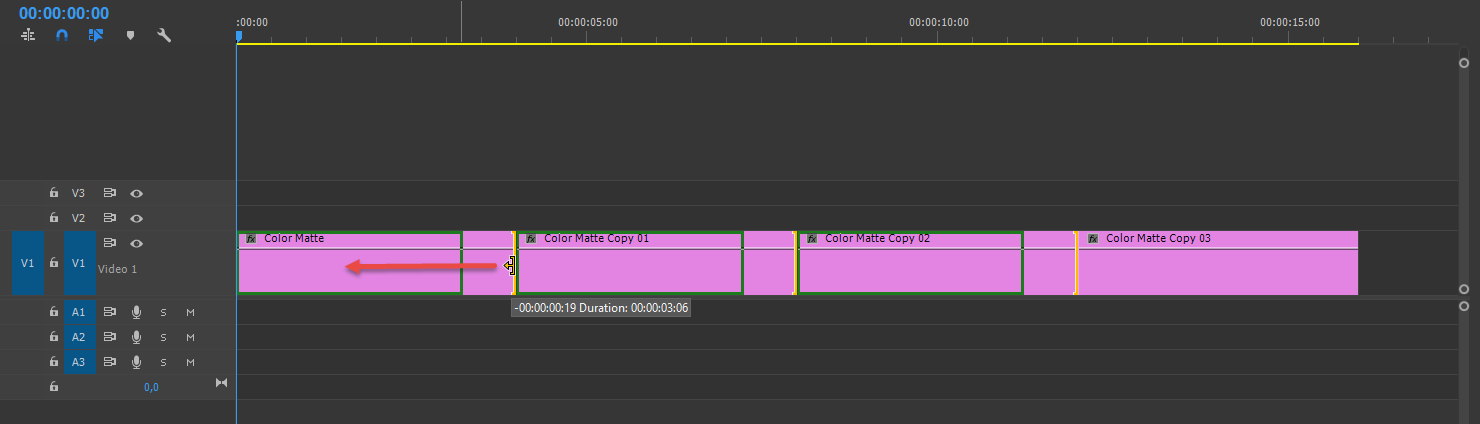
This is also a way to extend or make stills shorter on the timeline: ripple trim.

Copy link to clipboard
Copied
I won't be able to do much on this till later today.
First, clarify the big picture: you have audio that is the total length of what you want to export? And 21 stills that you want to place on the timeline, each with the same length so their total length on the timeline matches the audio?
For example, if your total length is going to be 5 minutes (300 seconds), then each clip would be 300 divided by 21, or 14 seconds + about 8 frames (00;00;14;08).
An example to test this, if each clip is 10 seconds exactly, the total length would be 21 X 10 seconds = 210 seconds, or 3 and half minutes (00;03;30;00).
You set the duration of the multiple clips correctly, except, as Ann points out, your duration was too long. But the method is correct. And you appear to have placed the time adjusted clips on the timeline correctly.
Copy link to clipboard
Copied
I don't know how to find the new duration specifically.
Copy link to clipboard
Copied
I figured it out.
Someone said I could find the timecode in the Work Area Bar which I didn't know what that was so I Googled it.
This is what I found: 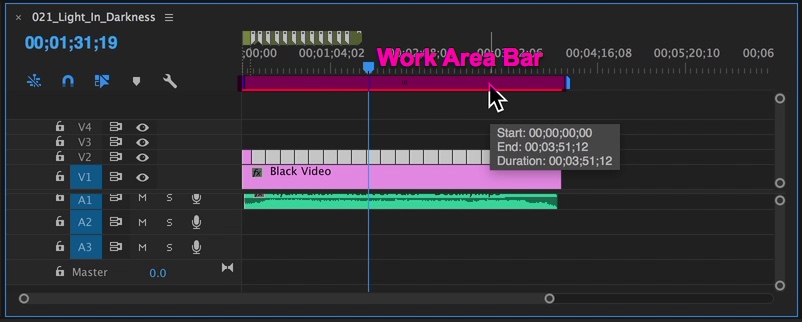
You don't need a timecode calculator because the Work Area Bar can be adjusted visually to any specific range and it snaps like in the .gif image: 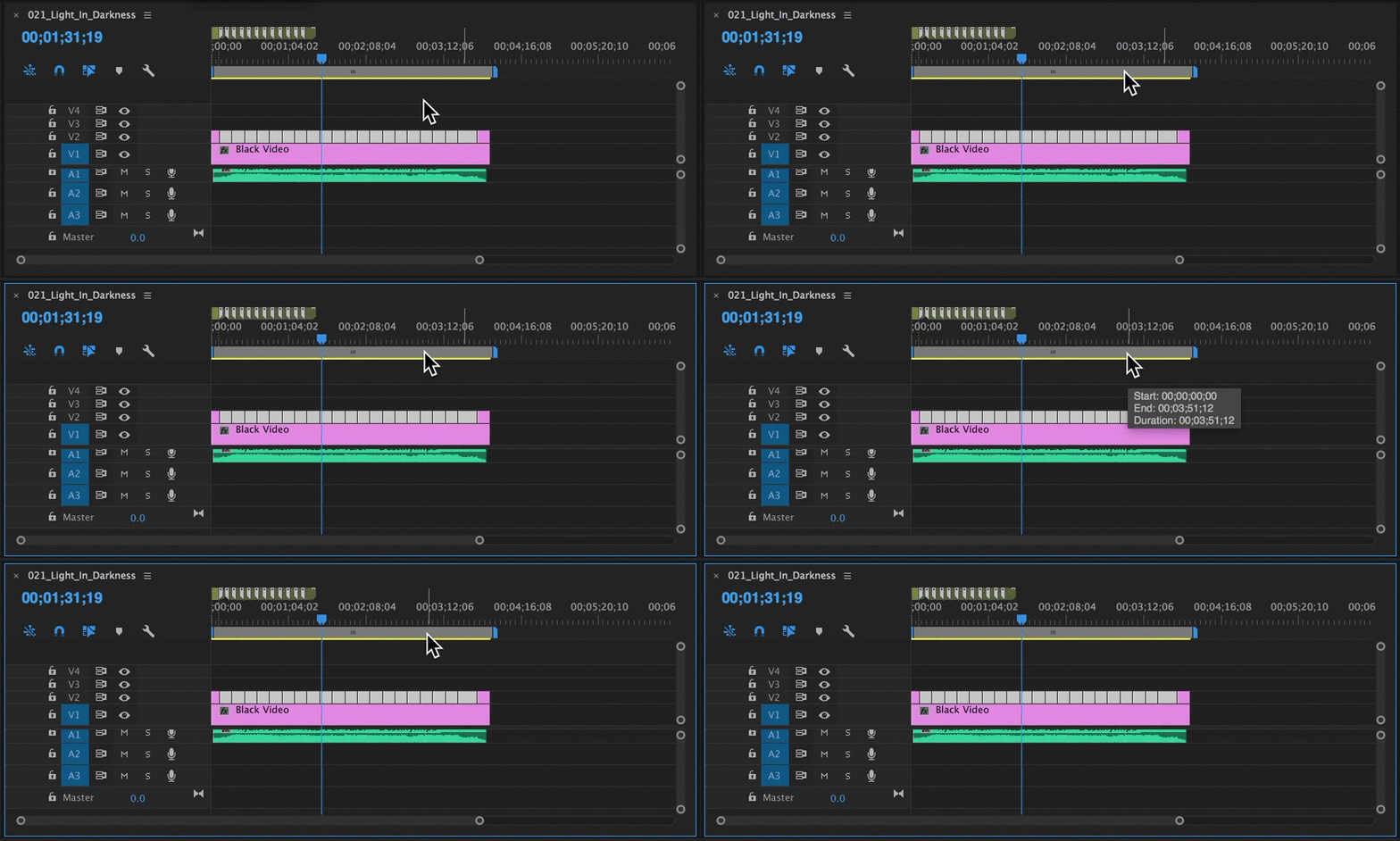
Here are the sources where I found this resolution: 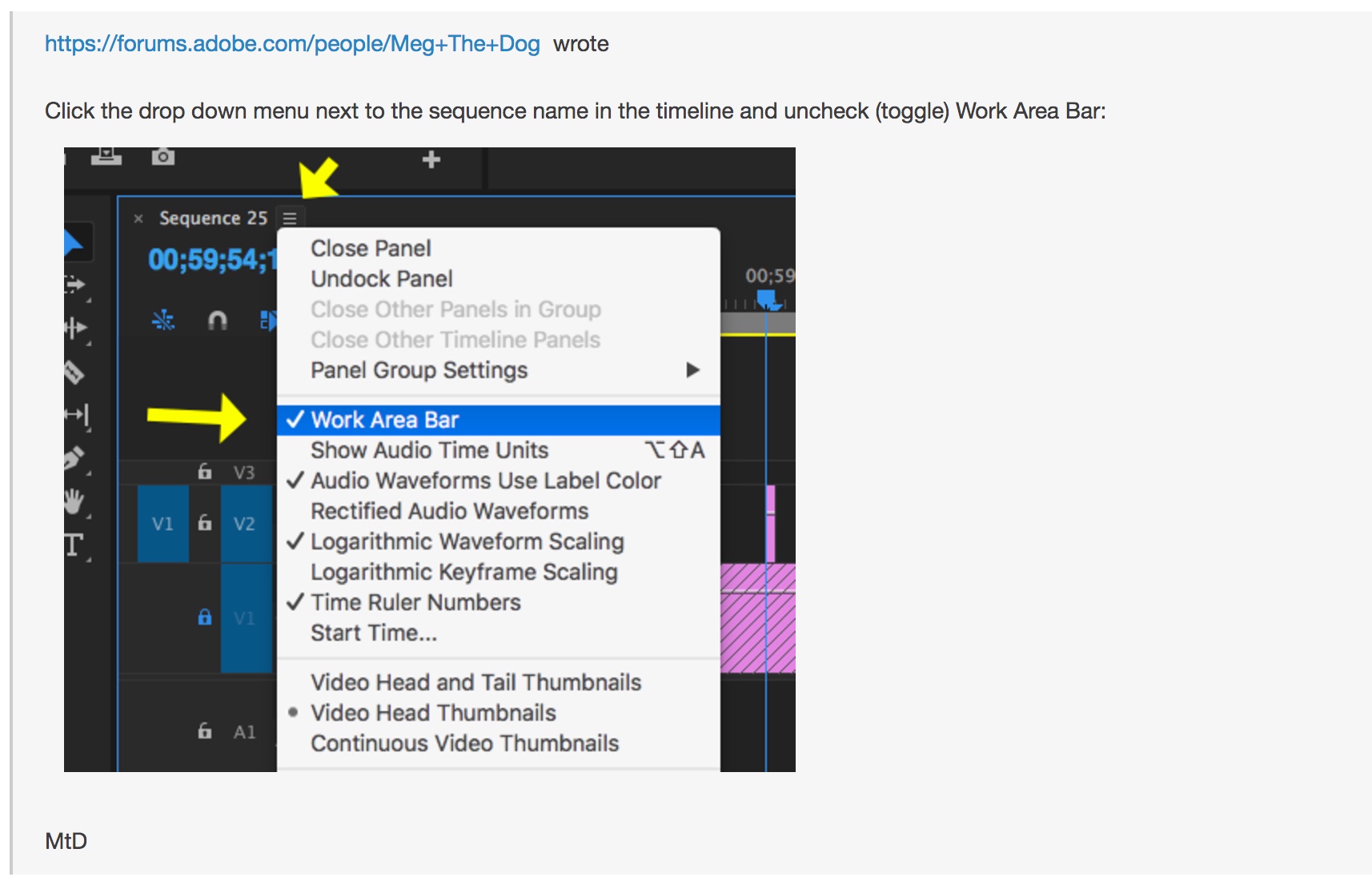
This was the kicker for me that helped me figure out the time I needed for empty space I wanted to change the duration into: 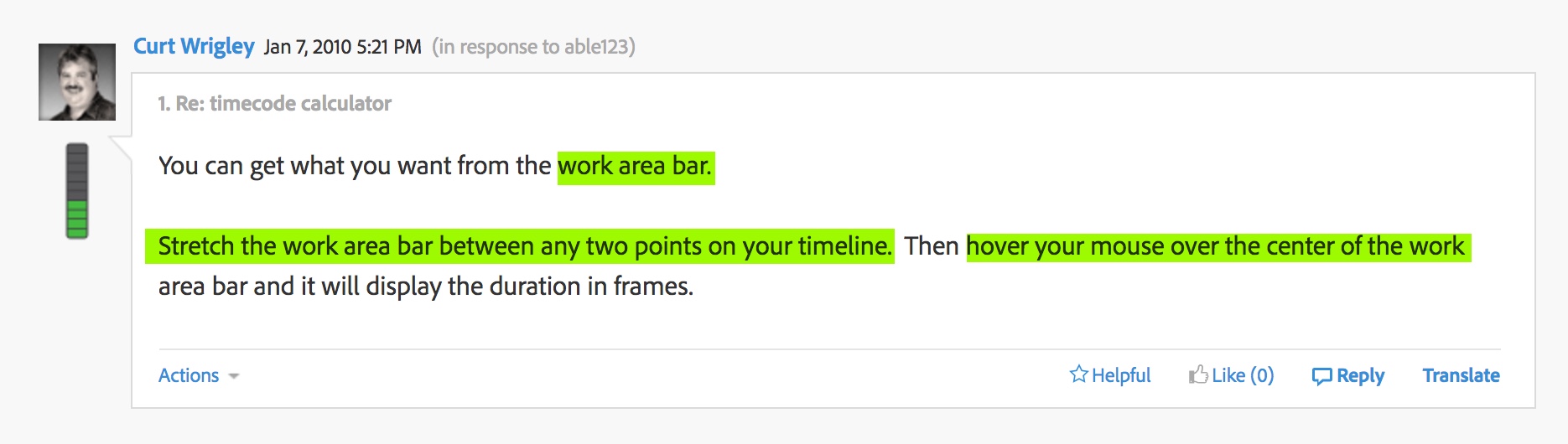
So I tested this out to see if I could get the results like they are talking about myself: 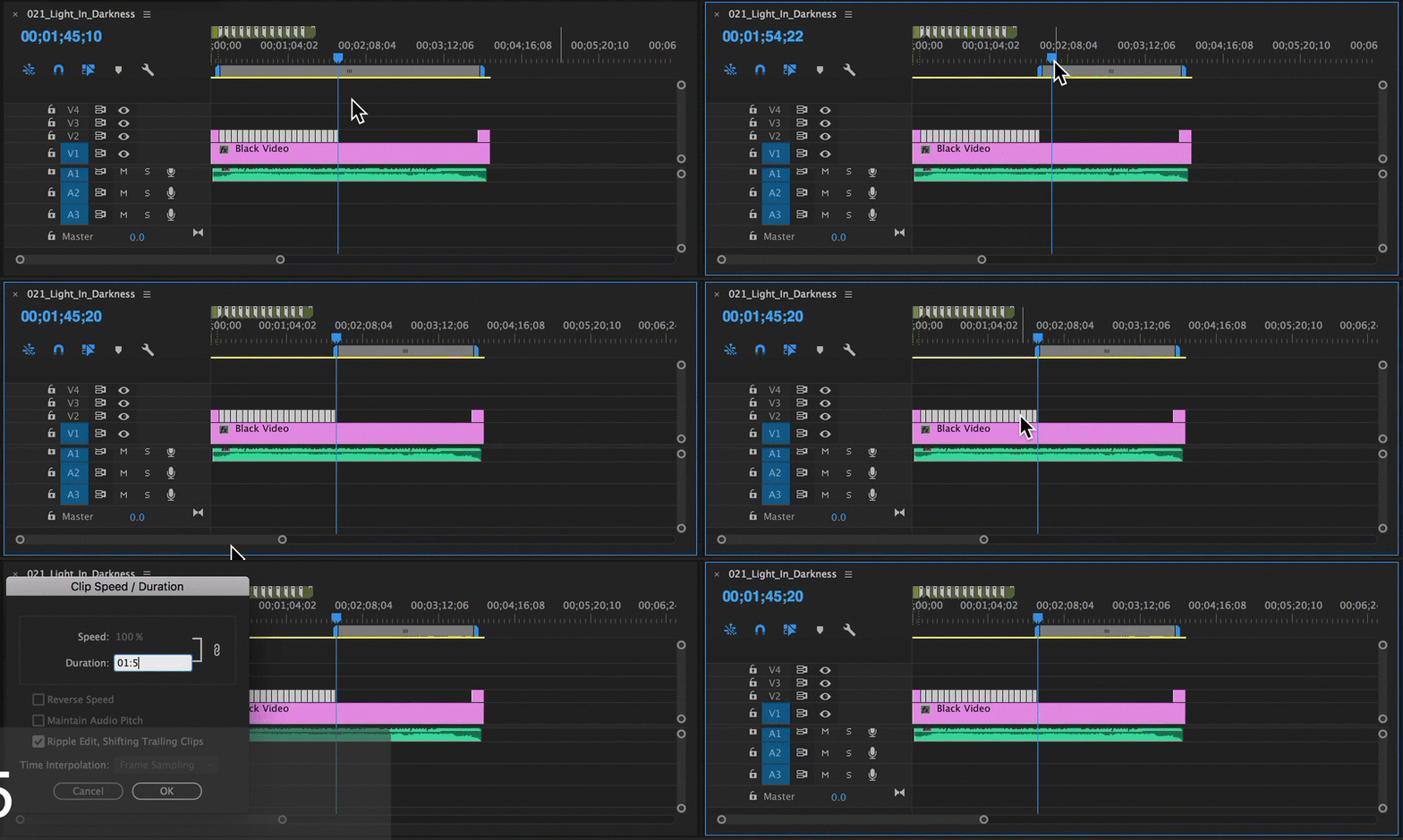
I could find the area of the negative empty space, but I need to divide the duration by an x value of stills; which to me looks like this or something close to it: 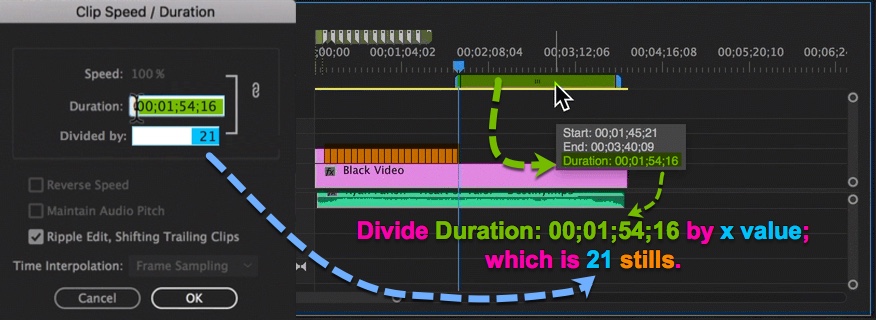
Am I able to complete this function and get this done in a specific way without this example image? I just don't know how to do it, and it seems like there should be a tool that I can select all the stills and scale them out to the duration in the Work Area Bar Duration, and it would scale them evenly, and snap to the end.

-
- 1
- 2

Get ready! An upgraded Adobe Community experience is coming in January.
Learn more
 AdChoices