Participant
November 16, 2022
Answered

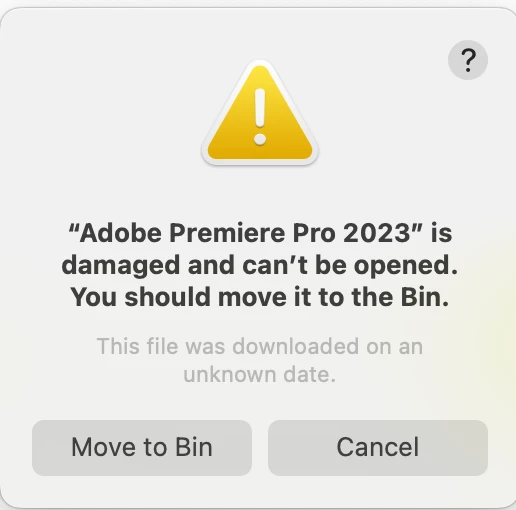
“Adobe Premiere Pro 2023” is damaged and can't be opened

  • November 16, 2022
  • 12 replies
  • 38707 views

Hello,


I'm trying to open Premiere Pro 2023 from the Creative Cloud but I'm just getting the following message:


Does anyone have any insights on what to do? I can't even move it to the bin as it tells me I have to manually move it to the bin,


Help!

Correct answer GFX5D67

Hi GFXD67,
I see your message and it sounds like the steps given earlier did not work for you. Is that right? If so, try the following. 


  1. Open the Apple menu > System Settings.
  2. Select Privacy & Security > Developer Tools.
  3. Click the ( + ) button and navigate to the folder where the damaged app resides.
  4. Select the app and click Open.

Is that working for you? Please let us know. It could help others. Sorry for the frustration.


Thanks,
Kevin


Thanks for the reply. Unfortunately I didn't see this message in time and so cannot test it, but I did manage to solve the issue after seeing from a web search a page that said that the message doesn't mean the the app is actually damaged and could be a security issue.


So I went to Privacy & Security and I found there one of those messages you get when installing certain software about something being blocked from doing something to the system and you need to manually go into System Settings to allow it. (Either 'system extension blocked...' or '[app] was blocked from use because it is not from an identified developer').


Either the message didn't appear when I first installed Premiere or it was hidden behind some other window (or perhaps hidden by Stage Manager in Ventura?), but either way I didn't see it. After now clicking on the option to allow whatever it was (and probably restarting my mac), Premiere 2023 is working again. So I could have done all this without any uninstall/reinstall process it seems. I certainly think that this guidance should be given  in troubleshooting FAQs if it isn't already, and if the error message was about Ventura thinking PP is not from an identified developer then that should be looked into.


12 replies

Legend
November 16, 2022

MacOS uses checksums and digital signatures to ensure that applications haven't been corrupted or infected with malware. If you see this warning, the fix is typically to remove and reinstall that application to be certain that it is intact and all components are correctly installed.

Let us know if that works.

Participant
November 17, 2022

Tried that and unfortunately, that didn't work 😞

willmen08
Participating Frequently
September 13, 2024

uninstall every cc app including preferences, https://helpx.adobe.com/creative-cloud/help/uninstall-remove-app.html

then uninstall the cc desktop app, again using the correct uninstaller, https://helpx.adobe.com/creative-cloud/help/uninstall-creative-cloud-desktop-app.html#sa_src=web-messaging

clean your computer of cc files per http://www.adobe.com/support/contact/cscleanertool.html

check for, and if available, update your os

repair all ms visual c++ versions that can be repaired.

update your ms visual c++, if it can be updated

restart your computer (don't skip this)

use the "alternative download links" at the bottom of the page at https://helpx.adobe.com/download-install/kb/creative-cloud-desktop-app-download.html to download and install an os compatible desktop cc app

use the desktop cc app to install your cc programs/trials


I'm sorry, but this is unreasonable. You're asking us to reset everything that we've done to every Adobe app over the years????? I'm glad I took the advice of looking into the Privacy and Security and found that that was it. It now works for me.

kglad
Community Expert
Community Expert
November 16, 2022
Participating Frequently
November 17, 2022
quote

reset your preferences, http://www.mediacollege.com/adobe/premiere/pro/troubleshooter/trash-preferences.html/prepaidgiftbalance.com


By @kglad

Thanks a lot for the reply. I will try the suggested solution from your link.