Nick24532079q08t
Known Participant
August 8, 2024
Answered

Automation Blocks - Exporting text from ALL sequences to spreadsheet

  • August 8, 2024
  • 2 replies
  • 6448 views

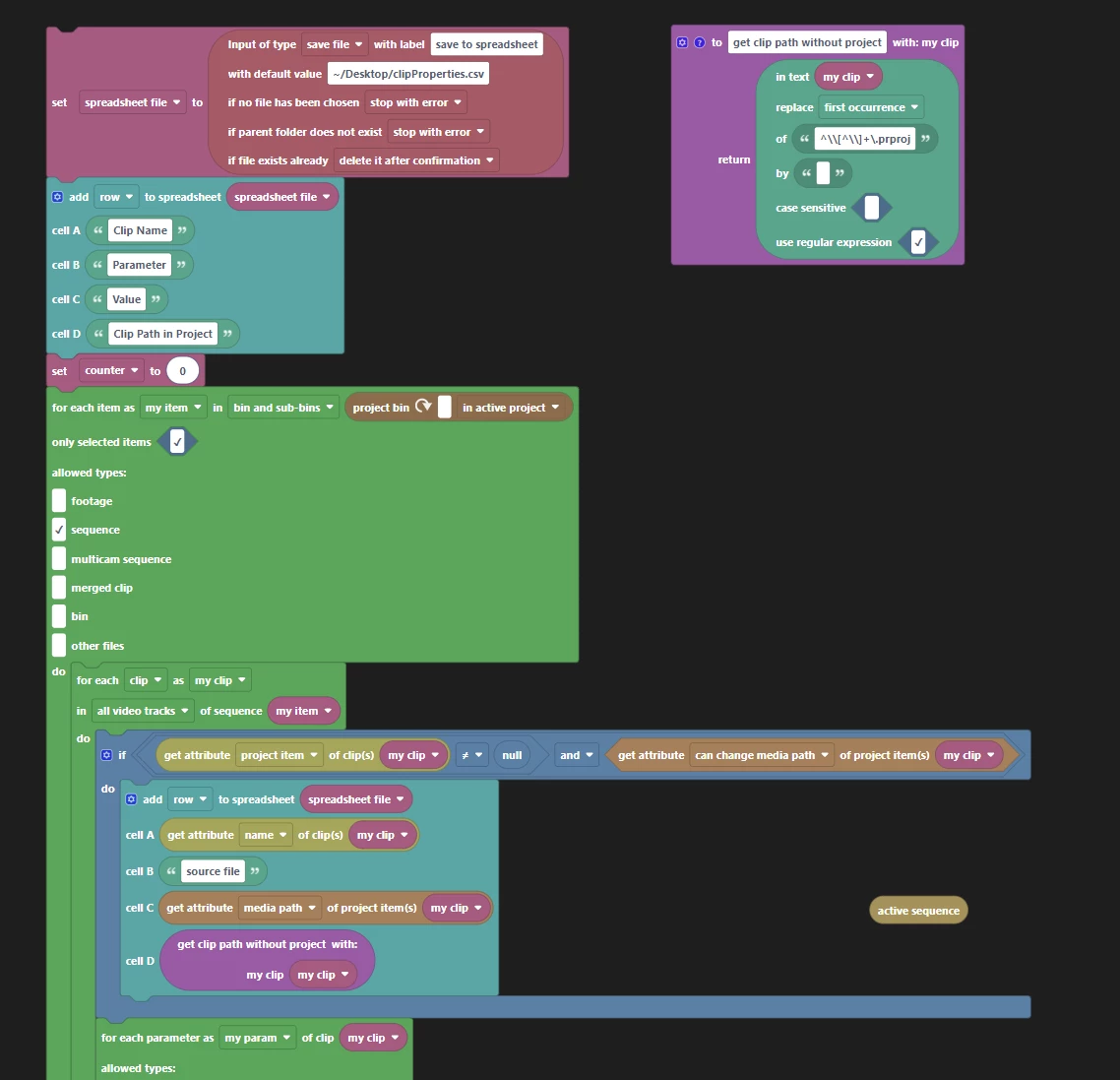
Hi Mathias, I wanted to continue our conversation from aescripts.com here on the forums.  Thank you for providing me with this updated code block image.  You were spot on to have the template block for exporting clip data embeded into the "For each sequence" block.  It took me a while to get it to work but eventually got it to a place where I could export all the data for the selected sequences.  Couldn't seem to get it to work as a Bin and Sub Bins option.  I don't mind selecting the sequences though.  The challange I am now facing is the time it takes to export all the clip data in those sequences.  With only 3 sequences selected (out of 8), the export to .csv took 29 minutes.  I feel like I'm missing something.  My concern is the sheer amount of data i'm pushing from all these clips is irrelevant.  All I really want to be able to do is export the text only from all the AE Mogrts in a project to a .CSV,  Then I can translate and re-import the .CSV and have it update all AE Mogrts in all sequences in a chosen language based on the column.  I've tried the template update AE Mogrt Texts with Spreadsheet, and it has been hit or miss for me.  Punctuation seems to throw it off, and sometimes it misses whole text strings all together.  I have used the Export Properties of selected clips to spreadsheet because it works reliably.  It seems to make all the changes with accuracy.  Creating a spreadsheet that has just the mogrt text and then reimporting it for the entire project is my goal.  I can make this work by exporting massive amounts of data, but I'm concerned about the processing time.  I know i'm doing it wrong, because I'm not much of a programmer.  I'm attaching what I ended up with for the export of the data.  Thanks Mathias.


This topic has been closed for replies.
Correct answer Mathias Moehl

Hi Nick,
to give some context for everybody else, here is the original conversation:

quote

I've watched this tutorial several times:  Update Clips, Texts, Colors and More With A Spreadsheet .  It's a great video tut, and I have learned how to export, "all selected clips" to a spreadsheet.  I've modified the data and re-imported it.  Works great!  I try to reverse engineer this process by adding the automation block: For Each Project Item, but I've been unsuccessful so far.  My goal is to export all clip data from all sequences in a Premiere project to a .CSV.  As an example, the projects I work with have many sequences, and each sequence contains Essential Graphics.  Rather than exporting the data of "the selected clips" one at a time, is it possible to export the data for all clips inside all sequences to a spreadsheet? 

Much appreciated.  Thank you.


By @Nick24532079q08t

Hi Nick,
in a nutshell, you have to nest the block, which loops over the items of the sequence into a block which loops over all sequences. See attached screenshot. That way, you cannot only loop over the clips of the active sequence, but off all sequences one after the other. Note that in this case, you should also modify the "add row to spreadsheet" block to also save the sequence itself in some cell. Otherwise you don't know which data belongs to which sequence and won't be able to do anything useful with it on import.


now my answer 🙂
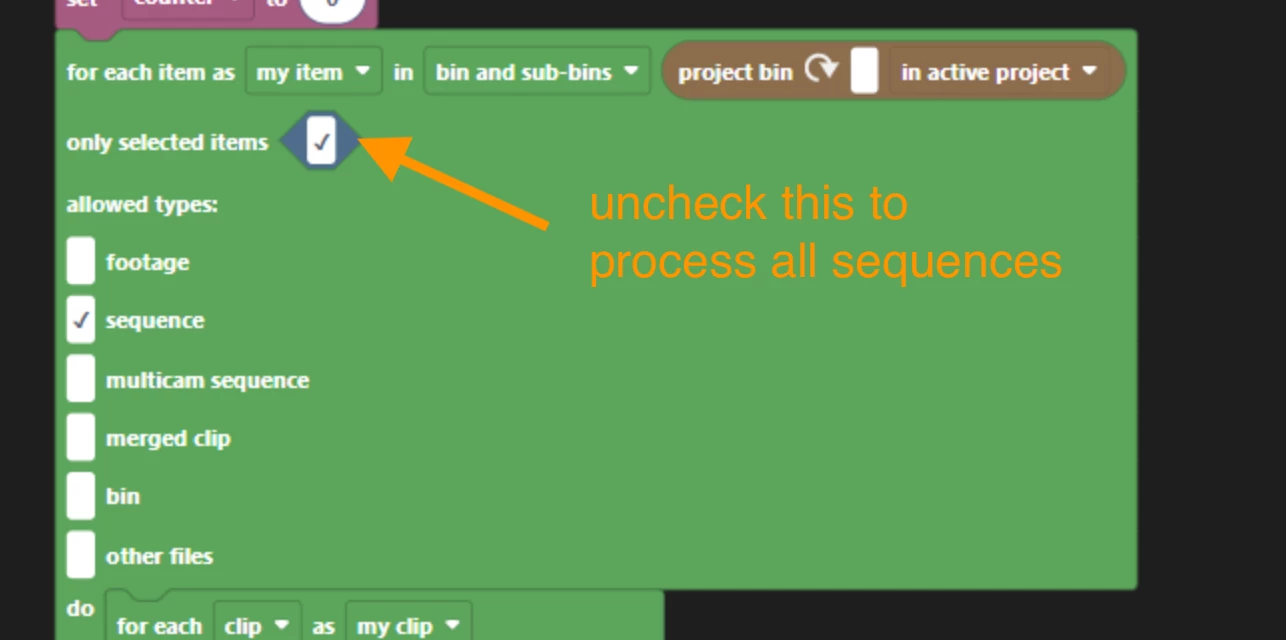
To process all sequences instead of the selected ones, you need to uncheck this checkbox:


Some ideas to improve performance:

When looping over the clip parameters, you could check if "my param" starts with

Maybe before writing a property to the spreadsheet, you could check if its name starts with "Graphic Parameters". I think this should be the case for all essential graphics properties and for no other properties. Then you could do the processing (retrieving the property value and writing it to the spreadsheet) only, if it is an essential graphics property and skip writing everything else to the spreadsheet. 


Even better: You could add an additional check when looping over each clip, to avoid processing clips at all, which are no mogrts. You could try to retrieve the media path of the clip and if it exists and ends with .mogrt you know that it is a mogrt. Only in that case, you need to loop over all parameters of that clip and otherwise you could skip that entirely, which should speed up processing a lot.


2 replies

Henrique -- TMMW
Inspiring
August 12, 2024

Hi Nick


Henrique here from TMMW.

Mathias pointed me to your question.


Let me know if you need additional information

to achieve your automation.


Thanks


Henrique \ TMMWClips Exporter | Text Replacer | Selector for Premiere Pro | Thumbs Up
Nick24532079q08t
Known Participant
August 12, 2024

Thank you @Mathias Moehl !  I really appreciate you giving me some extra information to help me out with Automation Blocks.  You are beloved in the AE community!  Also, thank you @Henrique -- TMMW So great to have your help as well.  Sorry I haven't responded till now.  I got super busy at work creating a presentation around translations and how they could potentially be automated.  During this time, my trial license for Automation Blocks for Premiere expired.  I really want to test this new information from Mathias, but I need to see about acquiring a license before I can proceed.  I'm working that out with my manager.  I wish I could have tested this more.  @Henrique -- TMMW I tested Text Replacer as well, and I love it!  It's simple to understand, and in my tests it works flawless.  I have recommended this to my team of editors.  
That said, the editors all want the same thing I want.  The ability to batch export MOGRT Text data from all sequences in a project, (Rather than the selected sequence or active squence only).  The data can then be translated and reimported to all sequences in the Premiere Project.  I believe Automation Blocks holds the key to acheiving this, but I am struggling to learn the system.  I wish I knew AB off the back of my hand and I am eager to learn.  It can do so many things.  I need to get a license before I can do any further testing.  Thank you Mathias and Henrique.  I will get back to you once I have had the chance to test.

Nick24532079q08t
Known Participant
October 14, 2024

In your if condition you can check both the property name and the property value in the same way.
The condition of this if block checks if both the property name is "Graphi Parameters\Main" and its value is not "bullet".


This is so great!  Thank you @Mathias Moehl Really appreciate the quick response.  I'm excited to hone this even further.  It makes sense👍  I am on another project for the time being, but will test this as soon as I get the time.  Thanks.

Mathias Moehl
Mathias MoehlCorrect answer
Community Expert
August 8, 2024

Hi Nick,
to give some context for everybody else, here is the original conversation:

quote

I've watched this tutorial several times:  Update Clips, Texts, Colors and More With A Spreadsheet .  It's a great video tut, and I have learned how to export, "all selected clips" to a spreadsheet.  I've modified the data and re-imported it.  Works great!  I try to reverse engineer this process by adding the automation block: For Each Project Item, but I've been unsuccessful so far.  My goal is to export all clip data from all sequences in a Premiere project to a .CSV.  As an example, the projects I work with have many sequences, and each sequence contains Essential Graphics.  Rather than exporting the data of "the selected clips" one at a time, is it possible to export the data for all clips inside all sequences to a spreadsheet? 

Much appreciated.  Thank you.


By @Nick24532079q08t

Hi Nick,
in a nutshell, you have to nest the block, which loops over the items of the sequence into a block which loops over all sequences. See attached screenshot. That way, you cannot only loop over the clips of the active sequence, but off all sequences one after the other. Note that in this case, you should also modify the "add row to spreadsheet" block to also save the sequence itself in some cell. Otherwise you don't know which data belongs to which sequence and won't be able to do anything useful with it on import.


now my answer 🙂
To process all sequences instead of the selected ones, you need to uncheck this checkbox:


Some ideas to improve performance:

When looping over the clip parameters, you could check if "my param" starts with

Maybe before writing a property to the spreadsheet, you could check if its name starts with "Graphic Parameters". I think this should be the case for all essential graphics properties and for no other properties. Then you could do the processing (retrieving the property value and writing it to the spreadsheet) only, if it is an essential graphics property and skip writing everything else to the spreadsheet. 


Even better: You could add an additional check when looping over each clip, to avoid processing clips at all, which are no mogrts. You could try to retrieve the media path of the clip and if it exists and ends with .mogrt you know that it is a mogrt. Only in that case, you need to loop over all parameters of that clip and otherwise you could skip that entirely, which should speed up processing a lot.


Mathias Möhl - Developer of tools like BeatEdit and Automation Blocks for Premiere Pro and After Effects