


KIV
New Participant
May 6, 2014
Answered

Black Screen (source and preview) when using GPU acceleration (CUDA) [NVidia GTX 780M]

  • May 6, 2014
  • 10 replies
  • 32826 views

Hi guys!

I am running Adobe Premiere Pro CS6 on Windows 7 (Ult) on a machine equipped with NVidia GTX 780M (4 GB VRAM) graphics card. The source and the preview monitors are both black if I select GPU accelerated rendering. There is a yellow bar above the timeline clips, I can hear the sound tracks, but there is no image. If I choose the Software Only rendering (CPU) then I do see the image as well, but the real-time playback and rendering times are awful!
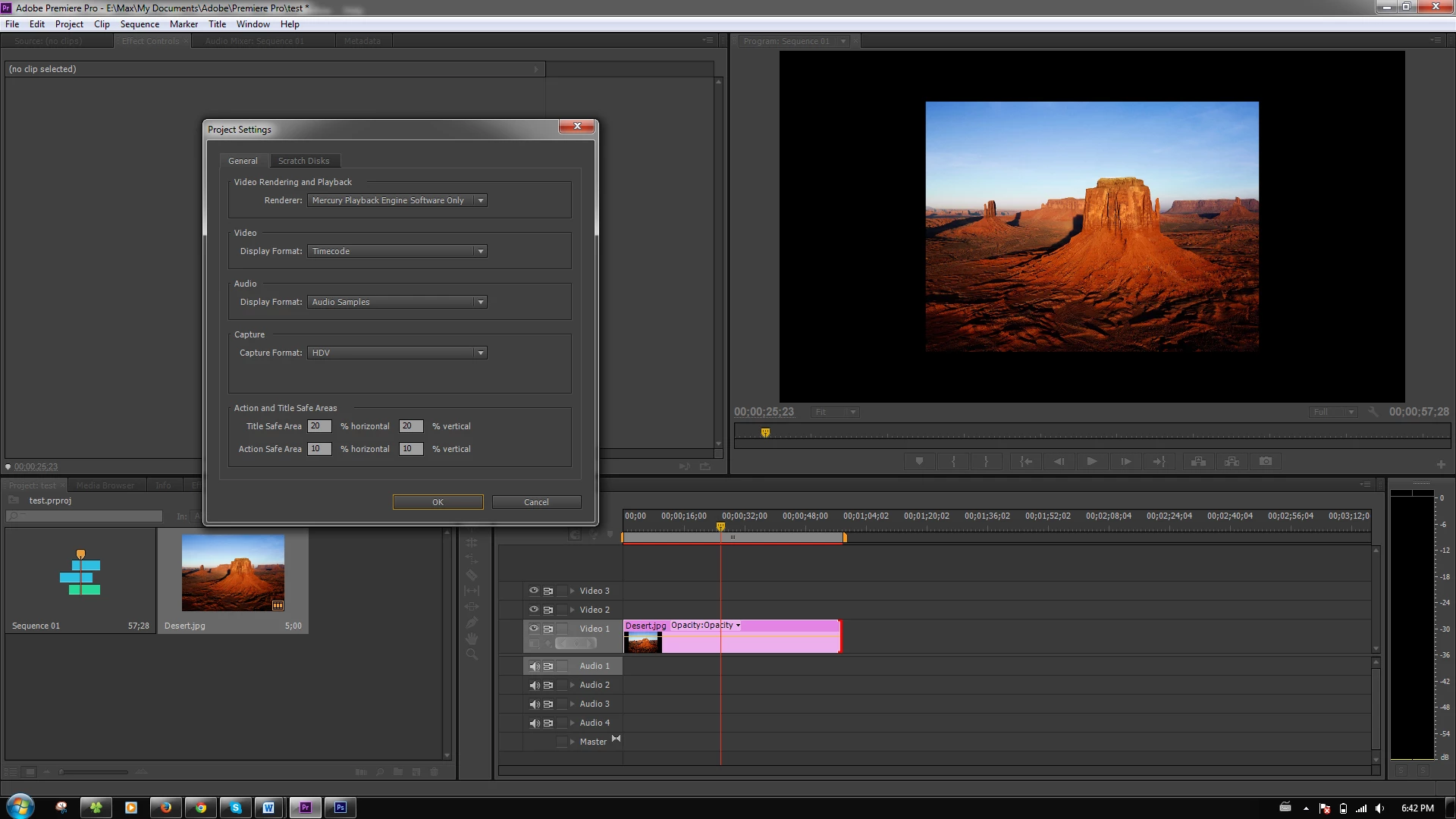
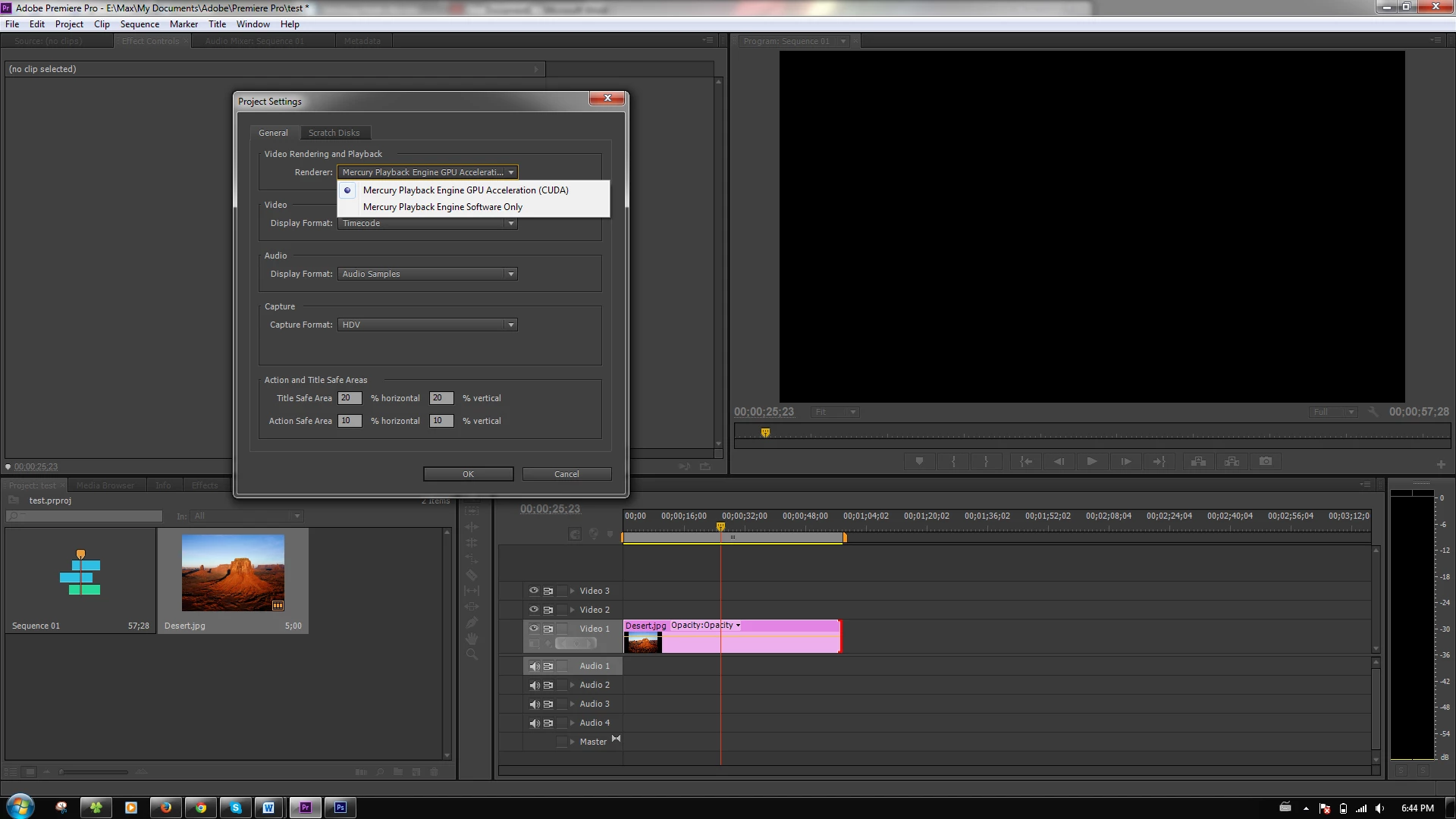
At first, the application would not allow me to use the GPU acceleration using NVidia’s CUDA processing. Once I entered my video card name in the “cuda_supported_cards.txt” file in the Adobe Premiere Pro CS6 folder I was able to choose between Mercury Playback Engine Software Only and Mercury Playback Engine GPU Acceleration CUDA.

I tried downgrading the video card driver to the previous stable version and reinstall Pr – no go. How do I make Adobe Premiere Pro CS6 work with my NVidia GTX 780M video card?

Your insight is appreciated!

P.S. I used to work on a different machine equipped with NVidia GTX 670M card (which is also missing from the officially supported Pr CS6 cards list) and I never had any issues of this nature with that laptop.

Correct answer Kevin-Monahan

Hi KIV,
We never heard back from you. Hope you solved your issue. In most cases, it is related to the GPU driver that you have installed. It may be outdated. Sometimes you have dual GPUs installed and the Control Panel has the wrong one selected as the high powered one preferred by Premiere Pro.

Others in this thread have tried one or both of these options with success. Try them if you're still facing this issue.

Unfortunately, your post has become a repository for all people having this problem, Mac or PC and across multiple versions of Premiere Pro. Therefore, I'll have to ask others to refrain from posting here and creating your own post first. That way, we can troubleshoot your specific case.

Thanks,
Kevin

10 replies

New Participant
January 28, 2024

Crazy how this problem is still going, fortunately I found a reddit thread that pointed me to this page

https://www.tenforums.com/tutorials/150440-turn-off-hardware-accelerated-gpu-scheduling-windows-10-a.html


AND IT WORKED FOR ME!!

I'm quite late but hope it helps anyone still looking for a solution!

arielh
New Participant
September 25, 2018

Adding this solution here as it may help others with this issue. This solution probably applies only for people with the following issue:

Environment and prerequisites:

Windows 7 64bit

Optimus-based laptop or notebook such as Lenovo Y580

NVIDIA graphics card such as GTX660M

Adobe Premiere Pro CS6 (or perhaps also newer versions)

NVIDIA Control Panel configured correctly to allow Adobe Premiere Pro to run on NVIDIA GPU

Adobe Premiere Pro configured correctly to allow use of NVIDIA GPU

Issue:

In Adobe Premiere Pro CS6, when opening a project set for GPU accelerated rendering, the source and preview windows are both completely black. When switching to software only rendering, and deleting the existing previews, the source and preview windows show normally but with bad performance.

Caused by:

NVIDIA DLL C:\Windows\System32\nvinitx.dll is signed with SHA1 signature which has been deprecated.

This 64-bit DLL is loaded when 64-bit applications are initialized, through the AppInit mechanism. This is due to the following entry in the Windows registry:

HKEY_LOCAL_MACHINE\SOFTWARE\Microsoft\Windows NT\CurrentVersion\Windows\AppInit_DLLs, which is set to the value: C:\Windows\System32\nvinitx.dll

Note that this NVIDIA DLL has a 32-bit counterpart: C:\Windows\SysWOW64\nvinit.dll, which is likewise signed with a SHA1 signature.

The 32-bit DLL is loaded when 32-bit applications are initialized, by the 32-bit subsystem AppInit mechanism. This is due to the following entry in the Wow6432Node section of the Windows registry:

HKEY_LOCAL_MACHINE\SOFTWARE\Wow6432Node\Microsoft\Windows NT\CurrentVersion\Windows\AppInit_DLLs, which is set to the value: C:\Windows\SysWOW64\nvinit.dll

By default, DLLs used by AppInit (whether 32-bit or 64-bit) must be signed with a valid signature. Since these DLLs are signed with a deprecated signature, they do not load, and hence the GPU does not communicate properly with the app using it.

Temporary Solution:

Using Regedit, set the data of the following registry values to 0 (zero):

HKEY_LOCAL_MACHINE\SOFTWARE\Microsoft\Windows NT\CurrentVersion\Windows\RequireSignedAppInit_DLLs

HKEY_LOCAL_MACHINE\SOFTWARE\Wow6432Node\Microsoft\Windows NT\CurrentVersion\Windows\RequireSignedAppInit_DLLs

If one or both of these values don't exist, create them as 32-bit DWORD values.

Note that by applying this solution, you will allow DLLs that are unsigned, or, as in this case, signed with a deprecated signature, to run via the AppInit mechanism. If you have verified the above mentioned registry entries and made sure that you know and trust the origin of all DLLs referenced, then you may safely use this temporary solution.

Note that it is not necessary to restart the system. You can test the solution immediately after making these changes to the registry by running Adobe Premiere Pro, opening a project, setting it to GPU accelerated rendering, and deleting the existing previews. You should no longer have black source and preview windows.

Proper Solution:

NVIDIA must ensure that all of its DLLs are signed using valid SHA256-based signatures.

Undoing the temporary solution:

Using Regedit, set the data of the following registry values to 1 (one):

HKEY_LOCAL_MACHINE\SOFTWARE\Microsoft\Windows NT\CurrentVersion\Windows\RequireSignedAppInit_DLLs

HKEY_LOCAL_MACHINE\SOFTWARE\Wow6432Node\Microsoft\Windows NT\CurrentVersion\Windows\RequireSignedAppInit_DLLs

If one or both of these values don't exist, create them as 32-bit DWORD values.

albertbong123
New Participant
May 16, 2019

GTX 1080

Black screen after I changed sequence resolution, switched preview from CUDA to Software only and then switch back.

Modify regedit helped to solve this problem.

Thanks.

Yerick10
New Participant
June 17, 2019

Hi!

What did you changed exaclty? im having the same issue with a RTX 2060 from a couple a days ago. Im using windows 10 and i cant find those options on regedit. I get to the last folde but cant finde "RequireSignedAppInit_DLL"

Kevin-Monahan
Community Manager
Kevin-MonahanCommunity ManagerCorrect answer
Community Manager
June 2, 2017

Hi KIV,
We never heard back from you. Hope you solved your issue. In most cases, it is related to the GPU driver that you have installed. It may be outdated. Sometimes you have dual GPUs installed and the Control Panel has the wrong one selected as the high powered one preferred by Premiere Pro.

Others in this thread have tried one or both of these options with success. Try them if you're still facing this issue.

Unfortunately, your post has become a repository for all people having this problem, Mac or PC and across multiple versions of Premiere Pro. Therefore, I'll have to ask others to refrain from posting here and creating your own post first. That way, we can troubleshoot your specific case.

Thanks,
Kevin

Kevin Monahan - Sr. Community & Engagement Strategist – Pro Video and Audio
Participating Frequently
March 27, 2023

All Drivers and software versions are up to date. Preferred GPU is set as Nvidia. That's always the standardized answer. Maybe anything else? How about bug-fixing premiere??? For years this is happening. U-N-B-E-L-I-V-A-B-L-E.


Nio1083
New Participant
July 15, 2016

Guys i have the issue by 2014 and nothing happen yet. K5000 and black screen. Wast of money on quadro.

There is still no solution outhere.

Kevin-Monahan
Community Manager
Community Manager
July 15, 2016

Hi vincenzoa,

Can you try installing an earlier version of the NVIDA drivers? See this web page: Drivers - Download NVIDIA Drivers

Thanks,

Kevin

Kevin Monahan - Sr. Community & Engagement Strategist – Pro Video and Audio
Participating Frequently
March 27, 2023

Hi there, yes this thread is now almost 7(!!!) years old. Same problem with Premiere CC23. How? How is this fixable? OpenGL or software only lags and stutters, as I have AE clips in the timeline. PLEASE ADOBE DO SOMETHING!!!!


New Participant
August 13, 2015

Hello

I ve had the same problem and solved it:

In Nvidia settings I didn t manage to get Premiere to use the Nvidia 660M instead of the basic one. It had always "forgotten" the settings when I restarted Nvidia Control Center. So I installed the later Nvidia driver 353.62, changed Premiere to always use the Nvidia Card, Multi-Display to "Compatibility" and Cuda CPUs to"all". With the new version Nvidia didn t forget the settings and black preview in Premiere CS6 finally changed to a beautiful video!

hope it was understandable, my english s not the best and my win is in german, so settings have other names.

cheers&good luck

Nio1083
New Participant
August 31, 2015

is not working. I have still the black screen with my k5000 on premiere

"Hello

I ve had the same problem and solved it:

In Nvidia settings I didn t manage to get Premiere to use the Nvidia 660M instead of the basic one. It had always "forgotten" the settings when I restarted Nvidia Control Center. So I installed the later Nvidia driver 353.62, changed Premiere to always use the Nvidia Card, Multi-Display to "Compatibility" and Cuda CPUs to"all". With the new version Nvidia didn t forget the settings and black preview in Premiere CS6 finally changed to a beautiful video!

hope it was understandable, my english s not the best and my win is in german, so settings have other names.

cheers&good luck"

Nio1083
New Participant
July 5, 2015

i have the same issue (Source and Program, black) with a quadro k5000 -  premiere cc 2015 and 347.52 driver. I have changed several versions of the drivers none works, even the suggested by Nvidia website for adobe. I'm on windows 7 64bit. This happened after a windows updates of early june 2015.

Now i'm working with cpu and not gpu.

The same issue with lightroom that doesn't recognize gpu

Please Help

Participating Frequently
July 16, 2014

Hi there,

As stated before, I had the same problem. Apparantly the solution for me was to check the Nvidia settings. My setup has both an onboard GPU and a Nvidia GPU (on purpose specifically for video editing and gaming). Normally the system should switch to Nvidia automatically. However, the Nvidia settings for Premiere where set to favor the onboard GPU. After changing this. everything works fine again!

kind regards. Bart

John T Smith
Adobe Expert
July 13, 2014

This past week was Microsoft patch week, and a Windows DLL change CAN cause problems... try a newer driver

Participating Frequently
July 13, 2014

OK, that could be a reason. Nevertheless the latest WHQL version from Nvidia is from june. I will try the latest beta driver whether that solves the issue.

Bill Gehrke
Inspiring
July 13, 2014

I have an GTX 765M and the driver is 9.18.13.3165 and CS6 is working fine

Participating Frequently
July 13, 2014

Hi there,

I am experiencing the exactly the same problem. I'm using a NVIDIA GTX660M video card. Also downgraded the Nvidia driver to the previous version. I´ve been using my setup for quite some time without any problems. Support is needed!

New Participant
July 7, 2014

Same problem here. Did you find a solution?

In my case, it worked for a long time, but from one day to another, the source and the preview monitors were both black if I select GPU accelerated rendering. I have no idea, what changes happend on my system.