


sophiec69418450
Participating Frequently
June 29, 2020
Answered

Cannot select or amend speed / duration via CTRL + R or right-click (irresponsive)

  • June 29, 2020
  • 2 replies
  • 2816 views

Hi, I am fairly new to using Premiere Pro. I've produced a video using a variety of video and image clips, and all of a sudden I can no longer select or amend 'speed / duration' using CTRL+R or right-clicking the clip and selecting 'speed / duration'. When I do select this, all areas are greyed out and I cannot do anything until I hit enter on my keyboard. When I do this, all areas become available again.


The only way I can currently amend the duration of a clip is by manually dragging it. Any help would be great - thank you!
This topic has been closed for replies.
Correct answer Averdahl

Sorry I am able to drag files over to the timeline after all, but should I still uninstall? Will my current projects still work?


It´s up to you if you want to un-install/re-install. If you do, all old projects will work.

2 replies

Community Expert
June 29, 2020

can you tell us the properties of your source video clips?  are they by any chance from a smartphone or a screen recording?  If so the problem might (although seems unlikely) be that they have a variable frame rate which premiere can have issues with which can manifest in strange inconsistent ways.  use media info to determine if your clips are variable or constant frame rate

https://mediaarea.net/en/MediaInfo/Download

If they are variable frame rate, use handbrake to convert them to a constant frame rate

https://handbrake.fr

and here's a tutorial on how to do this

https://www.youtube.com/watch?time_continue=34&v=xlvxgVREX-Y

sophiec69418450
Participating Frequently
June 29, 2020

Thanks for this. My project was fine until I added some new JPEG images to a slideshow a few days ago, but I haven't added any video clips for a while so I don't think this can be the problem. Now I can't access 'speed / duration' for any of my video clips or images (although it was previously fine). It also doesn't appear if I set up a new project. I can't work out what the issue is.

Averdahl
Community Expert
June 29, 2020

If you don´t even can launch the Clip Speed / Duration dialog, launch Photoshop and save the jpg file to a psd file and import that file in Premiere Pro and test.

Ann Bens
Community Expert
June 29, 2020

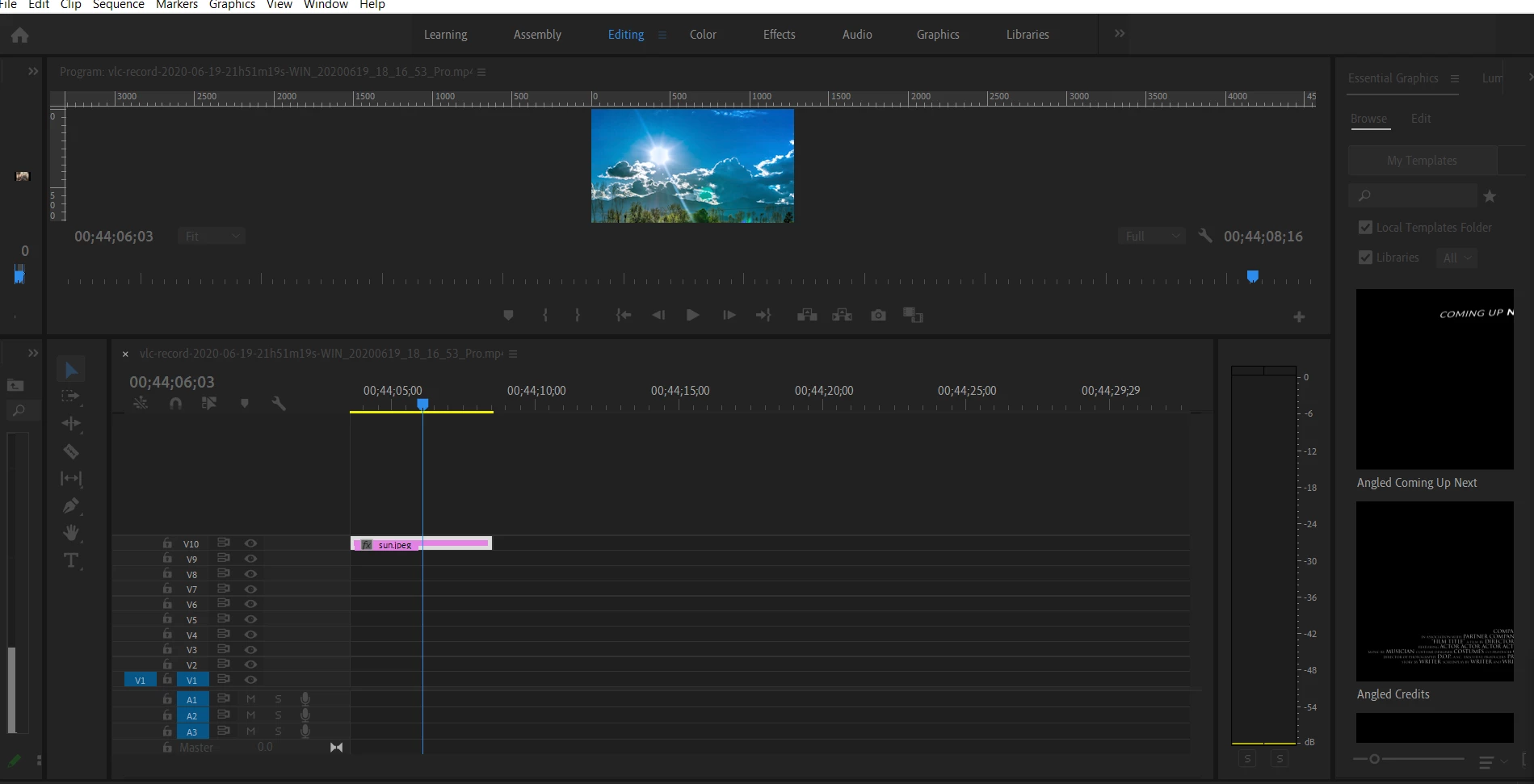
I dont see anything out of the ordinairy in the screenshot.

The only thing you can adjust on a still image is the Duration. A still does not have Speed.

If Premiere is acting funny:

FAQ: How to reset (trash) preferences.

sophiec69418450
Participating Frequently
June 29, 2020

Hi, thanks for this.

I've tried the reset and I'm still having the same problem (whether I try to click 'speed / duration' for a video or image clip). Everything is greyed out, and nothing functions until I hit 'Enter', then I'm back where I started. It was working fine previously, but it does not work at all now even when I set up a new project.

Averdahl
Community Expert
June 29, 2020

This is what i see. As Ann has mentioned a still has no speed, it only has duration so not being able to change the speed on a still image is how it works.


So if you want the clip to play "faster", lets say for 2 seconds instead of 4 seconds, change the Duration from 00:00:04:00 to 00:00:02:00. Checking the Ripple Edit, Shift Trailing Clips box is highly recommended as well.