Participant
August 17, 2018
해결됨

Captions: I don't see my subtitles appear in preview (Premiere Pro 14.9 and earlier)

  • August 17, 2018
  • 8 답변들
  • 66688 조회

Hello,


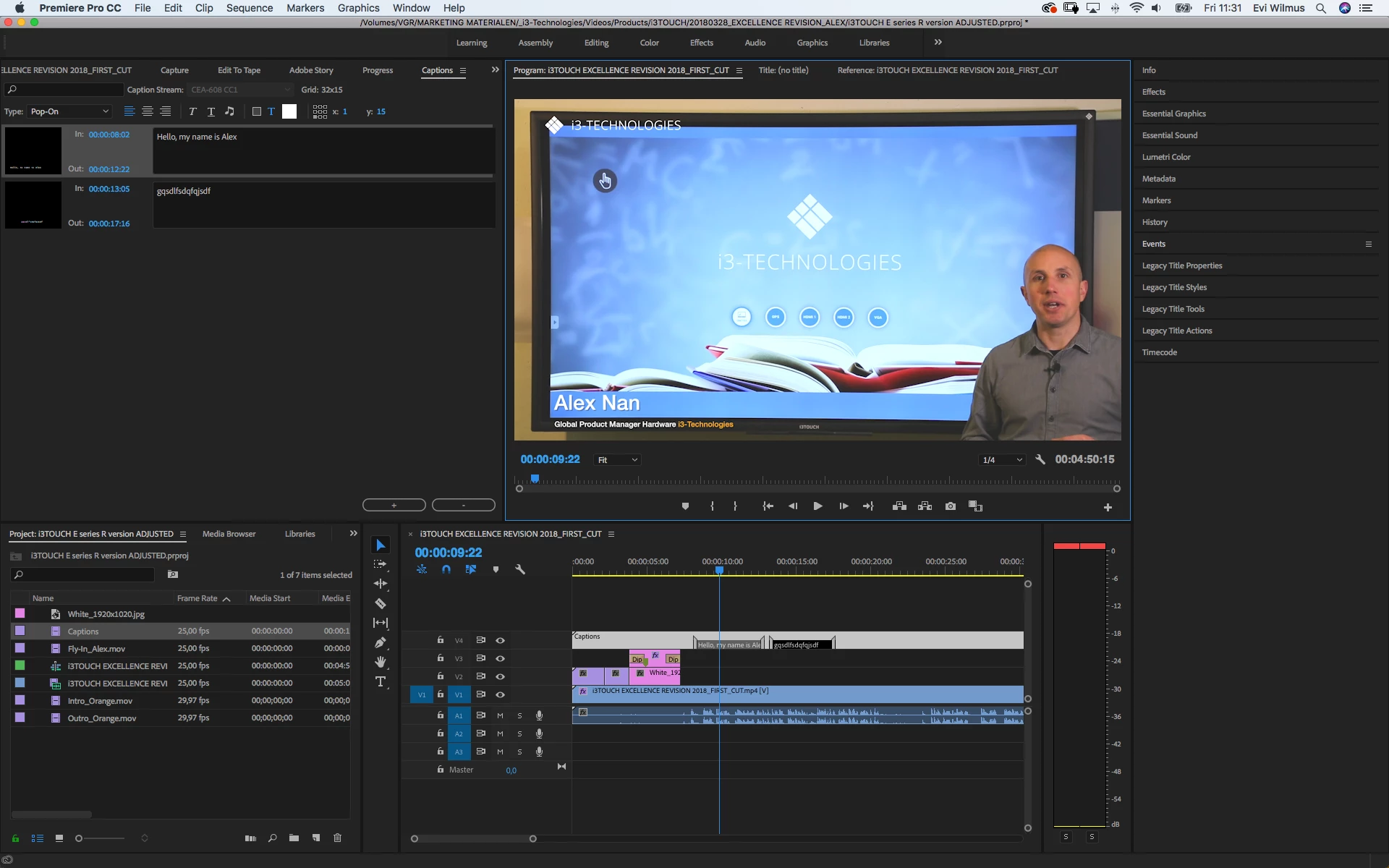
I get stuck with subtitles. I know how to make subtitles in Premiere, by using Captions. I know how to Create, Insert and adjust them. But I just don't see them appearing in the preview screen, the "Reference" screen. I tried changing position, color, the type (Pop-on, Roll-up 2 lines,...)


Remarkably, I can export them into a separate SRT file and this way I can use the exported media. But it would be nice to see them in Preview.


Is there anyone out there that can help me please?


이 주제는 답변이 닫혔습니다.
최고의 답변: Vishu_Aggarwal

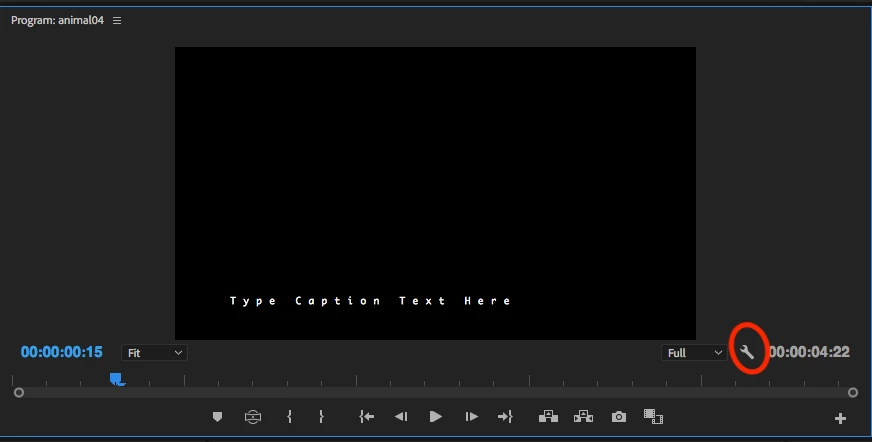
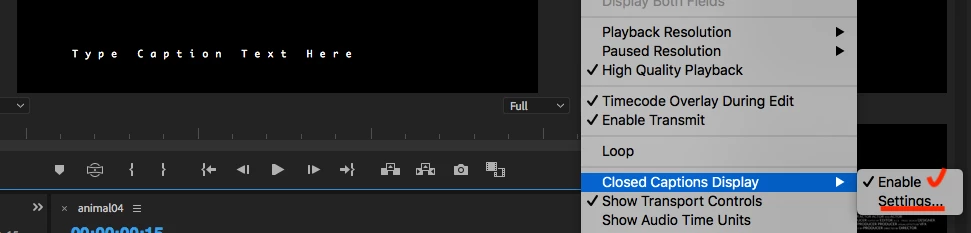
You can see the captions in premiere pro by enabling them from the program monitor settings as follow -

1. Go to the settings icon in the program monitor -

2. Go to Closed Caption > Enable and go to Settings (choose the same standard & steam as of the caption your using) -


8 답변

Participant
October 11, 2022

Captions with a different aspect ratio than your sequence (sequence settings) is a typical culprit of them not being able to show in preview during playback. Cumbersome... as you have to redo them in the right aspect ratio / new caption file- now if someone has a way to alter the aspect ratio without creating a new caption file, or knows better how to streamline the process of redoing them- that I would like to know 😉

Stan Jones
Community Expert
Community Expert
October 11, 2022

John,


Your comment applies to the versions in use when this thread was started: PR 2020 (14.xx) and earlier. I think you'll find that captions no longer have an aspect ratio since the new workflow (PR 2021; version 15.xx). Once caption tracks were no longer Video clips, some concepts did not apply. If you look at SRT file in Project Panel, you will see that there is no aspec ratio. The 30fps it shows is actually arbitrary. It simply uses the timecode in the srt.


If you look at the PR Properties for that SRT, it shows no aspect ratio and no framerate.


But you can get the problem you are describing related to frame size in a sequence. This has most often been report in the new caption workflow where someone is using a vertical frame size.


There are gotchas here, and I do not understand some of them.


Stan


ColeMingus
Participant
September 21, 2021

Can anyone please help me, I have no option to enable closed captions in the program monitor settings.. nor can I find the option in any drop down menus so it won't show in any renders? Thanks!

Stan Jones
Community Expert
Community Expert
September 24, 2021

ColeMingus,


This thread is about PR 14.9. As indicated by your screenshot you are using PR 15.x. You no longer need the "enable" options to show 608/708 captions. And, as shown by your screenshot, your captions are showing in the Program Monitor.  


The export options, as in PR 14.x, are set in the Export Settings dialogue (burn in, embed, sidecar).


Let us know if this does not answer your question.


Stan


Participating Frequently
May 27, 2021

Hey guys, 


I have read through this stream and still can't seem to find what's wrong with my captions not appearing. I've imported my captions as a .srt file and added above my video on my sequence but they aren't appearing on my preview screen. I want the captions to be embedded in the video (i.e. visible at all times). Have included a screenshot of my import settings. 

Stan Jones
Community Expert
Community Expert
May 27, 2021

Note: you are in PR 2020 or earlier. There is a major change in captions in 2021. That is not your problem, just alerting anyone else following  along...


From your screenshots, we cannot tell what type caption stream you have. You did not check the box to "override file settings" to import the srt as closed caption 708. But since they are not showing, they are probably not Open Captions.


You show us that you have enabled closed captions, but you do not show us what type you have enabled (in the settings).


You say "I want the captions to be embedded in the video (i.e. visible at all times)." The ones that show all the time are "burned in." Embedded means that the user on a TV can turn them on or off. You can burn in Closed Captions or Open Captions, but Open Captions allows a lot more freedom in formatting.


As I noted, you do not have the "override file settings" checked, but if you did, you have a PAL timebase (25) but NTSC otherwise.


Stan


Participating Frequently
May 27, 2021

Hi Stan,


Appreciate your quick response. I am using Adobe Premier Pro 2020 which may be my problem? 


My caption steam is in the screenshot below: 


I have selected "override file settings" and still no captions are showing. Are these settings correct now? 


Thanks,
Jess


Participant
May 22, 2020

Hello. I was editing my video and I cannot see my Open captions on Preview monitor. I already follow the instruction by Youtube and other Adobe support Community's other post. Can Anyone help me ? I already check the settings icon and it already enabled with CEA708 Service One. I already check almost (I think) everything that adobe mentioned. Can you help me please 🙂 


ps. I use Adobe Premiere Pro CC 2017 

Stan Jones
Community Expert
Community Expert
May 22, 2020

Jennifer,


Please post a screenshot of your Caption Panel, your Timeline, and the Program Monitor.


Stan

Participating Frequently
June 4, 2020

Hi, Stan
i make Open Caption , but I  Can see my caption preview but the problem is
the caption preview only stuck in paragraph one i type.

so until the end of the video the caption preview wont change.
just the same paragraph from the begining until the end...
what can i do to fix it ? please help....
Picture attached 


Stan Jones
Community Expert
Community Expert
March 30, 2020

pavl,


One tip, that I did not know for some time. The PR Program window Button Editor allows you to add a Closed Caption On/Off Toggle to the displayed buttons. It  looks like the image below.


Adobe could have done some of this differently; ultimately, it is a preference that depends on what kind of captioning work you do. Much of today's work is for sidecar files where the platform (Youtube etc) determines how they are turned on or off. Or the use is for burned in captions. In either event, you can use Open Captions and not worry about the oddities of Closed Captions. Open Captions are always "on" in PR, so the status of Closed Captions is not even noticed. (Except for the bugs that result in Open Captions not displaying, but that is another story!)


Adobe started with Closed Captions because that is what was need for TV video. And, just as with TV display of Closed Captions, you have to be able to turn them on and off and select which stream you are using.  My guess is most of today's editors want to start with Closed Captions not displaying, but it is a preference.


Stan


Peter A Lund
Inspiring
April 2, 2020

Hi Stan, 


that maybe a valide explanation. 


Thanxs for sharing 


The Prblem with this is, that as Premiere has a ton of issues with not displaing 

things correctly and sometimes even disappearing clips or proxies, this feature

is a riddle for the user that test this feature in the beginning. 


And if so: Then I would think, that the first note on "Caption" should be:

Hey User, be aware ou need to "activate" them. 


Heres the tutorial for captions (hu from 2013 7 years old) 

https://helpx.adobe.com/premiere-pro/how-to/premierepro-closed-captions-cc.html


and from 2018 

https://helpx.adobe.com/premiere-pro/how-to/subtitles.html


what I would love to see! 


what you can do with captions that is not the traditional way of using it. 


So I hope this is helpfull for people that use the first time open or colsed catpions. 


kind regards 


Peter 


rejoice in the way things are.When you realize there is nothing lacking,the whole world belongs to you.>Be content with what you have;rejoice in the way things are.When you realize there is nothing lacking,the whole world belongs to you.
Stan Jones
Community Expert
Community Expert
April 2, 2020

All true!


Stan

Peter A Lund
Inspiring
March 30, 2020

Hey, 


i had the same problem last year. 

can someone of the more exceperienced Users explain 

why the software behaves like this? 
why do we have to enable a feature, that once applied is not showing up? 

if we make a "title" , we don't have to enable the" title"


in a submenu.

if we create an adjustmentlayer  we don't have to activate it. 

I can understand that it may be helpful to deactivate the captions but this is possible with the layer. 

so even if the captions can be activated or deactivated , what would your first thought be ? 

should the be activated or not? 

what do you think ? 

rejoice in the way things are.When you realize there is nothing lacking,the whole world belongs to you.>Be content with what you have;rejoice in the way things are.When you realize there is nothing lacking,the whole world belongs to you.
sherriec97574218
Participant
August 29, 2018

Hi - My subtitles aren't appearing, and I have already checked "enabled" in the settings and I selected "Open Subtitles." Still no subtitles. What else can I try?

Stan Jones
Community Expert
Community Expert
August 29, 2018

Open Subtitles are not the same as Open Captions. Are you sure you want Open Subtitles?

sherriec97574218
Participant
August 29, 2018

I didn't have an option for open captions, only subtitles. I got the text to show up by changing to 608 CC1. So that's another problem: that's the only one that will work and I don't want closed captions. But now that I got them to show up, I can't change the background color or font type or size. The font type and size aren't there. The background color button appears to be there but nothing happens when I click it. I can only change the text color. See screen shot. Also I already tried resetting layout under workspaces.

Vishu_Aggarwal
Participating Frequently
August 17, 2018

You can see the captions in premiere pro by enabling them from the program monitor settings as follow -

1. Go to the settings icon in the program monitor -

2. Go to Closed Caption > Enable and go to Settings (choose the same standard & steam as of the caption your using) -


Vishu AggarwalAdobe Certified Instructor, Professional and Expert
eviw42253382작성자
Participant
August 20, 2018

Thank you! This actually helped me to solve my problem! I'm very relieved!