Participant
November 6, 2021
Answered

clip changes colors by dynamic linking after effects and premiere pro

  • November 6, 2021
  • 6 replies
  • 36994 views

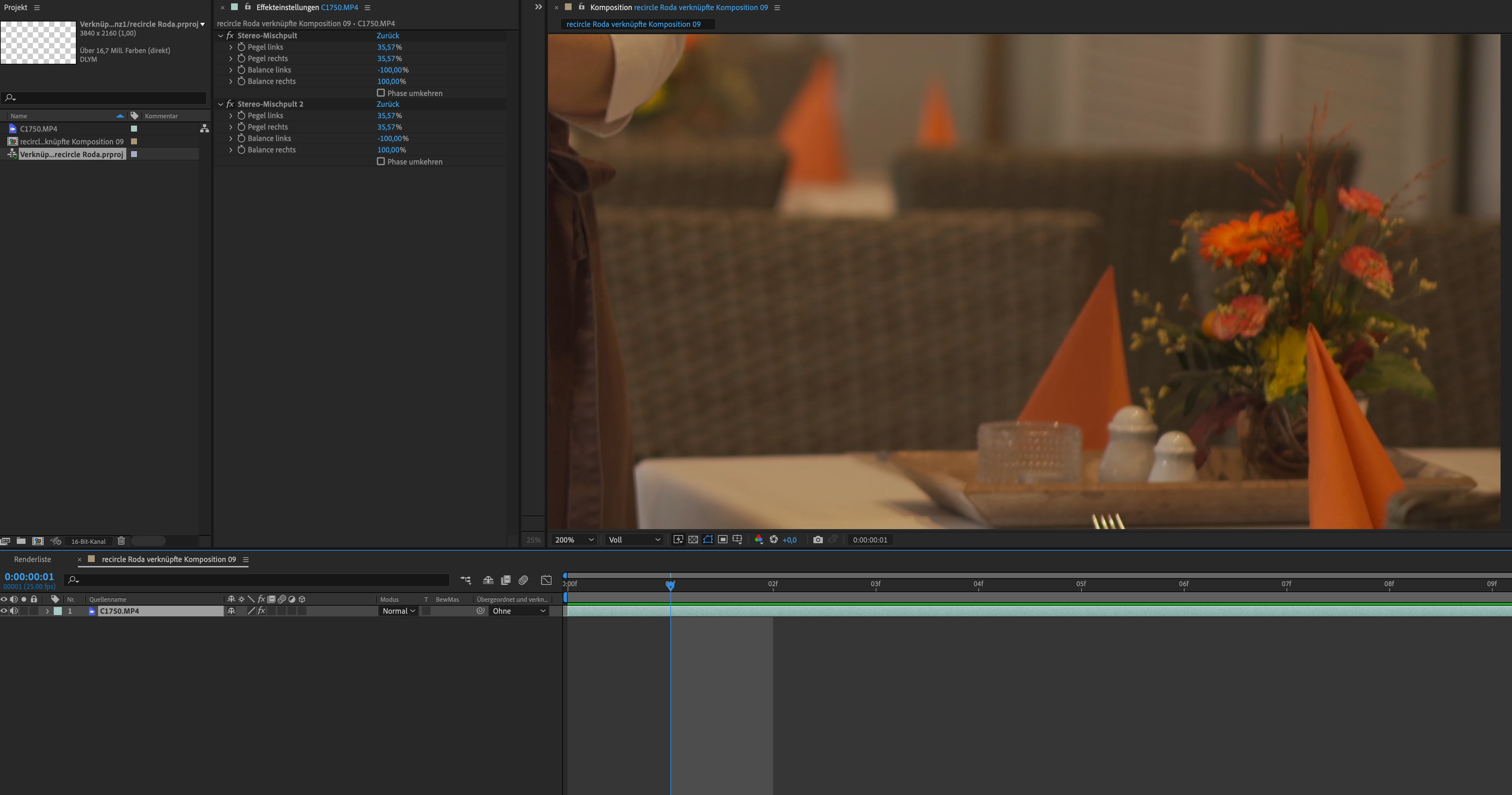
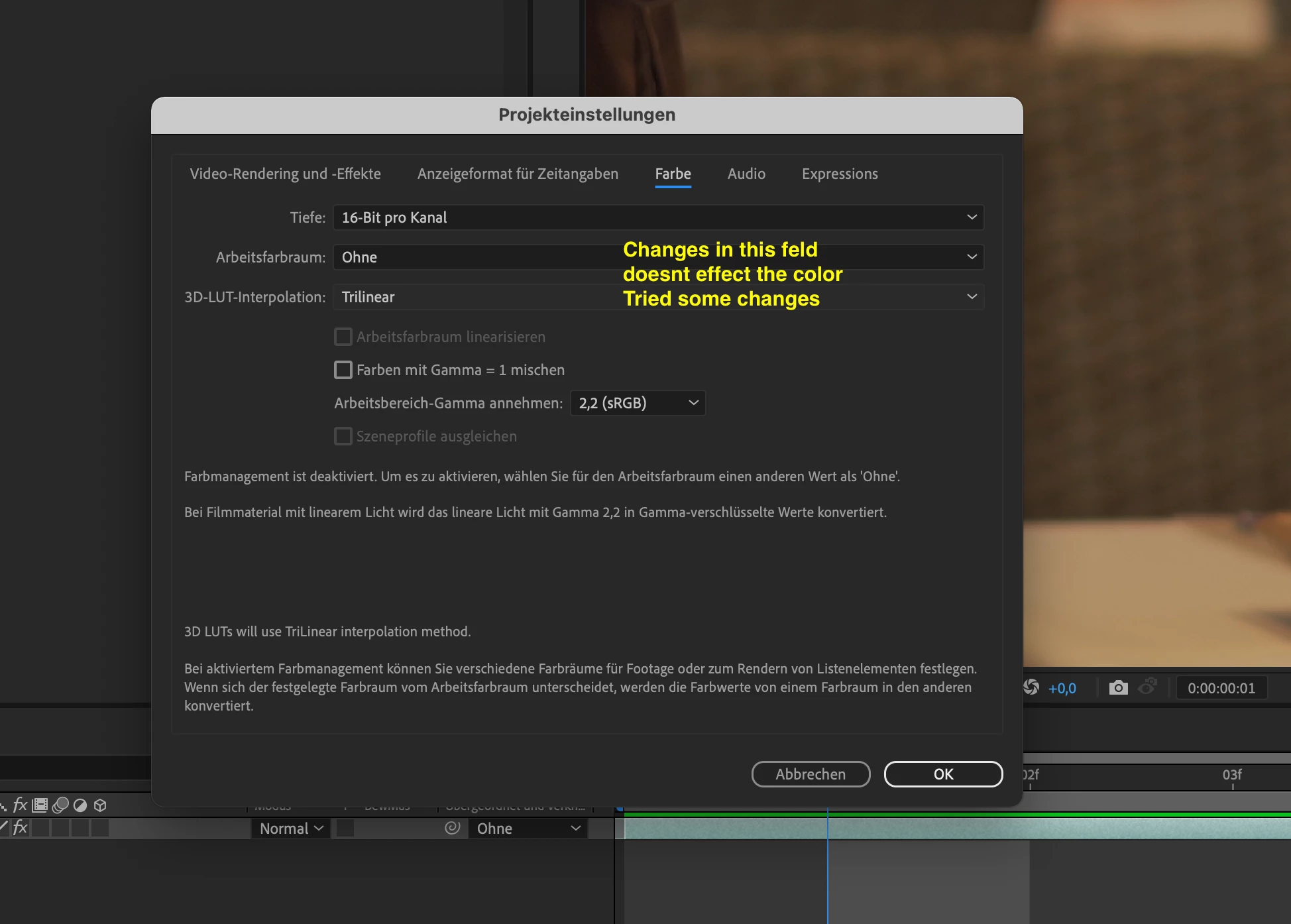
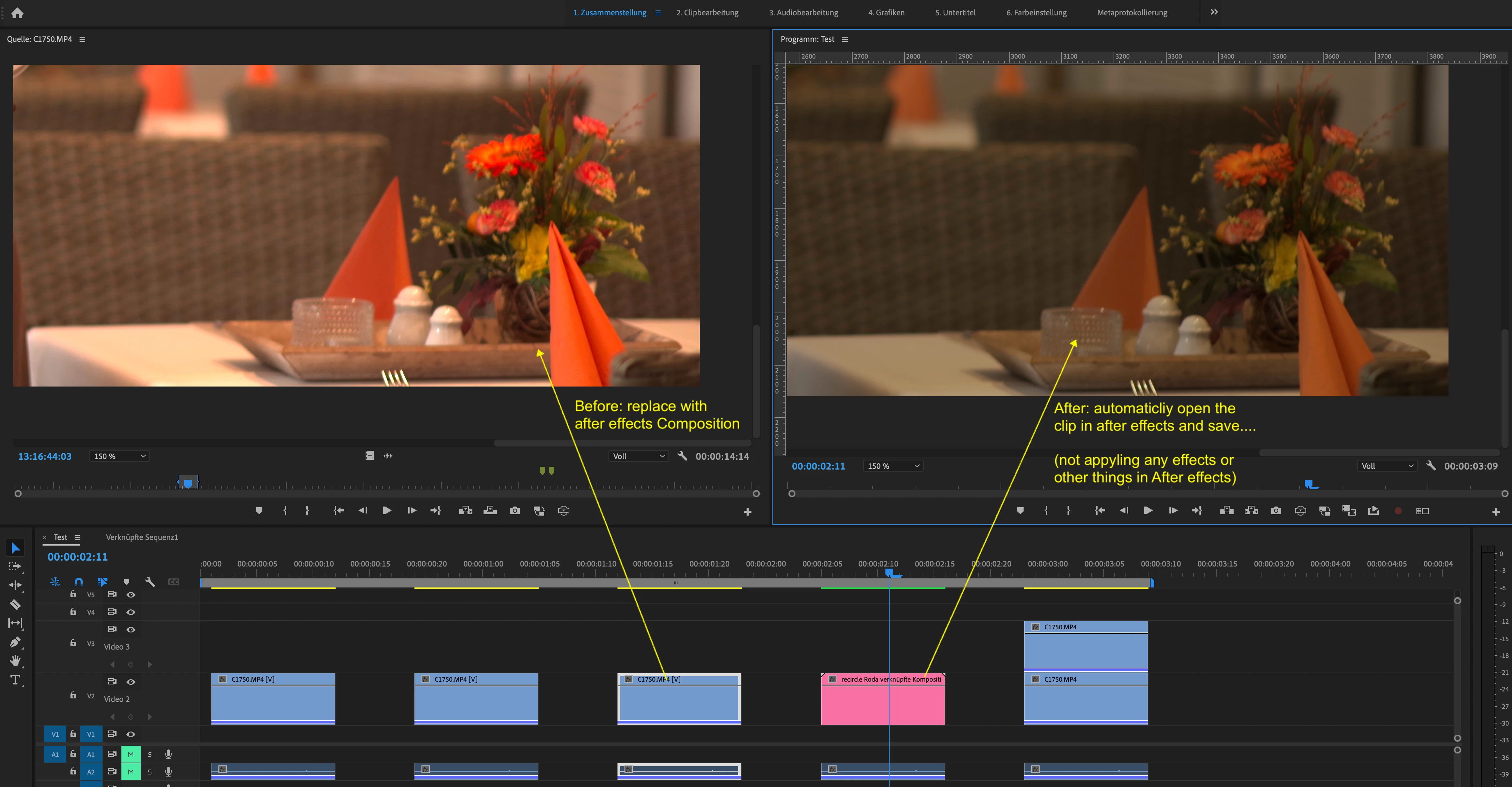
I  work with the newest version of the adobe creative suite (update automaticly). I wanted to use the "Replace with after effects composition" yesterday but it gaves me horrible colors back. The copy of the clip in premiere semms ok but after opening the comp in after effects it looks darker and not saturated. In After Effects and in premiere too. Also the render-function gaves the colors not back. I cant remember that I had this issue in former versions. Whats going wrong. Where can a connect the color space and the color work to get the same color after using the manupulating in after effects.  
Correct answer Sumeet Kumar Choubey

Hi lutz0815,


We're sorry about the poor experience. I agree with Neil's suggestion. 

  • Set the color space of the media file to Rec.709 in the Project panel (Right-click on media > Interpret Footage > Color Management > Color Space Override > Rec.709)
  • Set the color spcae for the sequence to Rec.709 (Sequence > Sequence Settings > Working Color Space > Rec.709)

Let us know if it helps in sorting the preview issue.


Thanks,

Sumeet

6 replies

Nico Roxe
Participant
March 27, 2024

I saw this question on few Adobe Community entries, and here is a good explanation and solution by Karl Soule back on YouTube:

2024 Color - Dynamic Link Color Management in Pr and Ae
https://www.youtube.com/watch?v=KsmBCwRAitg 

This workaround worked for me on a vast roto video editing project. 

Best,
-NR

trashcaneron
Inspiring
February 18, 2023

For those trying to figure this out in 2023.


In Premiere I'm rec.709 for interepretting footage (this was default with the footage I brought in):


In After Effects I'm 2.4 rec.709 for project settings. 


I've also interpretted footage in AE to Override Media Color Space to Working Color Space Rec.709 2.4 - this is the last crucial step:


Now it is matched!


Fun to do this manually for every single clip... wouldn't it be great if AE's default color intrepretation matched Premiere's? What is the logic in having two different fixed defaults? 


Woof. 

R Neil Haugen
Legend
February 18, 2023

That thing of Premiere & Ae not having the same CM settings is annoying, isn't it?


Although you can .. .and should! ... batch process the CM of Interpret Footage in Pr. Select a whole bin of clips, right-click, Modify/Interpret Footage ... all in one go.


I know how this split CM thing came about, as Ae as an Fx app has had very different needs than an NLE. It's like Fusion in Resolve, which works color management/processing very different than the color page. I work with/for/teach pro colorists based in Resolve, and this is a mild to major constant annoyance "over there" also.


And came about for the same reason ... Fusion, like Ae, is a stand-alone Vfx/compositing app. With again different CM needs.


Well ... yea, so that's how this came about. But it would be awfully nice if it got modified so the CM between Pr and Ae was unified ...


Neil

Everyone's mileage always varies ...
Vital-Rachel
Participating Frequently
February 19, 2023

always good to hear the why Neil, thanks. This really needs to be addressed by Adobe, and Resolve by the sound of it, surely they realise 'it's a thing'. When two pieces of software work in unison with each other the least you can expect is the colour management to match. Why would anyone be happy with a colour change when replacing AE comps in Premiere?

Inspiring
June 2, 2022

As of today the solutions didn't work as my footage was already interpreted as Rec.709 and the sequence settings are 709 as well..

R Neil Haugen
Legend
June 2, 2022

Willy,


Give us the full details ... OS/hardware, the media format/codec created by what camera, and what's happening to the image.


And of course, what the color management settings are for the comp in AfterEffects.


Neil

Everyone's mileage always varies ...
Inspiring
June 2, 2022
Ojo de Palo
Participant
November 10, 2021

Hello, 

Thanks for the suggestion. This does not work fot any graphics imported to Premiere Pro neither to After effects Dynamic Link files. I filmed in HLG in my Sony A7RIII. I could interpret the footage but when I tried to make any graphics or text animation via After effects Dynamic Link, I could not find the way to change to the correct color space on Pr or AE for thos e clips/animations. My project settings are on HLG 2100 on Pr.

Participant
February 27, 2022

Same Problem with Dynamic Link here for me....

R Neil Haugen
Legend
November 6, 2021

The 2022 version of Premiere Pro added several color managment settings that were not in previous versions, and that's been tripping up a lot of users.


First ... for clips in a bin. Right-click/Modify/Interpret footage and check the color space options. For many things using color space over-ride to Rec.709 will be a good option if you're not actually working to get an HDR export.


Next ... the Sequence Settings dialog also has a color space setting. Make sure this is what you intend to both work and export in.


Finally, the Scopes panel also has a color space setting.


Neil

Everyone's mileage always varies ...
lutz0815Author
Participant
November 6, 2021

It seems that the isue is relatet to the color space of the clip. I filmed the clip with my sony a7iii in color space Rec.2100 HLG. Looks nice in the premiere preview. If I interpret the color to Rec. 709 the nice looking preview will gone.
But the priview of the clip matches completly to the file in after effects and the preview of the clip from AE in premiere.
So far so good but when I am cutting our projects we got clips from some cameras.
Is there a possibility to show the color space in the tabs in project window or did someone know a solution for getting right colorspace into after effects and back - clicking every clip to show properties isnt a solution. I tried some combinations in the project settings of after effects but didnt found the right settings. Does dynamic link only support Rec 709?  

Sumeet Kumar ChoubeyCommunity ManagerCorrect answer
Community Manager
November 6, 2021

Hi lutz0815,


We're sorry about the poor experience. I agree with Neil's suggestion. 

  • Set the color space of the media file to Rec.709 in the Project panel (Right-click on media > Interpret Footage > Color Management > Color Space Override > Rec.709)
  • Set the color spcae for the sequence to Rec.709 (Sequence > Sequence Settings > Working Color Space > Rec.709)

Let us know if it helps in sorting the preview issue.


Thanks,

Sumeet

Vital-Rachel
Participating Frequently
October 13, 2022

Hi Neil


Thanks for the response, you'd think Adobe would literally match the settings between it's two main digital apps. There doesn't seem to be a way to see what the White point value is in Premiere, at least, I can't find it, but even if there is I've literally tried every setting in After Effects and reimpotered the footage each time, it's hard to see with some of them what the actual difference is. but even resetting everything to something like rec.209 I just can't get the footage to match between the two, everytime I reimport into Premiere it puts this grey cast across like the contrast has been pulled down, beautiful bright colours in After effects.


My workaround has had to be to Dynamic link everything through to After Effects and then recolour it in Premiere using Lumetri so that all the clips match which wasn't easy and, of course, time consuming.


Very frustrating. Appreciate your advice and help, it was by far the best glimmer of hope I'd found. This really needs to be addressed by Adobe as 'the internet of users' seem to all be having the same problem in this scenario. I think the common factor from what I can see is if it is iPhone footage, which mine is, and I believe the OP was aswell, Apple/Adobe working seamlessly together again? hmmm...


Cheers, Malc


It'd also be good to be able to edit posts on here! 😄

*re-imported *rec.709