Participating Frequently
January 23, 2021
Answered

Corrupted/glitched greyed out file, but only one specific .mp4 file

  • January 23, 2021
  • 2 replies
  • 1163 views

Hello, so, this happened after I updated my premiere to 1.4.5 (after that I upgraded to 1.4.8 and it still buggy)

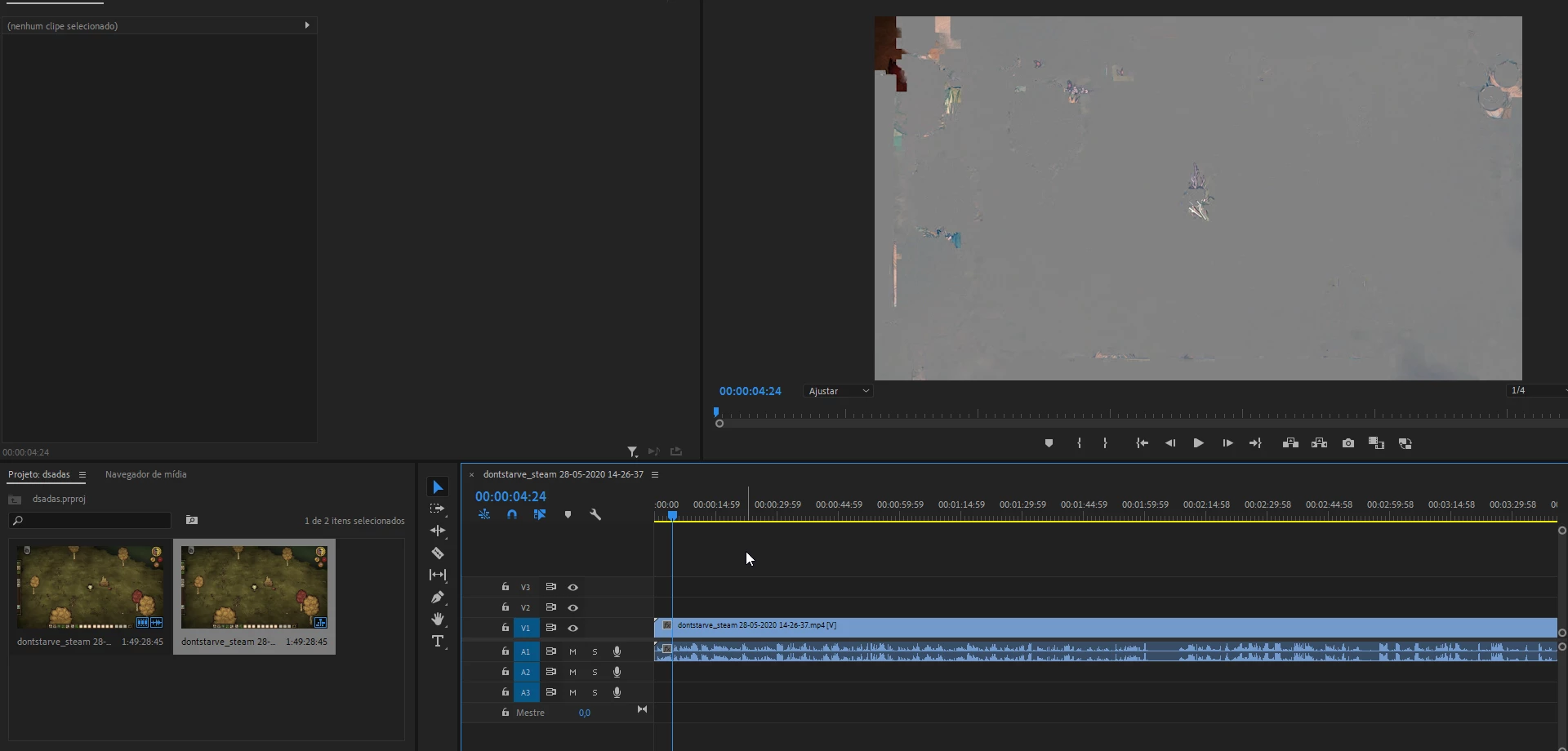
It looks like it is corrupted inside premiere but the file itself OUTSIDE premiere is all right (outside of premiere I can open and visualize the footage normally, nothing wrong with it.) it's only inside of premiere that the screen is all buggy/greyed out (the entire footage)


Here i created a new project and just opened the buggy .mp4 file, nothing else, just the footage
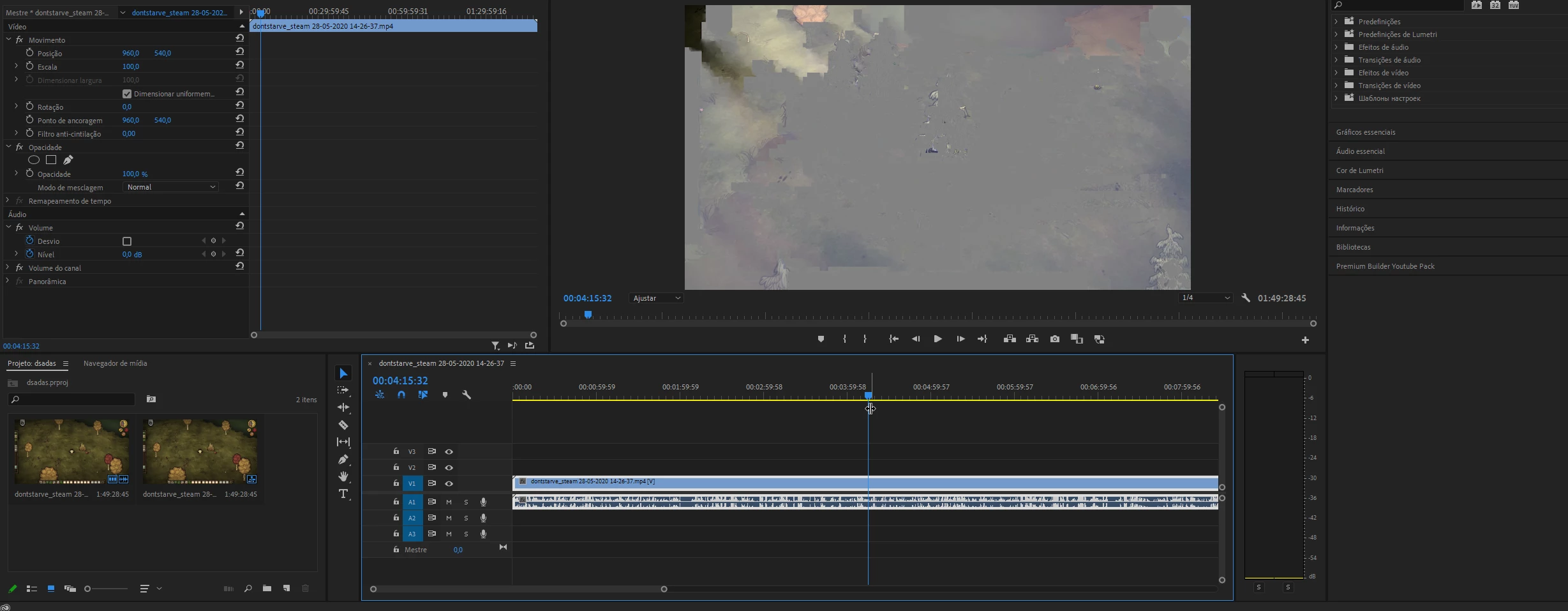


I already tried some things, here's what I've tried so far.

>Deleting media cache files

>Updated premiere to 1.4.8 (still buggy)

>Restarted my pc

>Updated drivers (AMD)

>Changed the name and location of the file (also made an copy of the original file and still didn't work)

>Tested the file on Premiere CC 2019 (which worked, but I can't open my CC 2020 project in it so it doesn't matter, and I also tried that one website that downgrades the premiere project to get it to work on previous versions, which didn't work)

And none of the things i tried worked so far.

It's just one single file that's causing the issue, if I add any other .mp4 file it runs normally, first, I thought the issue was that the file of this file is over 10GB (15GB to be specific) but I loaded some other footage and it seems to work normally, it obviously seems like a media cache bug, but I already cleaned the media cache a couple of times and it still doesn't work.

Maybe I am cleaning the wrong cache files? is there another "cache" folder that I should be aware of?

I already cleaned the "AppData>Adobe>common>media cache"

and the one it's linked to premiere "Edit>preferences>media"

I don't know what else to do, I would appreciate some help.
 

This topic has been closed for replies.
Correct answer Averdahl

I think I have one stupid solution that may work

Do you think if I go back to premiere cc 2019, render the full video again, and then go back to the 2020 version it'll work? this is a stupid solution bc it'll probably take 10 hours to render the full 1-hour clip in high definition but maybe it'll work


I just import the footage and go to the "output" session or do I need to do something else?


Yes, that´s how you do it. The error message indicates that there is something fishy with the video stream.


Do you think if I go back to premiere cc 2019, render the full video again, and then go back to the 2020 version it'll work?


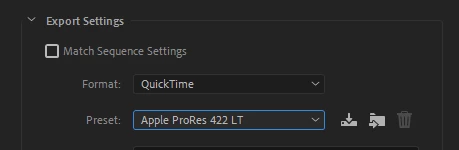
Yes that will work. If you want to speed up everything you can render to ProRes or GoPro CineForm. This will give you a usable file quick but the file size will be huge.

2 replies

Ann Bens
Community Expert
Community Expert
January 23, 2021

If its just one clip run it through Handbrake.

Participating Frequently
January 23, 2021

Ok so, I think the file is the problem, not premiere, It's still buggy on the handbrake preview, should I still use handbrake or I'll just waste my time rendering 1 hour of footage for nothing?

Thanks.

Participating Frequently
January 25, 2021

I just import the footage and go to the "output" session or do I need to do something else?


Yes, that´s how you do it. The error message indicates that there is something fishy with the video stream.


Do you think if I go back to premiere cc 2019, render the full video again, and then go back to the 2020 version it'll work?


Yes that will work. If you want to speed up everything you can render to ProRes or GoPro CineForm. This will give you a usable file quick but the file size will be huge.


Finally got it! thank you so much for your time and help!

Participating Frequently
January 23, 2021

Sorry if there's any typo or grammatical error, I'm really tired