


zacj16684255
Participating Frequently
July 14, 2022
Answered

Different image contrast issue between preview window, original and final upload

  • July 14, 2022
  • 1 reply
  • 3197 views

So I'm having this issue with differing contrast with the video I'm trying to edit and upload to YouTube.

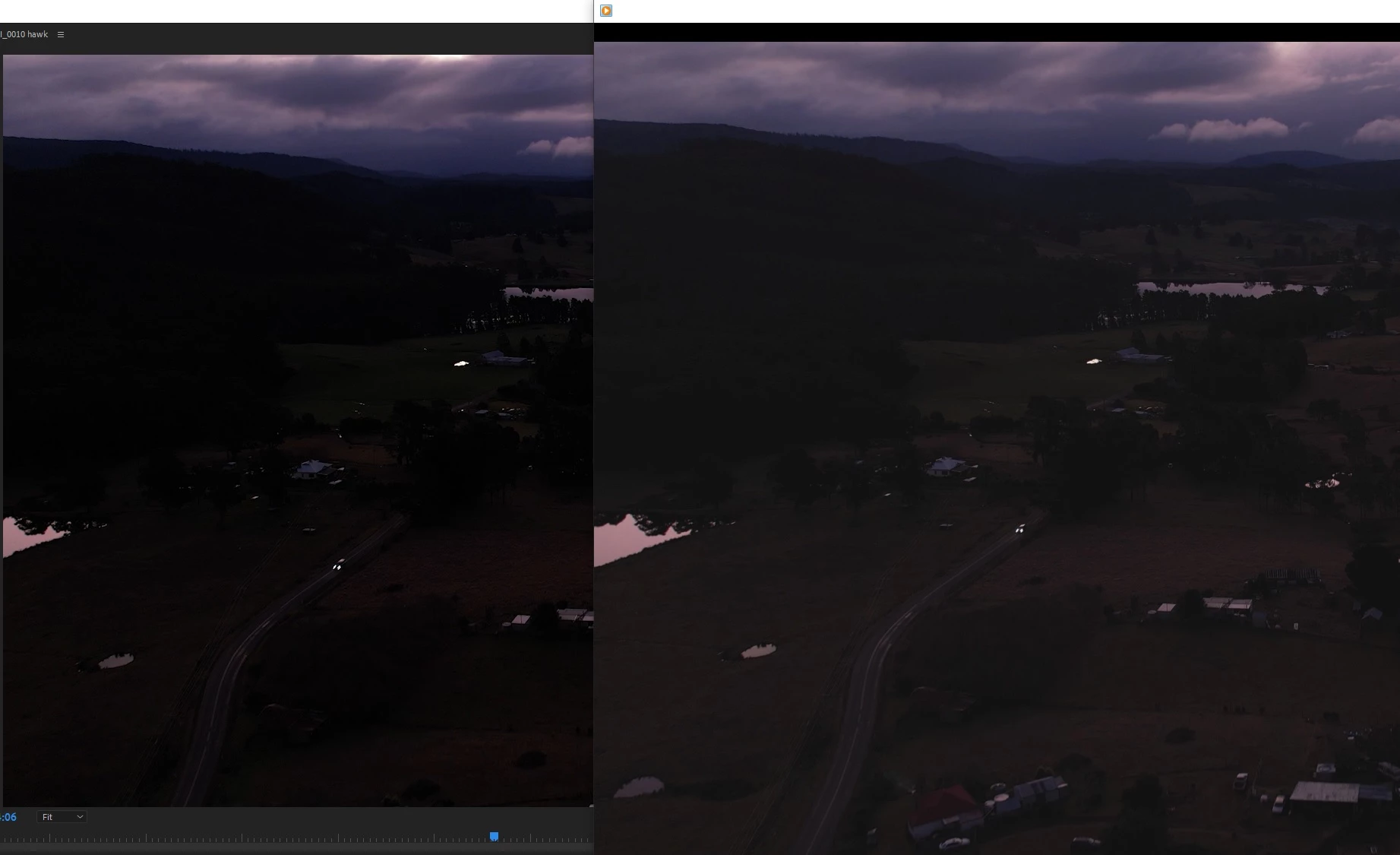
In the picture attached the original video is on the right and the premiere pro preview window is on the left, any way to get the preview window to look like the original so I can colour grade accurately?

Actually that's not even the biggest issue, once exported the image looks again the same as the original if played in windows media player (for which I have installed the h.265 codec). If played in VLC for example, it looks like the preview window (and looks like a lower quality image than wmp in my opinion).

Ultimately I want the end product to look the same on youtube as my original final exported video (minus compression but that's not the problem).

The image on the right looks way better than the one on the left it has more dynamic range, details are softer in the dark areas etc. If I try to increase exposure in preview to get the same look the colours and details look all blown out and just pretty bad so it's not something simple like that.

Video was shot in h.265 DJI Air 2s normal colour profile 4k.

I have also tried exporting in h.264 but that doesn't change anything.

Any help will be HUGELY appreciated! Thanks!
 

This topic has been closed for replies.
Correct answer R Neil Haugen

First, what's your monitoring situation, the monitor, the viewing environment (bright or dim room), have you calibrated that monitor with puck & software like Spyder or Xrite, and do you have the Display Color Management option in the Preferences checked or not?


In my experience, Premiere would be giving the more accurate view of the file signal data than any video player. Whether you like the image in a video player is mostly irrelevant ... what is the most accurate display of the image according to Rec.709 standards is the question. And that will be, on most computer/monitor setups, within Premiere.


And it's easy to check. Have you looked at the image in the scopes yet? Those tell you hard data, no matter what your screen shows. Waveform YC No Chroma, and Parade RGB, will show the pixels as they exist in the file.


Neil

1 reply

R Neil Haugen
R Neil HaugenCorrect answer
Brainiac
July 14, 2022

First, what's your monitoring situation, the monitor, the viewing environment (bright or dim room), have you calibrated that monitor with puck & software like Spyder or Xrite, and do you have the Display Color Management option in the Preferences checked or not?


In my experience, Premiere would be giving the more accurate view of the file signal data than any video player. Whether you like the image in a video player is mostly irrelevant ... what is the most accurate display of the image according to Rec.709 standards is the question. And that will be, on most computer/monitor setups, within Premiere.


And it's easy to check. Have you looked at the image in the scopes yet? Those tell you hard data, no matter what your screen shows. Waveform YC No Chroma, and Parade RGB, will show the pixels as they exist in the file.


Neil

Everyone's mileage always varies ...
zacj16684255
Participating Frequently
July 15, 2022

ok so putting on display colour management makes the image even darker and does not, in my opinion, represent what the pixels are saying in the scopes. The image looks pretty much the same in well lit coloured areas but the shadows are completely crushed. The scene I mentioned that was on the limit of visability but still had details there is now almost completely black, just flat black. 

zacj16684255
Participating Frequently
July 15, 2022

What is the file's color space?


Check in the Project panel, right-click Properties.


Neil


when I get home I'm going to try what ou suggested with monitor calibration. Image also looks very different depending on the monitor.

thanks