

Inspiring
June 22, 2013
Answered

docking a floating panel

  • June 22, 2013
  • 6 replies
  • 165884 views

I've looked through the adobe help/web search and I can't for the life of me figure out how to dock a floating panel in premiere pro 6.0.

Correct answer Meg The Dog

On Mac that particular panel is very fussy about being able to redock (or move to new position) - at least for me.

However it is possible - make the panel larger by dragging it out and then position your cursor slightly up and to the right of the 'T' text tool.

Your cursor (will hopefully) change to include a small rectangular box in it's lower right corner. You can then click & drag the panel to where you want to dock it.

The cursor does not always change. If this is the case try dragging out and expanding the panel even more both - vertically and horizontally and try again.


SteveG


I've found the drag point is in the upper left corner of the panel, you don't get a cursor change, but it works:
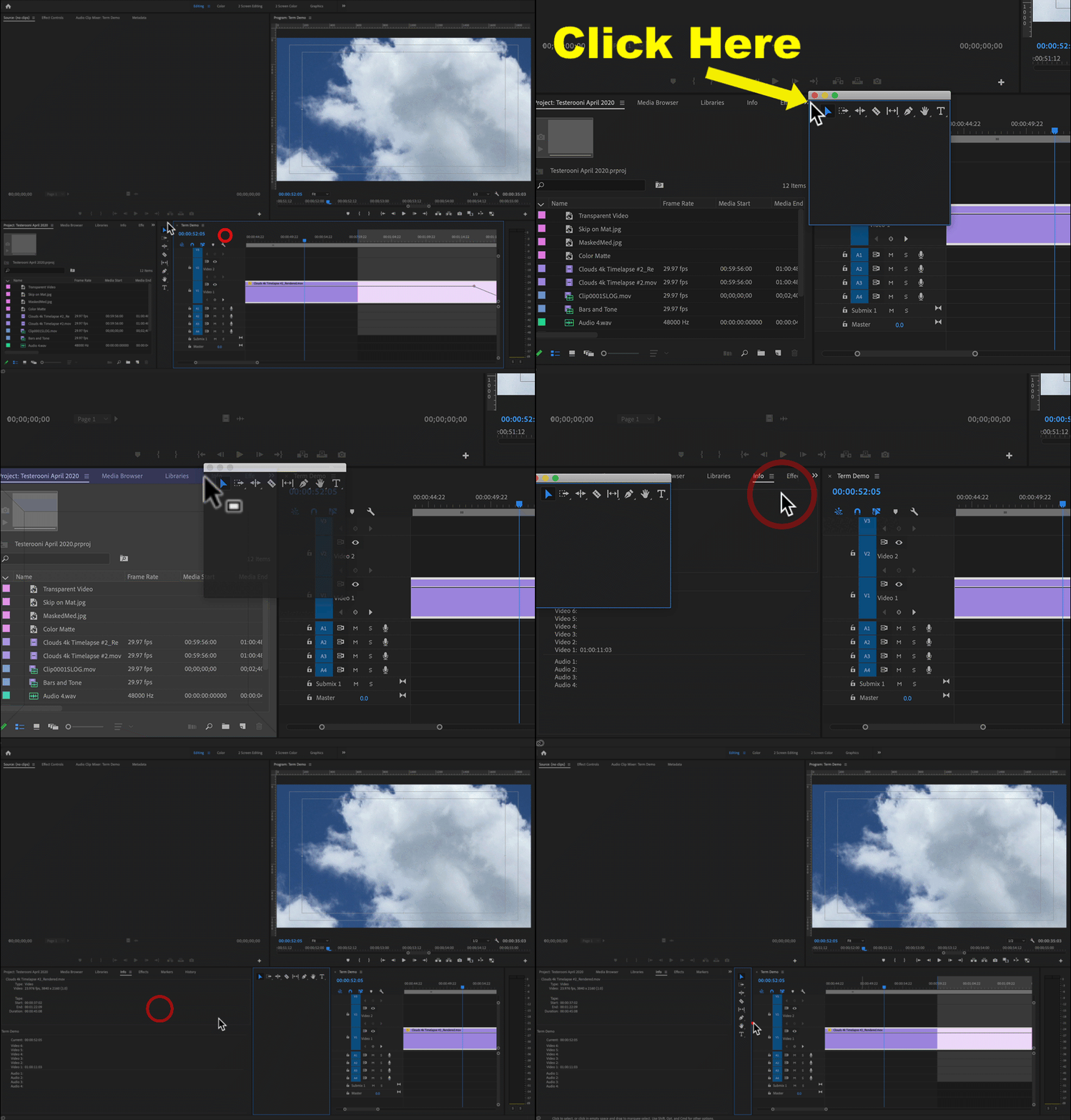
MtD

6 replies

Participant
March 23, 2025

this kind of cursor at the edge of undock panel will help to dock again just click and drag it where you want the panel


ervzman
Participating Frequently
March 22, 2019

Hi, very helpful tips. Now, how do you 'RE-DOCK' a floating group-of-panels? (without dragging tabs individually) :-)  Thanks!

Participant
May 26, 2020

There was no response to the last post, yet I am going to give this thread one more try. I'm using a Mac Powerbook. The window I get looks much different from the one in the images in this thread. Here is a snap of the floating palette I'm trying to dock.

If I grab it by the bar at the top, I can move it around, but I can't activate any zones. If I grab it anywhere else, I can't move it at all. Any help would be appreciated.

Inspiring
May 26, 2020

Use the Mac red close button in the upper left corner to close the window, then click anywhere in Premiere.

Go to the menu Window > Workspaces > Reset to Saved Layout.


MtD

nber-Sbb524
Participating Frequently
September 26, 2018

Is there a way to set it up so that you can use Windows docking?  That is "Win-Left", "Win-Right" etc.?  Once something is out of Premiere, feels really painful to organize the workspace.

Participant
May 20, 2016

I was getting super confused as well. the newest version doesn't have the hashmarks as described in this video. if you just simply drag the window by clicking on the top of the box but on the dark part not the white part it will work. not very intuitive or thought out well...

jasonk70532351
Participant
August 17, 2015

In case anyone reading this just wants a quick answer, you can dock an undocked window by dragging the dark part at the top of the window to the location you'd like it docked.

I was trying to grab the top of the window itself, as one might do to manipulate other windows in windows explorer.

pmalone100
Participant
September 12, 2015

That is the best answer yet!!! I have no dashes on my upper part... thank you for this answer Jason K ... simple and to the point... perfect..

Participant
April 5, 2018

Yes, very helpful. None of this "It's very clearly stated in the help…" BS - including a link that no longer exists.

Many thanks!!

Inspiring
June 22, 2013
Inspiring
June 22, 2013

Hey Joe,

Yes, I actually went through this and kind can't find the answer.  I understand how to do it moving a docked panel where it gives me the drop zones but once it's already a floating panel I can't seem to reactivate drop zones.  When I close the window and reopen it from the "window" tab at the top it becomes floating again.

I read through that article twice.  I'm not seeing it!

petergaraway
Adobe Employee
Adobe Employee
June 22, 2013

Try doing this. From the Premiere Pro menu choose Window > Workspace> Reset Workspace

Peter Garaway

Adobe

Premiere Pro