Participant
September 11, 2014
Answered

Downscaling 4k to 1080p Export

  • September 11, 2014
  • 2 replies
  • 56535 views

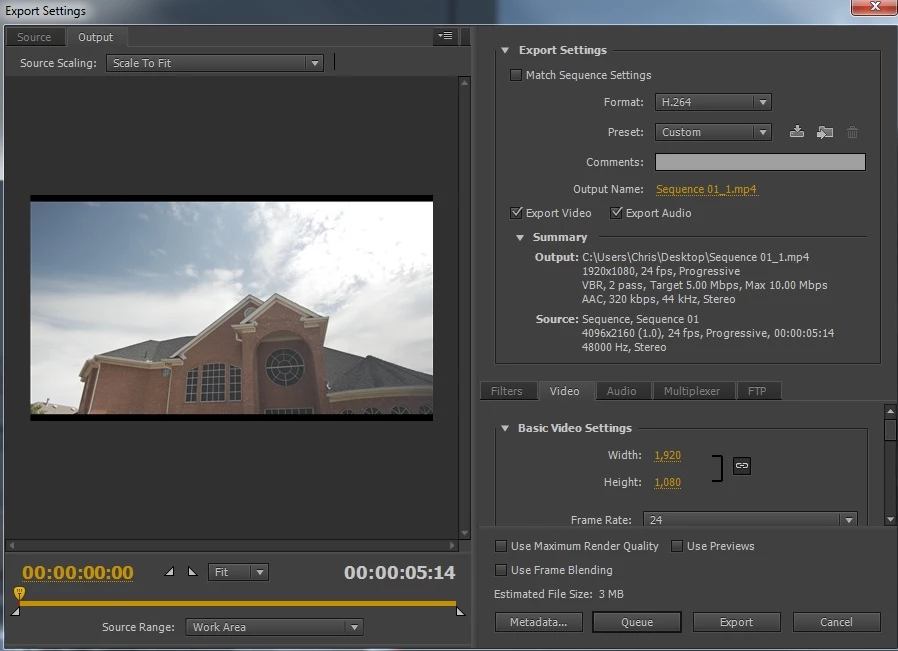
With 4k footage now possible, many users are "downscaling" their 4k footage into a 1080p timeline to produce a cleaner result for 1080p movies online. I created a sequence utilizing one of the 4k clips to carry over the settings. Then I exported to 1080p. Am I going about doing this the right way?

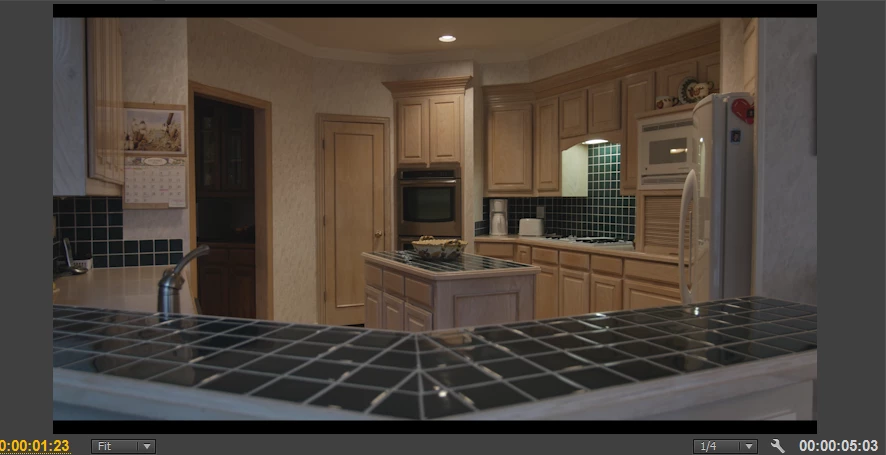
The last question I had, is I noticed when I export in this manner there are black bars on the top and bottom of the movie. Is there anyway I can get rid of this? Thanks

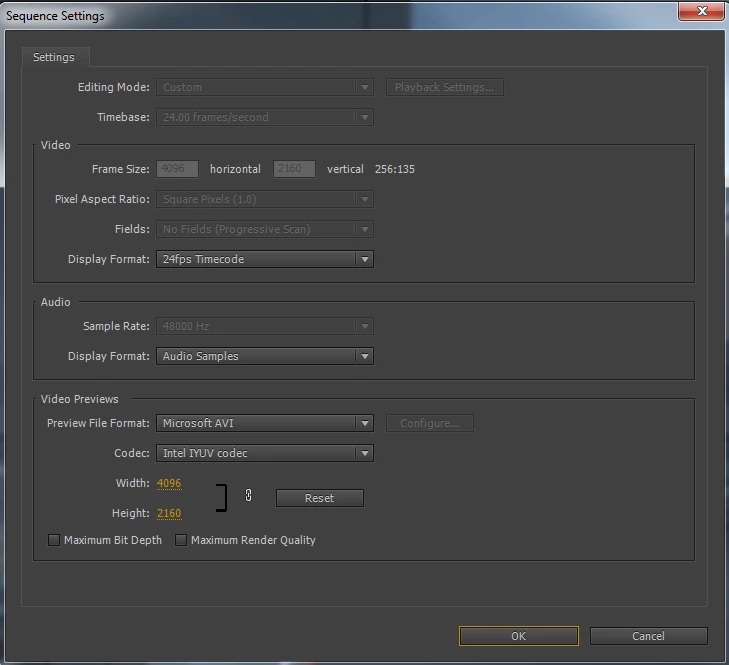
Here are the sequence settings
Export settings
    This topic has been closed for replies.
    Correct answer shooternz

    There shouldn't be any black bars. I am following the guide by Dave Dugdale where he uses premiere to down sample 4k footage onto a 1080 timeline. His end result does not have black bars, while my end result does. To see the steps he is using check out the link to the video here, its very brief https://www.youtube.com/watch?v=9oEWvBsN63U&feature=youtu.be&t=43sfrom 00:43 to 1:20


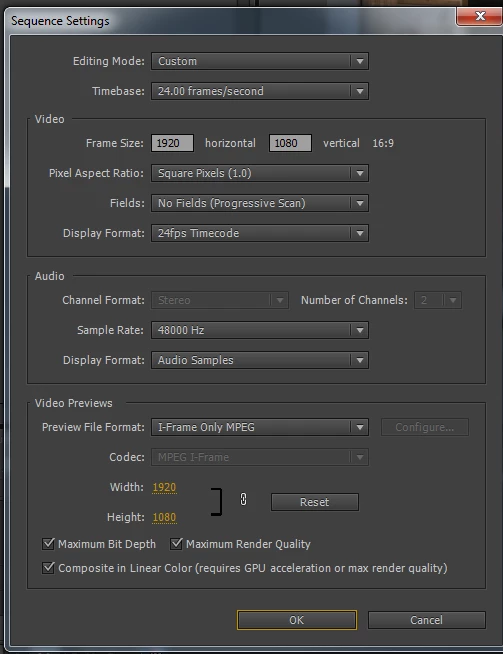
    I start by pulling down a sample of 4k footage onto create new sequence button. So the timeline is now 4k.  Then I open sequence settings and change the video frame size to 1920x1080 from 4096x2160.

    The projects source video file is 4096 x 2160

    Here are the sequence settings

    Here is the result showing black bars in the preview


    Try dropping your 4k into a new1080p sequence and use scale to sequence setting on all the clips instead of using a custom preview setting.

    2 replies

    shooternz
    Legend
    September 11, 2014

    How did you arrive at those sequence settings?

    Participant
    September 11, 2014

    shooternz That is just what seemed to appear by default. Is there something that I should change?

    shooternz
    Legend
    September 11, 2014

    Not necessarily.

    I just saw it was "custom" instead of a preset sequence.


    I am not sure why the bars appear in your output. You can crop them out (top bottom crop X pixels in source tab) if all else fails.

    Community Expert
    September 11, 2014

    Scale to fill option should lose the black bars. When going from HD to SD it is usual to check the 'Use Maximum Render Quality' box, this provides better quality scaling, perhaps someone who has worked with 4k could tell us if this also applies to 4k to HD.