


- Home
- Premiere Pro
- Discussions
- Error compiling movie - Import error - Importer re...
- Error compiling movie - Import error - Importer re...
Error compiling movie - Import error - Importer returned bad result

Copy link to clipboard
Copied
I am trying to export a sequence (H.264 with youtube HD 1080 preset) where some of the clips have speed increase of 1200% applied to to them. I am trying to emulate a timelapse... I know there is something I am not considering here.
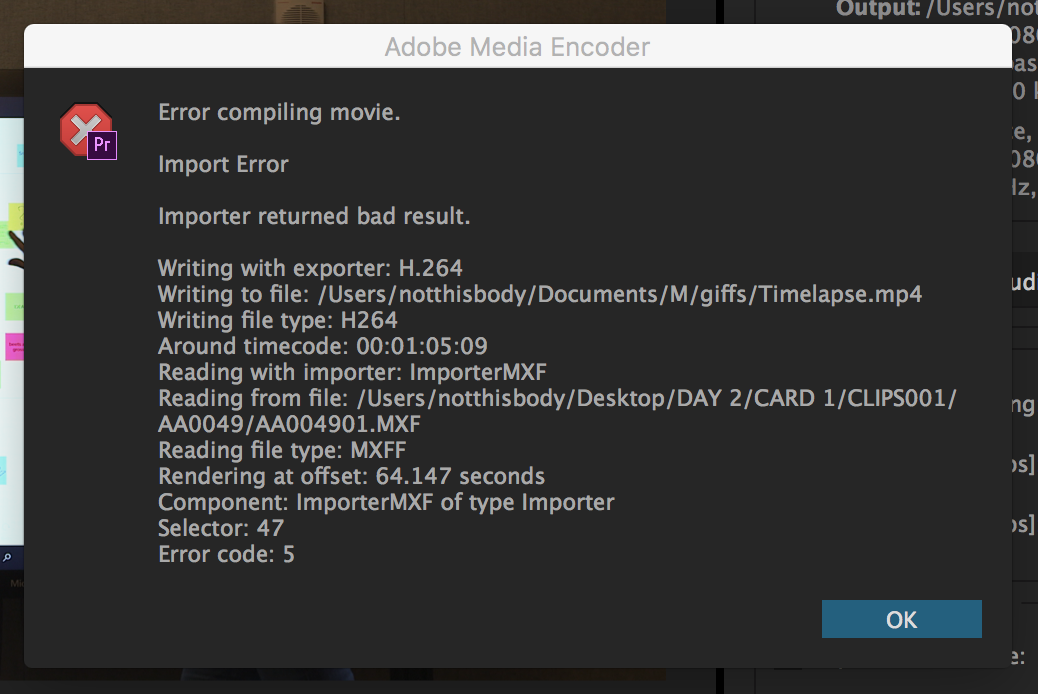
what i get as a message is : Error compiling movie - Import error - Importer returned bad result
see image bellow


 65
Replies
65
65
Replies
65


Copy link to clipboard
Copied
I am having the same issue. Now that I know it's the speed ramping it narrows the issue down. But if someone has a fix for this I would love an answer!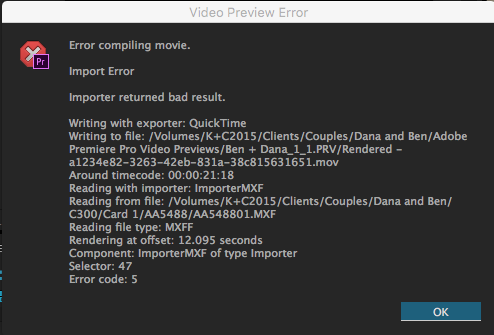


Copy link to clipboard
Copied
Hello fishpodular,
Try removing any punctuation from your sequence and export naming schemes.
Thanks,
Kevin

Copy link to clipboard
Copied
I am getting the same error I have no punctuation in my sequence, I'm just trying to render it. This error compiling problem persists this is effecting my work and jobs!!! What is the fix for this adobe????

Copy link to clipboard
Copied
I got Error code 99, no clue what i means i wish they could just like... "Tell you" what the problem is, i am figuring out this problem for a few hours nows, i litteraly tried EVERY tip on this whole page... NOTHING works.

Copy link to clipboard
Copied
Milan: If you haven't totally given up yet, does Judith's tip work for you? She found that changing the export destination folder to the root of her external drive worked.

Copy link to clipboard
Copied
I had the same issue when I upgraded to 2015.3. I ended up restarting, deleting the video previews folders, and then starting Premiere holding Alt+Shift to reset the user profile and that seems to have solved my issue.

Copy link to clipboard
Copied
it works for me, thx!
Copy link to clipboard
Copied
You can also try changing the preview file settings and codec in Sequence Settings. That worked for me today when this error unexpectedly appeared:
"Error compiling movie" when rendering or exporting
My sequence had been set at I-Frame Only MPEG, so I changed it to GoPro CineForm with Alpha.

Copy link to clipboard
Copied
I did this and all my work from the morning was lost. Really weird. I definitely saved the file.

Copy link to clipboard
Copied
Deleting the video previews folder worked for me.
Copy link to clipboard
Copied
Cool, thanks for letting us know.
Kevin

Copy link to clipboard
Copied
I tracked down the clips that were causing the failure and in my case they each had Red Giant Colorista IV applied. Changing the opacity of those layers to 99% eliminated the error.

Copy link to clipboard
Copied
Deleting the video preview files from the project also helped me. Was trying everything listed above to no success until this one. Thank you!

Copy link to clipboard
Copied
After doing much of the other suggesting to no avail, re-opening the program while holding Alt+Shift after having saved and shut down seems to have been the solution to our shared exporting error.

Copy link to clipboard
Copied
I'm having the same issue, upgraded to 2015.3 and i screwed my render in one especific project, i found out where its getting the error but there was just a video file, 0 changes, im right now trying to export with a "gap" in the video location to Re-render after, 10 hours of work because of my computer ...

Copy link to clipboard
Copied
Same issue, spent 6 hours over 2 days with support, multiple times they claimed it was an easy fix, occasionally the problem would go away but inevitably on the following render it would be back. Exporting as h.265 provided a temporary fix but now the problem is cropping up there as well.....
As a professional, this is completely unacceptable.

Copy link to clipboard
Copied
The same here, we're a small company, we pay every month... it's absolutely unacceptable.
Copy link to clipboard
Copied
Hi Walther,
Try removing any punctuation from your sequence and export naming schemes.
Thanks,
Kevin

Copy link to clipboard
Copied
Having the same issue as well, this is really disappointing Adobe, I've had to work around so many awkward glitches like this when the workflow is simple and straightforward. *THIS NEEDS TO BE FIXED.*
I'm using Avid for my next feature film, I cannot afford all the time and money lost to arbitrary troubleshooting every time I update Premiere.

Copy link to clipboard
Copied
Hey guys,
I've been battling this same error message for most of the day, and I *think* I have come up with a solution - at least to the way this issue manifested for me.
The Problem:
To give a little background, I had been having no issues with this project during the edit. I was using proxies and it was going fine, but when I relinked to the RAW (RED R3Ds all at 4K or over) and tried to either render my timeline, or export, I was running into this error:
Export Error
Error compiling movie.
Import Error
Importer returned bad result.
Writing with exporter: H.264
Writing to file: [omitted]
Writing file type: H264
Around timecode: 01:00:04:23 - 01:00:05:23
Reading with importer: ImporterRED
Reading from file: E:\2016\FOR ESME - JUST YET\01_RAW FOOTAGE\RAW\CARD 01\A001_0606M1.RDM\A001_C005_0606CU.RDC\A001_C005_0606CU_001.R3D
Reading file type: R3D
Rendering at offset: 10.969 seconds
Component: ImporterRED of type Importer
Selector: 47
Error code: 5
Here are the things I tried that did not work:
- Duplicating the sequence
- Changing the preview file settings on the sequence
- Exporting to multiple codecs and wrappers
- Clearing the cache
- Clearing user settings
- Importing the sequence to a new project
- Updating Premiere
- Updating my graphics drivers
- Copying the entire project to my laptop and attempting it (and all of the above) from there
The fact that I was able to move the project to a laptop (and from Windows on my desktop, to Mac on my laptop) and still have the issue definitely pointed to a Premiere issue.
Solution/Workaround:
I started trying to render the timeline one clip at a time, and could not for the life of me understand why some clips would render and others wouldn't. Then I realized I'd been using Right-Click>"Scale to Frame Size" to scale my 4K media to the 1080p timeline. Turning that off and using "Set to Frame Size" instead seems to have fixed it! I can now render these clips on my timeline, so it's looking hopeful.
So if anyone is having this error and is working with scaled down footage, give this a shot!
Here are a few other things that worked for me, as a rougher workaround:
- Exporting to an uncompressed AVI had no problems
- Ditto rendering to a DNxHD .mxf file
- Nesting all the clips in the sequence also works for some reason.
These aren't great solutions, but if your main issue is just getting the damn thing OUT of Premiere they can be helpful.
Hope that helps!

Copy link to clipboard
Copied
It solved my problem, thanks! I had 5-6 clips preventing the rendering and it worked after changing the scale

Copy link to clipboard
Copied
This fixed it for me, thanks!!!

Copy link to clipboard
Copied
Appreciate this Alex. I was not scaling, but did have UHD footage in my timeline that I had "Set to Frame Size," which had scaled it in the Effects Control panel to 50%. Locating the offending clip and changing that scaling number from 50% to 51% in my Effects Control panel did the trick.

Copy link to clipboard
Copied
I worked on a project on another system and then later imported the sequence via the premiere project file into the master session. Upon attempting to Render from In to Out, I would get this error:
Export Error
Error compiling movie.
Import Error
Importer returned bad result.
I'm guessing that it was attempting to reference render files from the second computer, which were no longer available. Here's what solved it for me:
I discarded all render files for the sequence using the Delete Render Files In to Out option. Then, when I would Render from In to Out, the successfully rendered clips would display a green bar above them, whereas the un-rendered clips displayed a yellow bar. I had one particular clip that caused the crash every time. I deleted this clip from the timeline, rendered from In to Out successfully (with a gap in my timeline). Then I replaced the clip and rendered once again.
Not an ideal workflow and I lost 15 minutes to this issue, but it was at least solvable for me in this case. I hope this helps someone!


Get ready! An upgraded Adobe Community experience is coming in January.
Learn more
 AdChoices