



Mohamed H
Known Participant
July 4, 2020
Question

Export error

  • July 4, 2020
  • 3 replies
  • 2440 views

Hello everyone,

I would appreciate any help as I've been working on a project for just over 2 months now but keep getting errors whenever i would try and export my project.


I have tried exporting 6 times today, through Premiere and through Media Encdoer, and they both keep giving me similar issues with the exact same error code. I have tried referring to the article posted by Adobe on how to try and avoid possible export errors, but their fixes dont seem to work for me.


I have tried switching to CUDA, and to software only. I have tried restarting my PC. I have tried to export to different file formats with different codecs (H.264 (twice), HEVC, Apple ProRes, MPEG, AVI). I have tried removing a few of the videos in the sequence and bringing them back. I tried checking for Adobe Premiere, AE (my project contains AE files) and Media Encoder updates. I've checked for GPU updates. And have even checked for Windows updates for the sake of making sure it wasn't the problem. And nothing worked.


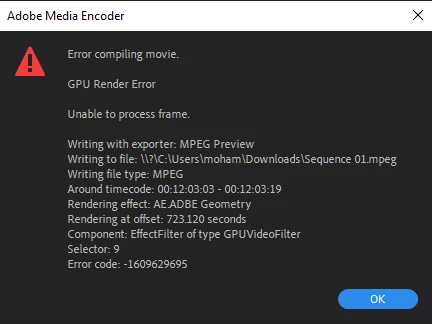
This screenshot is from the last export attempt.


Under 'error compiling movie', it has also said 'accelerated render error', 'render returned error' and 'unable to produce frame'.


System specs:

CPU: 6 core Intel Processor

RAM: 16GB

GPU: GTX 980ti


Sorry for the long article, but any help would be magnificent.


Mo
This topic has been closed for replies.

3 replies

Braniac
July 4, 2020

set your preview format in your sequence settings to a high quality format like prores and attempt to render your entire timeline....  and then export with the "use preview" checked.


by any chance is your source material from a smart phone or screen capture utility?  If so, the source of your problem is probably that your sources have a variable frame rate.  

https://community.adobe.com/t5/premiere-pro/faq-issues-with-screen-recorded-footage-in-premiere-pro/td-p/10874355?page=1

You can use handbrake to convert to a constant frame rate

https://handbrake.fr

Mohamed H
Mohamed HAuthor
Known Participant
July 5, 2020

I have just done that; set previews to Quicktime (.mov) with Apple ProRes, and it actually worked! But it rendered to a 23 GB file (with H.264, Premiere expected the total size to be about 2.1GB), there is way too much motion blur i didn't ask for, and the colours don't seem right. That's a step in the right direction though, and i really appreciate it.

Mohamed H
Mohamed HAuthor
Known Participant
July 5, 2020

first use handbrake to convert any material shot on your iphone to a constant frame rate

https://handbrake.fr

and here's a tutorial on how to do it

https://www.youtube.com/watch?time_continue=34&v=xlvxgVREX-Y

That will probably fix your export problem.  That may also be the source of your motion blur issues but regardless, you should see any issues when playing back the timeline within premiere BEFORE you export and can make any adjustments that are necessary.  This process should NOT increase motion blur... (bwdik)

There's no reason why you can't set your preview format to your desired export format and render your timeline and then do the export.   I suspect that you'd get slightly better quality rendering to prores and exporting and then use adobe media encoder to make the h264 but probably nothing you'd notice.   Happy to go in to detail of my thinking on this but it's probably more complicated then you might want to know.  But post back if you are interested.

As far as the color shift goes, that's a very deep subject and you should do some searching here as there are many threads dealing with this issue.


I watched the video, and it seems quite helpful. Only problem is, i've got tens of videos that were shot on my iPhone in this video, each with their own set of effects and sfx and music and whatnot, and taking all of them to handbrake, resetting their framerates, cutting through them and re-applying the effects will take quite a bit of time, and i've got a close deadline to meet that shows that the amout of time i have left wouldn't be enough to do all that. I did get handbrake for future projects, but for the current one is there a more effecient way to do that? 


Quick update: I did just try to export to H.264 while using the previews i rendered earlier, and it did work, rendering a much better sized 1.9GB file, that still maintains the motion blur problem. And maybe the colours weren't the video's problem, but my display's as I did edit this video on a different display, and that's why it might just look a little off. When playing the preview in Premiere, i have never seen any motion blur. That only shows in the rendered file.

Ann Bens
Braniac
July 4, 2020

Please do NOT add images via the "attach files" box, as you are then forcing everyone to DOWNLOAD the file to view it outside their browser. Drag/drop the image files directly ONTO your reply box so other users can see them without needing to download unknown strange files.
Thank you! 

Participating Frequently
July 4, 2020

Does it seem to keep stopping at the same spot in the render? If so you might have a partially damaged video in your timeline.

Mohamed H
Mohamed HAuthor
Known Participant
July 4, 2020

No, it stops in different spots. One time it just stopped at the last second then showed the error