



Mohamed H
Known Participant
July 4, 2020
Question

Export error

  • July 4, 2020
  • 3 replies
  • 2440 views

Hello everyone,

I would appreciate any help as I've been working on a project for just over 2 months now but keep getting errors whenever i would try and export my project.


I have tried exporting 6 times today, through Premiere and through Media Encdoer, and they both keep giving me similar issues with the exact same error code. I have tried referring to the article posted by Adobe on how to try and avoid possible export errors, but their fixes dont seem to work for me.


I have tried switching to CUDA, and to software only. I have tried restarting my PC. I have tried to export to different file formats with different codecs (H.264 (twice), HEVC, Apple ProRes, MPEG, AVI). I have tried removing a few of the videos in the sequence and bringing them back. I tried checking for Adobe Premiere, AE (my project contains AE files) and Media Encoder updates. I've checked for GPU updates. And have even checked for Windows updates for the sake of making sure it wasn't the problem. And nothing worked.


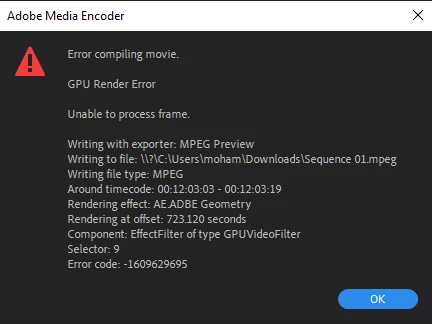
This screenshot is from the last export attempt.


Under 'error compiling movie', it has also said 'accelerated render error', 'render returned error' and 'unable to produce frame'.


System specs:

CPU: 6 core Intel Processor

RAM: 16GB

GPU: GTX 980ti


Sorry for the long article, but any help would be magnificent.


Mo
This topic has been closed for replies.

3 replies

Brainiac
July 4, 2020

set your preview format in your sequence settings to a high quality format like prores and attempt to render your entire timeline....  and then export with the "use preview" checked.


by any chance is your source material from a smart phone or screen capture utility?  If so, the source of your problem is probably that your sources have a variable frame rate.  

https://community.adobe.com/t5/premiere-pro/faq-issues-with-screen-recorded-footage-in-premiere-pro/td-p/10874355?page=1

You can use handbrake to convert to a constant frame rate

https://handbrake.fr

Mohamed H
Mohamed HAuthor
Known Participant
July 5, 2020

I have just done that; set previews to Quicktime (.mov) with Apple ProRes, and it actually worked! But it rendered to a 23 GB file (with H.264, Premiere expected the total size to be about 2.1GB), there is way too much motion blur i didn't ask for, and the colours don't seem right. That's a step in the right direction though, and i really appreciate it.

Brainiac
July 5, 2020

following their online documentation, I can't figure out how to batch import.  It's certainly not intuitive, unlike handbrake...  Will dig in to it further tomorrow when I get in to the studio.  When you say lossless, you are talking about max quality mp4?  I prefer working in prores which editready does.  bwdik...


figured it out.  Not particularly intuitive and not explained well in the documentation, but you get what you pay for...

Ann Bens
Brainiac
July 4, 2020

Please do NOT add images via the "attach files" box, as you are then forcing everyone to DOWNLOAD the file to view it outside their browser. Drag/drop the image files directly ONTO your reply box so other users can see them without needing to download unknown strange files.
Thank you! 

Participating Frequently
July 4, 2020

Does it seem to keep stopping at the same spot in the render? If so you might have a partially damaged video in your timeline.

Mohamed H
Mohamed HAuthor
Known Participant
July 4, 2020

No, it stops in different spots. One time it just stopped at the last second then showed the error