brentondparry
Participant
January 17, 2017
Answered

Exporting EDL from Premiere Pro to SpeedGrade

  • January 17, 2017
  • 1 reply
  • 2645 views

I'm new to the world of SpeedGrade and editing video in general. I've exported the EDL file from Premiere Pro as instructed but whenever I go to SpeedGrade and try to open it I get an error message saying unsupported edit info. What am I doing wrong?

This topic has been closed for replies.
Correct answer R Neil Haugen

(I'm presuming you're running PrPro 2017, and SpeedGrade 2015.1, the latest of both ... and if you want my best opinion on how to use Sg with PrPro 2017, skip to the bottom. )

Any of a number of things. I've worked with SpeedGrade since the CS6 days, and I was SOOOOO incredibly thrilled when they created the "Direct Link" between PrPro & Sg, using the menu command from PrPro to "Send Direct to SpeedGrade". And actually, SpeedGrade could open a current-PrPro project file all by itself. And was very disappointed when they removed that capability in the "10.x" builds of the 2015.3/4 series.

PrPro's EDL export process is not always ... correct. And Sg is a finicky user of EDL's. Not a great combination. So, I can give a few hints, but then I'll give a (realistically) better operating method.

SpeedGrade setup

First ... you have to go into SpeedGrade's setup process (the wrench icon) and in the Playback settings tab, set the Base Frame Rate to the frame-rate of your media. Exactly. As in, 29.97 for 29.97fps media, 30 for 30fps media. Then in the Editing tab, again set the base frame-rate, then in the lines below, set it to "Both Edits & Footage have the rate specified above or in the EDL". Then close and re-start SpeedGrade.

PrPro Steps

Understand, that titles, graphics & such don't normally flow through a round-trip to grading well. So graphics & titles are typically moved up a track or two, and then de-selected by clicking the eyeball in the controls on the left side of the sequence area. The one where you hove over it and it says "Toggle track output".

Next ... are you going to export the EDL from PrPro, then use a conform process in Sg to place the clips in the sequence, or export a flattened file from PrPro for importing along with the EDL in Sg? Either way can work, and if all the media you've got is on Sg's rather short list of usable codecs, can be simpler to do.

EDL/conform

If you're trying an EDL-out/conform in Sg process, you'd use the PrPro "Export - EDL" menu item to create the EDL and save it where you want to access it for Sg. Then go to Sg and drag the EDL to the timeline, then select the media and drag it to the timeline. Praying is probably a consideration at this point. Sigh. Sometimes, if it doesn't work at first, and you've got multiple tracks of media on the PrPro timeline, going back into PrPro and flattening the media tracks may work. That's covered below.

EDL/flattened media export from PrPro/Scene Detect in Sg

Graphics and multiple media tracks don't typically work well in an EDL process. Especially in a 'flattened' media export. So you'll need to prep the timeline in PrPro by "lifting" all graphics and titles above the media tracks, and if you've got media on more than one video track, working through selecting media on upper tracks and "dropping" them down on the track below, until you have a "flattened" file, a single video track. Now, de-select all other video tracks with anything on them, so the coming export will only have that one video track.

Next ... some people who've had good success (as they report it) with PrPro/Sg EDL workflows say one needs to fill something in the "Reel Name" metadata in the PrPro Project panel, which seems to have changed to "Tape Name" ... that simply having something in this data spot, and preferably the same data in all clips, seems to help Sg decide to accept the EDL. I just tried putting "Reel" in  the spots for a test EDL project, and it all worked.

SpeedGrade does accept a number of codecs, so it may be possible to load the EDL into Sg, and then "conform" the footage to the EDL by using the "Media" tab in Sg, then navigating to & selecting the media, and dragging it onto the timeline. Sg sometimes accepts this from me, and sometimes ... doesn't.

It may work better if you exported a "flattened" file of your timeline to do your grading. If SpeedGrade accepts the EDL and the media file when you drag that onto the timeline, the EDL provides the cuts on it and you can then grade each clip easily.

To prep your timeline for a flattened export It's normally wise to work only with footage, and not include any titles or graphics in the flattened export. When you render out the file to bring back to PrPro, you use that to replace the "flattened" footage.

I have best success in exporting a "Quicktime" format from PrPro to get an mov "wrapper" which seems to keep Sg happy, but go down to the "Video Codec" section to set that to a Cineform, then click the "Match Source" which normally does match the original media pretty accurately, but I check the parameters to make sure ... frame-size, rate, pixel dimension, progressive ... and set the "Quality" to at least a 4, if not all the way to 5.

Still, half the time, it will insist that a clip PrPro has just exported has a different frame rate than the next one in line also exported with the exact same preset  ... go figure. No clue on that, sorry.

Easiest, in some ways ... is a simple export of the entire sequence without the graphics in a single file from PrPro, no EDL either ... then import that file into Sg, invoke the "scene detect" button as shown here ...
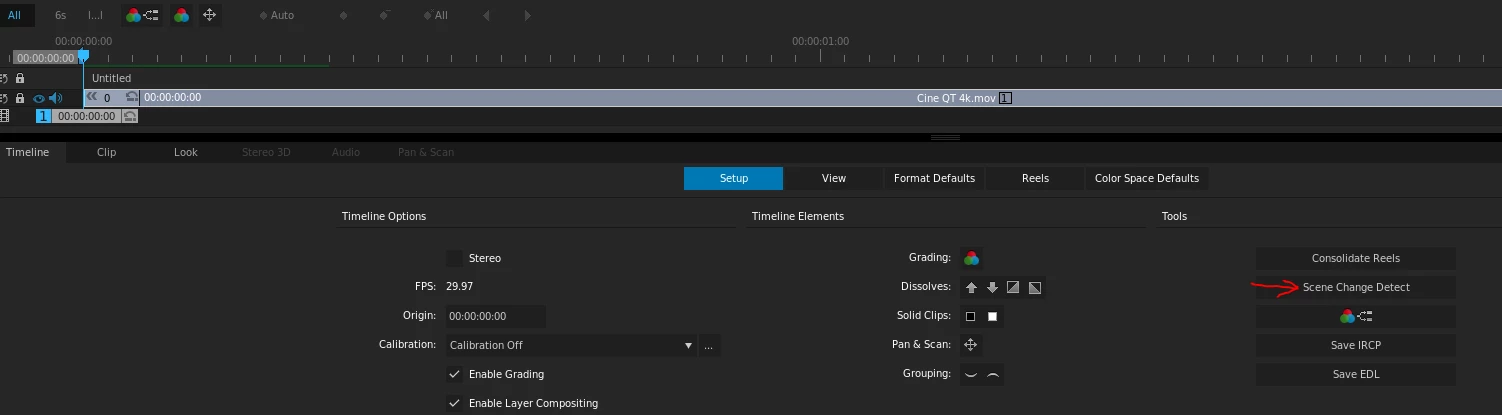
Then tweak the scene changes as needed (that's available somewhere online with a search ... or get a lynda.com subscription, and to through some of the CS6 era SpeedGrade tutorials). After you've got that sequence "cut" then go ahead and grade. Export out another high-quality file from SpeedGrade, import that into PrPro, "lift" everything on the sequence there one video track up, put this on the bottom track, and ... if it all still lines up properly, move the transitions from the upper track down ... remove the 'original' media track and slide your graphics titles & such down.

Slick, eh? No?

By far the easiest path to SpeedGrade from PrPro is Patrick Zadrobilek's little app. And I hope I spell his last name correctly!

Found within the discussion of this Sg forum thread ... Update: My little Speedgrade/Premiere Project Converter still works with 2017

I've used his application and it works slick and fast. You "open" a PrPro 2017 project file in his app, it does a save-as iteration process of the file, then changes ONE character in the file header so that Sg 2015.1 (the last Sg version) can read it as a "Direct Link" PrPro project file. Do your grading. Save the file from Sg. Re-open the project file in Pat's app, and it auto-reconverts that one character so PrPro 2017 sees the file as it's own again ... but with the SpeedGrade grading done to it, and ... at the bottom of the Lumetri color panel in PrPro, you have a check-box to turn on/off that Sg grade.

Which is really slick ... and works apparently with everything except AfterEffects comps on a PrPro sequence. Any AE comps will need to be replaced with a full media file of that comp exported from Ae and then used to replace the comp directly on the sequence.

The cost for Pat's app is small ... the time & hassle changed is HUGE. Highly recommended! (Though of course, not "officially" approved by Adobe.)

Now ... though I just did everything above to make sure it was correct, there is undoubtedly something in the EDL process I didn't say precisely correct, or just won't work for you. Well, sometimes the same steps don't work for me either ... which is why I avoid it when I can.

Neil

1 reply

R Neil Haugen
R Neil HaugenCorrect answer
Legend
January 18, 2017

(I'm presuming you're running PrPro 2017, and SpeedGrade 2015.1, the latest of both ... and if you want my best opinion on how to use Sg with PrPro 2017, skip to the bottom. )

Any of a number of things. I've worked with SpeedGrade since the CS6 days, and I was SOOOOO incredibly thrilled when they created the "Direct Link" between PrPro & Sg, using the menu command from PrPro to "Send Direct to SpeedGrade". And actually, SpeedGrade could open a current-PrPro project file all by itself. And was very disappointed when they removed that capability in the "10.x" builds of the 2015.3/4 series.

PrPro's EDL export process is not always ... correct. And Sg is a finicky user of EDL's. Not a great combination. So, I can give a few hints, but then I'll give a (realistically) better operating method.

SpeedGrade setup

First ... you have to go into SpeedGrade's setup process (the wrench icon) and in the Playback settings tab, set the Base Frame Rate to the frame-rate of your media. Exactly. As in, 29.97 for 29.97fps media, 30 for 30fps media. Then in the Editing tab, again set the base frame-rate, then in the lines below, set it to "Both Edits & Footage have the rate specified above or in the EDL". Then close and re-start SpeedGrade.

PrPro Steps

Understand, that titles, graphics & such don't normally flow through a round-trip to grading well. So graphics & titles are typically moved up a track or two, and then de-selected by clicking the eyeball in the controls on the left side of the sequence area. The one where you hove over it and it says "Toggle track output".

Next ... are you going to export the EDL from PrPro, then use a conform process in Sg to place the clips in the sequence, or export a flattened file from PrPro for importing along with the EDL in Sg? Either way can work, and if all the media you've got is on Sg's rather short list of usable codecs, can be simpler to do.

EDL/conform

If you're trying an EDL-out/conform in Sg process, you'd use the PrPro "Export - EDL" menu item to create the EDL and save it where you want to access it for Sg. Then go to Sg and drag the EDL to the timeline, then select the media and drag it to the timeline. Praying is probably a consideration at this point. Sigh. Sometimes, if it doesn't work at first, and you've got multiple tracks of media on the PrPro timeline, going back into PrPro and flattening the media tracks may work. That's covered below.

EDL/flattened media export from PrPro/Scene Detect in Sg

Graphics and multiple media tracks don't typically work well in an EDL process. Especially in a 'flattened' media export. So you'll need to prep the timeline in PrPro by "lifting" all graphics and titles above the media tracks, and if you've got media on more than one video track, working through selecting media on upper tracks and "dropping" them down on the track below, until you have a "flattened" file, a single video track. Now, de-select all other video tracks with anything on them, so the coming export will only have that one video track.

Next ... some people who've had good success (as they report it) with PrPro/Sg EDL workflows say one needs to fill something in the "Reel Name" metadata in the PrPro Project panel, which seems to have changed to "Tape Name" ... that simply having something in this data spot, and preferably the same data in all clips, seems to help Sg decide to accept the EDL. I just tried putting "Reel" in  the spots for a test EDL project, and it all worked.

SpeedGrade does accept a number of codecs, so it may be possible to load the EDL into Sg, and then "conform" the footage to the EDL by using the "Media" tab in Sg, then navigating to & selecting the media, and dragging it onto the timeline. Sg sometimes accepts this from me, and sometimes ... doesn't.

It may work better if you exported a "flattened" file of your timeline to do your grading. If SpeedGrade accepts the EDL and the media file when you drag that onto the timeline, the EDL provides the cuts on it and you can then grade each clip easily.

To prep your timeline for a flattened export It's normally wise to work only with footage, and not include any titles or graphics in the flattened export. When you render out the file to bring back to PrPro, you use that to replace the "flattened" footage.

I have best success in exporting a "Quicktime" format from PrPro to get an mov "wrapper" which seems to keep Sg happy, but go down to the "Video Codec" section to set that to a Cineform, then click the "Match Source" which normally does match the original media pretty accurately, but I check the parameters to make sure ... frame-size, rate, pixel dimension, progressive ... and set the "Quality" to at least a 4, if not all the way to 5.

Still, half the time, it will insist that a clip PrPro has just exported has a different frame rate than the next one in line also exported with the exact same preset  ... go figure. No clue on that, sorry.

Easiest, in some ways ... is a simple export of the entire sequence without the graphics in a single file from PrPro, no EDL either ... then import that file into Sg, invoke the "scene detect" button as shown here ...

Then tweak the scene changes as needed (that's available somewhere online with a search ... or get a lynda.com subscription, and to through some of the CS6 era SpeedGrade tutorials). After you've got that sequence "cut" then go ahead and grade. Export out another high-quality file from SpeedGrade, import that into PrPro, "lift" everything on the sequence there one video track up, put this on the bottom track, and ... if it all still lines up properly, move the transitions from the upper track down ... remove the 'original' media track and slide your graphics titles & such down.

Slick, eh? No?

By far the easiest path to SpeedGrade from PrPro is Patrick Zadrobilek's little app. And I hope I spell his last name correctly!

Found within the discussion of this Sg forum thread ... Update: My little Speedgrade/Premiere Project Converter still works with 2017

I've used his application and it works slick and fast. You "open" a PrPro 2017 project file in his app, it does a save-as iteration process of the file, then changes ONE character in the file header so that Sg 2015.1 (the last Sg version) can read it as a "Direct Link" PrPro project file. Do your grading. Save the file from Sg. Re-open the project file in Pat's app, and it auto-reconverts that one character so PrPro 2017 sees the file as it's own again ... but with the SpeedGrade grading done to it, and ... at the bottom of the Lumetri color panel in PrPro, you have a check-box to turn on/off that Sg grade.

Which is really slick ... and works apparently with everything except AfterEffects comps on a PrPro sequence. Any AE comps will need to be replaced with a full media file of that comp exported from Ae and then used to replace the comp directly on the sequence.

The cost for Pat's app is small ... the time & hassle changed is HUGE. Highly recommended! (Though of course, not "officially" approved by Adobe.)

Now ... though I just did everything above to make sure it was correct, there is undoubtedly something in the EDL process I didn't say precisely correct, or just won't work for you. Well, sometimes the same steps don't work for me either ... which is why I avoid it when I can.

Neil

Everyone's mileage always varies ...
brentondparry
Participant
January 18, 2017

OMG!

Thank you R Neil, that was very informative as well as thoroughly confusing for a newbie to all of this.

I really appreciate such a thorough answer!

Brenton

R Neil Haugen
Legend
January 18, 2017

It's confusing enough five years in. Sadly. I've never been able to get and answer as to why Sg will often report a clip does not have the correct frame-rate for the sequence. That's been exported from PrPro in precisely that frame-rate!

So ... is it because the EDL has something wrong, or that Sg doesn't read them right?

No clue. I've asked a lot of "experts", and one of the common answers is that EDL's are really a simple text file, you can figure them out easily and see if something's wrong, then change it say in Notepad in the Windows side ... any basic txt editor.

So I spent some time trying to learn and figure out what was wrong if anything ... tried changing a few things, nothing in the way of success. And as to how crazy this can be, before finishing that post, I exported twice out of PrPro, both an EDL and the media ... and opened them up in Sg just fine.

After posting the response, for the heck of it, I duplicated the efforts. Using the standard EDL export, and the exact same preset from PrPro.

Of the two clips, one went "loaded from reel" perfectly ... the other, the red screen saying the frame-rate is wrong. Deleted, closed, repeated ... nope.

Go figure.

Which is why I use Pat's little applet. Fast, totally accurate, never fails me.

Neil

Everyone's mileage always varies ...
