



FAQ: All about Hardware Encoding in Premiere Pro 14.2
With the release of Premiere Pro version 14.2, you can take advantage of dedicated H.264 and H.265 (HEVC) encoders provided by NVIDIA and AMD on Windows-based systems. These encoders can accelerate the encoding (export) performance when using H.264 and H.265 (HEVC) codecs in the export settings.
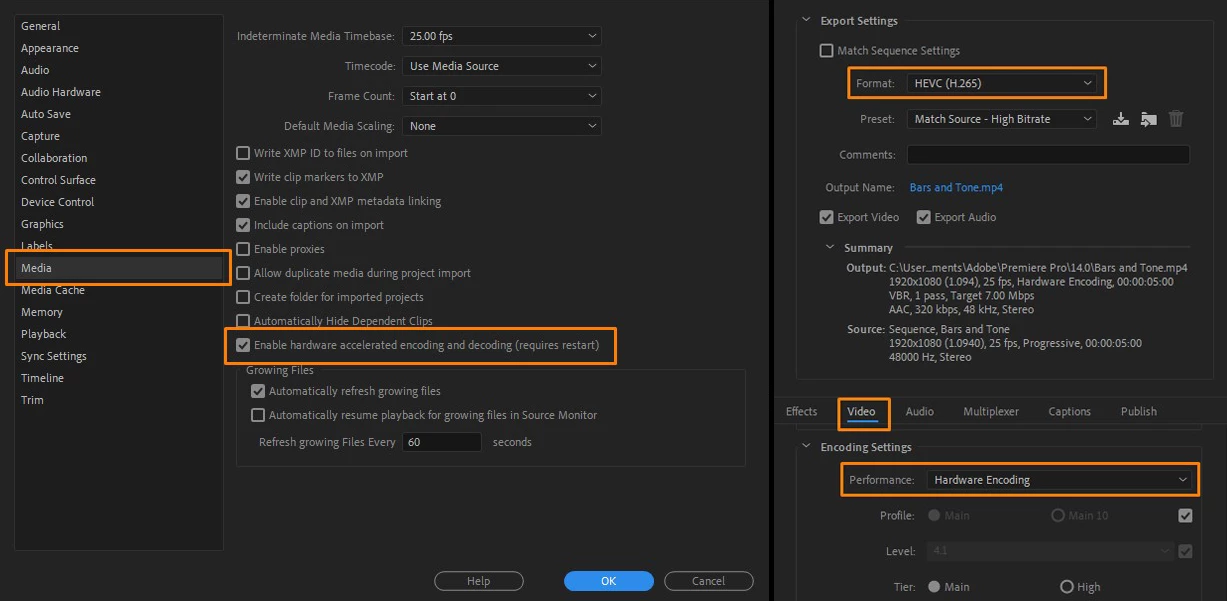
To enable Hardware Encoding, navigate to Export Settings and select H.264 or H.265 as Format.
Under the Video tab scroll down to Encoding Settings and set Performance to Hardware Encoding.
Also, enable Hardware accelerated encoding and decoding from Premiere Pro preferences.
For the Hardware Encoding to work, ensure that you have NVENC supporting NVIDIA GPU or AMD VCE/VCN supporting AMD GPU.
Refer to this link to check if your NVIDIA GPU supports H.264/H.265 encoding.
https://developer.nvidia.com/video-encode-decode-gpu-support-matrix
Please, note that a few of the Pascal, Maxwell and Kepler series NVIDIA GPUs don't support the H.264/H.265 encoding. NVIDIA GPU based Hardware Encoding won't be available on these GPUs.
Though, if you have an Intel CPU with Quick Sync support, then that can be used for Hardware Encoding (but it might not be as fast as NVIDIA based encoding).
To check for AMD GPUs that support H.264/H.265 encoding, please refer to this link.
https://www.amd.com/en/products/specifications/graphics
Also, please ensure that you have the latest NVIDIA/AMD drivers installed on your system. If after installing the latest driver you are still not able to utilize Hardware Encoding, try doing a clean installation of GPU drivers. Here is how to do it.
Here are a few points to remember while using Hardware Encoder.
- If Premiere Pro noticed any problem with the GPU driver, then the Hardware Encoding option might get disabled. Try updating or doing a clean installation of the GPU driver.
- Premiere Pro will use only one GPU for Hardware Encoding.
- AME can use two cards if one is Intel and one is Nvidia in case of Parallel encoding.
- A higher CPU utilization might be observed during the Export if software decoder is used for the source files (like for MXF, R3D, ProRes) or if multiple non‐GPU accelerated effects are used.
- Hardware encoder performance may change as per CPU and GPU combination.
- Some features are not supported for Hardware Encoding like VBR 2 pass and 5k & 8K export for H.264.
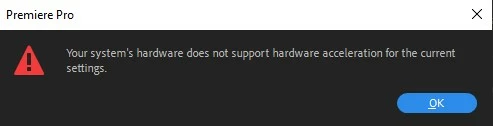
If you are getting this error while selecting Hardware Encoding, try changing the above-mentioned export parameters. - On macOS, Hardware Encoding is done through Video Toolbox. There is no change on macOS based systems with regards to Hardware Encoding in Premiere Pro 14.2.
(to be able to use Hardware Encoding on macOS, please ensure to have macOS 10.13.5 or later).
Hope it helps in answering your questions related to the new Hardware Encoding in Premiere Pro v14.2.
Thanks,
Sumeet
 AdChoices