Inspiring
January 22, 2019
Answered

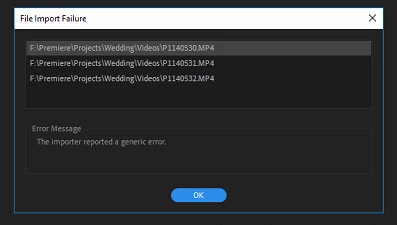
File Import Failure

  • January 22, 2019
  • 12 replies
  • 48596 views

As of last week, after opening a regular project I've been working on over the past month or so, All my media became offline. Nothing file structure or project-wise changed and Premiere pro did not update (To the best of my knowledge).

In addition to this, Premiere / Media Encoder have also been terribly slow as well, with frequent crashes & hangs. I have also been experiencing at least 15-30 second delay after hitting play (Spacebar).

I attempted to re-link all the media however I received the below error for 70% of the footage, completely randomly.
Ive tried the following:

Cleared / deleted all adobe caches
Removed all Adobe products + preferences and then used the Adobe CC cleaner tool just to be sure
Rebooted Several times
Deleted all project related previews
Renamed the Media's root folder and re-linked everything again, Still the problem persists, It appears to be non-discriminatory.

I've since started a new project with a different collection of media files (Another project im working on) and im experiencing the SAME issue when trying to import those media files!

Any ideas? this has been a huge problem and really affected my work.
My Computer Specs are as follows:

Intel Core i7-8700K

EVGA GeForce GTX1080 FTW2 DT 8GB
G.SKILL Ripjaws V Series 32GB
8TB RAID 10 Array
SAMSUNG 960 EVO M.2 1TB NVMe

Gigabyte Z370 AORUS Gaming 7 Motherboard

Windows 10 Pro 64bit

Correct answer canadadrives

Hey guys,

So I think I fixed the issues

1) Reset the preferences back to normal.

2) Uninstall and Reinstall the program

3) While program loading, uninstall the Media Cache from the location.

4) Uncheck Mercury Transit.

those were the steps that I did (SEVERAL TIMES)

and now its working fine....

12 replies

Participant
September 16, 2023

Hey guys!
Since this problem is related to the location of the file, I solved it like this:
1. I moved the file to the project again, but an error appeared.
2. Using the Audacity program, I converted the file and saved it in a folder with the same name. In a word - replaced.
3. Right-click on the file on the sequence - linkmedia - ok.

So I replaced the file that was not readable with a working one and all the files started working in sequence again.

Participant
May 11, 2023

Just sift the "filles" to new location, and "locate" them on Premier Pro...

link to video for refrence: (274) File Import Failure in Adobe Premiere | The importer reported a generic error - YouTube

Participant
February 14, 2022

I know i'm super late to this post, but I ran into this issue as well and found a really easy fix. For some reason if you relocate your mp4 file to a different location such as a different folder or desktop etc. , then it will work and boom! IT WORKS. Really simple and weird bug for some reason. Also if you're having trouble with an mp3 file not working then just change the properties of the file from mp3 to mp4 and it will work as well.

Farren Smith
Participant
May 6, 2021

This has happened to me too. What I found that worked for me, was too rename you files that did not want to import. So for example: if the file name is "John Vox" then just change it to John Vox1". What I dod to make it easier is to open the PP project and wait for the window which asks to relocate the files, then I open up my finder or explorer and change the names as I go. Once done, then try relocate re-import. Saves having to go through re-installs etc. and you still have all your work as you left it. Hope this helps.

Royhessey
Inspiring
June 16, 2023

Thank you Farren Smith. That worked for me also

Farren Smith
Participant
June 19, 2023

Anytime. Glad I could assist

sephven
Participant
February 20, 2019

I was having this problem constantly and found what was causing it. Apparently  Adobe has decided that somesof their codecs should only be available when youre logged in and online in your creative cloud account.  So whatever codecs that read your .mp4s or .mxf files check in to make sure you're online before starting up with Premiere.  If you start up Premiere before your creative cloud connects, or you use a VPN like me, Premiere can't use those codecs and your media will show up as offline.  This is absolutely garbage.  This preference fix is Adobes answer to every single issue, and it only takes care of the problem for about 5-10% of the time.  Maybe they should actually hire some engineers to work on bug fixes, and come out with a real professional tool the first time in 6 years.  Trying to get my production company to change over to DaVinci.  Adobe has really been falling apart.

Inspiring
February 14, 2019

Nope. they never really helped. I just kept playing around for hours (And I mean close to 20 hours) until I found a work around. I've since removed adobe CC etc and reinstalled everything and started new projects and been fine so far.

canadadrivesAuthorCorrect answer
Inspiring
January 23, 2019

Hey guys,

So I think I fixed the issues

1) Reset the preferences back to normal.

2) Uninstall and Reinstall the program

3) While program loading, uninstall the Media Cache from the location.

4) Uncheck Mercury Transit.

those were the steps that I did (SEVERAL TIMES)

and now its working fine....

Participant
February 12, 2019

did support ever get back to you? This has to be a bug, I'm having the exact same issue. My very simple timeline had a AE comp linked last week, running just fine. I open it today and media is offline and when I locate it, the composition box stays blank. This happens when I drag the AE comp straight into the project panel or try to import new media.

Rather than resetting and uninstalling several times (I have a deadline tonight) I'm wondering if support weighed in?? super frustrating.

sephven
Participant
February 20, 2019

Restart your computer, turn of VPN if you have one, and check your connection to.your Adobe CC account.  Apparently Adobe decided that certain codecs should only work when connected to the internet.  This fixed my problem.  Or open up DaVinci and convert the files to a new .Avi or .Mov and link to those.  Don't bother uninstalling Premiere, that never works.

Inspiring
January 22, 2019

I've spoken to support and they're also unsure what the issue might be. it has been escalated but I wont hear from them for at least 48 hours.

Any other ideas would be greatly appreciated.

Inspiring
January 22, 2019

I'd like to add that I've just taken then 10 video files or so that weren't working in one project and tried them in another and some of them still don't work. in addition to this, some of the other files that WERE working are now no longer working in this new project!

Just goes to show, its not the files, there's something else at play here.

Participating Frequently
May 22, 2020

I have exactly the same issue - it's not a file problem, it's an adobe problem. I think this is finally the push I needed to be done with them.

Jeff Bugbee
Community Expert
Community Expert
January 22, 2019

If you make a brand new project, and attempt to import some of the files that will not import, do they import or fail as well?

Have you (or Windows) updated your video card drivers recently?

Inspiring
January 22, 2019

I've got the latest GPU drivers yes, there's a chance windows updated for sure, If I import them into a fresh project, it appears the import fine... Strange huh?

Jeff Bugbee
Community Expert
Community Expert
January 22, 2019

Can you start a new project and import your old project? Or do you experience the same issue there?