
Participating Frequently
July 22, 2019
Question

Footage in QT ok, in Premiere oversaturated.

  • July 22, 2019
  • 10 replies
  • 5602 views

My videos are recorded with Atomos Shogun and Sony a7s2 with in 4K Prores 422 HQ. When i play it with Quicktime, it is all OK. But when i import the videos to Premiere pro then the videos are overexposed and the color seems different. What can i do in this situation?
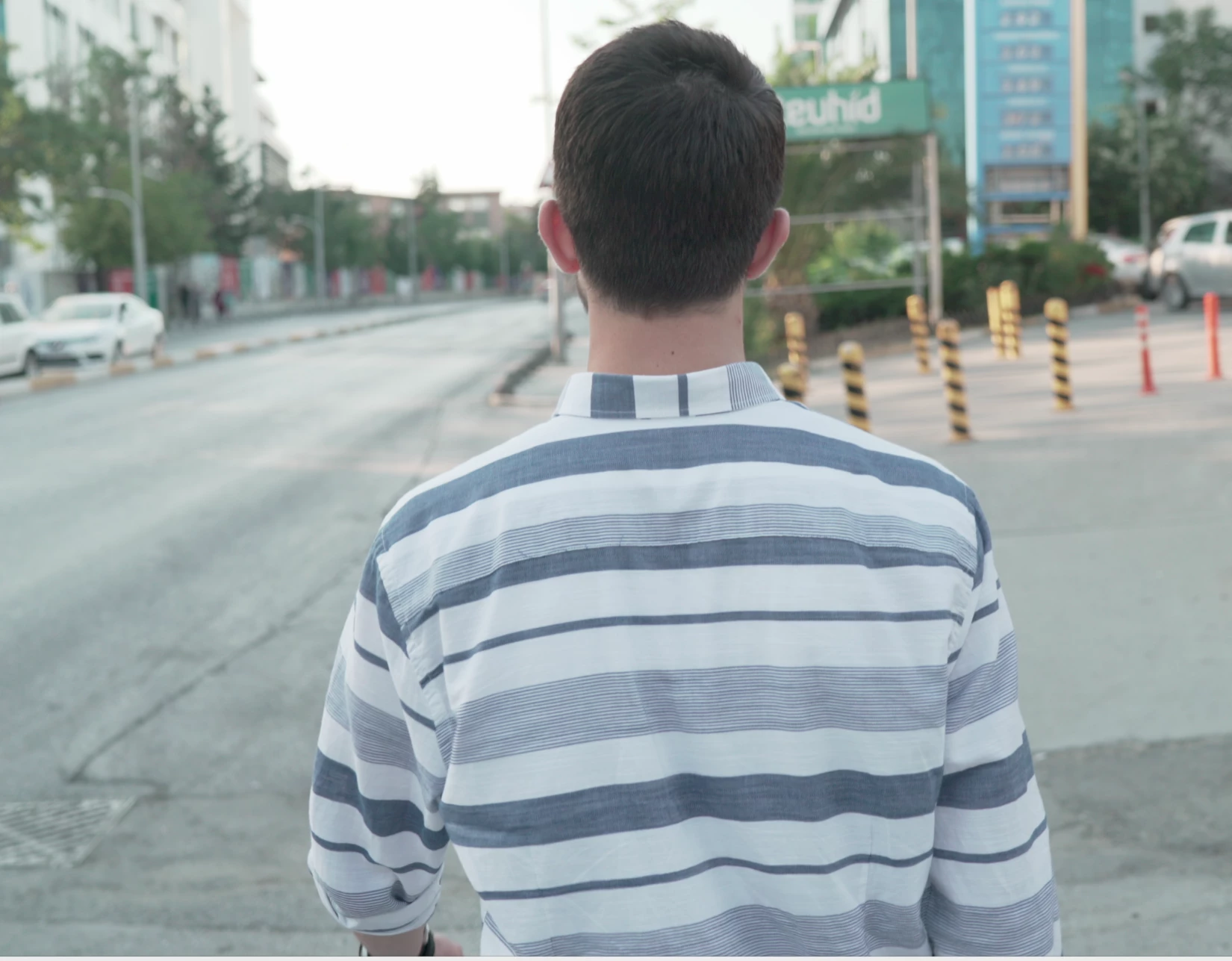
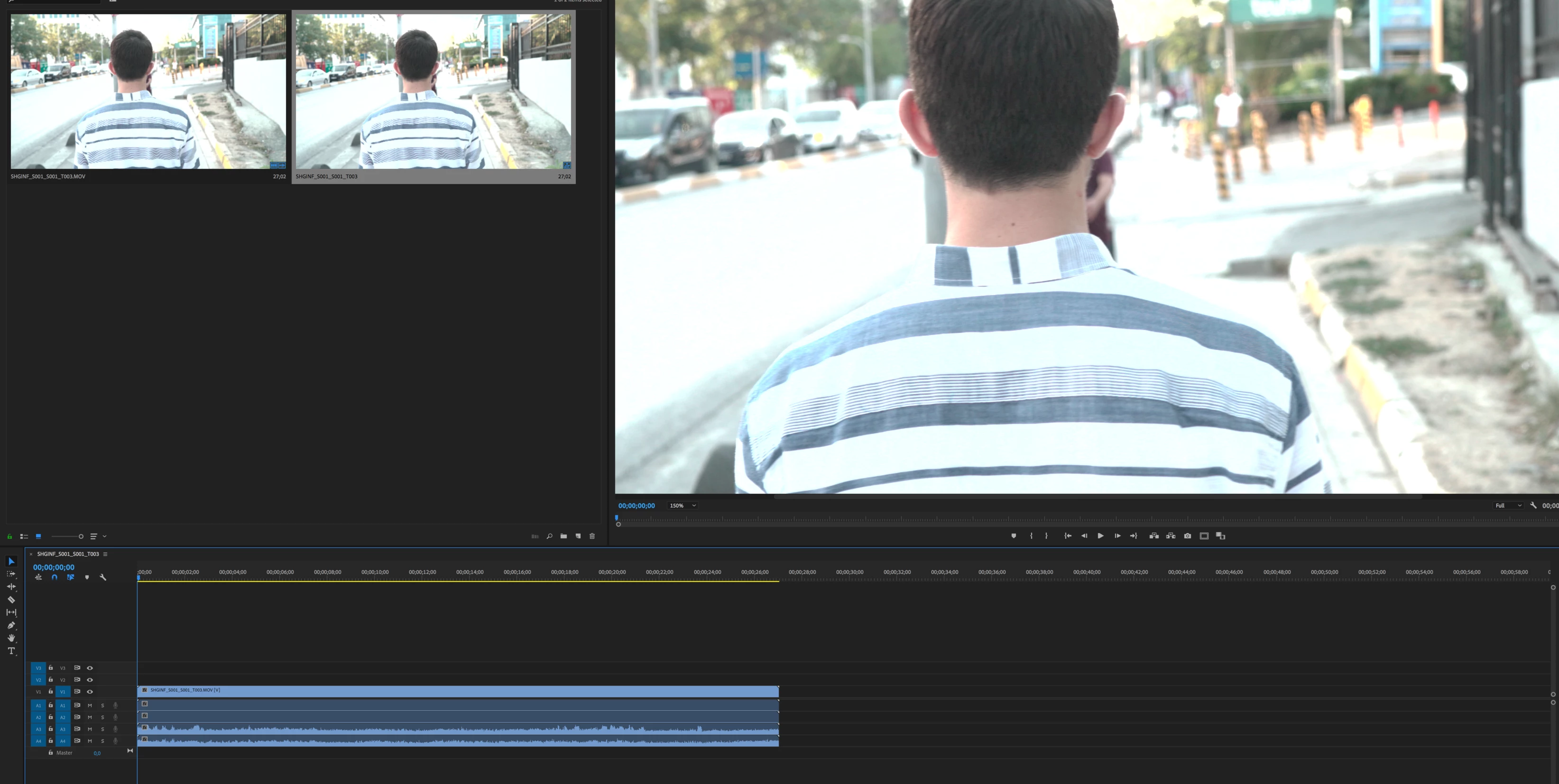
[title edited by mod]

This topic has been closed for replies.

10 replies

Participant
December 13, 2021

I was just having the same issue. I'm not a Premiere expert, but I do a lot of photo editing so I solved this by manipulating the curves. (before and after are in the screenshots below) I saw someone else suggest this below, but they didn't describe how it works so here's a simplified guide.


Open the Lumetri Color panel and expand the Curves menu. The RGB Curves 'graph' is the first thing in that menu. Make sure the white circle is selected. The bottom left side is your blacks, the top right side is your highlights, and you can make points in the middle to control your midtones. If you're not used to messing with curves, I'd suggest making a copy of your clip and dragging the points around just to see what they do. I start by pulling the darks up and the lights down until neither are blown out, then add a point for the midtones and move that around bit by bit until the clip looks natural again. This is probably the easiest way to fix the problem without changing display settings and you can add more Lumetri Color edits on top of this.


Hope this helps!

R Neil Haugen
Legend
December 13, 2021

This thread was started before the current ... 2022 Premiere ... was delivered.


If you're having this on the current version it is likely the massive changes in color managment (CM) and default behaviors especially with some log-encoded media.


Can you just massage values back into "usablity" for an HLG or Log clip onto a Rec.709 sequence?


Well ... kind of sometimes. The issue is it may still blow weird on export.


So ... knowing why something happens, and how to properly handle your CM ... is necessary to repeatable, rapid results.


Neil


FAQ:PremierePro 2022 Color Managment for Log/RAW Media

Everyone's mileage always varies ...
deantheproducer
Participant
November 18, 2021
Participating Frequently
October 2, 2021

I'm wondering if you ever got this resolved. I just had the EXACT same issue with somebody who sent me 4k footage shot on an I-Phone. I've had issues with mov files shot on phones choking Premiere to where my computer actually shuts down, so I'll run them through media encoder to turn then to MP4 files for editing and have no problems. This issue even occurs in Media Encoder, so it's definitely an Adobe issue and nothing to do with monitors. Would love to know if you solved this!

R Neil Haugen
Legend
October 3, 2021

What is your OS? Mac, perchance? As if it is, then there is an OS issue in the Mac ColorSync utility that would be in play.


If not Mac, what are your OS color management settings? Are you running an Nvidia or AMD GPU?


And of course, is the Display Color Management preference on or off?


Neil

Everyone's mileage always varies ...
Participating Frequently
October 3, 2021

Running a Mac. Posting screen shot of stats. 

DCM doesn't change anything as the issue even occurs in Media Encoder without Premiere even coming into play.

I first noticed MOV files choking my system about 8-9 months ago. This was definitely a first time for THIS issue. I'm having the guy who sent me the footage check the settings on his end.

Christian.Z
Community Expert
Community Expert
October 31, 2020

Please Give us detailed specs of your system, including your storage configuration


Can you also to try to export the video from premiere? it will help us determine if is a display/color management issue, or some other problem

Participant
October 31, 2020

I had this exact problem! this thread fixed it.  enable "enable color display management" .. make sure that's on! 

Legend
July 26, 2019

oh brother

Community Expert
July 24, 2019

I agree with benwinter​, it would be helpful to see the scopes next to the image. And maybe a scope comparison in Resolve as well.

ömerk85419857, would you be willing to upload this clip? I'd be happy to look at it on my system, see if I get the same results.

Also, this isn't a proxy clip by any chance, is it?

JVK

-------------------------------------------------------------------------JVK | Editor/Designer/Software Instructor. Pr, Ae, Ch, Ps, Ai, Id
Legend
July 25, 2019

https://www.dell.com/support/home/us/en/04/product-support/product/dell-up3216q-monitor/drivers

https://www.dell.com/support/home/us/en/04/drivers/driversdetails?driverid=YR19Y&oscode=WB32A&productcode=dell-up3216q-monitor

pay particular attention to the newest versions ( 2018 and 2019 )

afterward you should see your options for rec 709, adobe RGB, and sRGB ...

The Xrite stuff is for calibrating and you probably have that set up already ???

The driver thing will probably update your ICC too of there was one.

Just make sure you have the right OS selected ( your operating system ) when downloading any drivers and read directions if you don't know how to install them.

something is keeping PPro from seeing your monitor correctly.

Legend
July 24, 2019

Thanks for posting those shots. Your resolve settings are the default settings and it looks good.

PPro looks horrid.

When using resolve keep your rec 709 color space for monitor the selection...

BUT, just for fun, try this...

Select the monitor name instead of the rec 709 space... which will make your monitor ICC become active hopefully.

I use resolve and an old version of premiere, and I have an NVidia card. My card ( in the NVidia control panel ) is set to NOT USE NVidia card, but instead " LET PROGRAMS DECIDE "  You might give that a try.

I still use CUDA, but I let my color calibration program and the programs have control … and I don't play games etc., so there's no need for me to use the card that way.

Good luck, and sorry you're having trouble ..

Kevin-Monahan
Community Manager
Community Manager
July 22, 2019

First of all, try a different player to evaluate color differences; try VLC. QuickTime is grossly inaccurate. If you are on Mac, check out this article: "Why does my footage look darker in Premiere?" Color Q&A

Thanks,
Kevin

Kevin Monahan - Sr. Community and Engagement Strategist – Adobe Pro Video and Audio
Participating Frequently
July 23, 2019

I tried everthing it doesnt work. I am a mac user. I also record in Atomos HDR. I dont know whats the problem. When i import the videos to davinci, its also all ok. But in Premiere Pro when i import its oversaturated.

Participating Frequently
July 24, 2019

The option in the Edit/Preferences to "Enable Display Color Management" isn't a LUT. It's an option. On or off depending on whether the box is checked. It's at the bottom of the General tab of the Preferences ...

This tells Premiere to check for the ICC profile the OS is using for the monitor, and re-map the internal displays so that they show sRGB/Rec.709/gamma-2.4 image within whatever monitor color space you are set to use.

One other thing you haven't answered, is ... was this media recorded using an HDR mode? If so, that would be the problem right there.

Neil


yes i have done this no solution.

Community Expert
July 22, 2019

What color space is your monitor set to? sRGB or something else?

Is other footage blown out too, or just the footage from this camera?

Is Color Management enabled in the preferences?

Double-check that a LUT has not been applied, especially in the Effects Controls > Master clip settings.

JVK

-------------------------------------------------------------------------JVK | Editor/Designer/Software Instructor. Pr, Ae, Ch, Ps, Ai, Id
Participating Frequently
July 23, 2019

I use imac. I checked all nothing works. I also use ATOMOS HDR Mode.