


udow86883912
Participant
March 16, 2018
Answered

Green and Pink Video in Premiere Pro 12.0.1 (Build 69)

  • March 16, 2018
  • 17 replies
  • 101140 views

Hi,

I'm editing a video since 2 weeks, everything was fine until today. I opened Premiere and all my clips look green/pink.

I didn't change anything, but yesterday Windows Update installed a new video driver "Intel Corporation - Display - 2/28/2018 12:00:00:00 AM - 23.20.16.4973".

I think the problem is a result of the new driver?

Do I need to update a codec?

Or should I remove the display driver?

What can I do?

Thanks for your help.

Greets Udo
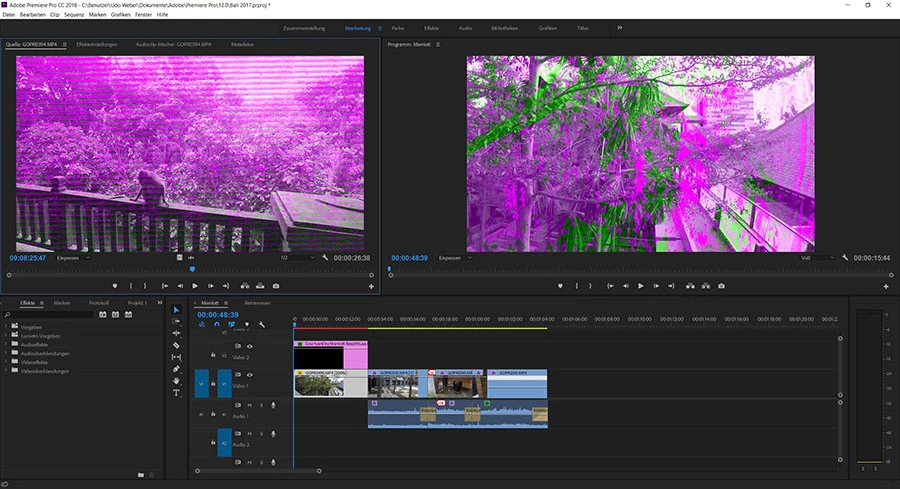
This topic has been closed for replies.
Correct answer udow86883912

Ok, I found two older versions here


Version: 15.65.4.4944 (Latest)  not working

Version: 15.60.2.4901 (Latest) <----- WORKS


Interesting, both are called latest 

So the newest intel driver seems to have a problem with Premiere.

What’s now? Let the oldest installed can be a temporally solution but not forever!?

Greets Udo

17 replies

Kevin-Monahan
Community Manager
Community Manager
May 15, 2019

Still having trouble? See this video.

Kevin Monahan - Sr. Community &amp; Engagement Strategist – Pro Video and Audio
Participant
June 11, 2019

We have a Nvidia Quadro P620 on a Windows 10 machine and were experiencing this issue.  We were able to fix the problem by updating our Nvidia driver and then changing video rendering from OpenCL to CUDA.

Participating Frequently
May 7, 2019

Any updates on this? I've tried all the solutions offered and I still have the pink and green problem.

Dell XPS 15 - Windows 10

R Neil Haugen
Legend
May 7, 2019

Which GPU are you using, what driver, what OS, what version of Premiere?

What is your setting in Project for Mercury Acceleration  ... Software Only, OpenCl, CUDA, Metal ... ?

Neil

Everyone's mileage always varies ...
asa_insight
Participant
March 24, 2019

Ok, the quick fix works but I can't use most vr effects because it needs GPU Acceleration. BUT if I turn off Mercury Playback Only, I get pink & green lines on my footage so wtf do I do?

Participant
March 25, 2019

Eu pago todo mês para usar a suite de todos os aplicativos. Faço isso há

muitos anos. O Premiere ficou muito ruim...Sugestão: DEMITAM A EQUIPE.

Em dom, 24 de mar de 2019 05:00, asa insight <forums_noreply@adobe.com>

escreveu:

Green and Pink Video in Premiere Pro 12.0.1 (Build 69) created by asa

insight <https://forums.adobe.com/people/asa+insight> in Premiere Pro CC

- View the full discussion

<https://forums.adobe.com/message/10993570#10993570>

Participating Frequently
January 24, 2019

If you have an Nvidea card go to Nvidea.com and download the GeForce Experience Software.  GeForce Experience

Re-download your card's software, restart the computer and your drop down will have both Mercury Playback Engine GPU Accelerator CUDA and Open GL. (File/Settings/General)

For my PC, CUDA works better. It runs off of the CUDA Cores on your GPU.

Participant
November 5, 2018

I am having issues as well. I didn't have any before, but then I started exporting using the Encoder Application. Really not cool. It only seems to do it at the very end of my video. I use a MacBook pro and I'm not exactly super computer saavy....so I am wondering if this is something that will be addressed in an update? I am behind on work because I cannot fix this issue.

Also, it needs to be noted that the "Mercury" settings that people speak of is checked on my preferences and also greyed out (unable to select anything else).

anned26401056
Participant
October 23, 2018

Hi There!

I managed to fix it with the mercury-setting. However, I am back to the same problem with the new Premiere Rush software. I cannot find anywhere to change the setting here.

All of my footage looks the same, even if it does look ok in premiere pro and after exporting it.

Thanks!

Greetz from Belgium!

Participant
October 20, 2018

Yo, Adobe guys, what's going on?! This is ridiculous!

This green and pink stuff just appeared out of nowhere, with no reasonable explanation and it halted all my projects!

I tried to change the render settings and sure it works, but it's just impossible to work like this - everything is super slow and unresponsive!

This is totally unacceptable, it's not some cheap freeware, it's a super expansive suite of software for pro users, people who rely on them for work!

I'm on my way for an expo which I plan on producing 8-12 short videos per day, this is going to cost me over 5,000$ and as it is - I can't trust my software to work!!

YOU SHOULD FIX IT ​ASAP!!!

Participant
December 2, 2018

And still it is an isue in Deember! Refund on subscriptions?

Participant
December 7, 2018

I don't know if you can completely blame this on Adobe. Back in March when I started running into this pink preview problem, I figured out that you have to stay on top of your graphics driver. That means checking for the latest version occasionally like once a month. This has now happened again to me in the first week of December because of Windows. The latest update for Windows, which my computer downloaded Dec 3 made my preview screen pink again. This time the latest driver from Intel, DCH 25.20.100.6444.exe released on Nov 28, 2018, would not correct the problem. The drivers before Nov. 28 are now considered Legacy drivers and the new ones are called DCH drivers or Declarative, Componentized, Hardware drivers. When I tried to reinstall the last driver 25.20.100.6373.exe released on Nov 5, 2018 it said this driver is not compatible with this operating system. Luckily after 2 days of trying to figure this out I found a Legacy driver that would install on my updated operating system. Driver 25.20.100.6326.exe release date Oct 9, 2018 worked. Why the older Legacy driver would load and the newer Legacy driver would not, I don't know but I can get back to editing again with accelerated graphics. There are a lot of effects that you need accelerated graphics to run. Working with GoPro 360 videos or VR plugins for example, accelerated graphics are a must. These plugins won't even work without it. Here's some screen shots from Intel on what's going on.

Participant
October 15, 2018

This question has NOT been answered. I currently have the same issue and i’ve spent days trying to find a solution, but nothing has worked.

Firstly, changing the render setting is a way around the problem, but doesnt solve it, granted the pink and green glitch goes away but the performance in that setting is awful, rendering things are ten times worse, its constantly lagging, when You drag a clip into the timeline, it immedietly goes to red, so you essentially have to render every time you do something, and on top of that, the original render setting which functions much better has STILL got the pink and green glitch, so it’s not been solved.

Secondly, all of my drives on my PC have been fully updated and they were already updated before the glitch error occurred, so that also doesn’t solve the problem, and I had not recently done any updates on my PC or Premiere Pro, in fact I was using the software when it suddenly turned green and purple, so if anyone thinks that it’s part of a recent update, it isnt, it’s been a problem on many updates for a while. Since this problem occurred, I updated premiere and my PC to see if that would refresh and get rid of it, but it hasn’t. I have even cleared my media cache on the software and it STILL made no difference.

And finally I even tried uninstalling and reinstalling the dam thing and low and behold, the green and pink glitch was still there, ruining all my work.

I’m honestly baffled that this hasn’t been solved yet, I’m spending money on this software and I can’t use it AT ALL now. Im currently mid editing a variety of different projects and all of them are being ruined by this glitch, its stopped me in my tracks and I can’t work anymore. I want a PROPER solution to this which doesn’t involve changing to the other render setting, because that doesn’t solve the problem, I want to know how to get rid of the actual glitch on that particular render setting.

I can’t be the only one who’s noticing this. Adobe need to fix this ASAP because it’s now slowing down my career path and affecting many of my deadlines. Im trying to contact proper Adobe support but I’m getting nothing back. If ANYONE knows how to properly get rid of it, it would be much appreciated. Thank You.

Participating Frequently
October 18, 2018

You are not alone, Everything was fine before Premier latest update. My CPUs are up to date, nothing changed there. Disabling GPU acceleration is a ridicules idea, why would I want to compromise performance??  This is clearly an Adobe issue. 

Participating Frequently
October 22, 2018

if you ever rendered without a GPU acceleration

I did just that for more than a decade.  It's a relatively new addition to the software.


Adobe knows about this. The new release has issues with most NVIDIA GPUs. Hard to believe that they released this version with this issues, but they did ☹

Participant
September 20, 2018

You can change Disable GPU acceleration of effects

  1. Choose Project > Project Settings > General.
  2. In the Video Rendering And Playback section, select the appropriate renderer: Mercury Playback Engine GPU Acceleration or Mercury Playback Engine Software Only.

It Worked For Me

Participant
February 20, 2019

Funciona quanto a imagem, mas por algum motivo o áudio fica horrível... parece que perde a sincronização.... Pago muito a Adobe para um resultado desastroso...lamentável!!!!

R Neil Haugen
Legend
February 20, 2019

From translation I'm not sure what you're saying as "works" , and this issue shouldn't have anything to do with audio.

Simply updating *graphics* drivers or which setting you use in Mercury Acceleration should not have anything to do with audio. So I'm puzzled what your issue or perhaps issues are?

Neil

Everyone's mileage always varies ...
Participant
July 18, 2018

I'm on a Lenovo Yoga 720 with an Integrated Intel UHD Graphics 620 and I'm having this problem. I'm worried that this is happening because I don't have a graphics card. Anyone have any ideas/fixes?

Thanks!

ofirk3515504
Participant
July 18, 2018

HERE'S THE SOLUTION FROM ADOBE: You have to change the video rendering setting.

Premiere Pro

File > Project Settings > General > Video Rendering and Playback > (choose from dropdown) Mercury Playback Engine Software Only

Media Encoder

File > Preferences > General > Video Rendering > (choose from dropdown) Mercury Playback Engine Software Only

This is a known bug in the current version and will be addressed in the next upgrade.

I spent two days with our IT department and 1 hour with Adobe support trying to figure this out. For now, the resolution is a pretty simple fix. No need to update any drivers, hardware, or software.

Participant
July 18, 2018

I tried that but it didn't fix it. Maybe I need to restart my computer? (I restarted Premiere after changing it there and in Media Encoder).