Participant
December 21, 2021
Answered

H.264 Exporting Overexposed!!

  • December 21, 2021
  • 5 replies
  • 8786 views

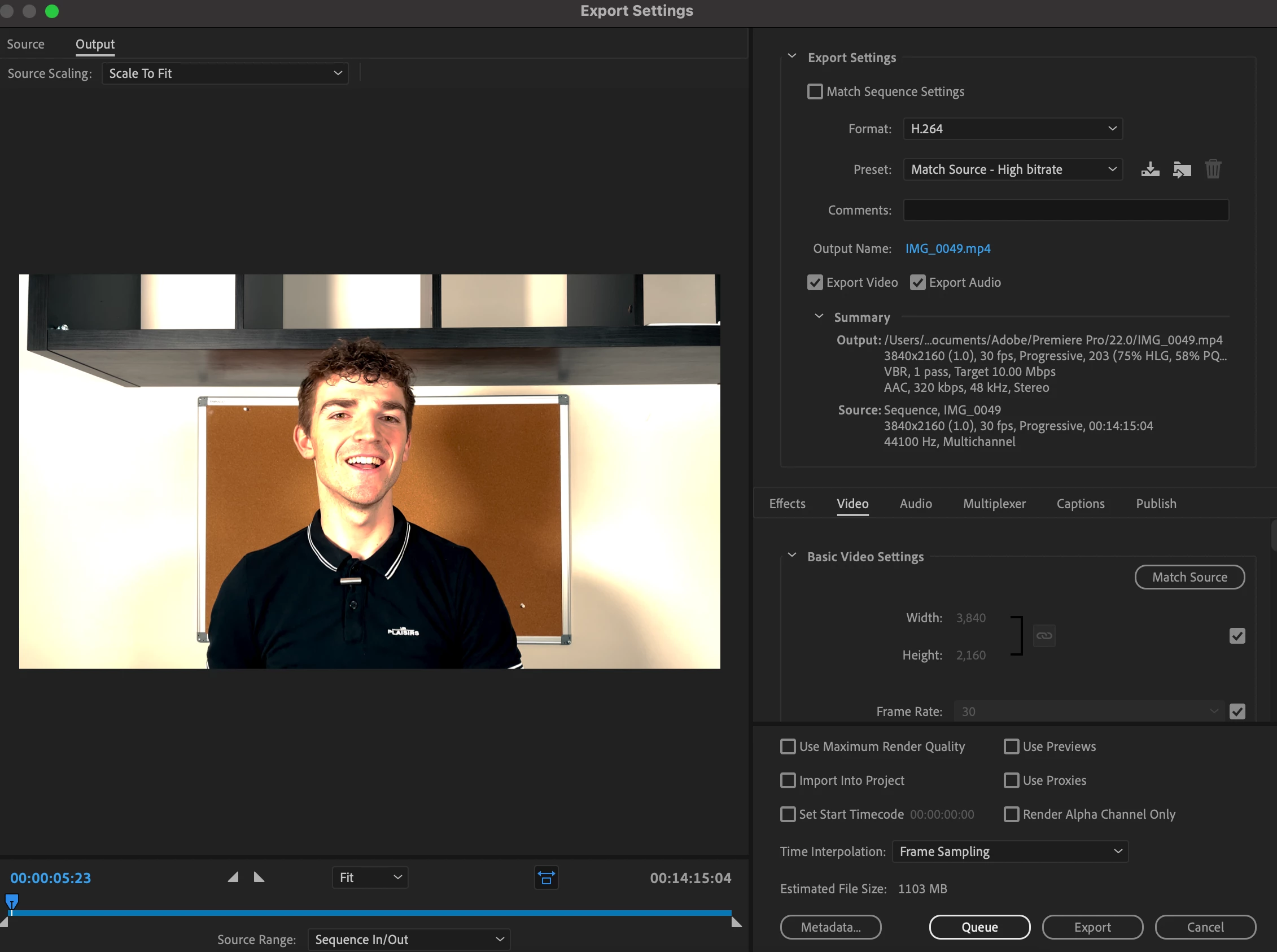
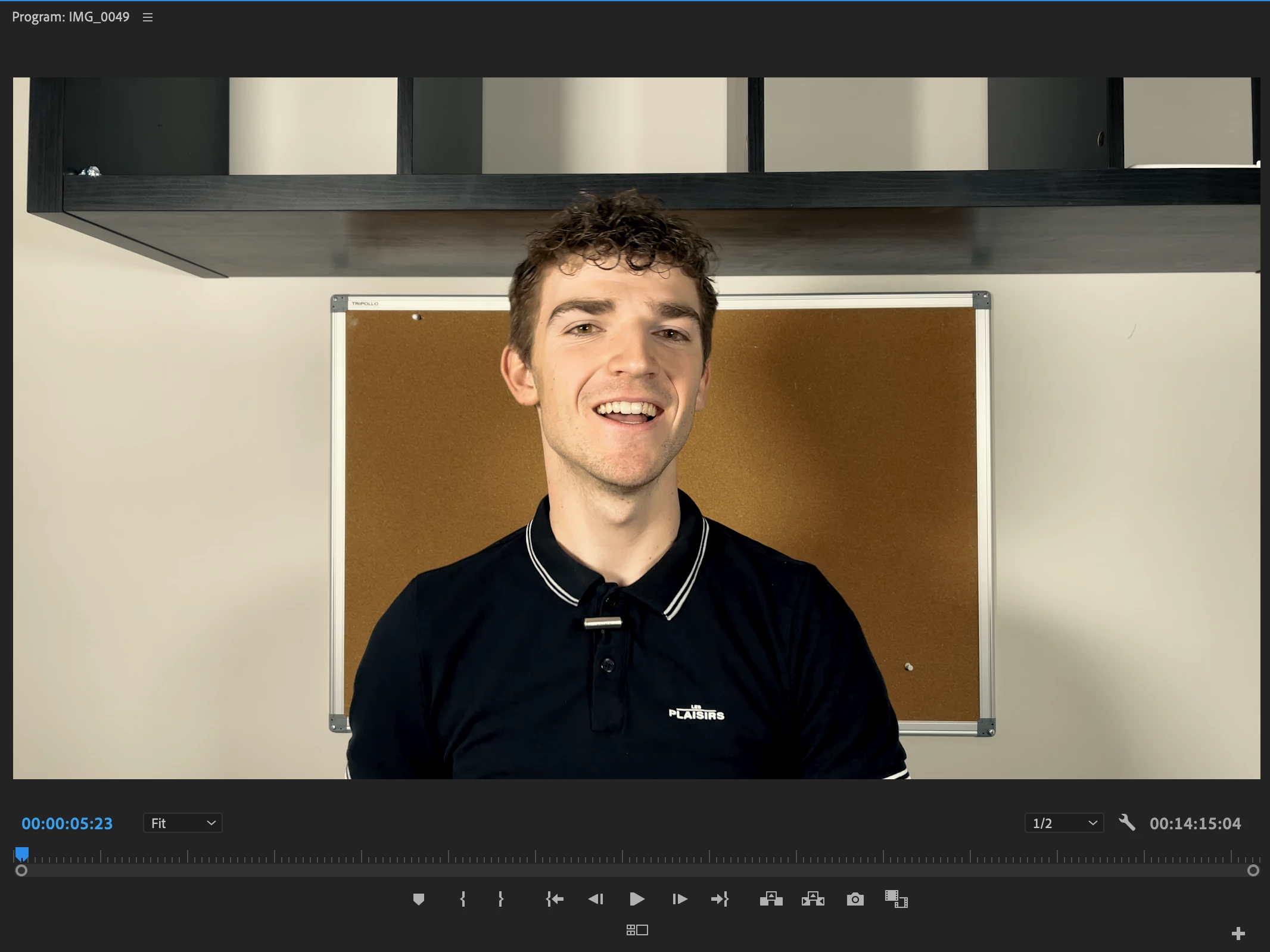
In my editing the colors are exposed correctly and everything is fine but when i go to export the colors are way overexposed and not even usable! I've never had this problem with adobe until the recent update. I'm running the lastest version of premire pro. I've been on the phone with adobe and they were no help at all. I've gone all over the internet and nothing is working. Look at the screenshots and you'll see why. How do I fix this? I've messed with interperet footage, sequence settings, color spaces, legit everything! 
This topic has been closed for replies.
Correct answer Ann Bens

5 replies

R Neil Haugen
Legend
December 21, 2021

Oh ... and if you are working in HLG/PQ, you do need to use one of the export presets that SAYS it's set for HLG/PQ. As figuring out the HDR settings within Premiere is a bit of a hard thing for a first timer at it. Without a full cheat-sheet of settings, there are several things.


And they vary by Format/Codec too.


Neil

Everyone's mileage always varies ...
Jeff Bellune
Legend
December 21, 2021

Did you try one of the YouTube or Vimeo presets?


Neil may be along shortly to talk to you about proper color spaces for 4K footage.

Ann Bens
Community Expert
Ann BensCommunity ExpertCorrect answer
Community Expert
December 21, 2021

Participant
July 12, 2022

Awesome video answer, thank you for taking the time to make it. It got me out of a big frustration!


R Neil Haugen
Legend
December 21, 2021

I'm having to guess, but my guess is that the clip has either the HLG color space or was recorded in some log format.


Premiere has a completely rebuilt color ... basis. It used to be a Rec.709/SDR "pipeline" that had been given some "extended range" capabilities to work mostly sort of with some HDR media.


But the 2022 release has a brand new color processing basis underneath everything. Clips now have color management (CM) settings. Sequences have CM settings. And exports also. If the clip, sequence, and export CM settings don't match, you get this sort of thing.


So ... check the clip in the bin. What does it show in Properties for color space?


Check your sequence settings ... what do they show for color space?


If you're wanting to use SDR, the standard Rec.709 that is still the vast majority of media used, then you need to make sure both the clip and the sequence are set for that. In the Project panel, for clips that are HLG, right-click ... Modify/Interpret Footage and use the CM's Override to Rec.709 option.


Then make sure the sequence is also set to Rec.709 for CM. Then you should be able to work as you expect.


I'm including a couple FAQs to help navigate the new CM stuff.


Neil

FAQ:PremierePro 2022 Color Management for Log/RAW Media


How to Set Monitors for HDR work in Premiere Pro 2022?


Everyone's mileage always varies ...
Participant
December 22, 2021

Thank you so much this fixed it! 

Inspiring
December 21, 2021

The video below might be helpful. 


https://www.youtube.com/watch?v=K7EGNJop_HE