
Itpol
Participant
June 21, 2019
Resuelto

How do I create a slow, gentle fade in of text in Premiere?

  • June 21, 2019
  • 3 respuestas
  • 22438 visualizaciones

Hi everyone,

I'm teaching myself Premiere, and I'm trying to create a *slow, *gentle, *gradual fade in of text.

I have tried ––both; manually with key-framing the opacity of the clip, and I've tried a cross dissolve.

The issue is that regardless of how long the duration of the cross dissolve effect, or the distance I put between keyframes when I do it manually –– the text immediately becomes visible from the start. And I want the text to become *gradually visible.

The bizarre part, is that when the clip *fades out, it is exactly how I am trying to create the fade in; slow and gentle.

So, when I do it manually with keyframes; at the start the clip, I set the opacity to 0.

In the middle of the clip, the opacity to 100.

The end of the clip, the opacity back to 0.

Thus, the settings are exactly the same from the beginning of the clip to the middle,

as they are from the middle of the clip, to the end.

0 to 100 and back to 0.

So, why is the fade out nice and gentle, and yet, the fade in of the text is immediately visible and jarring?

Logically, if the text can fade out from 100 to 0 opacity in a gentle, gradual manner,

surely the text must be able to fade in from 0 to 100, also in a slow, gentle, gradual way.

But, the text becomes immediately visible, despite lengthening the duration of a cross dissolve, or increasing the distance between keyframes when done manually.

I need the fade in to gradually reveal the text, but, the moment the clip starts to play, the text becomes visible immediately, and in a jarring way.
With the fade out, the text becomes gradually invisible. It's smooth and gentle.
How to create this for the fade in?!

Thanks!

N
    Este tema ha sido cerrado para respuestas.
    Mejor respuesta de Justin Taylor-Hyper Brew

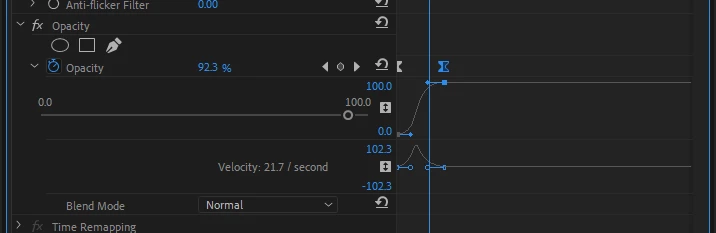
    The built-in transitions can be abrupt depending on what you're fading from/to. I like to create my own fade in/out presets with easing, here's how:

    1. Set your Keyframes (0, 100)

    2. Right click and change from "Linear" to "Bezier"

    3. Drag the bezier handles till you achieve the level/speed of smoothness you want.

    4. When you're done, right click on the "Opacity" effect and select "Save Preset"

    5. Now you have that transition saved for whenever you want to use it.

    3 respuestas

    Participant
    November 10, 2024

    I am a novice of the first order!  I struggled for more than an hour trying to fill in the gaps in the questions and answers in this thread.  I had to branch out to Google searches and YouTube videos, but I am not quite sure how I arrived at making a keyframe.  I think I made the keyframe by clicking on "add a keyframe" in the Transform section of Effects panel.  After I did that with additional hemming and pecking the tutorial instrctions began to work and viola my text faded in and out as I had envisioned.  Thanks experts, but please consider us first timers need more orientation to be able to use your tutolage.  

    Ann Bens
    Community Expert
    Community Expert
    June 22, 2019

    I am not to fond of Pr build in cross fade so I use this one:

    https://premierepro.net/impact-dissolve/

    R Neil Haugen
    Legend
    June 22, 2019

    Anything on or linked to by Jarle's site is worthwhile! Total production emphasis.

    Neil

    Everyone's mileage always varies ...
    Legend
    June 22, 2019

    hehe, there's such a lack of problems to solve that all of the nice experts are squirming in their seats looking out for someone who needs help !

    Me Too !

    As I enjoy a Spring weather Saturday in MN. with windows open, and a beer at hand... I also will add my 2 cents...

    Do it MANUALLY when it REALLY MATTERS.

    Here's how.

    Make your Text in photoshop with a transparent background,

    This may involve many layers etc.. but basically you import only those layers you want ( in this case one text layer).

    Stick it above the video you want to put the text ( in this case simple )

    The REASON I'm showing this is because everyone tends to go for the 'automatic' fun and fast solution ( pre-programmed by smart programmers ). So people don't have to THINK about what's going on.

    So you stick this psd file up there ( the text layer ) and now you can use effects to ( yes, it's true ) use keyframes to move it, fade it in and out, and scale it !!!!!   With simple controls inherent in the effect panel !!!

    In my case I just left it at default ( no choosing Bezier, ease out, ease in, etc... just down and dirty fast sample ).

    BUT I chose exactly where I want to see it start to fade in, and where I wanted it to be GONE.

    Here is the screenshot and the vimeo sample ( which will be deleted very quickly so I can clean up the project that has this sample stuck in it for now)

    SAMPLE TEXT FADE on Vimeo

    Is easy and fast.. and you have complete control... can finesse it with ease out ease in , Bezier etc.  plus Move it around and scale it etc... as you please...

    is fun !

    Justin Taylor-Hyper Brew
    Community Expert
    Community Expert
    June 22, 2019

    The built-in transitions can be abrupt depending on what you're fading from/to. I like to create my own fade in/out presets with easing, here's how:

    1. Set your Keyframes (0, 100)

    2. Right click and change from "Linear" to "Bezier"

    3. Drag the bezier handles till you achieve the level/speed of smoothness you want.

    4. When you're done, right click on the "Opacity" effect and select "Save Preset"

    5. Now you have that transition saved for whenever you want to use it.

    Itpol
    ItpolAutor
    Participant
    June 22, 2019

    Thanks for your assistance, Justin, I appreciate it.

    I did try that bezier option, but I will try it again and save that preset as you suggested.

    Is this the way super slow fade in's of text are done for films? That is the effect I am trying to create.

    Community Expert
    June 22, 2019

    Great! Thanks Neil. 

    Yes, Justin has genuinely helped.

    N


    Turning off 'composite in linear colour' often helps with jumping fades.