


Inspiring
May 14, 2018
Answered

How to replace color background with Alpha channel?

  • May 14, 2018
  • 4 replies
  • 3045 views

I've made a circle animation I want to use to illustrate that a button on a smart phone has been pushed.

It's an animation  of concentric circles interacting quickly then fading away, just about 1 second. I created it in Premiere,2018 essential graphics, but it has a black background, while the circle animation is red.  I'd like to export it but I don't want the black background. How can I export it without the black background and with an alpha channel? I turned off the "composite" in the monitor view and chose "Alpha" there but my red circle turned white so that's no good. I'm thinking I may have to make the red circle in illustrator but I don't know that program, so I hope there's some other way.  Thanks for any help!
    This topic has been closed for replies.
    Correct answer Meg The Dog

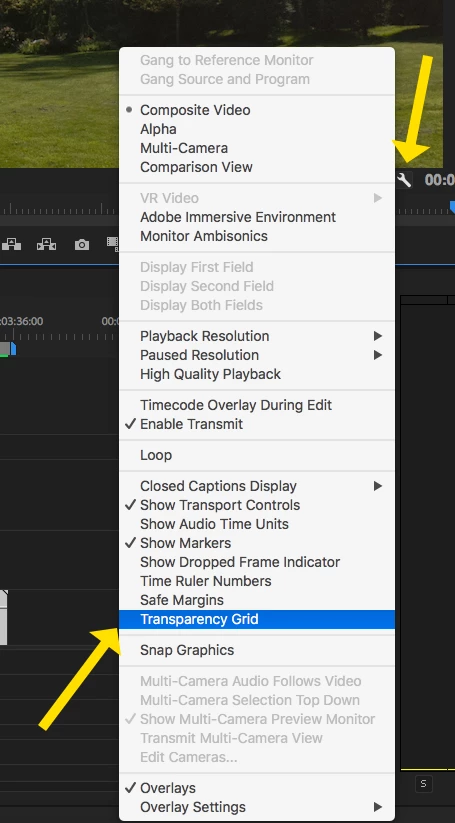
    Place the animation on the timeline. Clicking on the wrench at the lower right corner of the Program Monitor, set the monitor to display the transparency grid:

    If your animation looks correct (the transparency is correct) then export the animation from the timeline in a codec that supports a matte channel, like ProRes 4444, or QuickTime Animation.

    MtD

    4 replies

    New Participant
    March 28, 2022

    I just tried using a Color Key to turn the all black background to Transparent

    Select the following:

    "WRENCH IN PREVIEW Panel (Right bottom) > Transparency Grid (Background will stay Black)


    "EFFECTS" Panel > Video Effects >  Keying >  Color Key > Drop effect on clip


    EFFECT CONTROLS Panel >

    fx Color Key>  Key color - use the eye dropper on the Black Background (set all colors to 0, OK) Background changes

                         >  Color Tolerance - adjust until remaining black is gone, but nonblack is intact (mine was 28 on 0-255 scale)

    I did this to put the graphics behind the moving subject and other objects which did not have Black in them.


    Inspiring
    May 31, 2021

    Cleared up my problem.  Thank yu!!!!

    Inspiring
    May 15, 2018

    Meg, Thanks for your help. When I did as you directed and set Quicktime/animation codec, I still got a black background in the output.  I went back and tried it again. This time I checked X render at maximum depth (and under that) X 8-bpc + alpha. That time it rendered out my circles with an alpha channel. Yea!

    Meg The DogCorrect answer
    Inspiring
    May 14, 2018

    Place the animation on the timeline. Clicking on the wrench at the lower right corner of the Program Monitor, set the monitor to display the transparency grid:

    If your animation looks correct (the transparency is correct) then export the animation from the timeline in a codec that supports a matte channel, like ProRes 4444, or QuickTime Animation.

    MtD