


Inspiring
March 24, 2023
Answered

How to use Select tool to select objects below the graphic text in the Program window?

  • March 24, 2023
  • 3 replies
  • 2785 views

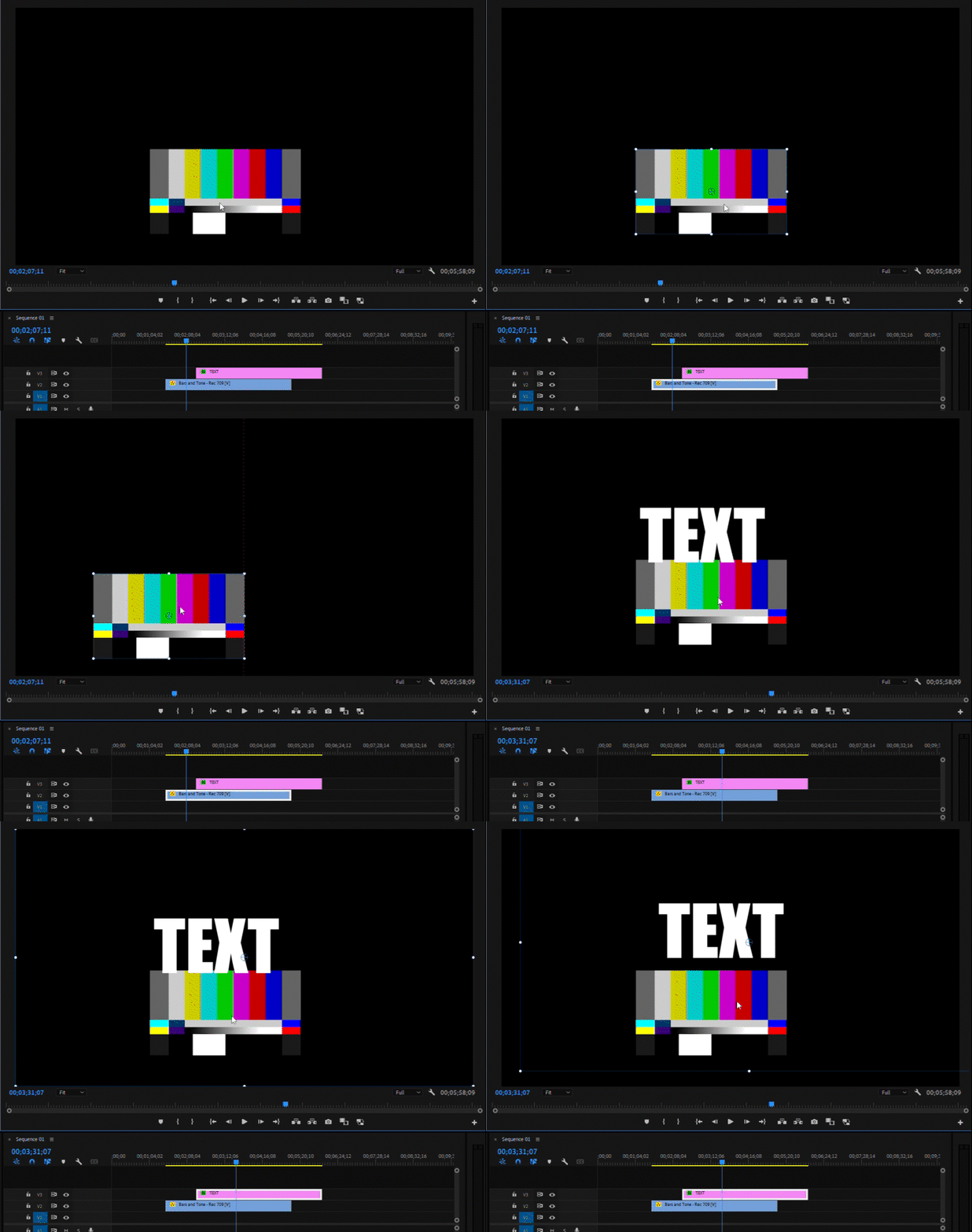
As long as the objects are below the graphic text,
you can not directly select the objects in the Program window with the Select tool.
It always selects the graphic text (the graphic text area covers the whole screen)
Correct answer Ann Bens

Activate Direct Manipulation in Program Monitor is the way to go.

3 replies

Ann Bens
Ann BensCorrect answer
Community Expert
March 24, 2023

Activate Direct Manipulation in Program Monitor is the way to go.

Richard van den Boogaard
Community Expert
March 24, 2023

Thanks, @Ann Bens!

Kevin-Monahan
Community Manager
Community Manager
March 24, 2023

Hey there @C27618681pmp5. What's up @Richard van den Boogaard ? 🙂 I think I know what's going on. Correct me if I have not understood your problem. Richard, your fellow Hollander has one solution here. I also have one.


  • Create a keyboard shortcut for "Activate Direct Manipulation in Program Monitor" in the Keyboard Shortcuts dialog box. Then, select the clip in the Timeline and press the shortcut you just made.
  • Select the clip. Then, click on the word "Motion" in the Effect Controls panel.


Either of these should give you the option to select a desired clip for manipulation in the Program Monitor.


Personally, I'd like to see clip selection in the Timeline added to these options. Clip manipulation in the Comp Window and Timeline works that way in After Effects. It also worked that way in other NLEs, like Final Cut Pro 1.0-7.0 (aka FCP "Classic").


Richard, engaging the function with track selection might still require that the clip be selected. I think that might add a step. Let me know how you'd like to see that work, if I am not understanding what you'd like to see.


If you'd like to see an enhancement along these lines, kindly let me know and we can move the post into the "Ideas" forum.


Thanks,
Kevin

Kevin Monahan - Sr. Community & Engagement Strategist – Pro Video and Audio
Richard van den Boogaard
Community Expert
March 24, 2023

Adding the Activate Direct Manipulation in Program Monitor and adding a keyboard shortcut (like Ann, I just reserved F7 for this) certainly works, provided you have to select the clip in the timeline first.


I can't recall exactly which Adobe program uses this (Illustrator or InDesign) but there you can select an object lower in the stacking order by holding the CTRL/CMD or ALT/Option key. That would be another way of quickly cycling through a number of items stacked on top of each other in a timeline.

Ann Bens
Community Expert
April 9, 2025

Hi, I believe that the "Activate Direct Manipulation in Program Monitor" featureis gone now...
Are there any alternative solutions to directly select the obejct in the program preview panel?
The text object is covering the entire panel, and I can not select what's on behind...


Feature is not gone: its now turned into a button.

as for the kbsc


Richard van den Boogaard
Community Expert
March 24, 2023

You're quite right, this is a little weird behavior...


You would expect the track targeting to have an effect on this (in your example V1 is targeted, but V2 and V3 are not highlighted), but I guess this is the result of PPro being an NLE intended for video and audio assets, not a design or motion graphics program, such as Illustrator, InDesign, Photoshop or After Effects.


Something to look into @Kevin-Monahan?