Participant
January 13, 2022
Answered

iPhone quality issues in Premier

  • January 13, 2022
  • 4 replies
  • 4684 views

Hello,


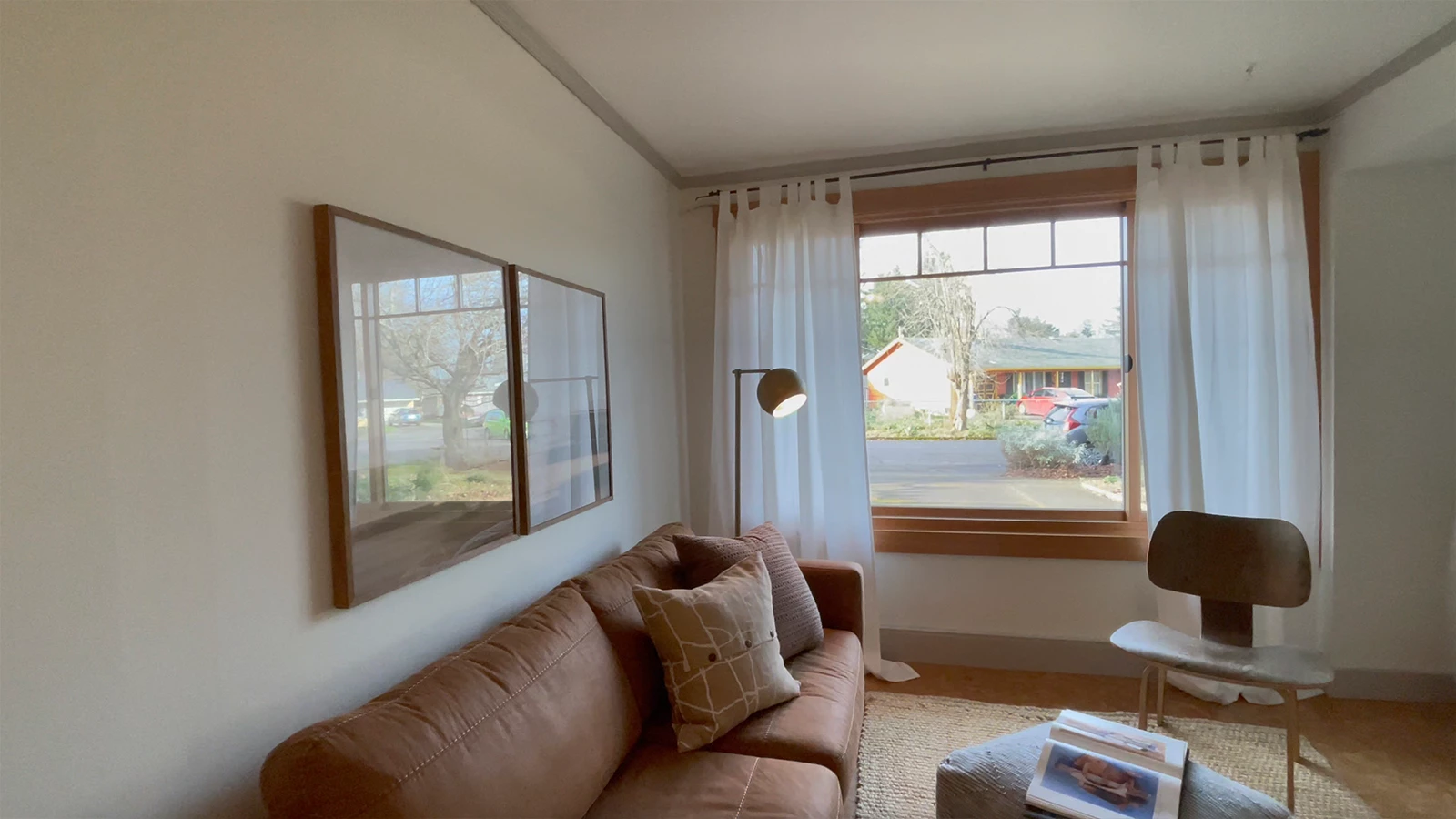
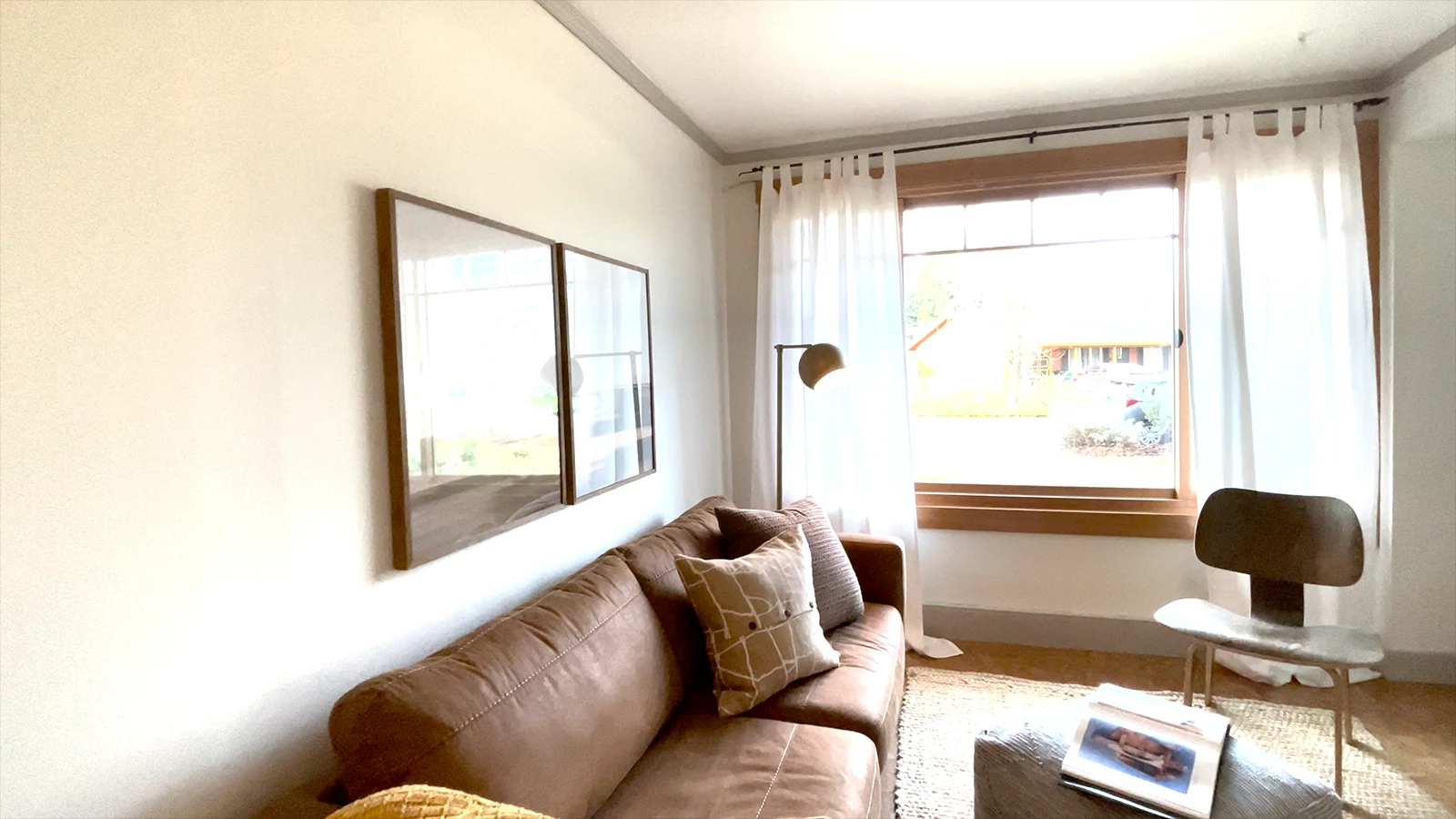
I'm on an iPhone 12 Pro, and I'm having issues getting the video quality to as good as the original .MOV file from the phone, would anyone know of how to take care of this? In my searching, I found one solution that said to go to the clip after importing it, then to Modify -> Interpret Footage and switching Color Management to Rec .709, but the results are the same for me. As a quick reference, here's a very rough (not exactly pretty, but gives a good example) screenshot of what I am getting from the original. Here's what it looks like when I simply import it into Premier and then export:


And here is what the original .MOV file that was airdropped from my phone to my computer:


Any input is much appreciated...I feel like there's a simple solution, but I've searched and the only suggestions I've found have not made any difference.

This topic has been closed for replies.
Correct answer Francis-Crossman17221443

One thing that is tripping up so many people here is that the iPhone is shooting in HDR by default, and it has an HDR screen, so videos look phenomenal on it. High Dynamic Range video contains more light and color level than Standard Dynamic Range video (Rec709).  Unless you have an HDR display on your computer (and have everything is set up properly), you will never see it the same way as on the phone.  The vast majority of people have an SDR display.  When you send the video to your computer, QuickTime player will do tonemapping while sending it to your SDR display so it looks decent.  Premiere Pro does not have this capability yet. 


Here's what's happening.  PPro reads the metadata in the file, sees that it's HDR (HLG to be specific) and treats it that way.  If you create a sequence from the file the sequence will be set up as HLG automatically.  But your monitor is physically not capable of displaying the light levels in the file so that's why things look blown out.  If you look at the scopes, you will see that nothing is actually lost.  You could use Lumetri to grade the file down to SDR levels. 


Here are a few options that I recomend.  Choose the one that works for you:

Don't capture in HDR on your iPhone.  

  1. On your phone- Go to Settings > Camera > Record Video > turn off HDR video
  2.  This will create Rec709 SDR clips
  3.  Edit in PPro like you are used to


OR . . .

Override the colorspace of the files to Rec709

  1.  Select all your clips in the project panel
  2.  Right-click > Modify > Interpret Footage > Color Management > Set the color space to Rec709
  3.  Now your clips will be treated as if they are Rec709 - this is not a conversion, it just tricks PPro into thinking it's Rec709
  4.  The clips will likeley look a little flat
  5.  Make sure your sequence is in Rec709 - Sequence settings > Working color space > Rec709 
  6.  Color grade to taste with Lumetri.  You will never get it to look as good as on your phone because your phone has an HDR screen and your computer (probably) does not.


OR . . .

Actually work in HDR and create an HDR video

  1.  You need an HDR monitor hooked up through proper cabling  https://support.apple.com/en-us/HT210980
  2.  Turn on Display color management and Extended dynamic range montioring in PPro Preferences
  3.  Import HDR footage from iPhone (iPhone shoots HLG)
  4.  Add the footage to an HDR sequence (HLG)
  5.  Export using an HDR encoding preset (HLG).  Either H264 or HEVC are good options.


Hope this helps.  HDR is legitimately confusing!

 

4 replies

R Neil Haugen
Legend
January 13, 2022

Thanks for the response, Francis ... good information to have.


Neil

Everyone's mileage always varies ...
Francis-Crossman17221443
Community Manager
Principal Product Manager
January 13, 2022

One thing that is tripping up so many people here is that the iPhone is shooting in HDR by default, and it has an HDR screen, so videos look phenomenal on it. High Dynamic Range video contains more light and color level than Standard Dynamic Range video (Rec709).  Unless you have an HDR display on your computer (and have everything is set up properly), you will never see it the same way as on the phone.  The vast majority of people have an SDR display.  When you send the video to your computer, QuickTime player will do tonemapping while sending it to your SDR display so it looks decent.  Premiere Pro does not have this capability yet. 


Here's what's happening.  PPro reads the metadata in the file, sees that it's HDR (HLG to be specific) and treats it that way.  If you create a sequence from the file the sequence will be set up as HLG automatically.  But your monitor is physically not capable of displaying the light levels in the file so that's why things look blown out.  If you look at the scopes, you will see that nothing is actually lost.  You could use Lumetri to grade the file down to SDR levels. 


Here are a few options that I recomend.  Choose the one that works for you:

Don't capture in HDR on your iPhone.  

  1. On your phone- Go to Settings > Camera > Record Video > turn off HDR video
  2.  This will create Rec709 SDR clips
  3.  Edit in PPro like you are used to


OR . . .

Override the colorspace of the files to Rec709

  1.  Select all your clips in the project panel
  2.  Right-click > Modify > Interpret Footage > Color Management > Set the color space to Rec709
  3.  Now your clips will be treated as if they are Rec709 - this is not a conversion, it just tricks PPro into thinking it's Rec709
  4.  The clips will likeley look a little flat
  5.  Make sure your sequence is in Rec709 - Sequence settings > Working color space > Rec709 
  6.  Color grade to taste with Lumetri.  You will never get it to look as good as on your phone because your phone has an HDR screen and your computer (probably) does not.


OR . . .

Actually work in HDR and create an HDR video

  1.  You need an HDR monitor hooked up through proper cabling  https://support.apple.com/en-us/HT210980
  2.  Turn on Display color management and Extended dynamic range montioring in PPro Preferences
  3.  Import HDR footage from iPhone (iPhone shoots HLG)
  4.  Add the footage to an HDR sequence (HLG)
  5.  Export using an HDR encoding preset (HLG).  Either H264 or HEVC are good options.


Hope this helps.  HDR is legitimately confusing!
 

Kevin-Monahan
Community Manager
Community Manager
January 13, 2022

Great response, Francis. I see: it's that iPhone screen that is tripping up people's perception. Thanks for clarifying.


Regards,
Kevin

Kevin Monahan - Sr. Community and Engagement Strategist – Adobe Pro Video and Audio
Community Expert
January 13, 2022

check here:

https://helpx.adobe.com/premiere-pro/using/color-management.html


and here (make sure you are not playing back your export on QuickTime):

https://vitrolite.wordpress.com/2010/12/31/quicktime_gamma_bug/


Averdahl
Community Expert
Community Expert
January 13, 2022
Participant
January 13, 2022

Thanks very much for the quick reply! This is so strange - I've followed the steps, and in the video I can see exactly how it resolves the problem in the example, which is the same problem I'm having - overexposed / blown out. However, when I make those changes, I don't see any difference. I've exported it just to see if it's any different there, but no changes either. Are there any other options other than changing to the Color Management to Rec .709? Thanks again for the help!

R Neil Haugen
Legend
January 13, 2022

 The phone is recording an HLG color space/gamut file, HDR. So you need to do that step of override to Rec.709 mentioned in the Project panel to use this on a Rec.709/SDR timeline.


I'll include links to a couple detailed FAQs about this.


Neil


FAQ:PremierePro 2022 Color Management for Log/RAW Media


How to Set Monitors for HDR work in Premiere Pro 2022?

Everyone's mileage always varies ...