
dylanm39321779
Participant
May 15, 2020
Answered

JPEGS & PNGS CORRUPTED IN PREMIER PRO

  • May 15, 2020
  • 7 replies
  • 6159 views

I am having an issue where my jpegs and png photos are corrupted in premier pro. It looks as if I have applied a glitch effect on them and they are discolored and distorted. I have tried the following but nothing has worked.

1. Re-installed video drivers

2. Re-downloaded images and deleted old ones off of drive

3. Used external drive to import images into premier

4. Turned off GPU acceleration 

however NONE of this has worked.

If anyone has experienced this please let me know how I can fix it as this is prohibiting me from using the software as I cannot put any images into it. I have a radeon 5700XT gpu. Not sure if this GPU has anything to do with it and or that adobe isnt compatable with it. 
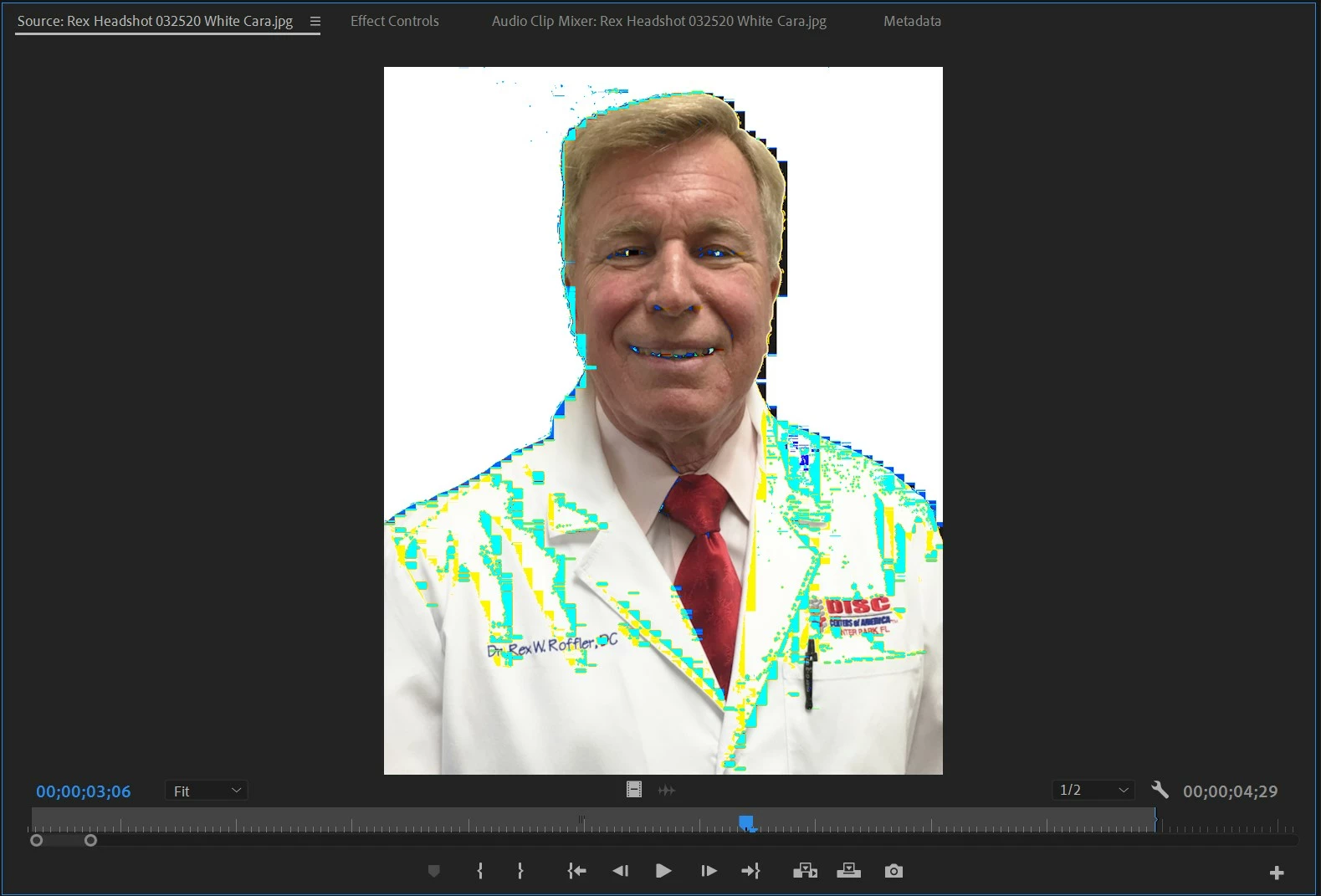
 

[Moderator note: please add images directly to your post by drag/drop to the reply box or use the picture icon to upload images.]

This topic has been closed for replies.
Correct answer Peru Bob

Try resaving them in Photoshop.

7 replies

Participant
December 2, 2020

Quick Fix: Right click on the image in the sequence and create "nesting" file - name how you like it. Hopefully that helps. 

If the file is already nested in the Sequence - Right click on the pertaining nest shot - go down to "Time Interpolation"  -  and select "Optical Flow" 

Participant
June 15, 2022

Thanks it's work with me

Participant
November 5, 2020

I wanted to add that I have been having the same problem, new Radeon 5700xt GPU and issues with photos in Premiere. Would love a solution to this if anyone has one!

R Neil Haugen
Legend
November 5, 2020

This with stills is often a color space issue, which is why re-saving with a different color space in Photoshop so often works.


Occasionally, it's a GPU driver issue.


Neil

Everyone's mileage always varies ...
Participant
October 5, 2020

Anyone been able to resolve this yet? I am currently experiencing the same problem (have a radeon 5600xt). I've tried exporting the images through photoshop and have had no luck - GPU drivers are all up to date so nothing wrong there... 

Are adobe ever going to address this major issue??? 

Participant
October 6, 2020

UPDATE: I've managed to resolve the issue using a different method within photoshop - 


Image > Mode > CMYK Color > Quick export as PNG


Hope this helps anyone out there who's still having problems! 

Averdahl
Community Expert
Community Expert
October 6, 2020

It´s great that it worked but CMYK should be 100% avoided in Premiere Pro/After Effects since it always leads to problems down the road. CMYK is used for print, not for video.


Use RGB Color and try to save the image/s as .psd.

R Neil Haugen
Legend
May 17, 2020

Try changing drivers for the GPU. Some drivers can be problematic.


Neil

Everyone's mileage always varies ...
R Neil Haugen
Legend
May 15, 2020

That looks like a gamut issue. As Peru Bob say, resave in Photoshop, and make sure they are in basic sRGB color space, not RGB or ProPhoto or any of the other spaces.


Neil

Everyone's mileage always varies ...
dylanm39321779
Participant
May 17, 2020

Yes thank you! I tried this it works. However I recently upgraded to a premier pro compatible GPU (radeon 5700xt)and the problem only occured once I put the new video card in. I also had 3 other friends with the same GPU import the photos on the same and later versions of premier and had the same issue. When I plug my old gpu back in the problem goes away and the photos look fine. Very quirky issue. Think it's something wrong with how the video card is communicating with adobe (I have GPUA on). Not sure cause when I turn GPUA off the problem goes away. 

Participant
September 20, 2020

Hi Dylan, I am having the exact issue with Premiere 2020 too, and I have the Radeon 5700xt GPU. I wonder if you have solved this problem successfully?

I tried:

1: re-install GPU driver (not working)

2: re-saving the JPG or PNG files in Photoshop into Black and white (and it worked, but colored files are still corrupted)

3: re-installing Premiere Pro (not working)


What does turn off GPUA here mean? I googled GPUA but nothing showed up.

thanks

Yan

Peru Bob
Community Expert
Peru BobCommunity ExpertCorrect answer
Community Expert
May 15, 2020

Try resaving them in Photoshop.

John T Smith
Community Expert
Community Expert
May 15, 2020

Moved from Community Help (which is about the forums) to a better forum
To find a forum for your program please start at https://community.adobe.com/


Some things to do, and more information needed for someone to help...
-Troubleshooting https://community.adobe.com/t5/Premiere-Pro/Unofficial-Premiere-Pro-Troubleshooting-Guide/td-p/8789200
-PPro Editing Information FAQ https://community.adobe.com/t5/Premiere-Pro/FAQ-What-information-should-I-provide-when-asking-a-question-on/td-p/3929027
-Mac only https://community.adobe.com/t5/Premiere-Pro/FAQ-Basic-Troubleshooting-amp-Maintenance-for-Premiere-Pro-on/td-p/4788764