


Inspiring
November 28, 2018
Answered

Make all audio the same level

  • November 28, 2018
  • 8 replies
  • 29884 views

Hey folks, new editor here. I have an audio clip with parts that are too quiet, and parts that are too loud, is there a way to make ALL OF IT around the same level, let's say -3dB? I have been doing it so far by splitting and adjusting the rubber band or the audio gain on each section, but there has to be a better way... right?

    Correct answer MrLuck

    Wow, so many suggestions, thank you all! I actually found a way that seems to work so far, I will update here if I find a problem with it eventually (or you guys could tell me if it's a bad idea):

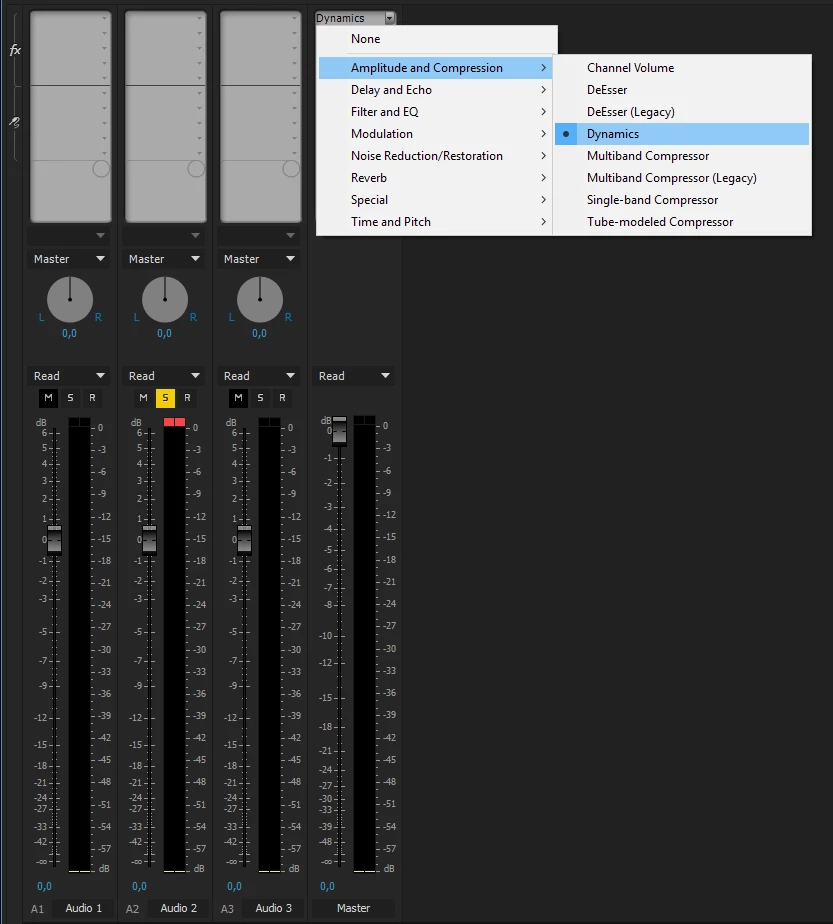
    Audio Track Mixer > click the white arrow on the top left > in the new area that appeared, above the column named Master (for the effect to apply in all tracks), click on one of the black arrows pointing down > Amplitude and Compression > Dynamics > check the Limiter box > set Threshold to -3dB (the desired maximum dB).

    Then I use Gain (G) on the track until it's close to -3dB. Now everything sounds pretty levelled to my untrained ears.

    8 replies

    unmesh.pansare
    Participating Frequently
    November 13, 2024

    I found this youtube video very helpful- it neatly explains how to balance audio levels using Tube modeled compressor

    https://youtu.be/yye3Q6IDXJ4?si=tCYIHSboPEIT9Z9E

    Adobe Expert
    January 4, 2019

    One more suggestion. Select all clips that you would like to change or:

    (Ctrl A Windows or Cmd A MAC) right click on ant clip and choose audio gain/normalize all peaks. I recommend -8

    MrLuckAuthorCorrect answer
    Inspiring
    January 4, 2019

    Wow, so many suggestions, thank you all! I actually found a way that seems to work so far, I will update here if I find a problem with it eventually (or you guys could tell me if it's a bad idea):

    Audio Track Mixer > click the white arrow on the top left > in the new area that appeared, above the column named Master (for the effect to apply in all tracks), click on one of the black arrows pointing down > Amplitude and Compression > Dynamics > check the Limiter box > set Threshold to -3dB (the desired maximum dB).

    Then I use Gain (G) on the track until it's close to -3dB. Now everything sounds pretty levelled to my untrained ears.

    Ann Bens
    Adobe Expert
    January 3, 2019

    I would go into the Essential Sound Panel.

    Select all clips

    Hit SFX

    Auto match for loudness.

    January 3, 2019

    Another way to quickly smoothen the levels of individual clips is using the new "essential sound" panel.

    I personally don't like using it because i'm an audio guy and it gives me little control but it seems to me that you are looking for a quick solution.

    The essential sound panel is exactly that, a very easy-to-use and quick way to e.g. adjust levels of individual (or multiple) clips. Give it a try

    BTW another quick way to adjust a clip's level is marking the clip in question and hitting g! A bit less finnicky than doing it in the timeline or in the clip mixer IMO

    R Neil Haugen
    Brainiac
    January 3, 2019

    When you use the ESP, to "get more control", just go to the ECP ... and you can open each tool used by the ESP and change settings.

    Neil

    bucksommerkamp
    Inspiring
    January 3, 2019

    One of the last steps in my projects is to go into the Audio Track Mixer and add some "radio leveler" or "tube-modeled compressor" effects to the master track. It helps smooth out the whole production. I realize you're looking for tighter control than that, but this is a nice top-level process that makes the finished product sound like it's ready for broadcast.

    Learn the basics of the Premiere Pro Audio Track Mixer

    Mo Moolla
    Brainiac
    January 3, 2019

    Get into Audition and use the Normalise function

    This will smoothen out the peaks

    Mo

    NoLens
    Known Participant
    January 2, 2019

    What I tend to do is right/control click the clip in the Premiere timeline and Edit Clip in Adobe Audition.  There, I select all of the audio, and go to Effects>Amplitude and Compression>Hard Limiter.  On the window that pops up, I choose preset up top of Limit to -3dB in your case.  Once it computes, save it in Audition - the Save is what makes the change happen back in Premiere.  Once you're back in Premiere, it may take a few seconds for the change to register - you'll see the change in your audio clips' waveforms. Try that.  Hope it works for you!

    MrLuckAuthor
    Inspiring
    January 3, 2019

    Thanks for the info. It can also be done with Audacity, but I'm looking for a way to do it solely on Premiere.

    R Neil Haugen
    Brainiac
    January 3, 2019

    Audacity isn't an auto-replace feature though. You need to export the sound then replace.

    As this is a Dynamic Link process between Adobe apps, it is auto-replace.

    To stay completely within Pr, just go to the Effects panel, and type in "compre " and you'll see Obsolete folder (best ignored), and the Multi-, Single- and Tube-modeled compressor options.

    Neil