


Participant
March 10, 2022
Answered

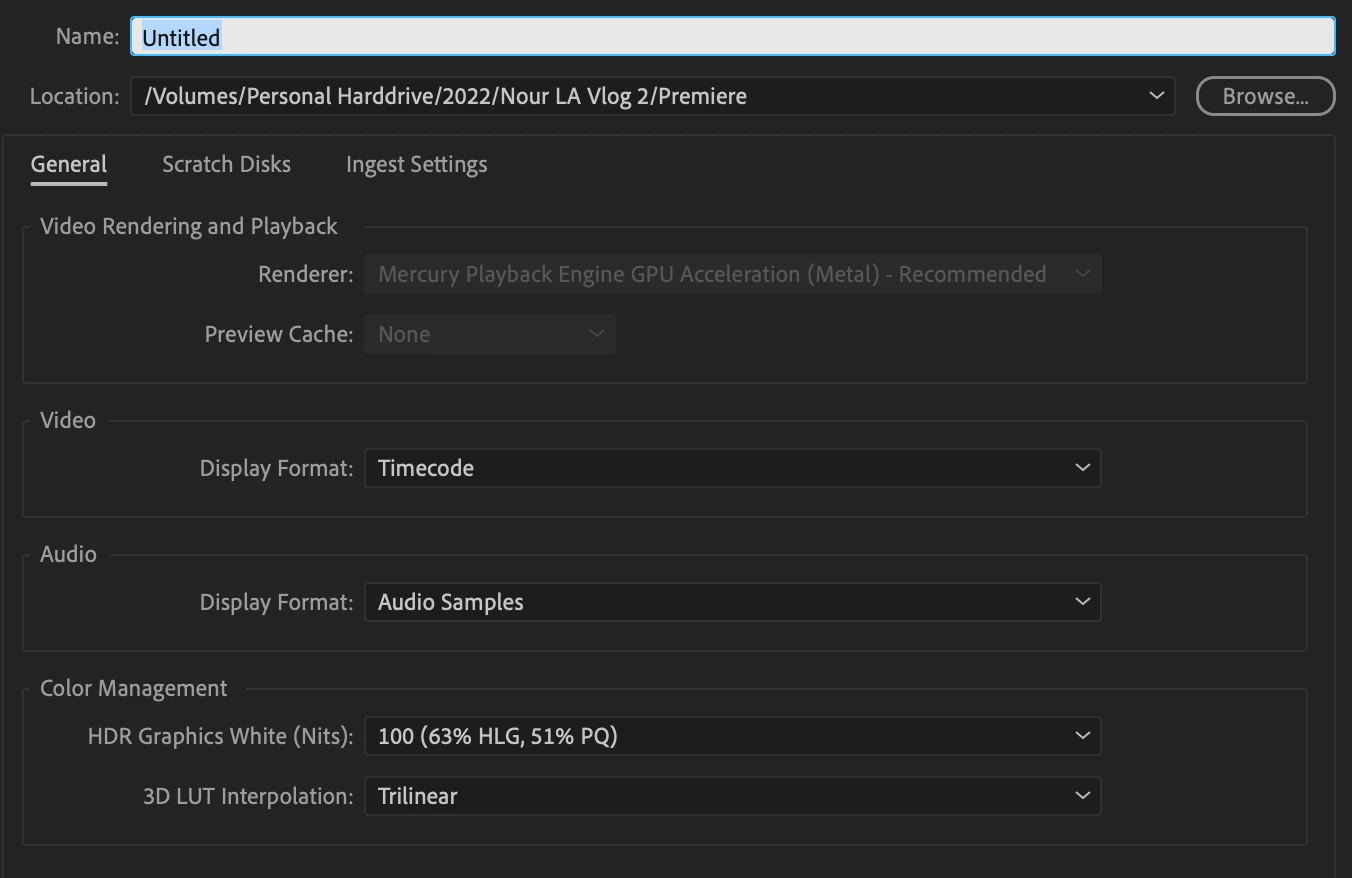
Mercury playback engine gpu acceleration greyed out

  • March 10, 2022
  • 2 replies
  • 2980 views

I have the brand new macbook pro max fully upgraded. My project for some reason recently has just been super laggy. ill open it up & then when i skim through the timeline all of a sudden the playback will freeze. I have all other funcitons in premeire but the playback on the computer wont work. Im trying to see if i can change the Render & Playback settings but its greyed out i cant figure out why. Ive tried opening a new project but its the same thing. 
This topic has been closed for replies.
Correct answer Warren Heaton10841144

That setting is enabled by default if running Premiere Pro as Apple silicon native.


While Premiere Pro is closed, get into on the application in the Finder and enable "Open using Rosetta".  You'll then be able to change that project setting.

2 replies

Participant
September 3, 2024

I recently purchased an M3 Max and migrated all my data to it. However, when I tried to launch Adobe Premiere, I noticed that the GPU renderer was disabled. I've tried several troubleshooting steps, including uninstalling and reinstalling software, clearing cache, deleting files, restarting, and updating the software, but the issue persists. Does anyone know how I can enable the GPU renderer, or should I wait for the next software update for Premiere to resolve this?

Community Expert
September 3, 2024

@hoydstudios 

It's not disabled.


For the Apple Silicon version of Premiere Pro there are no other GPU options like "Mercury Playback Engine Software Only", "Mercury Playback Engine GPU Acceleration (CUDA)", or "Mercury Playback Engine GPU Acceleration (OpenCL)".


As such, it's always set to "Mercury Playback Engine GPU Acceleration (Metal) - Recommended".  Instead of " - Recommended" it could read something like " - Always enabled".

Participant
September 3, 2024

Thank you for your response, Warren. 

If it's always enabled and just set like that for the M3 then that eleviates alot of worry about something being off.

Curious as to why my previous macbook pro 2019 model allowed for me to turn it off and on in premiere?

Warren Heaton10841144Community ExpertCorrect answer
Community Expert
March 10, 2022

That setting is enabled by default if running Premiere Pro as Apple silicon native.


While Premiere Pro is closed, get into on the application in the Finder and enable "Open using Rosetta".  You'll then be able to change that project setting.

Participant
August 21, 2023

What??? Could you be a little more specific?


Legend
August 21, 2023

Specifically, when you open Premiere Pro normally, it runs in Apple Silicon native mode by default, and it's renderer is permanently locked into the Metal GPU acceleration mode. You will need to open the Creative Cloud desktop app, then click on the Apps tab, then click on the three dots next to the Premiere Pro line, then click Open in Intel mode. Unfortunately, the only other renderer setting besides Metal that's available is Software Only.