Participant
May 8, 2018
Answered

No Button Editor or Buttons on Program/Reference Monitor

  • May 8, 2018
  • 3 replies
  • 9069 views

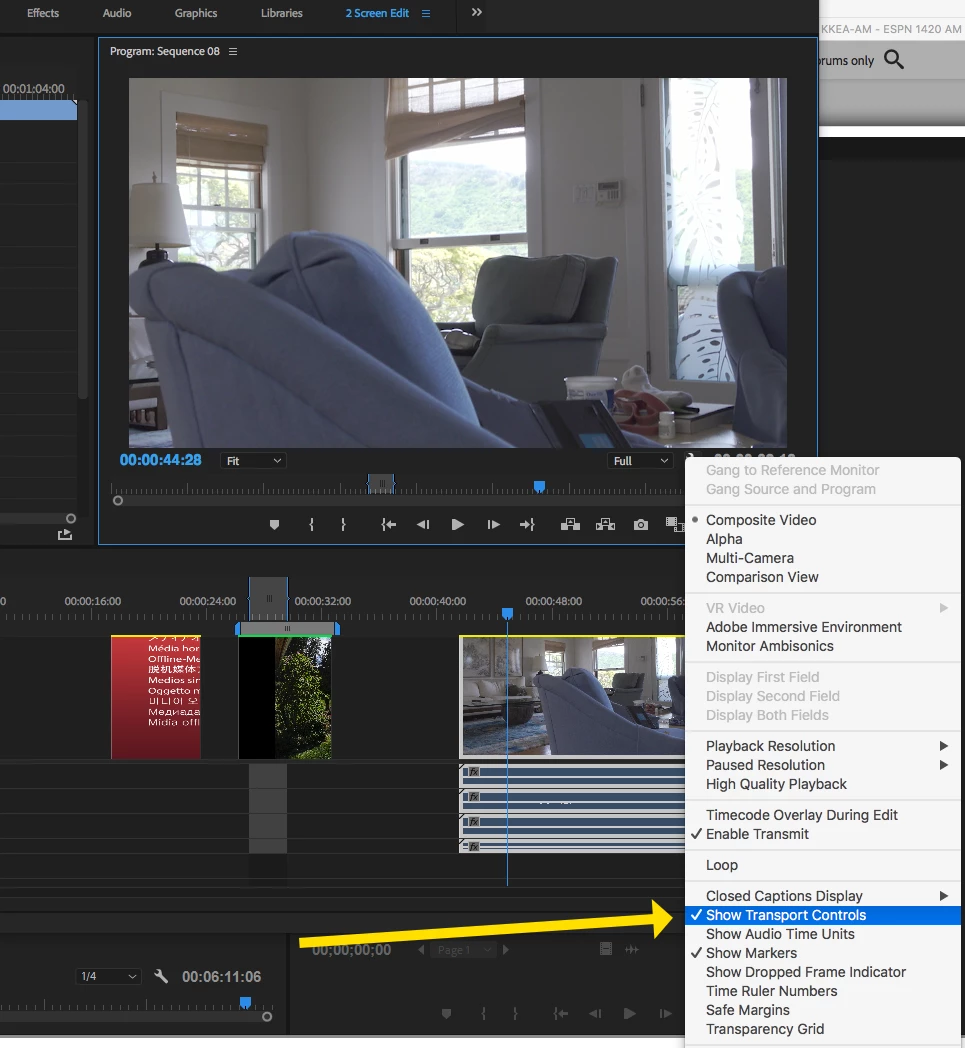
Recently, my program and reference monitor doesn't have any of the basic buttons or the button editor. Oddly enough the buttons are still available on the source monitor. Here is a photo of the situation. It's been nonstop frustration since this has happened and I'd like to get these buttons back. Any solutions?

This topic has been closed for replies.
Correct answer Meg The Dog

Click the wrench in the lower right hand corner of the monitor and in the drop down menu, toggle on (put a check mark by) Show Transport Controls:

MtD

3 replies

Participant
November 16, 2020

I have a similar issue with Premiere Pro 2020 program monitor. Button editor shows only few buttons.  - transport and gang. I can't add anything else. Source monitor has no problem. 

Ann Bens
Community Expert
Community Expert
November 16, 2020

It sounds to me you are looking at the Reference Monitor which has but a few buttons instead of the Program monitor.


johnwl
Known Participant
May 27, 2022

Thank you!

Meg The DogCorrect answer
Inspiring
May 8, 2018

Click the wrench in the lower right hand corner of the monitor and in the drop down menu, toggle on (put a check mark by) Show Transport Controls:

MtD

Participant
February 23, 2023

Good day, I have tried all the above, but my source monitor buttons are still half hidden - looks like a bug.

MyerPj
Community Expert
Community Expert
July 2, 2023

Thanks for your 3rd post. So, you found 'a bug'. Wow! 🙂

By half hidden what do you mean? Have screen shot? What's you OS scaling set at? Anything other than 100%?


Peru Bob
Community Expert
Community Expert
May 8, 2018

Try resetting the preferences:

FAQ: How to reset preferences in Premiere Pro?

If that doesn't work, try resetting the Workspaces:

Reset a workspace

Reset the current workspace to return to its original, saved layout of panels.

  1. Do one of the following:
    • Click the Workspace menu icon and select Reset to Saved Layout.
    • Choose Window > Workspace > Reset to Saved Layout.

from here:

https://helpx.adobe.com/premiere-pro/using/workspaces.html

If that doesn’t work,try updating or rolling back your graphics driver directly from the video card manufacturer’s site.

abigrazi
Participant
October 5, 2022

Thank you! This really helped. I was so confused as to what happened, but it's all fixed now