



BIGBOY PRODUCTIONS
Known Participant
October 13, 2022
Answered

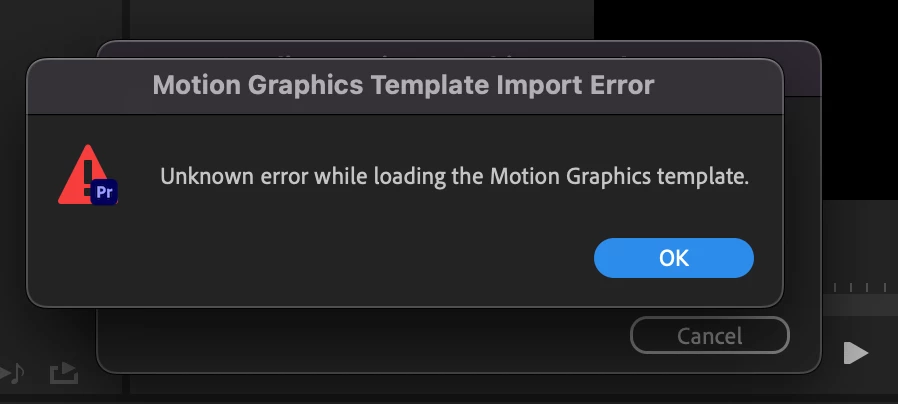
Persistent “Unknown Error” Loading Motion Graphics Template
  • October 13, 2022
  • 7 replies
  • 14983 views


Hello everyone,


I'm running into a persistent issue: every time I try to load a Motion Graphics template, I receive the error message “Unknown error while loading the Motion Graphics template.” I’ve tried every troubleshooting step I can think of—clearing caches, reinstalling the template, updating software and nothing has resolved the problem.

To help illustrate the issue, I’ve even uploaded a video demonstrating exactly what happens. This error is severely impacting my workflow, and I’m really at a loss. Has anyone else experienced this problem? Any suggestions or workarounds would be immensely appreciated.

Thank you for your time and help.

Correct answer Carlos Ziade

File > Project Settings > Scratch Disks

check the ones for motion graphics template (better set to same as project)

if it doesn't work, try opening the mogrt in after effects and re-export from there 

choosing a short file name and path.

Personally, i'd better use local drives and keep externals for backups.

https://helpx.adobe.com/premiere-pro/using/motion-graphics-templates.html

7 replies

janphilbo
Participating Frequently
December 17, 2024

what helped me at the end: I opened a new project and imported some simple iPhone footage (1920/1080) with 30p. I created a sequence and imported the Motion Graphic template that was causing a problem in my current project (sequence 25frames, 4k material). Here it worked without the error message.  Now i simply copied the imported Motion Graphic, opened my 4k project and simply pasted the Motion graphic on my sequence. It worked ! No error warning. This was my successfull and simple work around. Maybe it helps others to.

BIGBOY PRODUCTIONS
Known Participant
January 29, 2025

Same issue 

BIGBOY PRODUCTIONS
Known Participant
March 10, 2025

nothing works 


Nothing at all. I've tried all the solutions. What am I doing wrong?

New Participant
September 24, 2024

Para mim foi apenas o diretório do arquivo aonde eu salvei o projeto que estava muito longo e com pastar nomeadas com virgulas. Reduzi o nome da pasta aonde estava alojado o projeto do adobe premiere, retirei as virgulas deste mesmo nome de pasta, e tudo voltou ao normal.

New Participant
November 22, 2023

None of this works for me, the error did not occur before with all my assets, but when I added a new asset to motionbro, suddenly, all my assets, even the ones that were not from motionbro, stopped working, what just happened ?

Community Expert
November 27, 2023

you mean you installed the Motionbro extension?

if yes, check with them for any possible solutions or updates,

especially if you updated to the newest Premiere Pro.

Carlos ZiadeCorrect answer
Community Expert
May 8, 2023

File > Project Settings > Scratch Disks

check the ones for motion graphics template (better set to same as project)

if it doesn't work, try opening the mogrt in after effects and re-export from there 

choosing a short file name and path.

Personally, i'd better use local drives and keep externals for backups.

https://helpx.adobe.com/premiere-pro/using/motion-graphics-templates.html

New Participant
October 18, 2023

This worked for me! I had donwloaded the MOGRT It was in my downloads. I kept on getting the error. Changed that file location to Download as a test - and it worked!

R

Participating Frequently
April 7, 2023

If you are saving to an cloud/external hard drive...I might have a solution for you below@BIGBOY PRODUCTIONS )

Here's the thing...it seems (as true with most glitches) there are SEVERAL triggers that could cause this problem...not just one. So, the solution from someone that says - "this one simple thing in 30 seconds fixed it" - might not be the magic solution for your problem.

First, try everything that @Peru Bob said.... @Peru Bob has given the best exhaustive list that I found anywhere in the support community. I am only adding another trigger to this list...none of these is the end all/fix all.


My glitch was caused by working in a synchronized folder to the cloud.

I normally do all my work in a synchronized folder to a cloud application (e.g. Google Drive, Box, OneDrive, Adobe Creative Cloud, etc)

After updating, Adobe Premiere seemed to not like the cloud app I was using. I tried all other methods of fixing this issue...none worked...UNTIL...

I accidentally created a Adobe Premiere project that saved to a location on my hard drive...and the Motion Graphics Template Import Error was gone! Here is what I did...

  • Create an Adobe Premiere project on your hard drive (not a synchronized folder to any cloud app)
  • Create a sequence. Open Essentials Graphics (Window > Essential Graphics), Browse, and drag the MOGRT files from your library onto the sequence. In your Adobe Premiere Project bin, this will create a folder called Motion Graphics Template
  • Create an Adobe Premiere project on your synchronized folder.
  • Copy and Paste (right click Copy/Paste or Ctrl-C/Ctrl-V works) the Motion Graphics Template folder in the Adobe Premiere Project bin from the hard drive Premiere Project bin to the synchronized folder Premiere Project bin.

I hope this additional solution works from some of you.

BIGBOY PRODUCTIONS
Known Participant
April 11, 2023

Same issue? Adobe help

Peru Bob
Community Expert
October 20, 2022

Where is the mogrt from? Adobe Stock or a third party?

Can you open it in After Effects?

BIGBOY PRODUCTIONS
Known Participant
November 12, 2022

Both?

Peru Bob
Community Expert
October 13, 2022

Delete the Media Cache and Media Cache files:
https://community.adobe.com/t5/premiere-pro/faq-how-to-clear-your-media-cache-in-30-seconds-in-premiere-pro-2020/m-p/11017257/thread-id/260446?page=1

If that doesn't work, try resetting the preferences:
https://community.adobe.com/t5/premiere-pro/faq-how-to-reset-trash-preferences-in-premiere-pro/td-p/8236158?page=1

If that doesn't work, try resetting the Workspaces:
Reset a workspace
Reset the current workspace to return to its original, saved layout of panels.
1. Do one of the following:
• Click the Workspace menu icon and select Reset to Saved Layout.
• Choose Window > Workspace > Reset to Saved Layout.
from here:
https://helpx.adobe.com/premiere-pro/using/workspaces.html

If that doesn't work, try Preferences > Audio Hardware and set Input to None.

If that doesn’t work, try updating or rolling back your graphics driver directly from the video card manufacturer’s site. If NVIDIA, do a clean installation of the latest Studio Driver (NOT the Game Driver)

If that doesn't work, try creating a new project and import the old one into it.

BIGBOY PRODUCTIONS
Known Participant
October 20, 2022

I have tried all of this ;( what am I doing wrong?