


Inspiring
June 15, 2021
Answered

Pixilation or Compression Artifacts in Export

  • June 15, 2021
  • 1 reply
  • 2596 views

Hi fellow editors,

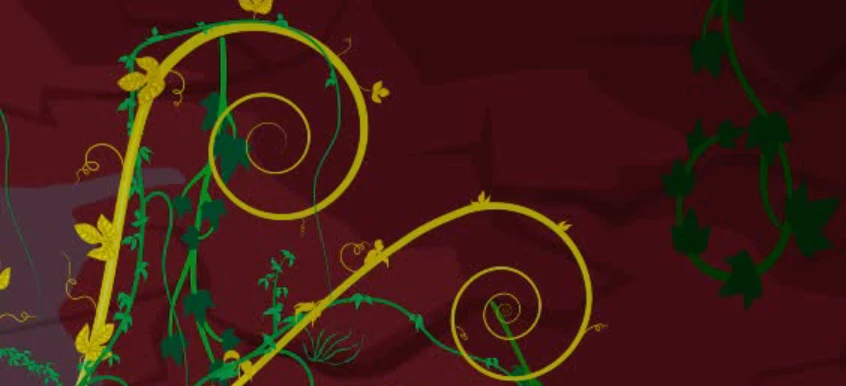
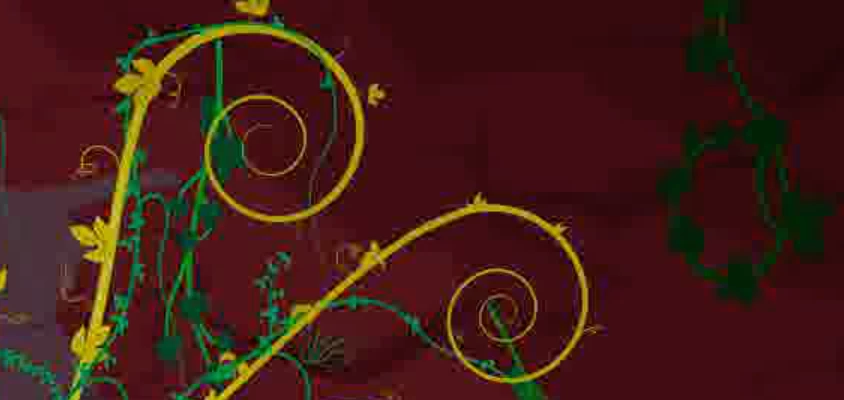
I have been testing video exports involving large .png source files.  Unfortunately this has resulted in painfully long render times and poor graphics results.  The test involved a cross-fade slideshow of these large static images, but while they all had the same dimensions (16150x9084), the larger datasize images (largest is 52.6MB) had an ugly flickering pixilization after being rendered into a .mpeg export.  

Before Flicker (still not great)
During Flicker


I tried exporting with maximum quality and some other options but saw no improvement.  The rest of the project sequence I exported from does not suffer this issue.  I want to use .png becuse these images are actually broken into background layers and a foreground with transparency.  They are large because I intend to zoom in and pan over them without loosing resolution.  This may be a hardware limitation, my Macbook is by no means a high performace graphics engine, but please tell me if there is a fix to this beyond getting a new computer.  Just finishing the edits will be tedious due to slow computer processing so I am open to any advice that will make it easier on my mac.


Adobe Version: Premiere Pro CC 2020 v14.8

Computer: MacBook Pro (13-inch, 2017, Two Thunderbolt 3 ports)

Operating System: OS-X High Sierra 10.13.6

Processor: 2.3 GHz Intel Core i5

Memory: 8 GB 2133 MHz LPDDR3

Graphics: Intel Iris Plus Graphics 640 1536 MB
This topic has been closed for replies.
Correct answer Stove & Egg

Well, I think that's exactly my problem.  I can create an intermediate nested sequence that contains the images but it will be 1920x1080 like the outer nested sequnce and project settings.  That is probably what is causing the images to look pixilated when I scale to zoom in using the intermediate layer.  In order to zoom in and not lose resolution I would need a nested layer that has the same dimensions as the images it contains, which are larger than the outer nested squence and project settings to allow for said zooming.  Can this be done in Premiere?


Update:  Since it has been a number of days since I had a reply here, I did some digging into the topic of adjusting nest layer size myself.  This adobe-video.uservoice.com webpage gave me the clues I needed to get the results I was looking for.  Nest layer size can be adjusted manually with Sequence -> Sequence Settings, so I could make a nest as large as its contents dimensions.  I had to manually adjust the scale of each individual image in the nest as well, so the fact this webpage is requesting an option to simplify the process in Prmiere is something for the developers to consider.  Having again tested the export of my sequence with the suggestions I recieved, I declare this inquiry case closed.


Thank you.

1 reply

Richard TOULON
Brainiac
June 15, 2021

Hi, 

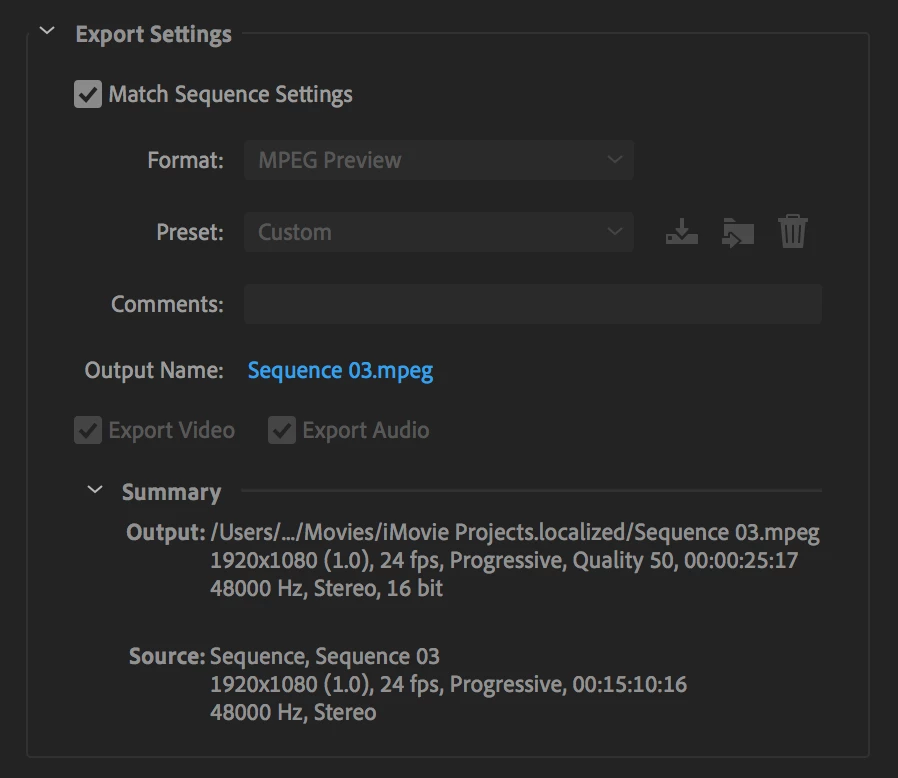
First, you should not use Match Sequence settings.

This is for a specific type of workflow.

As you can see, it uses MPEG preview and the quality won't be good.

Depending on the kind of zoom, i think you should downsize your images a little bit more (convert them ). Premiere can handle a certain amount of pixel for still images and I think you are very close to the limit point.

Can you tell us where this video is meant to be played ? Social media, Cinema, internal playback on computer ?


Inspiring
June 15, 2021

Thank you for responding.  I have just a few concerns and questions about this.

Ultimately, the video needs to be in a format that is playable on my computer and uploadable to Youtube.  Matching sequence setings was the only way I got a decent playable output in a format I recognize.  Qucktime format produced files way too large and .mp4 is limited to super low resolution for some reason.  Fogive me for not recognising the other formats as anything playable, I have been learning Premiere on my own for over a year with a great deal of success on editing this project but I haven't figured out formating and this compression problem is an obsticle I need to ask about.   I am reluctant to dowsize the images, they seem to be at the ideal resoltion for zooming in on, but if 61.3MB (largest datasize image plus backround layers) is beyond what Premiere is designed to handle, I guess I have no choice.  What is the limit exactly?  I notice pixilization on some of the smaller images as well.

Richard TOULON
Brainiac
June 15, 2021

Hi,

First read this about max still image dimension for PPRO.

https://helpx.adobe.com/ca/premiere-pro/using/importing-still-images.html

Second, handle hudge amount of pixel like your images is putting a lot of pressure on your system.

Export is a crucial part of the process since it can ruin your entire work, so you need to understand the basics of compression and most used format. Go for H264 for now and use presets like Youtube HD if you really don't know nothing about encoding formats.