


Inspiring
April 7, 2018
Question

Possible to change Program Window background to black?

  • April 7, 2018
  • 4 replies
  • 1755 views

I am working with scanned slides in Premiere CS6. Sometimes I want to leave the ragged edges (in the photo, at the bottom edge), but I can't judge how it will look when projected because the background in Premiere is grey.
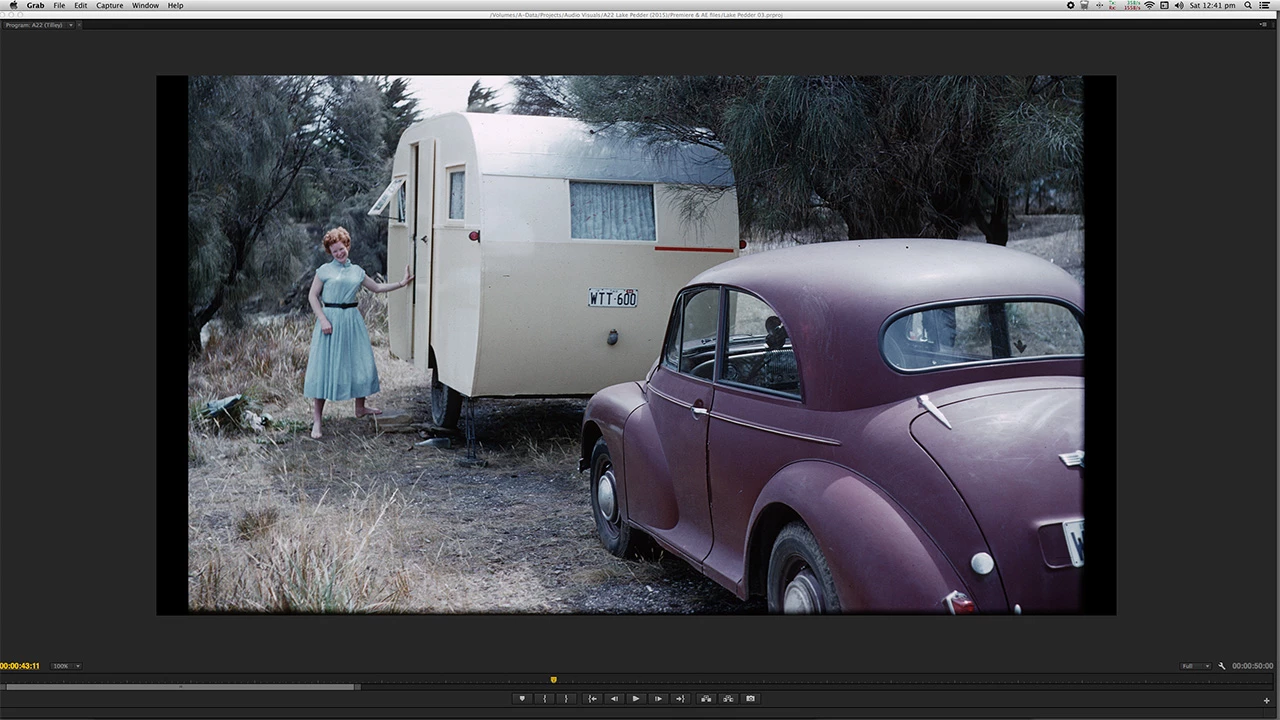
What I see in the horizontal direction, especially if the slide is 3:2 aspect, is the slide in the centre, the black background of the 16:9 video area, and then the grey of the Program Window. Not at all close to what will be projected.

Is it possible to alter the background of the Program Window to black?

    4 replies

    eelko ferwerda
    Known Participant
    August 21, 2023

    Its so easy for Adobe to do this, but they don't ... It would be

    so nice to have a bit more cinematic experience without losing your view on the controls. 

    Community Expert
    December 21, 2020

    Nail's answer is very good, but I think what you want is to obscure the gray part of the panel and not just the sequence, in that case it will be difficult because in the preferences you have a tab to obscure the interface but not totally black.

    Byron.
    pets
    Inspiring
    December 23, 2020

    thanks,

    i am not sure, if i understood your answers.


    "There are a couple ways to go from that to the clip. You could put the graphic on V2 and clip on V1, and do opacity keyframes to take the graphic from 100% to 0% while you bring the clip from 0% to 100%."

    this, if i got right, is a "blend" - the same as using the function/filter "soft blend from white" - which i did.


    isnt this a basic issue for a lot of users, working with many adjustmentlayers, when using a white soft blend (on the top layer) (5-10sec) at the start and end? its on v7, v2 - v6 are adjustment layers, and v1 is the movie track.

    the adjustment layers are coloring the white blend on top, (although it is on top?) i dont understand, why. 🙂

    i did the hard way, and made all adjustment layers blend in the same 5-10 sec at start and end, manually, took me 2h, and works a bit. now the white looks less orange.


    i think experts or professionals know a quick workaround?

    Community Expert
    December 23, 2020

    Sorry pets, I had answered Guy Burns' question. Regarding your question, once again the solution is in Neil's answer, you could also create a white Color Matte and leave it in V1 as a background.

    Byron.
    R Neil Haugen
    Brainiac
    December 21, 2020

    Pets,


    If you mean setting the program monitor background to white, no.


    If you mean setting a white frame of program material to fade in from, yes. To me the easiest way to do that would be to go to the Graphics workspace, Edit tab. In the EGP panel, make a rectangle, resize it to fill the frame, then give it a color in the controls for that in the EGP.


    There are a couple ways to go from that to the clip. You could put the graphic on V2 and clip on V1, and do opacity keyframes to take the graphic from 100% to 0% while you bring the clip from 0% to 100%.


    Or you could have them on the same track, and use a cross-dissolve transition.


    Neil

    Everyone's mileage always varies ...
    R Neil Haugen
    Brainiac
    April 7, 2018

    You might want to put a black-video matte as a background, image over that.

    Neil

    Everyone's mileage always varies ...
    Guy BurnsAuthor
    Inspiring
    April 12, 2018

    Thanks for the suggestion, but I tried something similar and it didn't work. I want to change the colour of Premiere's background (the dark grey), not the background of the 1920 x 1080 image.

    R Neil Haugen
    Brainiac
    April 12, 2018

    To change the UI, you go into the Preferences dialog ... Edit/Preferences/Appearance.

    You can lighten or darken the background UI tone some there.

    Neil

    Everyone's mileage always varies ...