James_B_M
Known Participant
October 22, 2018
Answered

Premiere Pro 2019 Legacy Title Tools & Actions

  • October 22, 2018
  • 6 replies
  • 33003 views

I just installed Premiere Pro 2019 (version 13). I prefer using the Legacy Title tool because I find it more straightforward and easy to use. Except... on this latest version I find that when I open it, the tools and actions displays are always hidden. I have to click on the little horizontal bars and call them up. Is there any way I can change this so that they simply appear whenever I open the titling tool? Thanks,

J.
    This topic has been closed for replies.
    Correct answer Ann Bens

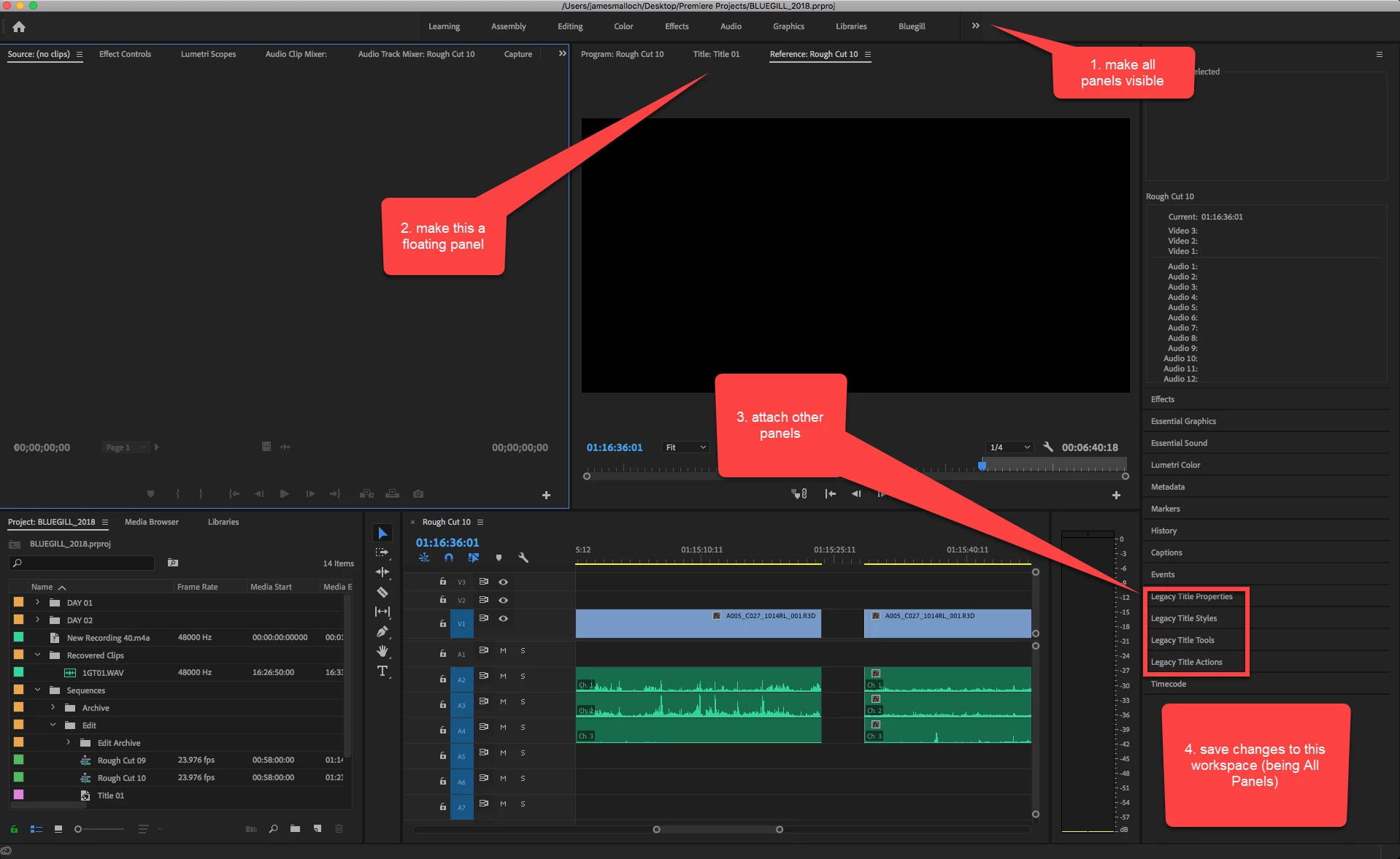
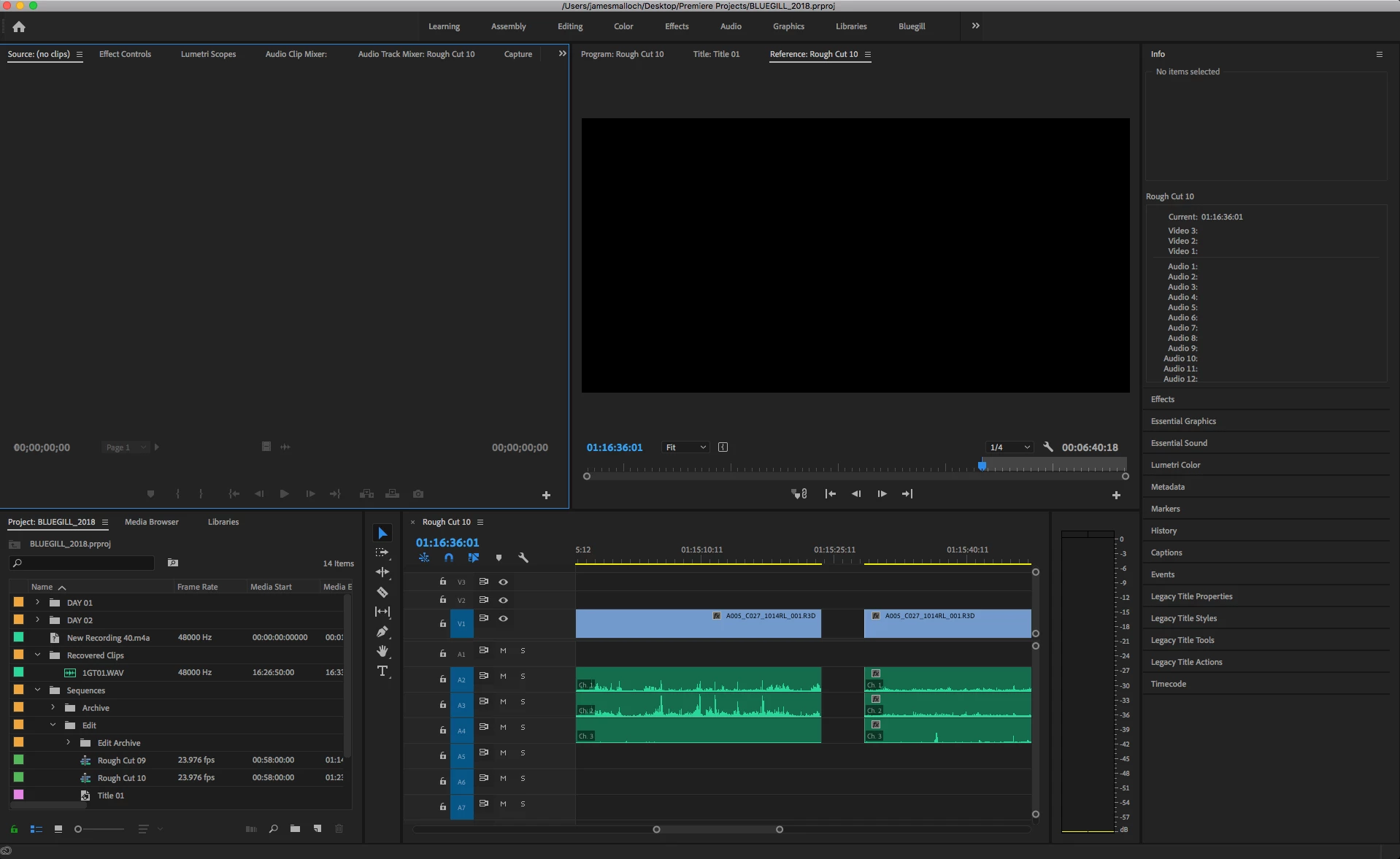
    With the title tool open I selected  Window >> All Panels. The title tool disappears and I'm left with this generic workspace, which is different than my custom workspace:


    6 replies

    Kevin-Monahan
    Community Manager
    Community Manager
    February 24, 2020

    The OP's question has been marked as correct. The thread is turning into every complaint possible about a Legacy panel. Please create a new post or create a bug report or feature request here. Post is now locked.

    Kevin Monahan - Sr. Community & Engagement Strategist – Pro Video and Audio
    mattm46660926
    Participant
    September 12, 2019

    I found that if you open the legacy titles window and then just minimize it, it will stay with the correct settings as you open up other titles.

    Kevin-Monahan
    Community Manager
    Community Manager
    September 12, 2019

    Nice tip, mattm.

    Kevin Monahan - Sr. Community & Engagement Strategist – Pro Video and Audio
    damianw44019316
    Participant
    December 19, 2018


    Legacy Titles: background goes full screen, rectangles won't auto-adjust
    Captions: broken, bugged, won't align and WON'T RENDER
    Essential Graphics (on screen): I've build sample caption, but it's not in the EG library yet, it's not in project manager viewport and there's no save button I could see, there's no "find in project" after right-click and the copy-paste on timeline doesn't do the trick.

    Task was a simple text on black rectangle.

    Adobe 2018. This is ridiculous.

    Stan Jones
    Community Expert
    Community Expert
    December 19, 2018

    What specific dot version of PR are you running?

    Your Captions line refers to the captioning tool, right? And by "Won't Render," you mean what? The only issue that I'm tracking is not burning in when exported through AME with preference for "Import Sequences Natively" turned off.

    Some alignment issues continue; others have been fixed.

    plewmm
    Participant
    November 25, 2018

    So I do the method of "reset to saved layout" as soon as I move anything in the layout to make my workflow more suited for me, the issue returns. I have to open all property panels. Why I do I have to constantly have to either open property panels or reset my layout? I use essential graphics when needed, and I create them but in some situations they are not necessary. Please stop trying to push Essential graphics.

    Convergnt
    Inspiring
    November 13, 2018

    just adding my voice to this. Each time i edit a legacy title, i must again open the tools and properties panels. This is cumbersome. and new to cc2019.

    December 7, 2018

    Same problem here. We use legacy titles a LOT (like > 100 times per hour of video content). Our Chief Designer is so pissed, he is looking for alternative Software .

    This bug drives me crazy and make me angry too.

    Community Manager
    October 23, 2018

    Hi James_B_M,

    Sorry to hear you are facing this issue.

    We have identified this issue and working on a fix. Till then you can use these workarounds,

    1. Reset the workspace by following this path,

    Window > Workspaces > Reset to Saved Layout

    2. You can use a different workspace,

    Window > All Panels

    I hope it helps.

    Thank you for your patience,

    Shivangi

    James_B_M
    James_B_MAuthor
    Known Participant
    October 23, 2018

    Hi Shivangi,

    I tried both those suggestions but neither did the trick. The strange this is, the tools and actions boxes do appear the first time you create a new title, but they disappear if you reopen the title or create a copy of the title. Quite strange. In the little dialogue box that appears from clicking the three little horizontal lines, the tools and actions options don't retain their check marks the way "Safe Title Margin" or "Safe Action Margin" do. I look forward to the fix for this problem. Thanks,

    James.

    Stan Jones
    Community Expert
    Community Expert
    October 31, 2018

    Once in that custom space, I can add and edit legacy titles and both the docked "titler" (workaround 3) and floating (workaround 4, the traditional look) stay put.

    That does not work on my end. I even have to reset it in All Panels every time I want to use it.


    https://forums.adobe.com/people/Ann+Bens  wrote

    I even have to reset it in All Panels every time I want to use it.

    Odd. I have the 2 custom workspaces on the workspace bar. I'm not stressing them, but just did a dozen creates/edits/whatever, and the assembled titler arrangement is intact. If I close one of them, I can revert to the saved layout and it is back.

    Has anyone else tried the custom workspace and had it fail?

    So the only "guaranteed" workaround is All Panels and reset as needed. Ugh.