
Inspiring
November 17, 2018
Answered

Premiere Pro 2019 randomly using all system RAM and crashing?

  • November 17, 2018
  • 32 replies
  • 82494 views

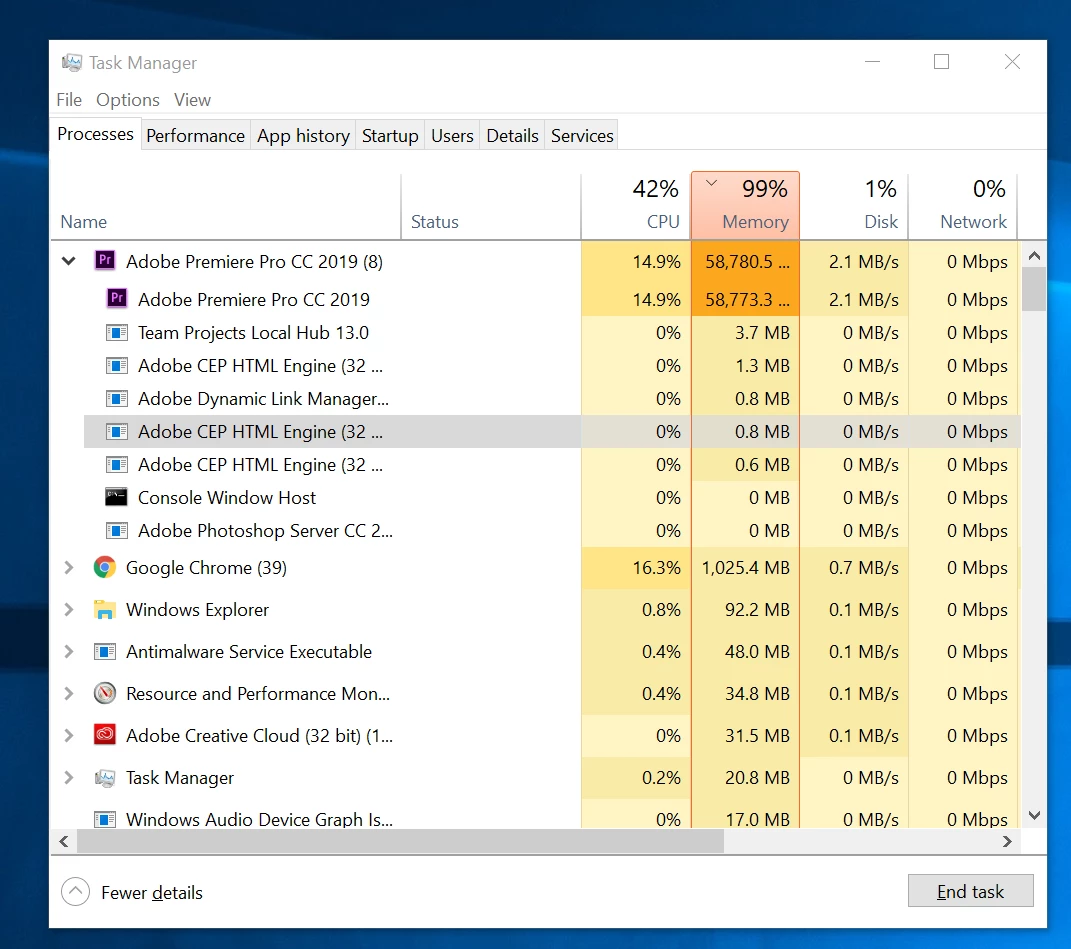
Recently I have been having a troublesome issue with Premiere Pro 2019 and was hoping to get some help. Without any reason I can find, in the middle of editing, Premiere will suddenly stop playing back any video. Occasionally audio will continue but that soon stops as well.  When this happens, within a matter of seconds, my RAM usage will basically sky rocket and max out my computer, going from 8 GB to around 55GB+ (see screenshot). At this point, I can only very slowly navigate the interface and save the project, still with no playback or frame updates when dragging or attempting to move the playhead. Usually, however, if I try to do anything, the program will crash. Strangely, if I leave my computer idle, after 10-20 minutes, playback may suddenly resume and RAM usage quickly drops to normal as if nothing happened. I can continue working at that point until it happens again. Sometimes I can get 2 or 3 hours of work, sometimes only 5 minutes, until the issue returns. I am not doing anything complex at this point. So far, I've just been importing footage, cutting and nesting different takes, and putting a few multicam sequences together. As such, I've mostly noticed this issue simply when playing through source material.

I tried doing several steps to fix this already all with no luck. I deleted my unused media cache in the preferences menu. I reset all preferences. I turned off GPU acceleration. I made sure I had the latest driver for my GPU. I imported my project into a new project. Closed unused programs. Restarted my computer. Uninstalled and redownloaded Premiere. Etc. Still no solution.  This is my first project with Premiere 2019 but it is also my first time using my new machine. I was concerned it might be an issue from my video footage (.MOV files with h.264 compression from my Canon 80D) but I didn't experience this problem before on a different machine with Premiere 2018.

Does anyone have any idea what the issue might be? Is it a bug in Premier? I am especially concerned as this is my first time on my custom build and was unsure if this may be a hardware related issue (although this only happens in Premiere, so I find it unlikely that my computer is at fault).

My build is as follows:

Windows 10

Cpu: intel i7-8700k

GPU: NVIDIA RTX2080Ti

RAM: 64 GB DDR4

Storage: 500GB Samsung evo 970 (program files & disk cache), 1TB Samsung evo 860 (source material, project, scratch disks, etc.)

I would truly appreciate any help as this is consuming an immense amount of my time!
This topic has been closed for replies.
Correct answer CMRB

Been having a the same problem too. Lost about 3 days because of that...

But it seems Robbo338 saved my day - I deleted all photo files from my project and now it's working fine again. Will have to add them at some point back again though - will let you know what happens.

Working on:

MacOS 10.14.2. - MacBook Pro 2017 - Premiere CC 13.0.2.

32 replies

Participant
August 15, 2019

i was also getting the same problem, seems to stem from multicam sequences

i couldn't scrub through and edit the sequence despite having 32 gb of ram installed.

I am also unable to export my sequence if the video got too long (more than 2 minutes of footage) via media encoder 2019

this problem seemed to have occured only recently

My system configuration:

Windows 10 pro, nvidia GTX 670 (yes i need an upgrade) on latest nvidia drivers (as of 15/8/2019), 32 gb ddr4 ram

gjgaura
Participant
August 1, 2019

thx for the reply Wes. Disregard. It was a graphics card issue. Resolved.

I have used Insta360 however. what's the deal there?...

Wes Howell
Adobe Employee
Adobe Employee
August 1, 2019

Related to Intel GPU?  I’m curious

Yes, There are some significant performance problems that can occur in Premiere Pro if that Insta 360 panel is installed.   We are hoping for an updated version of that panel but in the meantime I would recommend uninstalling it if you run into any performance issues

gjgaura
Participant
August 1, 2019

Nothing's changed on my end, same computer, workflow, and content. Here's what I get....

*Missing font messages

*Timeline freezes

*Unable to export a usable file

I'm mixing episode teasers, so mixed media jpegs, mov files, and png's. Adjustment layers and transitions. 3-5 minute files.

10 GB RAM devoted to Premiere

Updated drivers NVIDIA GEFORCE GTX 1050

Windows 10

Tried multiple fixes...

Shutting off font updates

Cleared Cache

Updated drivers

no joy

Wes Howell
Adobe Employee
Adobe Employee
August 1, 2019

Do you see the crash report dialog? If so, please copy and paste then send to me.

1080 Sequence?  Using 3rd party effects or panels?  ever used Insta360?

What exactly happens when you try to export?

is this a laptop with Intel GPU?  if so, can you confirm driver version?  This has been a common issue. 

Participating Frequently
July 2, 2019

Yesterday I discovered that playback of 4k video (in premiere timeline) triggers an immediate spike in RAM use: RAM increases to maximum, followed by system crash. (I was working with proxies, but switched to the original file to make an adjustment).

System would not boot to windows after this. Had to have IT come in dig around to clear some error log, or some such.

Once operational, I tried recreating the issue. RAM started spiking as soon as I commenced 4k playback.

I was able to save and exit prior to crash.

(I don't have any photos in my project)

This has only been occuring since latest update.

System:

Win 10 pro

Premiere Pro 13.1

Twin Xeon E5-2680 2.4GHz

64GB RAM

Nvidia Quadro m5000

R Neil Haugen
Legend
July 2, 2019

I hope you posted that on their new bug/features system  ... that goes directly to the engineers system and also the upper managers who decide budgets and such.

Adobe lives on metrics  ... give them some. The link is on the top of the Overview page of the forum.

Neil

Everyone's mileage always varies ...
Participating Frequently
July 2, 2019

Thanks Neil. Will do.

Anthony

Renote Editor
Known Participant
March 25, 2019

Thanks R Neil Haugen , I've reverted to Premiere 2017 now. Does anybody know if there's been any new progress on the issue?

Is there anything else I can do to help make some progress? If not, how can I keep track of the issue to know when it's fixed?

Wes Howell

R Neil Haugen
Legend
March 25, 2019

They will have another release sometime around NAB probably, as they have the last couple years. Sometime in April, but that's a guess on past practice.

And you can of course test yourself easily enough. Work in 2017, but keep a current version installed. When they have an update, install and test.

Neil

Everyone's mileage always varies ...
Renote Editor
Known Participant
February 24, 2019

An interesting update from me: it seems that file size is a factor in triggering the crashes. I've been running a large number of tests, all with the 4k MP4 files that I usually work with. For the sake of consistency, each test consists of continuous playback of a single file, until either a crash occurs or the playback is finished.

For each test I have created a new blank project. In every project, there has only been one sequence which always uses the same settings (settings that I know work for my colleague who does not experience this issue with the same files.) I have only ever used one file per project. The codec, aspect ratio and acquisition method is constant for all of the files, which means that the only difference between them ought to be their size. What I have found that the smallest file I have tested (10 GB) will never cause a crash, whereas two larger files (15 and 20 GB respectively) will consistently cause crashes.

I have also observed a consistent pattern in performance indicators in my many tests. I have found that, for each file, the crash will always occur after a given amount of continuous playback, regardless of the point in the footage where the playback begins. Most of the time, though not always, the crash will then proceed along the following lines:

1. CPU and Disk usage will start to fluctuate erratically, playback will freeze.

2. Disk usage will suddenly spike to 90 or 100%.

3. Memory usage will begin to steadily climb towards 100%.

R Neil Haugen
Legend
February 24, 2019

Great work there ... PLEASE file this in the bug/features link to their UserVoice system so it goes directly to the engineers.

Neil

Everyone's mileage always varies ...
Renote Editor
Known Participant
February 27, 2019

Done, and this time with a little more clarity and detail than I managed in my initial post here: Bug Report: Findings on memory overload / crash problem – Adobe video & audio apps

infinityphotorob
Known Participant
February 14, 2019

Ok so here is my update.  And I think I could be on to something now. The other day I was having a ton of problems with a really simple timeline on a large project.  Large meaning many sequences living within this project with a lot of different layers and text.  This was a brand new 1080 sequence using 1080 120p footage from sony A9.  Nothing magical or special here.  But Ram spiking like crazy and very laggy behavior.  So I called Adobe tech support.  Guy remoted into computer.  Turned off half my cores on my Threadripper. From 16 down to 8.  No surprise, computer crashed at some point while I was working. So I figured I needed to turn back on other cores.  They were not showing so I unchecked the box we checked to adjust this setting.  After that my computer would not boot.  Awesome!!!! I actually ended up having to re install windows 10 the other night.  Up till 4 am getting computer up again with programs needed to work.

So here was the big discovery.  I opened this project again to finish project.  And so many warnings popping up about fonts missing.  Soooooo many.  Fonts I thought were included in Windows.  But Adobe Type kit or whatever it is called now was not syncing.  So I got on my CC app and checked it. Tried to get to work and no luck.  So I turned it off.  All off it.  No syncing.  I also found a spot about syncing settings like workspaces to other computers.  I turned that off too.  I downloaded the fonts I needed from DaFont into my windows fonts folder old school method and computer is hauling ass now.  No lag at all.  In fact I am editing in a new project with Panasonic GH5 10bit 4k footage set up as vertical video for IG TV with no lag at all at 1/2 resolution. 

So is the Adobe Fonts thing an issue?  I started using about at some point last year.  And am not sure if I have really used after they changed the name from Typekit. I am guessing this is conflict.  Even when no fonts are present in your project they are present in PP.  Always syncing in the background.  Maybe it is Typekit fonts not working well with the new system?  Either way, I am turning it off.  It is causing too many issues and it is just easier to get fonts or buy fonts I need.  I keep having issues with the CC font stuff between PP, PS, and LR.  It is however cool they show up on Adobe Spark on my phone.  The tradeoff is not worth it.  I am keeping fingers crossed this was solution.

Renote Editor
Known Participant
February 16, 2019

Really interesting stuff - could you explain to a complete armature such as myself how exactly you turn off Adobe Fonts syncing? 

infinityphotorob
Known Participant
February 26, 2019

You have to go into the Adobe Creative Cloud Desktop app. In the upper right corner there is the 3 dots.  Click that and it will give option for preferences. Then select Creative Cloud then Fonts.  Uncheck the box for enable adobe fonts.  For good measure I also went into PP>edit>preferences>sync settings and disabled everything.

Since doing this I have not had one memory spike on any new project and no problems besides missing fonts on old projects.  I have just been replacing fonts with ones I am downloading the old way from websites and installing in my fonts folder.  I have have had zero issues even with GH5 10bit 4k.  All plays back smooth and no memory spikes at all.  I am about 85% confident this was my issue.

Another observation is I have used legacy titler up until I switched to 2019.  Since then I have been using the text option in the tool menu and the essential graphics panel. I think this panel heavily syncs with adobe if you have the font syncing on.

Participant
February 8, 2019

I have a Mac system with near identical specs to alvin_nari's original question and this issue started for me as well near the end of 2018. After downloading the 2019 update, my system starting crashing because Premiere would use the max amount of RAM available even though I'm editing the same kind of straightforward HD podcast video content I've been editing all year (much less complex than the more effect-heavy editing with 4K footage that my system has proven to handle fine in the previous months).

I've been using an older version of Premiere for a few months because I didn't have time to test the issue much, but that solution stopped working for me recently. Now I'm back to the most recent Premiere update (13.0.2) while running macOS Mojave 10.14.3 - and saw the same exact issues come back. (i.e. RAM overload and crashing)

I'm posting this here to let others know that it seems that deleting JPEGs does seem to fix the problem. I'm still in the midsts of testing, but things seem to be running smoothly and my system has not yet crashed. I will revise this post should that change.

Upon inspection, I did have Portrait Photos from a Google Pixel in my project file (as mentioned by jennya43632170). I'm not sure if removing specifically the Pixel Portrait photos OR all JPEGs fixed this issue, but posting this here in case it will help someone.

Wes Howell
Adobe Employee
Adobe Employee
February 8, 2019

Thanks for the helpful post.

We are making progress on this issue internally and are working to resolve this issue with a future update soon. I am unable to promise particular dates but I will provide more info as it comes available.

Wes

BashKestrel276613
Participant
February 13, 2019

Hi Wes,

I have a user that is having the same symptoms as reported on this thread. I have some screenshots and a project file if you'd like to take a look to assist in furthering a resolution for this issue.

Thanks,

Darby

infinityphotorob
Known Participant
January 31, 2019

Here is update for me.  I need to work in an old project from last year.  So it was 2018PP.  I created a new project in 19PP then imported my old project with all of its files.  This is all simple non multicam stuff that I worked with last year no problem on this same system.  I opened one of my old timelines and guess what.  Horrific playback and memory off the charts.  This is totally nuts.  This is a bug for sure and this is getting old.  I have to make money.  And this is killing me.  No kidding I have spent days and nights and so much stress on this.  I am going to just try working in 18 and see what happens.  If this doesn't work I am going to lock myself to my desk and learn Resolve.  I can't keep wasting my life on this stuff.

This is again Gh5, Sony A9, Sony A7riii footage.  A mix of 1080 120p  4k 60p and 4k24p 

Wes Howell
Adobe Employee
Adobe Employee
January 31, 2019

Hey Rob and Teun,

Sorry for the troubles here. I am around to help and I am investigating.

Have either of you tried creating a new project and then importing the old problematic one using Media Browser?

If this work around helps, it should at least help you get work done until this is resolved.

Wes

Participant
January 26, 2019

I figured out how to max out the RAM on my laptop with a "portrait mode" picture from my phone.

Just bought a Lenovo X1 carbon, intel core i7 8550U,16 gb ram, intel UHD 620 graphics, m.2 nvme storage, and I get this "maxed out modified ram" issue when I open a new project and add a single picture to the project. Tried updating windows, drivers, wiped Windows and reinstalled, reinstalled Adobe PP, and still adding a single .jpg from my phone crashes premiere. I kept dragging this folder of pictures and videos taken on my pixel 2 and getting this bug. My theory was maybe something about the portrait mode pictures was crashing premiere.

Open a new Premiere project. Everything is normal.

Add a normal .jpg file to a project, taken on my pixel 2. No memory ramp up. no new cpu usage.

add a "portrait mode" .jpg of my brother taken on my pixel 2, and immediately memory starts ramping up. Greater share gets taken over by "modified" RAM.

AAAAnd this is when everything starts to not work.

Takes over CPU, Memory and my disk.

If any adobe guys working on Premiere are at the Lehi office in Utah I can bring the computer by or send you the pictures that made it tick.

infinityphotorob
Known Participant
January 26, 2019

This seems like an entirely different issue. Are your photos JPG? It could be pixel outputting a raw file or a funny jpg codec that Premiere does like. Try shooting in portrait jpg with a dslr and import that. Or just create one in LR.  Another thing could be your graphics card settings. Most likely you will not be able to use GPU with your system effectively.  Make sure to try software only in your project settings. And you will quickly find laptops are not your friend for video. I have one of Dells workstation laptops that I can rough cut and edit, but as soon as I really start adding effects, even lumetri it crawls. And render? Forget it. It takes an eternity. Not that you can not, it is just not really best option. This is also not a new thing. I know a few people that swore by their macbook pros, until they built a real desktop. They just get hot and freak out. And even though your specs meet minimum requirements easily you will always have performance issues with Premiere.