



MWongSound
Participating Frequently
April 14, 2022
Answered

Premiere Pro 22.3 Error Directory object cannot construct with this path.

  • April 14, 2022
  • 20 replies
  • 47531 views

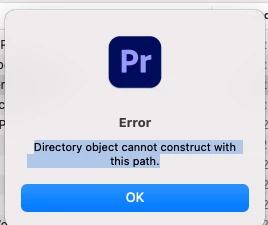
Fresh install of Premiere Pro 22.3 today and when I lauch the Premiere Pro it comes up with the error "Directory object cannot construct with this path."  


Im on Big Sur 11.6.5, File & Folder permissions all checked, tried with full disk access as well with the same errror on launch.


Tried uninstalling and reinstalling, same error.


No idea what directory its trying to create.
 

Correct answer Lee at Wham

I had the same issue. 


I followed MWongSounds advice and checked the read/write status of the settings folder to no avail. What I did notice however is I was trying to run version 23 and the folder was for version 22. I made a copy of the folder and renamed it "23.0" and booted up Premiere again... Success! 

20 replies

Participant
August 3, 2022

I have this problem, I have no plug ins and I've never used Premiere pro before on my Mac, I just updated it to Monterrey 12.5 and my Premiere pro is up to date as well. I have tried uninstalling and re-installing several times, and the same error message "Directory object cannot onstruct with this path" is appearing when I try to use Premiere rush. I tried changing the file Sharing settings, and I don't have any firewall turned on. Can anyone help?


Kevin-Monahan
Community Manager
Community Manager
August 3, 2022

Hi Kira,

Check out System Preferences > Security and the Privacy Tab. Check if Full Desk Access has been granted to Premiere Pro. You also might try a reinstallation and allow permissions when those dialog boxes appear. I hope the advice helps you work around this problem. I am sorry for the frustration. 


Thanks,
Kevin

Kevin Monahan - Sr. Community & Engagement Strategist – Pro Video and Audio
Participant
August 6, 2022

Hi Kevin, I am having the same issue. I've gone down this whole thread and am running out of ideas. I get the same error every time I try to load it ever since I updated Premiere. It does not ask me for permissions.  Thank you

dawson_accidently
Participant
June 7, 2022

Hi, still having this issue and have tried everything. Adobe for the love of God please fix old bugs. This program is unusable at the moment.

Participant
May 19, 2022

resolved it by disabling CONTROLLED FOLDER ACCESS under RANSOMWARE PROTECTION. 

Check your AV settings.


Participant
May 31, 2022

Issue resolved in my case by disabling offline files in Windows 10. 

Participant
May 13, 2022

I have the same problem and the only way that I can open the program is since the adobe creative cloud 😞 (tengo el mismo problema y solo puedo abrirlo desde el Creative cloud). 

Participant
April 22, 2022

Same problem for me. On Big Sur and pro tools and Izotobe plugs.

Neo

Jeff Bugbee
Community Expert
Community Expert
April 22, 2022

Just FYI, generally, the plugin developer needs to adapt their plugin to work with the base software, not the other away around. 

According to this there are some legacy plugins that are not compatible with Big Sur: https://support.izotope.com/hc/en-us/articles/360052231634-Compatibility-with-macOS-11-Big-Sur


You may want to discuss with Izotope why their plugins are stopping your Adobe Apps from launching.


blacksheepdigital
Participating Frequently
January 21, 2023

Ok, so I hate having to answer myself since I seemed to have figured out the solution.   It has absolutely nothing to do with the iZotope plugins, it just happened to be the last thing on the splash to load.  


I was sucessfully able to get 22.3 to launch using the following:


I unintalled 22.3 (full removal since it never fully installed), reinstalled from CC.


When it initially started to launch 22.3, I went to inspect the premiere settings folder permissions in /Documents/Adobe/Premiere Pro/22.0 (im on a mac) and the 22.0 folder permissions were installed incorrectly.  It had the user as Read & Write and Staff set to Read Only and Everyone set to Read Only.


I changed the permission of staff to Read & Write while the plugins were loading the first time and that allowed the initial files Premiere needed to install correctly and fully launch.


I suspected it needed to write something from inspecting logs from earlier last week but just came about to actually thinking about it.  


Hopefully this helps the rest of you having issues!


Just came across this thread after having the same issue on a fresh install of PrPro 23.1 on Monterey 12.6.2.

For me the folder User/Documents/Adobe had been created with Read & Write permissions for "System", Read Only for "staff" & "everyone", but had no User or Administrator permissions set.


Solution was to Get Info on the Documents/Adobe folder, and add my User account with Read & Write permissions, then click the drop down below the user list and "Apply to enclosed items..."


Then I manually created folders inside it to make the path

Documents/Adobe/Premiere Pro/23.0


The app then launched without error.

Participant
April 20, 2022

I have this same issue, with Windows 10 and no plug-ins, I hope they can patch this in the next update 

Participant
April 21, 2022

I have the same issue and I am running Premiere on Big Sur 11.3.1 without plug-ins. I can't work since a few days, would be great to find a solution in the near future. Thanks!

Jeff Bugbee
Community Expert
Community Expert
April 15, 2022

Do you have any plugins from iZotope installed?

MWongSound
Participating Frequently
April 15, 2022

I do, I went ahead and temporarily deleted the entire audio plugin folder in library/application support and relaunched Premiere Pro and the same error occured.  I also deleted the iZ Adobe Loudness Bundle from the mediacore folder in library/application support/adobe/common/plug-ins/7.0/mediacore and same issue.


It would be useful to know what the next step Premiere Pro does after the initial plugin load in. Is there an error log to check?


I didn't have a previous install of Premiere Pro on this APFS volume, it feels like it has to create a directory for its initial setup but doesn't have the proper permissions. Unfortunately I dont know where it wants to attempt to create a directory to.   It sounds like it needs a folder permission fix.

Jeff Bugbee
Community Expert
Community Expert
April 15, 2022

Since you've removed those files, try to reset your plugin cache
https://helpx.adobe.com/premiere-pro/using/preferences.html

  • To restore default preference settings and plug-in cache at the same time, hold down Shift-Alt (Windows) or Shift-Option (Mac OS) while the application is starting. Release the Shift-Alt keys or Shift-Option key when the splash screen appears.


Check the log files here

/Users/YOURUSERNAME/Library/Logs/Adobe/

IRONANDSTONE
Participant
April 15, 2022

I have the same problem!

OS Monterey 12.3.1


super annoying! I have to stop working, cause I can´t find any workaround for this 


Jeff Bugbee
Community Expert
Community Expert
April 15, 2022

Do you have any plugins from iZotope installed?

IRONANDSTONE
Participant
April 15, 2022

Yes, i have several Audio Plugins installed, some of them are from iZotope!

Kevin-Monahan
Community Manager
Community Manager
April 15, 2022

Sorry about that, Russell. Sorry, Mark. Russell, are you also on Big Sur? Let me know. I noted this one to the team.


Thanks,
Kevin

Kevin Monahan - Sr. Community & Engagement Strategist – Pro Video and Audio
Participant
April 15, 2022

Thanks Kevin, 
I'm running macOS monterey 12.3.1. The most recent update 

Participant
April 15, 2022

Yes i've had the same error, and have tried installing and reinstalling. This error message keeps coming up. 

It hasn't affected my other Adobe apps, just premiere pro. Not sure what the problem is.

Assistance would really be appreciated 

Ursula275069207glw
Participant
December 9, 2022

I continue to have this same problem.

MWongSound
Participating Frequently
December 18, 2022

This weekend I did a fresh install of Mac Ventura on a partition and Installed Premiere and hit the same problem, I first changed the permissions in Library/application support/Adobe to all "Read & Write" but it didn't fix it, then I changed the permissions on the "Adobe" folder in Documents to add "Staff" Read & Write and "everyone" to Read and Write and selected "apply to enclosed items" and that did the trick.


Its still definitely an installed folder permissions issue on the developer side.