



AndrewTheGreat
Known Participant
December 5, 2024
Question

Premiere Pro 25.1 - iGPU stopped decoding my footage

  • December 5, 2024
  • 68 replies
  • 52935 views

Ok, just updated to v 25.1 opened my projects in progress to find out that none of them uses my iGPU to decode.

Went on checking it with different formats that are decoded (h264 8-bit 4:2:0, h265 8-bit 4:2:0, h265 10-bit 4:2:0, h265 10-bit 4:2:2) by the iGPU - all of them show 0% load.
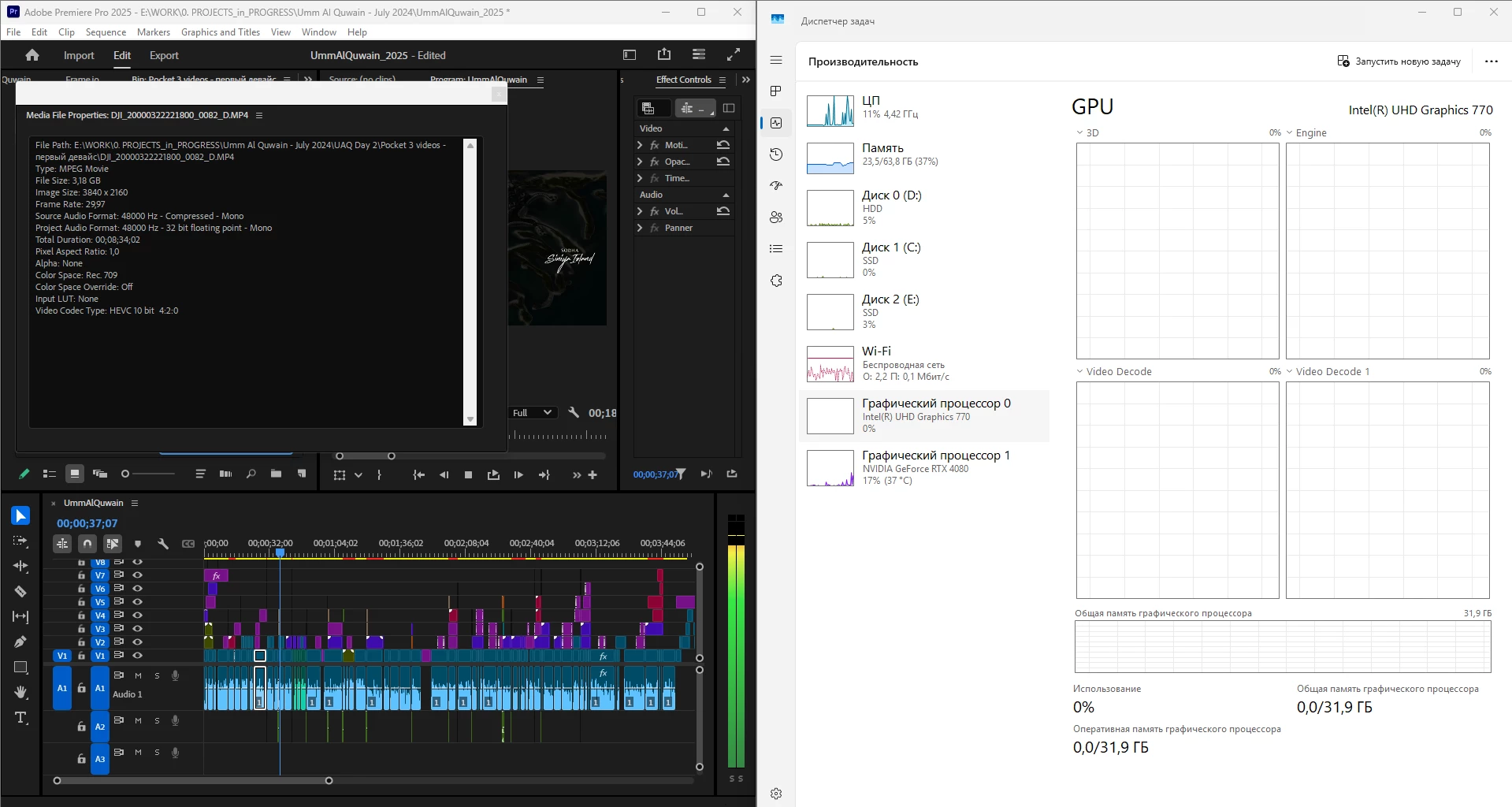
 

What is going on, guys? Why is it "new version - new bugs" thing every time? My CPU immediately started being loaded more, like by 60% all the time, even though my GPU does the decoding, whereas on the previous versions the average CPU load was 20-30% with the iGPU doing all the decoding job.


Yes, I tried reinstalling both Premiere Pro (as well as resetting its cache, preferences and plugins via the start+shift menu) and all the drivers. 


Steps to reproduce? Open a project or create one, import a knowingly decoded video, put it on your timeline, press Play. Watch the the Windows Task manager - Performance graphs.


i7 14700K, RTX 4080, 64 Gb ram, SSDs, Win 11 24h2

68 replies

Legend
January 31, 2025

Thank you for the findings. Adobe has, indeed, switched the decoding priority from the iGPU to the discrete GPU when decoding H.264. Unfortunately, this creates a new problem: Some decoding tasks heavily misuse the dGPU's resources, and by the time the dGPU hands off the decoding task to the iGPU, the Mercury Playback Engine renderer gets automatically and ungracefully locked into the software-only mode (with absolutely no warning whatsoever) for the remainder of the processing/exporting job for that timeline.


And by the way, my secondary mini-ITX system with an AMD Ryzen 5 7600X and an AMD Radeon RX 6700 XT did perform slightly better with version 25.1 than it did with 25.0 and earlier versions. And that's only because the earlier versions had broken support for the AMD iGPU which was fixed in the 25.1 version.

MyerPj
Community Expert
Community Expert
January 31, 2025

BTW: There are dropped frames from both versions, but 175ish for 25.2.0 b96, and 950+ for 25.1

This on Win11 23H2

MyerPj
Community Expert
Community Expert
January 30, 2025

OK from 25.1, same situation as above, set all the settings like I would use it, but set the scratch disk to a different folder on the same drive as usual. The bad news, 25.1 is not great! Lots of dropped frames, just as the @Raman275720276xpc posted. 

The good news, beta 25.2 b96 (last nights) AFAI can tell, is working well.


JonesVid
Community Expert
Community Expert
January 31, 2025

Hi @MyerPj ; @RjL190365 

I just donwloaded the latest Beta 25.2 Build 97 to try out, but not sure the team have made any different tweaks to this yet regarding this problem ?

Using my Intel 13900K Win 11 23H2 system with 4080 Super GPU - result of the @Raman275720276xpc test was pretty horrible - over 900 dropped frames and staggered like mad.

The NVidia Card was at 100% most of the time screaming for help I think. iGPU idling at about 10 to 13%

Forgot to mention before that I use same setup on disks as any project - Multidisk system

C NVMe System only, NVMe Project drive with Scratch, NVMe drive with Media Cache, SSD drive Media


The above comment from @RjL190365 regarding roll over to software renderring is a bit of an eye opener !

MyerPj
Community Expert
Community Expert
January 30, 2025

So I set it up like I would any project (drive wise) files on m.2 and scratch on different m.2. Both not the c: drive (cache on c:)

Both screenshots are on Beta 25.2.0 b96

First time thru... (no dropped frames)

And again...

I'll try it on 25.1 in just a bit.


AndrewTheGreat
Known Participant
January 27, 2025

I got an email from Intel too. So, Adobe, it's your call


Hello Andrew,

Thank you for your patience. I've concluded the investigation of the issue that you've encountered with the Adobe Premiere Pro application. Intel can confirm that such issue exist in Adobe Premiere (Adobe Encoder also) but it's not related to Intel driver, screen or video setting involving Intel driver.

Below is our test results: 
 

Note - Same tests conducted in Windows 11 23H2 and 24H2


Test env:

14900K
Z-690
OS Windows 11 23H2 (22631.4751), 24H2 (26100.2894) both with latest patches
igpu driver: 101.6458
dgpu driver: 566.36
 

Prepared ffmpeg (and Adobe Premiere, Adobe Encoder)

winget install "FFmpeg (Essentials Build)"

Also prepared GPU-Z (monitoring GPU usage) and, HWInfo as a secondary view

I've used some sample video.


Command using Intel Quick Sync encoder/decoder

Default: ffmpeg -i [source] -c:v [h264/hevc/av1]_qsv -b:v [bitrate] -y [output]

Testing encoding only, using h264

Command: ffmpeg -i d:\100630-video-2160_2.mp4 -c:v h264_qsv -b:v 30k -y d:\test2.mp4

Testing decoder and encoder - first -c is for decoder, second -c id for encoder

Command: ffmpeg -c:v h264_qsv -i d:\100630-video-2160_2.mp4 -c:v hevc_qsv -y d:\test2.mp4


Command using Nvidia Encoder

Default: ffmpeg -i [source] -c:v [h264/hevc/av1]_nvenc -b:v [bitrate] -y [output]

Testing encoding only, using h264

Command: ffmpeg -i d:\100630-video-2160_2.mp4 -c:v h264_nvenc -b:v 30k -y d:\test2.mp4

Testing decoder and encoder - first -c is for decoder, second -c id for encoder

Command: ffmpeg -c:v h264_cuvid -i d:\100630-video-2160_2.mp4 -c:v hevc_nvenc -y d:\test2.mp4


Summary: In all tests all was working fine, encoding or decoding and encoding charts were showing some activity.

Which means that it's not related to driver.


Second part of test was to use Adobe premiere.

Used same sample file, imported to new project.

Project was set to use OpenCL rendering method (not CUDA).

Adobe premiere was set by default to use iGPU and dGPU when decoding and encoding videos under hardware accelerated mode.

Next step is to start playing source video while looking on task manager charts.

Also this short manual helps [https://www.pugetsystems.com/labs/articles/what-h-264-and-h-265-hardware-decoding-is-supported-in-premiere-pro-2120/#Run_this_Test_on_your_System_Windows]

Especially hotkey Alt+Ctrl+F12 to open the Debug Monitor and expand “Importer.MPEG” to find which hardware was responsible for decoding.

In all tests decoding was done by Nvidia, rendering looked like iGPU+dGPU.

The only scenario when iGPU was used for decoding was when dGPU was de-selected from hardware acceleration.


Summary: There were some situations when task manager didn't show any activity of iGPU or dGPU when used in Adobe premiere, while GPU-Z was presenting a real values in monitoring tab. It looks like a combination of OS + App issue but mostly, App related. 


Considering the situation and our findings, it would be in your best interest to directly consult with Adobe support and Microsoft Support regarding this error so that the application's behavior is corrected. 

I'll proceed to close this case now. Feel free to contact us if you have any concerns or clarifications 
 
 
Best regards,
 
Ernesto C.
Intel Customer Support Engineer


Community Manager
January 27, 2025

Hi @AndrewTheGreat  & everyone,

I’ve reviewed the recordings and data shared in this post, and wanted to provide some context regarding GPU usage in Task Manager.
The GPU usage percentage displayed in Task Manager can vary based on the media file's bitrate. For low-bitrate files (containing less data per second), GPU usage tends to be lower, as these files are easier and quicker for the GPU to decode. In contrast, high-bitrate files lead to higher GPU usage due to the increased effort required for decoding.
To ensure consistent observations, I recommend testing with high-bitrate files, as they will create noticeable spikes in the Video Decode section of Task Manager.
In Premiere Pro 25.1, we've updated the decoder priority order to Nvidia > Intel specifically for H.264 4:2:0 8-bit files. It's also worth noting that hardware decode support for H.264 is currently limited to 4:2:0 8-bit files only. This change doesn’t mean the iGPU (Intel GPU) won’t be used; it simply prioritizes Nvidia, with Intel stepping in only after Nvidia reaches its capacity.
To observe this in action, you can test by playing back a multi-track UHD project containing more than 8 video tracks or using speed playback of over 8 UHD media files on a single track. For quicker results, use as many short-duration files as possible (e.g., 20+) on the single track.These scenarios should clearly demonstrate the changes.
It’s important to note that this update doesn’t affect GPU usage for other file types. However, if necessary, users can revert to the Intel GPU by unchecking the Nvidia GPU option in Media Preferences.
If you notice any differences between Premiere Pro 25.0 and 25.1 outside of the specific file type mentioned, please let us know. We’d be happy to arrange a remote session to investigate further.

Thanks,
Mayjain

JonesVid
Community Expert
Community Expert
January 30, 2025

Here is project with all materials.
It will be available for download for one week.

https://drive.google.com/drive/folders/15L0eiaSwzwa0uh2ufq5Rozx1DXdcRbOO?usp=sharing 


Hi  @mayjain7130546@Raman275720276xpc 

Ok so I have downloaded @Raman275720276xpc project

For test on 25.1 I used my main current editing machine - Windows 11 23H2 with Premiere 25.1. This has a 13900K CPU and 4080 Super GPU. UHD 770 iGPU on the 13900K

Running this project the iGPU is doing something but not very much around 10 to 13% max.

I got over 100 dropped frames running the stacked video layers which are H264


For test 2 I had to use my older Win 10 Pro machine as this has Premiere 25.0 ready to go - its i9 9900K with  UHD 770 iGPU, 2070 Super GPU

Running the project again I get 10 dropped frames pass 1, then try again and get Zero dropped frames, for pass 3 zero dropped frames - looking at the iGPU decode activity it is going crazy and at least 100% a lot of the time.

Just running these two tests (even on a slower machine it performs better using Premiere 25.0)


I think there is a lot of further work to be done looking at what 25.1 is doing with the NVidia new priority. The latest change on the face of it does not look good from a performance point of view.


I must admit I was very surprised at the result. Premiere 25.1 does not appear to be optimised and using 25.0 looks preferable for H264 4.2.0  footage.

Quick Conclusion the old implementation looks better !

Thanks for sharing your test


JonesVid
Community Expert
Community Expert
January 26, 2025

After posting a description of the issues with iGPU, Windows 11 23H2, Windows 11 24H2 to Intel using Adobe Premiere 25.1, Intel have infact done testing themselves and come back with this response as regards issues on H264 hardware decoding  :

Intel Response

Thank you for patiently waiting on us.


Upon further investigating and testing, we can confirm that such issue exists in Adobe Premiere (Adobe Encoder also), but it's not related to Intel driver, screen or video setting involving Intel driver.


So, it's best to contact Adobe regarding this issue.


We await further news from Adobe Senior Support and Dev Team investigations on this issue.

One would hope they can display the same level of interaction and response timeframe that Intel themselves have done.


AndrewTheGreat
Known Participant
January 26, 2025

The circle of suspects has narrowed. Thank you @JonesVid for the info. My Intel contacts have kept silent. At least we now know who's the one...

Participant
January 25, 2025

As a test I rolled back to Premiere 24.6.4 and I noticed that my Intel iGPU is being utilized again when playing, scrubbing, and exporting.


So in my case it seems that version 25 (and also the current beta) are not using the iGPU.

AndrewTheGreat
Known Participant
January 24, 2025

Another interesting behavior in Premiere Pro 25.1. Here is a fully software decoded HEVC 420 10 bit which should be hardware decoded:

File info:


Video
ID                             : 1
Format                         : HEVC
Format/Info                    : High Efficiency Video Coding
Format profile                 : Main 10@L5@High
Codec ID                       : hvc1
Codec ID/Info                  : High Efficiency Video Coding
Duration                       : 1 min 44 s
Bit rate                       : 50.4 Mb/s
Width                          : 3 840 pixels
Height                         : 2 160 pixels
Display aspect ratio           : 16:9
Frame rate mode                : Constant
Frame rate                     : 29.970 (30000/1001) FPS
Original frame rate            : 29.970 (29970/1000) FPS
Color space                    : YUV
Chroma subsampling             : 4:2:0
Bit depth                      : 10 bits
Bits/(Pixel*Frame)             : 0.203
Stream size                    : 625 MiB (94%)
Encoded date                   : 2000-03-21 18:26:12 UTC
Tagged date                    : 2000-03-21 18:26:12 UTC
Color range                    : Limited
Color primaries                : BT.709
Transfer characteristics       : BT.709
Matrix coefficients            : BT.709
Codec configuration box        : hvcC

Audio
ID                             : 2
Format                         : AAC LC
Format/Info                    : Advanced Audio Codec Low Complexity
Codec ID                       : mp4a-40-2
Duration                       : 1 min 44 s
Bit rate mode                  : Constant
Bit rate                       : 288 kb/s
Channel(s)                     : 1 channel
Channel layout                 : M
Sampling rate                  : 48.0 kHz
Frame rate                     : 46.875 FPS (1024 SPF)
Compression mode               : Lossy
Stream size                    : 3.54 MiB (0%)
Default                        : Yes
Alternate group                : 1
Encoded date                   : 2000-03-21 18:26:12 UTC
Tagged date                    : 2000-03-21 18:26:12 UTC

Other #1
ID                             : 3
Type                           : meta
Format                         : djmd
Codec ID                       : djmd
Duration                       : 1 min 44 s
Bit rate mode                  : Variable
Title                          : DJI meta
Default                        : No
Alternate group                : 5
Encoded date                   : 2000-03-21 18:26:12 UTC
Tagged date                    : 2000-03-21 18:26:12 UTC

Other #2
ID                             : 4
Type                           : meta
Format                         : dbgi
Codec ID                       : dbgi
Duration                       : 1 min 44 s
Bit rate mode                  : Variable
Title                          : DJI dbgi
Default                        : No
Alternate group                : 5
Encoded date                   : 2000-03-21 18:26:12 UTC
Tagged date                    : 2000-03-21 18:26:12 UTC

Other #3
ID                             : 6
Type                           : Time code
Format                         : QuickTime TC
Duration                       : 1 min 44 s
Frame rate                     : 29.970 (30000/1001) FPS
Time code of first frame       : 18:26:05;04
Time code of last frame        : 18:27:49;03
Time code, stripped            : Yes
Default                        : No
Alternate group                : 2
Encoded date                   : 2000-03-21 18:26:12 UTC
Tagged date                    : 2000-03-21 18:26:12 UTC


And this is when I open the same file in PotPlayer:


As usual: 14700K, 4080, Win 11 24h2 up to date, latest iGPU and Nvidia studio drivers. In case you forget.

Participant
January 16, 2025

I think I'm experiencing a similar problem... my Intel iGPU isn't being used anymore.  In my case it's making my export times much longer.  😞


Last June I built a new 14900K system with my existing NVidia RTX 2070.  I created a short sample project to test the new system... 4K 4:2:0 H.264 footage on a 1080p timeline. 


I was able to export the 2 minute timeline in 17 seconds.  It used the NVidia 2070 *and* the integrated Intel UHD 770 iGPU.


But today that same export takes 32 seconds... almost twice as long!  And it only uses the NVidia 2070.  It doesn't touch the Intel iGPU at all !!!


I'm on Premiere 25.1 and Windows 24H2.  All drivers and BIOS are up-to-date.  And the Intel iGPU is seen by Windows and Premiere.


My fingers are crossed for a fix.  🤞

AndrewTheGreat
Known Participant
January 16, 2025

Hi, @Michael Scrip 

Exporting with an iGPU is a different thing from what we are stuggling here (we deal with a realtime playback issue, i.e. decoding, not the encoding issue like in your case), but still yours is another manifestation of the problem and it should be considered too.

Participant
January 16, 2025

Thanks!  Yeah that's why I said it was a similar problem.  😎


I ended up here from a Reddit post.  I hadn't heard anything else about this so I figured I'd share my findings here.


I thought I was crazy thinking my exports were taking longer and my iGPU is not being utilized.  Turns out there is something going on!


😛

JonesVid
Community Expert
Community Expert
January 15, 2025

For all those users who have confirmed issues on H264 iGPU with Premiere Pro 25.1 - for your information, I have raised this formally through Adobe Premiere Senior Support team and opened an official case.

Senior Support kindly did some remote desktop tests with me last night and observed the problems themselves, taking some system information as reference (Win 11 23H2 and Premiere Pro 25.1, 13900K CPU, 4080 Super GPU, Asus Z690A motherboard).

This will now be reported back to Adobe Dev team for formal investigation and further analysis why H265 footage decode activates iGPU decode but H264 footage doesn't do anything on Premiere 25.1.