


Participating Frequently
June 1, 2024
Question

Premiere Pro exporting only part of the video
  • June 1, 2024
  • 4 replies
  • 2970 views

Hello,

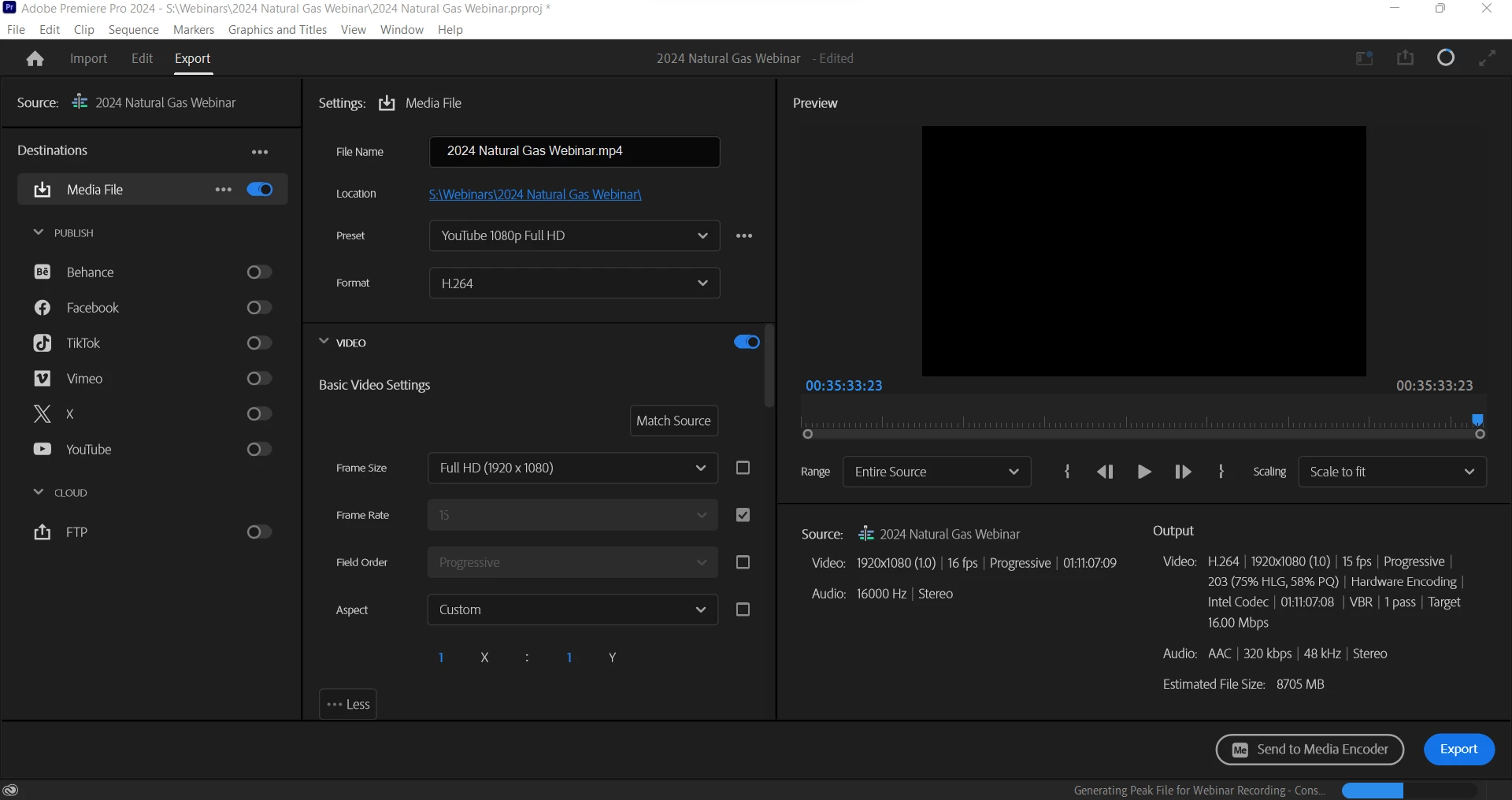
I am trying to export a video, but keep running into an error no matter what I try. The original video is from a Microsoft Teams meeting recording, so an MP4. I have uploaded and edited Teams recordings before, so I'm not sure what the hangup is here. But, whenever I attempt to export the 1 hour video, the export preview only shows 35 minutes of it. If I do export it, the exported video does indeed stop at 35 minutes. I've done a few things to try and fix this, some of which have worked in the past: 

- Delete media cache

- Free up computer space (843 GB free space on a shared drive)

- I saw a recommendation here to download HandBrake and change the frame rate to constant

- Select Entire Source range


I'm not a Premiere Pro expert, so any advice would be helpful, thanks! I've included a photo of what my export screen looks like as well. 

This topic has been closed for replies.

4 replies

Community Expert
June 2, 2024

Can you share a screenshot of your full timeline?


Thanks,

Paul

ShawnkBAuthor
Participating Frequently
June 3, 2024


Here is my timeline. There is also a tiny graphic at the beginning in V2 that you can't see. I've rendered before exporting, but made some recent changes so it's yellow now. 

Ann Bens
Community Expert
Community Expert
June 1, 2024

Best is to make a new project and import this one.

Some sort of glitch in the export settings

Your source range is not the same as the total length of the export.


ShawnkBAuthor
Participating Frequently
June 1, 2024

Unfortunately I also tried that and it didn't work, even when I started from scratch again. Thanks though!

Ann Bens
Community Expert
Community Expert
June 1, 2024

Try resetting preferences.

On a side note your machine is underpowered to properly work with 2024

Community Expert
June 1, 2024

Hi Mykaela,


Thanks for sharing your issue. To better assist you, could you provide more information about your computer? Specifically, I'd like to know your processor, GPU, and CPU details.


From your screenshot, I noticed that your source audio is 16000Hz, but you're exporting it at 48000Hz. This can use a lot of memory and processing power, which might be why your full sequence isn't exporting. Additionally, if the audio was captured at 16000Hz, converting it to 48000Hz won't improve the quality and will take a long time.


I suggest changing your export settings to match your source audio's sample rate. Under the Export tab, go to Audio > Basic Audio Settings and set the Sample Rate to 16000Hz. This might fix your issue and speed up your export time.


Let me know if this helps or if you need further assistance!


Best,
Paul

ShawnkBAuthor
Participating Frequently
June 1, 2024

Hello,

Thanks for the help, here is the info:

Processor: Intel(R) Core(TM) i5-8250U CPU @ 1.60GHz 1.80 GHz

CPU is kind of like a heartbeat between 100% and 40% utilization (which doesn't sound great to me but I'm not a computer person)

GPU: Intel (R) UHD Graphics 620


I did try changing the Sample Rate, but unfortunately it did not change the time cutting off. A good suggestion though!

R Neil Haugen
Legend
June 1, 2024

Is there either an in/out set, or the work area bar enabled?

Everyone's mileage always varies ...
ShawnkBAuthor
Participating Frequently
June 1, 2024

The only in/out set is from the source video, so none in the sequence. The work area bar is not enabled.