
Participant
May 26, 2021
Answered

Premiere pro not responding when i add sequence in a sequence

  • May 26, 2021
  • 2 replies
  • 909 views

When I add a sequence into a sequence,

or sometimes, randomly (usually after adding one specific file onto a sequence timeline),


The hole project file becomes corrupted and not usable anymore.
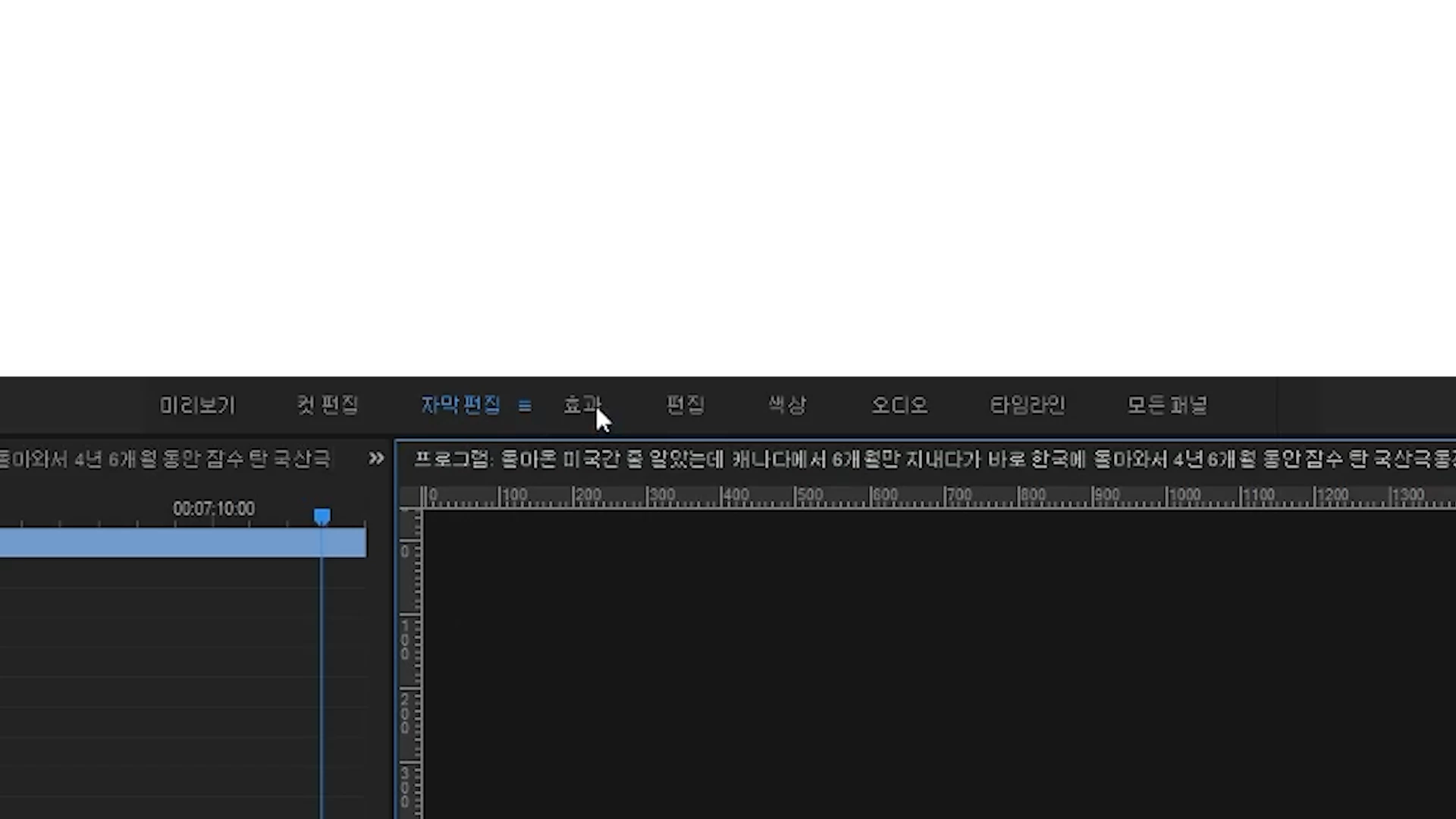
 

This is the original Workspace Bar.


but when it's corrupted,
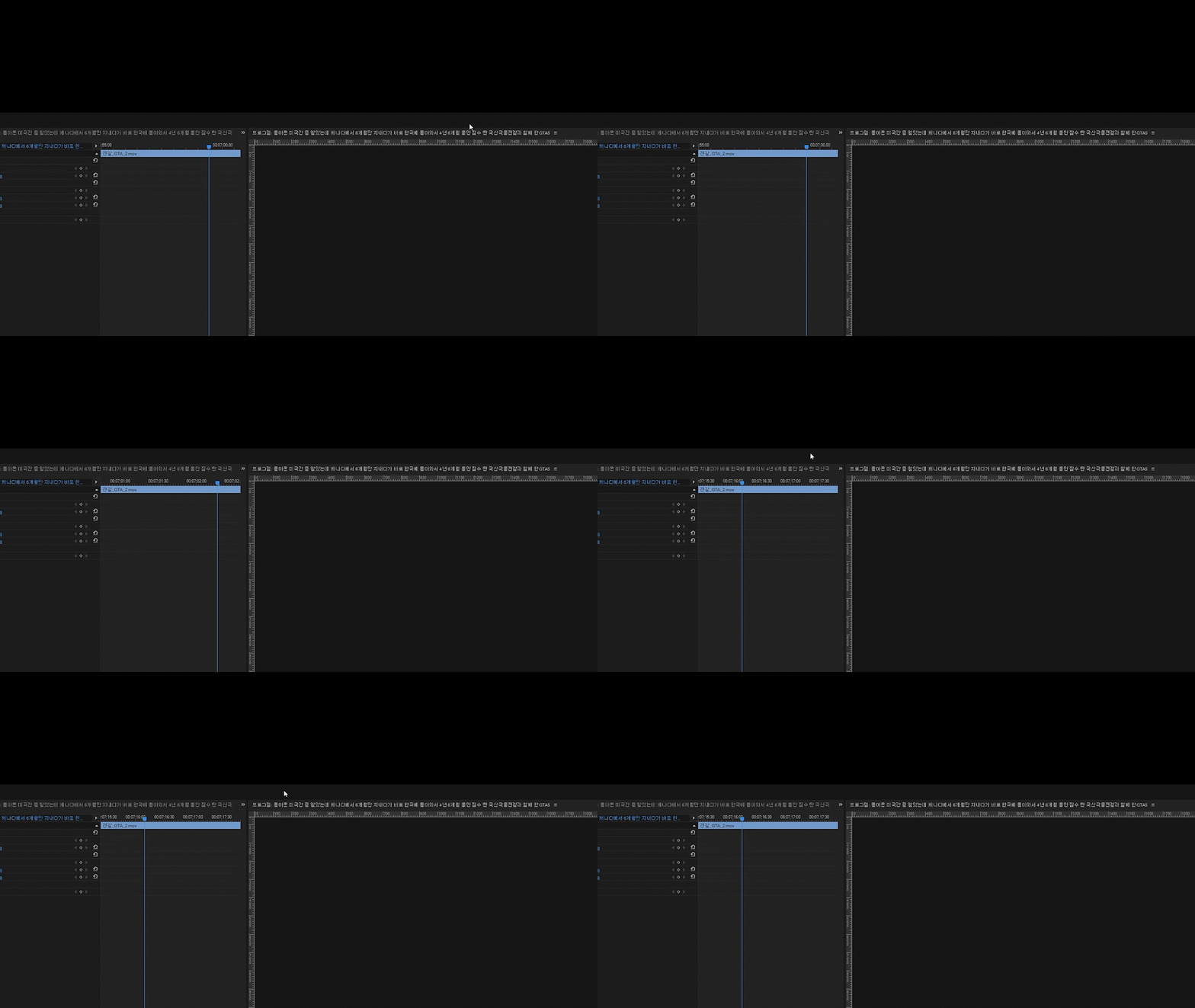
 

Workspace bar disappears. Of course I checked (turned on) Workspace. It just disappears.


Also,
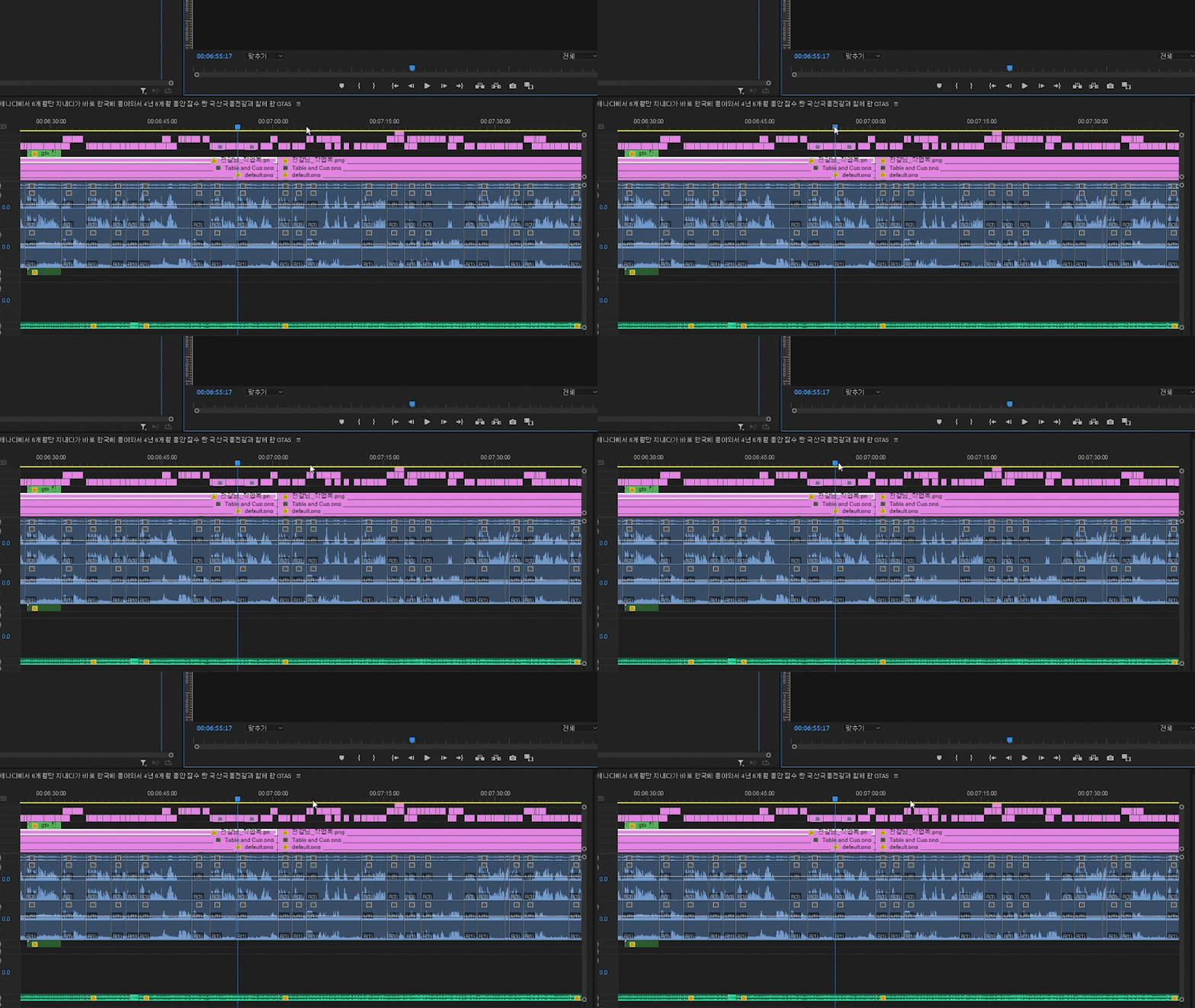
Timeline becomes irresponsible.

I can't play the preview Video, can't click any properties, and etc.
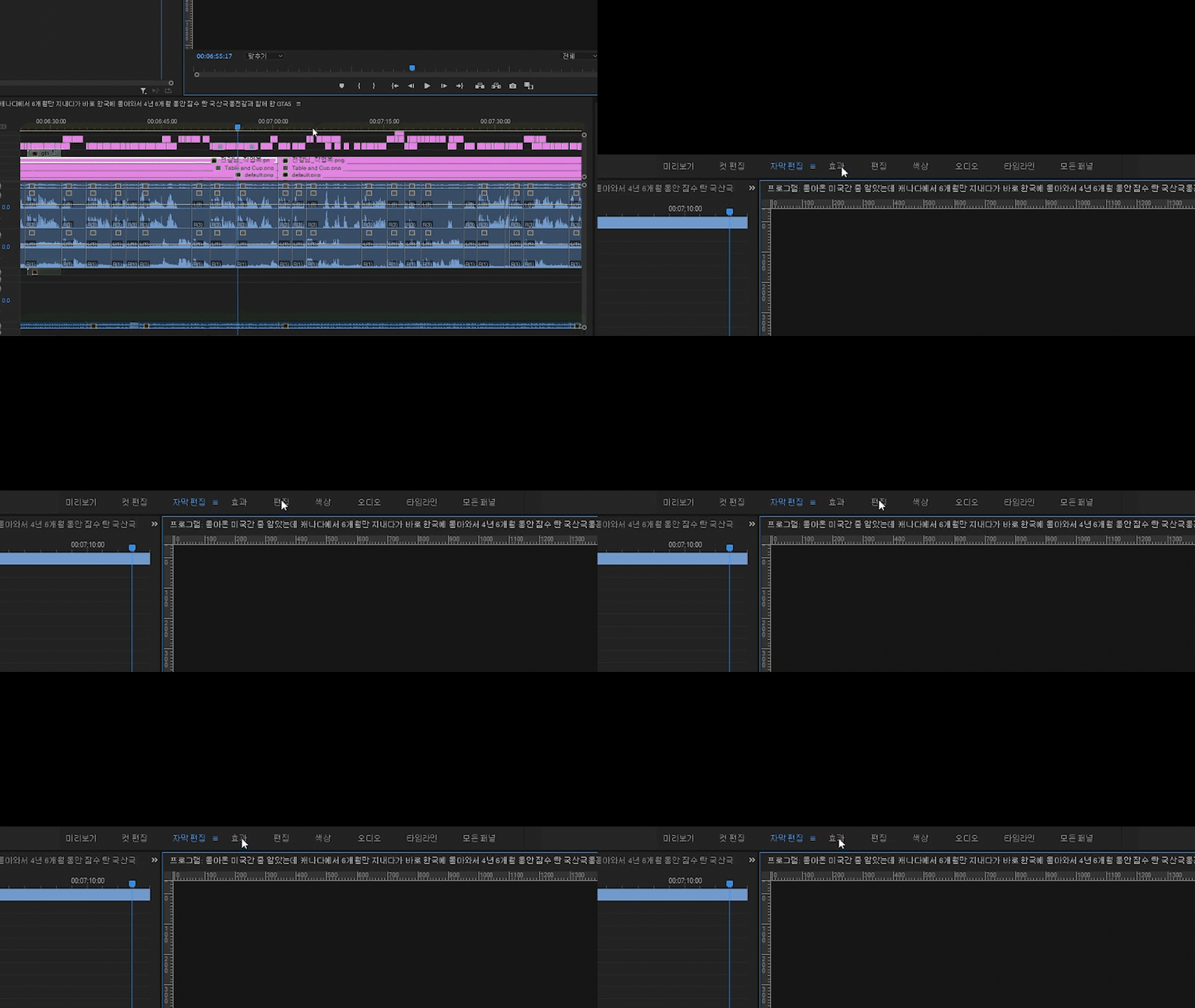
 

Workspace also becomes irresponsible. I can't change workspace anymore.
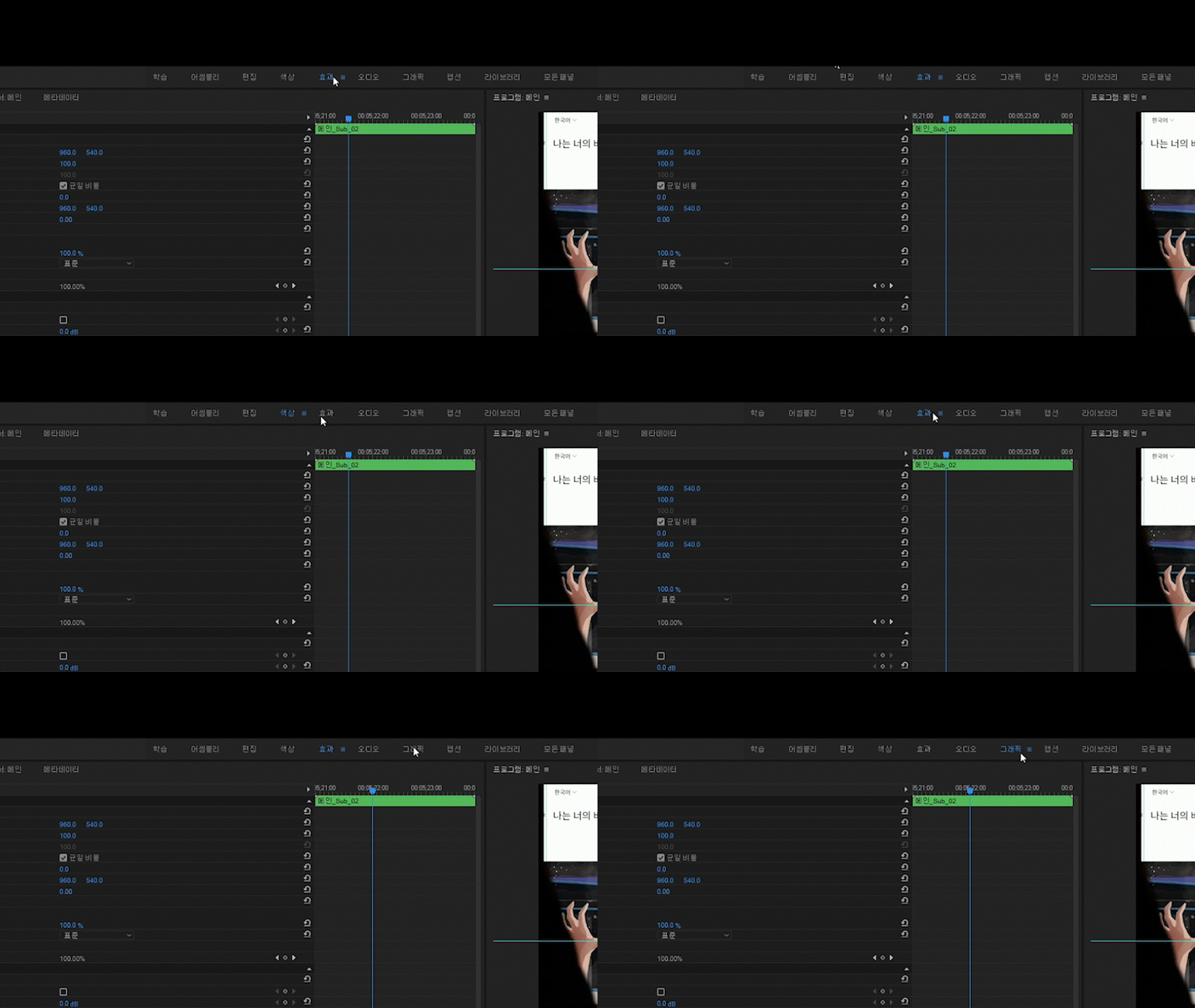
 

Sometimes, I can click it, but still, it just won't work.



In the end, That little tiny dark grey square on top left corner is all i get for the project.


Once this happens, it stays permanently. It's either I have to go back to auto-saved file, or start from the bottom.


The worst thing about this is that

It slowly wrecks my project file, and at the point i realize it's here, i worked way too far to restart it.


Please tell me what makes this happen so at least i can avoid it,

or

please fix it. I had to throw away about 50 hours of work because of this problem.

It happens too often.

This topic has been closed for replies.
Correct answer Ann Bens

Most likely caused by nested audio.

To test: copy timeline, delete all nested audio and try functionality.

2 replies

Ann Bens
Community Expert
Ann BensCommunity ExpertCorrect answer
Community Expert
May 26, 2021

Most likely caused by nested audio.

To test: copy timeline, delete all nested audio and try functionality.

Hui98BCAuthor
Participant
May 26, 2021

It seems like nested audio (or even a sequence contains single audio track) was the reason.


So far this actually fixed the problem.

But it leads to new problem which is

"What should i do when i have to use effects on nested audio?"


I guess i will have to export the audio file and then re-import the audio file.

Ann Bens
Community Expert
Community Expert
May 26, 2021

Yep, thought so.

Your workaround should work just fine until a fix comes along.

Kartika Rawat
Community Manager
Community Manager
May 26, 2021

Hi there!

Thanks for the screenshots. It helps.


Let us know.

Thanks,

Kartika


Hui98BCAuthor
Participant
May 26, 2021
  • Windows 10 / i7-8700K / 32GB / 1080Ti
  • 15.2.0 (Build 35)
  • Yes, of course
  • I regularlly delete cache files manually, and resetting preferences did not help.