Inspiring
August 25, 2023
Answered

Problem with Blackmagic pocket 4K Gen5 color in Premiere

  • August 25, 2023
  • 12 replies
  • 1093 views
Hi!
 
I've been using Gen 4 color on my Pocket 4K for a few years now in Premiere with no issues whatsoever. 
 
I recently upgraded both my cameras to Gen5 and I'm getting a lot of banding on all my Gen5 footage when imported to Premiere. I'm using the official LUT in both Resolve and Premiere Pro.
 
I'm using Mac Studio Max 1 with Ventura 13.4 (22F66) and Premiere Pro 23.3.0. Preview is on Full, playback on Full and high quality playback is enabled. Im also seeing the banding on export. Render and preview in Resolve both look fine.
 
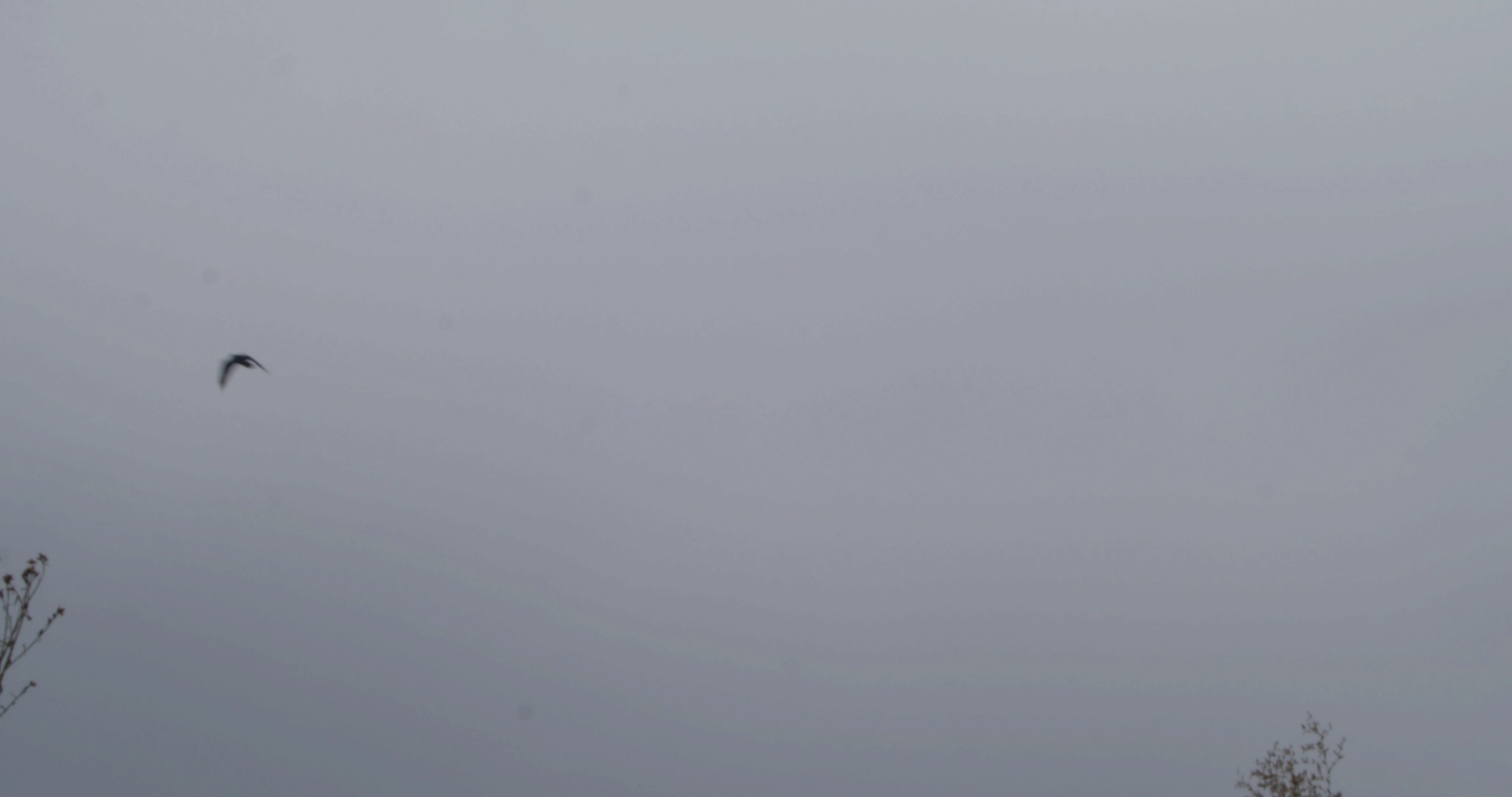
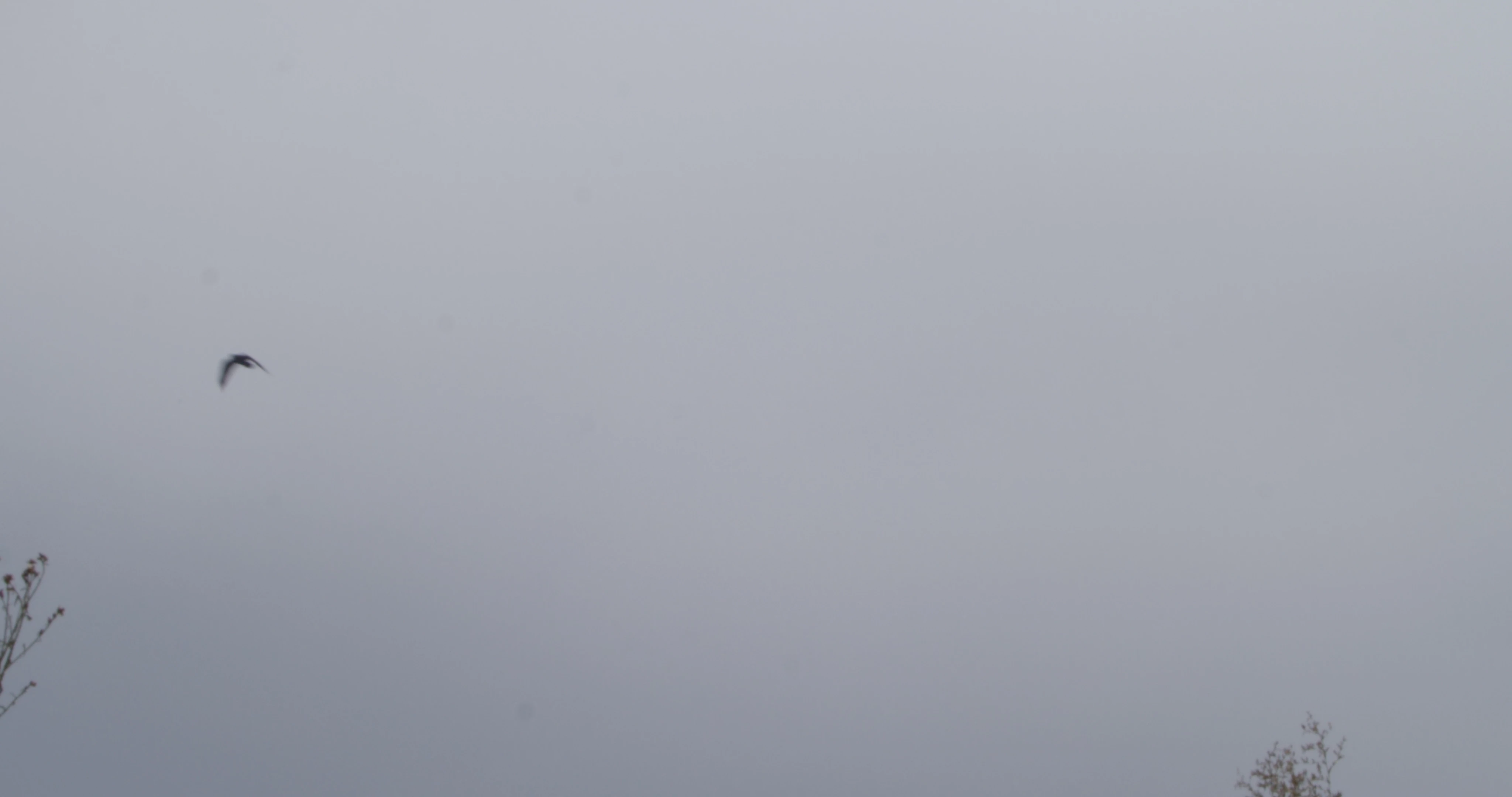
The problem is not visible in Resolve however so luckily it's not an issue with the footage. Please see two screenshots attached where you can see the issue. Top is still from Resolve and bottom with the banding very visible from Premiere.
 
I would appreciate help on how to fix this in Premiere. Thank you!
 
This topic has been closed for replies.
Correct answer R Neil Haugen

In Premiere, there are settings in the Sequence preview settings and Export dialogs for bit depth ... have you checked those?


Premiere used to always use file bit depth, and things like Max Bit Depth in export weren't normally needed. But a version or two back, as noted Premiere expert @Jarle Leirpoll demonstrated thoroughly on his site, premierepro.net ... how the Preview and Export bit depth settings affected both playback and exports changed.


Neil


(And @Fergus H still needs to see this.)

12 replies

MyerPj
Community Expert
Community Expert
August 30, 2023

Cool thread. Way to go guys! 🙂

R Neil Haugen
Legend
August 30, 2023

Happy to help. These things are not always ... um ... even close to intuitive, you know?

Everyone's mileage always varies ...
samsanAuthor
Inspiring
August 30, 2023

Hey Neil!

Thanks so much! That was it. I checked the Maximum bit depth box in sequence settings and the image looks perfect again. I can even undo redo the Max bit depth setting change and see the image turn from horrible banding to pristine gradient sky.

So glad this was solved! Thank you very much! 

R Neil Haugen
R Neil HaugenCorrect answer
Legend
August 30, 2023

In Premiere, there are settings in the Sequence preview settings and Export dialogs for bit depth ... have you checked those?


Premiere used to always use file bit depth, and things like Max Bit Depth in export weren't normally needed. But a version or two back, as noted Premiere expert @Jarle Leirpoll demonstrated thoroughly on his site, premierepro.net ... how the Preview and Export bit depth settings affected both playback and exports changed.


Neil


(And @Fergus H still needs to see this.)

Everyone's mileage always varies ...
samsanAuthor
Inspiring
August 30, 2023

I sent Blackmagic my file and they confirm the problem and refer to Adobe for a fix: 

"Thanks for sending the footage over. We pulled it into Resolve and Premiere and found that the banding was only seen in Premiere. We know Resolve plays back footage at 10 bit, and Premiere plays back at 8 bit. I am unsure if or how to enable 10 bit play back in Premiere but since we're seeing the footage looking fine in Resolve and when we play it in our BRAW player, we believe this is caused by Premiere and I suggest contacting Adobe support or looking through their forums on this matter."

R Neil Haugen
Legend
August 27, 2023

That's good to know. Could use @Fergus Kousha here.

Everyone's mileage always varies ...
samsanAuthor
Inspiring
August 27, 2023

Hi Neil!

It indeed seems to get rid of the banding if I change the Color Science to Version 4 from the Autokroma plugin. 

Sami

R Neil Haugen
Legend
August 26, 2023

Very intriguiging.  Still curious, if you set either plug-in to Gen4, does this go away? As I'm trying to figure out if it's that or something else.

Everyone's mileage always varies ...
samsanAuthor
Inspiring
August 26, 2023

Thanks for the help! 

Ok, so when I install the Autokroma plugin nothing changes at first. but if I go to the Autokroma source settings and change "Decode using" to BRAW Default the problem almost completely disappears, I can still see some of the banding problem compared to Resolve but it's very minimal. 

It the "Decode using" is set to Camera Metadata (which is the default) I see the full problem with the banding.

I assume there's an error here somewhere still happening in the way Premiere perhaps handles the camera metadata or something? There's no change if I switch from Gen 5 to Gen 4 Lut.

When I really crush both the images hard I can see these weird black lines in the Premiere waveforms, not sure if this is related? Not sure if you can see the slight difference in image quality but there's still some banding visible in the Premiere image. 
 

R Neil Haugen
Legend
August 25, 2023

I used the BM freebie for awhile. But ran into problems every once in a while. Got the Autokroma plug-in, and they give better support for the BM plug-in than BM does.


If you change the plug-in to gen4 does that make it go away?

Everyone's mileage always varies ...