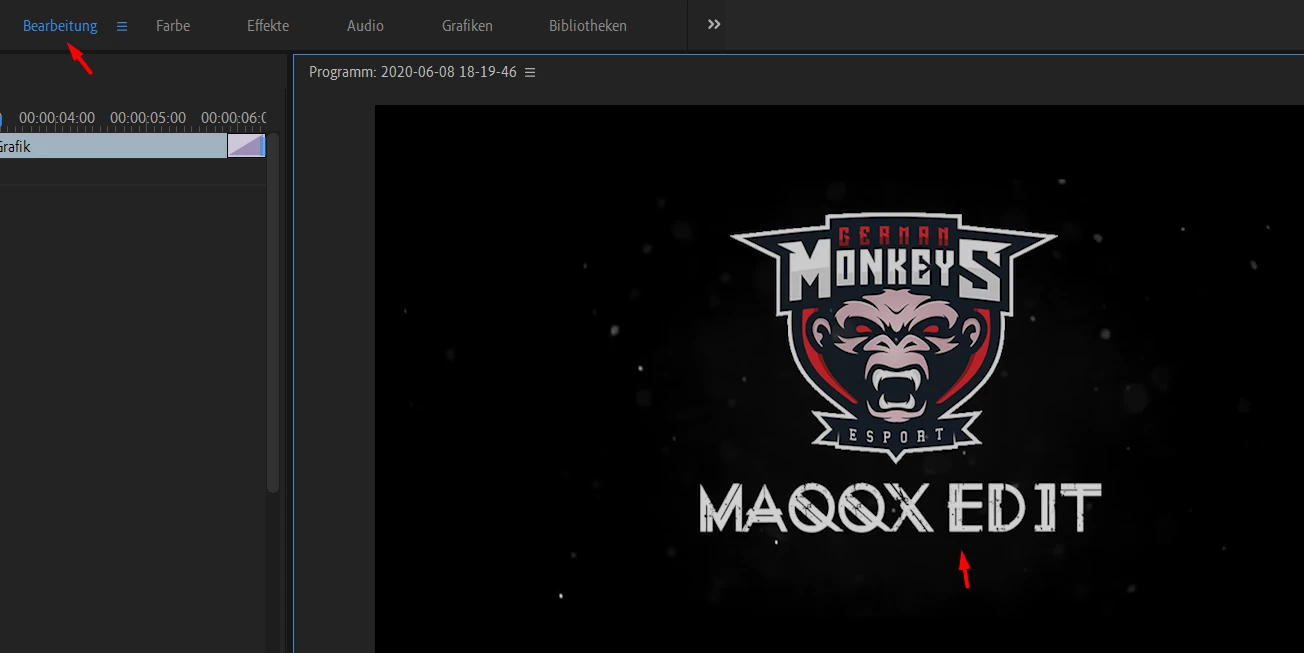
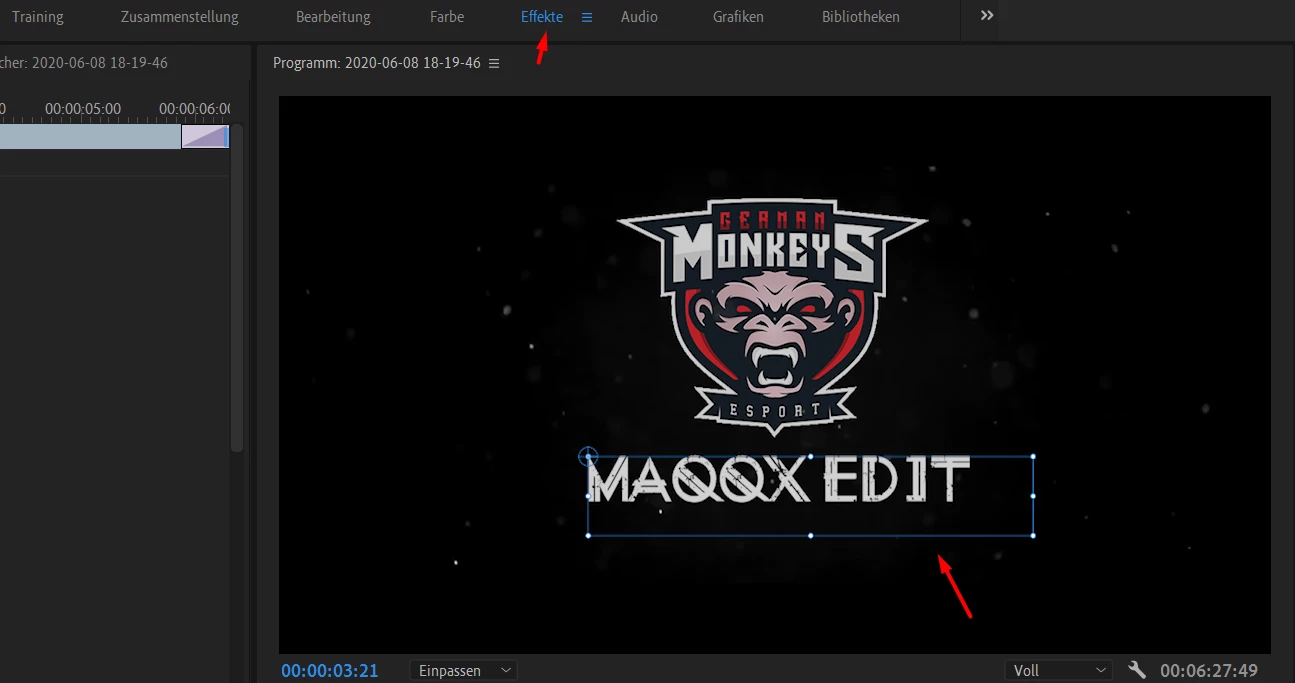
I have a Problem. This blue box is shown only in the "Effects" Tab. But I want it in every tab. For example "Color" "editing" and so on.How I can fix this?

They show up for me in any workspace if I click on the text area in the Program monitor with the selection tool. Note, if it's selected and you change workspaces, it's no longer selected, so you need to re-select it.
Not that I normally do anything with graphics/text outside of the graphics workspace, but it performs as any other selection item in the Program monitor for me. I can be in either of my custom color workspaces, click on the text in the program monitor, and it is selected with a blue box around it.
I can click three places to get the box to appear ... by clicking the line for that text in the Essential Graphics Panel (EGP) edit tab ... note where I have the red bit? I clicked there, and the blue line around the text appeared.
Or, I can click the anywhere in the text box itself in the Program monitor, again the red area is where I clicked ...
Or, by clicking on the text title line in the Effects Control Panel (ECP) ... again, shown with red marking ... and note the top arrow-icon in the "toolbox" is blue? I'm using the Selection tool, to get that either use the V key or click on that arrow. That is needed to select something.
As I noted, click on the text itself in the monitor, or click on the text line in the ECP, and the blue box will appear. And only then. There is no "enable" for that box, simply whether or not the user physically selects it.
The box shows up when that text or text box is selected ... and only when that text or text box is selected. Which workspace you are in doesn't matter.
As I noted, you select it by clicking on it in the Program monitor when the "Selection" tool is active (the V key, the arrow icon in the tool bar) ... or by selecting the title line for the Text item in the Effects Control Panel.
The items at the top you point to are Workspaces for various tasks.
That blue box is the text box for the text entered in it.
You should be able to see that in any workspace if you have the Selection tool selected and click on the text area of the Program monitor. Or of coures, in the Effects Control Panel, click on the text line. Either way should bring up the highlight showing the box is selected.
So to note: those are workspace layouts, which are essentially just salvo's for arranging panels in a certian way.
To see the bounding box of an object, you usually need to either select the clip in your timeline, or double-click the item right within your Program panel (although in the event multiple, clips are stacked, the top-most layer will be selected)