This is a fairly common issue of having your media in a sequence that does not fit the source. Your source is 1920x1080, but you've created a sequence at 640x360, and then you're scaling it back up to 1920x1080 on export.
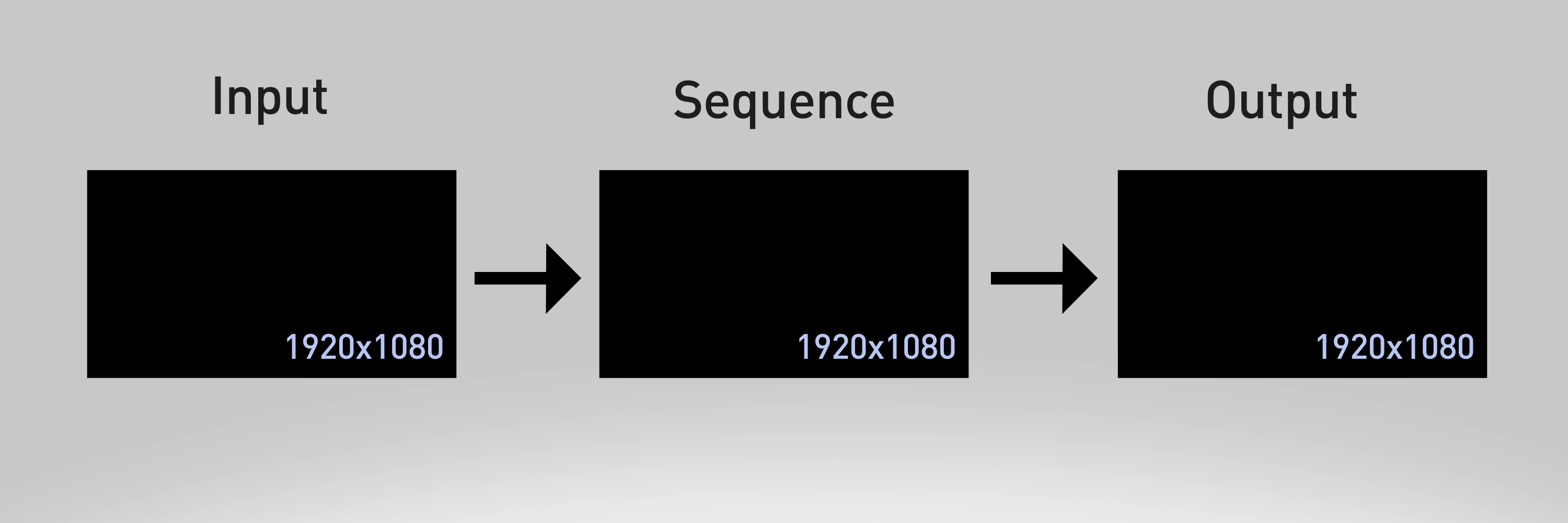
You have 3 variables to keep in mind when it comes to your video resolution and framerate:
- The settings of your Source Media, which are determined at the time of recording.
- The settings of your Sequence, which you set up when you create the sequence.
- The settings of your Output, which you specify on export.
Ideally (or at least, generally), you should have the same settings throughout the process from start to finish, as pictured in this diagram:
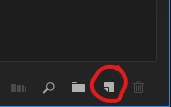
My recommendation is to start a sequence based on the settings of your source media. One of the ways to do that is to drag the clip(s) down to the New Item icon in the Project Panel. You can also right click and choose 'New Sequence from Clip'
If you create a new sequence this way you can copy your old sequence and paste it into the new one.
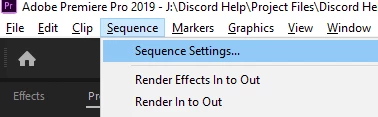
You can also adjust the settings of your current sequence in Sequence Settings.
Either way, you'll need to scale your media back up to fit the newer, larger sequence size. There are many ways to do that including:
- Right click your video clips and choose 'Set to Frame Size'
- Select All, choose Remove Attributes, and uncheck everything except Motion (note that you shouldn't do this to clips that you've got motion keyframes on). This will return the Scale to 100.
- Select one clip and in Effect Controls set the Scale back to 100. Select 'Motion', Copy, and then select all your other video clips and Paste.



 AdChoices