


New Participant
February 10, 2018
Answered

Project Window Stuck Off-Screen. Any ideas?

  • February 10, 2018
  • 35 replies
  • 80915 views

-- I'm running Premiere Pro CC 2018 on a macbook pro 15" running High Sierra 10.13.3 --

I had previously opened Premiere at home with my dual monitor setup. Now I'm on the road and when project opens the top windows are off-screen:
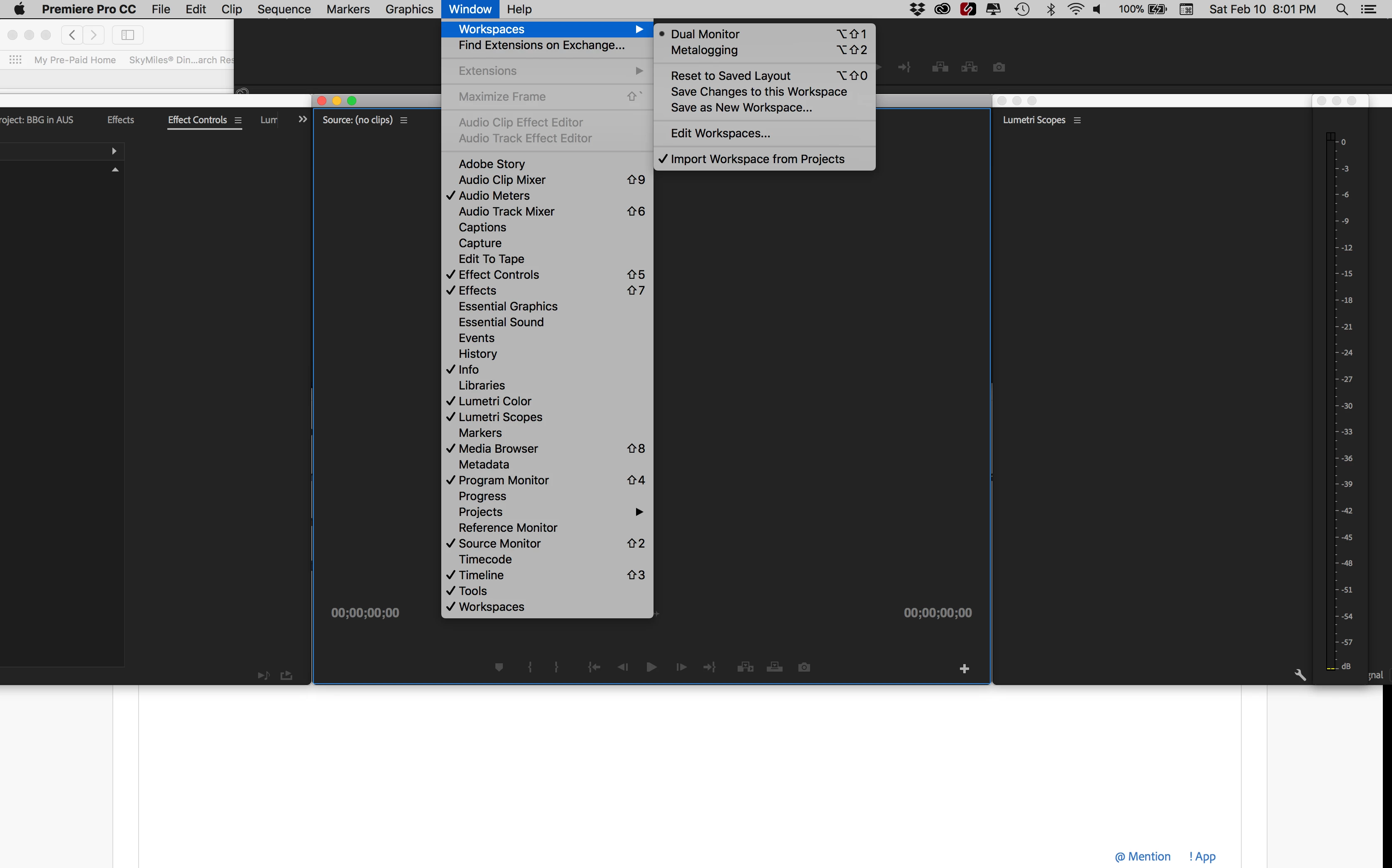
When I select a different window arrangement, it gets worse:
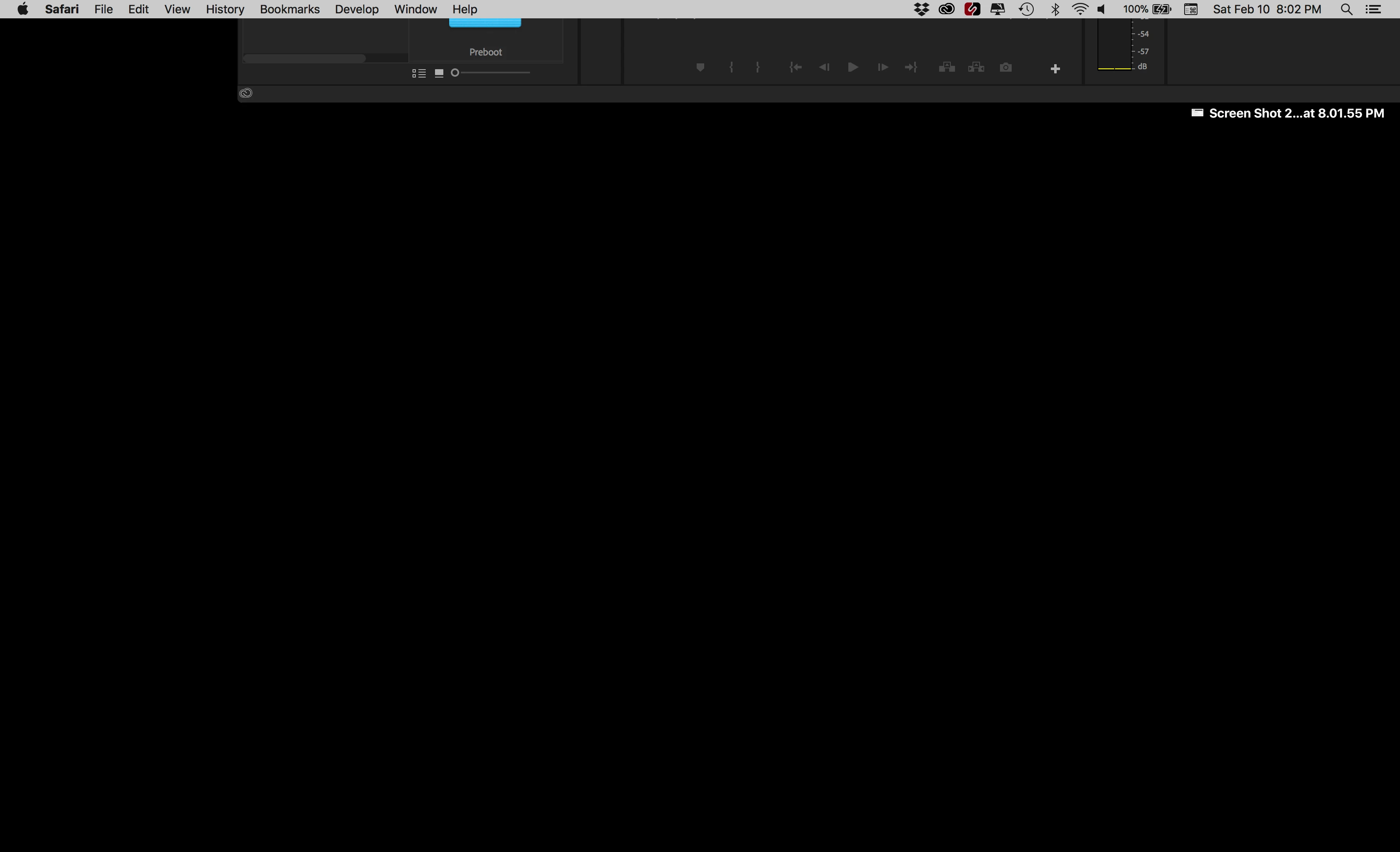
I can drag the bottom of the window and resize it but I can't get to the top to arrange it.
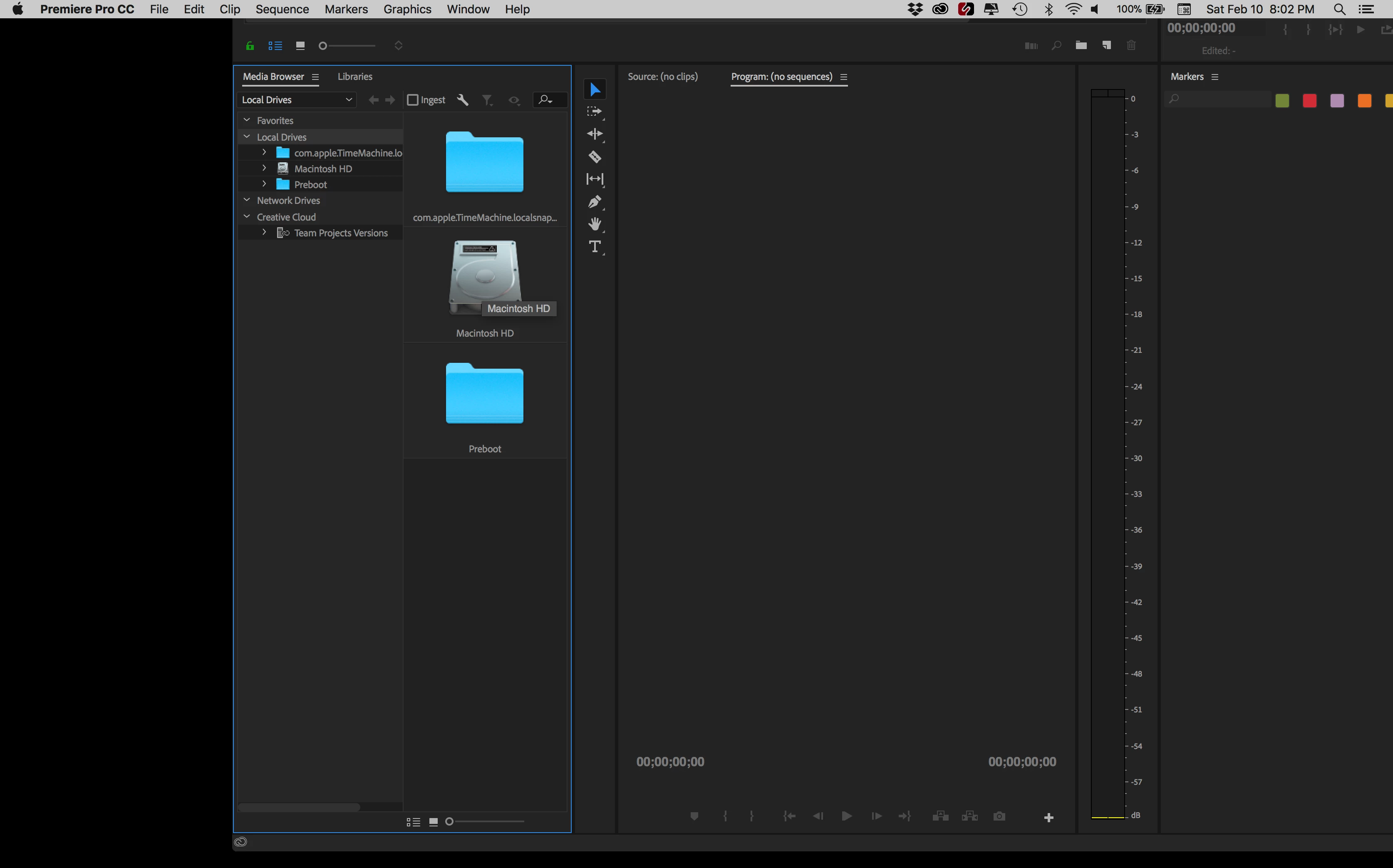
Here's how I have attempted to fix it:

- Hooked up an additional monitor. When monitor is attached I can move windows, but the moment I unplug monitor, the windows go back to original off-screen position (no matter where I had placed them while add'l monitor was running).

- I uninstalled and reinstalled Premiere. Same problem as before.

- I restarted Premiere while holding the option key (to trash preferences). Problem still there.

- I created a new project. No change in problem.

Anybody have a good idea? Thanks!

Correct answer trashcaneron

Command+\ worked for me, just brings the entire app to take up the whole screen (in Premiere), easy. THIS is the correct answer. The answer that is marked correct requires you to delete your preferences which is totally unecessary. 

35 replies

Looche
New Participant
April 25, 2019

Why in the world does this tread say "answered", it isn't answered at all besides deleting all preferences and starting from scratch. This seems to be an very common problem that Adobe hasn't addressed! WHAT'S THE DEAL, ADOBE!?

Adobe customer support, rant

New Participant
June 22, 2019

FIRST OF ALL, sorry guys but you're all wrong.You're making it more complicated than it should be.

It's actually a pretty easy fix. Go to the bottom left hand corner of the window (since you can't reach any other part of the top) So...Go to the bottom left hand corner of the window, hold down Option and double click. The window will resize automatically.

Just in case I found this video online to show you:

Adobe Premiere Pro is Stuck Off Screen - HOW TO FIX! - YouTube

You're welcome fellow filmmakers!

Follow my crazy adventures in the industry @jalenjames on IG

New Participant
July 9, 2019

Hi All -

MAC MOJAVE Pro Vega 20 / PR 19 13.1 (Magician - is it called this because it likes to play houdini where did I go games???)

Yet again premiere STOPPED ME DOWN for countless minutes (so many stop downs for stupid things) and gave me this issue.  Not sure if it was mentioned - but what worked for me - as I could see no top gray bar nor the bottom of the window or the left side -  (just one lonely right side of the premiere app - sorry I didn't screen grab it) - meaning, my mac didn't give me an option to resize it up and down, just side to side, no matter what buttons pushed.  Also show all windows in dock, of course did nothing but tease me with seeing all of the window, and then, no matter what config of buttons I pushed on app, just resized back to the stupid no good view.  Also - anything else I tried, it reverted right back to the same awful unusable app positioning.

Anyway - I have 3 screens.   I have my middle 4k screen be the main monitor, my laptop (Mojave) usually sits idle or with chrome (I know - RAM stealer!) and finally my right screen, my NEC color calibrated 2k monitor for playback.  This is where my premiere app settled this morning,  for who knows what reason, when I turned on my laptop this morning and opened the app.   (starting my morning out in such an agreeable nature.....)

So, after trying everything listed that didn't work (and I think this was somewhat mentioned)

THE SIMPLE fix that worked - (and really writing this to finally express my anger at all the things that continuously slow me down based on how badly this program works, that I've paid so many years for doesn't work....!!!  Often making me wish I had the trusty (only crash-able) avid at my home office .  (....though I do like some things better on PR....))

(THIS IS THE FIX)

open up display settings, gather windows, arrangement (just so it all stays in one place)

Move the "main menu bar" in arrangement to my 2k monitor (where premiere is sitting) - this forces it to jump to another window.

I believe I minimized the program window, very small.

Then, I quit premiere. 

Then, I moved the nav bar in my settings back to the main monitor (Middle - which I set so popups always came up on this screen and not my laptop)

Then I reopped premiere!!

(That should be it)

Amazingly, iIt opened on my laptop or main screen (sorry, I should have paid more attention, but every other thing here listed didn't work and I was getting angry I would have to TRASH my settings.  BECAUSE WHY IS THIS A SOLUTION TO EVERYTHING????)

and problem was fixed!

josephd38093556
New Participant
April 3, 2019

Fix for Mac users:

This was killing me. I think it was mentioned elsewhere on the forum, but if your windowing issue is caused by having multiple monitors, the fix for Mac is to go to System Preferences / Displays / Arrangement. Then, in the window that shows your monitors, move the little white bar the designates the "main" monitor to another monitor. That should snap premiere out of it and re-size the off-screen window.

New Participant
March 28, 2019

I think everyone's missing the point here..theres a lot of annoying workarounds, but this has been an issue for years and years. Adobe just needs to make their crap work correctly.

ahmad503
New Participant
March 7, 2019

Hold down  option + shift + spacebar (for Mac) then click and grab (Your'e welcome) follow me on Instagram @ahmadprincelee  

jsolterbeck
Known Participant
March 7, 2019

That does nothing for me, just moves all sides of the window except the top which stays offscreen.

edit: played with this some more, I'm on Mojave btw.  My windows open offscreen on my secondary monitor.  If I command+option+shift+click on the window edge WITH THE RESIZE ARROW VISIBLE, this is what works for me.  It moves the window down onto the screen.  What a miracle.  Ok now I will thank ahmad503​ , the comment did lead to a solution I can work with, even though I still find this to be an unnecessary bug.

Emdjay
New Participant
January 26, 2019

Had the same problem with Dreamweaver. This worked for me for Multiple screens on my Mac.

Go to settings, Display -> Arrangement. Arrange the displays so the tops align.

This solved the problem. Hope this helps.

harmonyh79598150
New Participant
January 16, 2019

I found an easy fix, which was to go to Window, then workspaces, and change my workspace to a different layout.  For Example:  If I have the issue in the assembly window, then go to the audio editing workspace, then click back on the assembly workspace and the title window was gone.

This was easier than deleting my own custom workspace, etc. etc.

Known Participant
January 10, 2019

Just had the exact same issue and solved it fairly quickly (by luck I should add) after seeing what other people wrote. I launched Encoder and it was stuck high up to the top left of my screen. Solution was...

1. Create new workspace "Phils new workspace" (doesn't move the window).

2. Then select Revert Workspace. This moved the window down so I could grab the top and move it, but it was still too big and I couldn't shrink it because I could click the bottom edge of the screen.

3. I then went back and selected Delete Workspace and deleted the one I had just created, and the window automatically set itself to the Default Workspace and fitted the Encoder window precisely to my MacBook Pro's screen.

Hope that helps someone!

Known Participant
January 9, 2019

Try holding down the option key and resize the window. Worked for me. the window will resize from all sides

jsolterbeck
Known Participant
January 18, 2019

Doesn't work for me.  window on second screen, Mac, CC2018 or 19.  It does changes the dimensions of both sides, but the top of the window conveniently remains off-screen.

New Participant
December 17, 2018

I work with 2 external monitors at home, but disconnect when I go out.  I tried most of what was above, except I didn't want to delete my layouts. My entire program was running off screen, I could hotkey APPLICATION WINDOWS (System Preferences/Mission Control) and see the whole thing but when I click on PP it whisks away.   On a lark I moved my mouse over to that edge thinking that if the software was off screen, maybe my mouse would go to.  Well it didn't go off screen but it did show me the resize function for PP windows.  I dragged it out and had the PP bar show up too!  Was able to pull the program across and resize.  It's back!  It seems like such a dumb thing that would work and I don't know if it will help anyone else, but I had to share this fix in case it does.  Hey ADOBE make collect windows command or something.

New Participant
November 19, 2018

I finally found the answer in After Effects. As when your adjusting the size of an image in Photoshop, AE works the same for the workspace. You hold shift+option when dragging from an edge & it resizes all sides equally. Fixed!!!