


carlan63046297
Participating Frequently
April 17, 2018
Answered

"Software Only" stuck on encode settings panel.... Premiere Pro CC 2018 latest update

  • April 17, 2018
  • 22 replies
  • 50854 views

Hi

I am currently experiencing another strange bug since running the update to the latest version of PPCC2018. When I go to encode within Premiere I get "Software only" displayed in the summary area and the encoding settings within this panel are greyed out, as can be seen in the attached image. The encode was taking forever so I stopped it and went and checked and CUDA GPU acceleration had been changed to software only in the Project Settings, which I didn't do myself. I changed this back Mercury GPU Playback and the encode went a lot faster, as fast as I would expect when using GPU.

Now my problem is, whatever project I open I get "Software only" displayed in the summary, even though CUDA is enabled in both PP as well as Media Encoder. The project encodes SEEM to be going at GPU speeds but whatever I do the software only message remains. I have noticed that if I change the codec from H264 to MPEG2 for example, the software only message disappears. I am not now 100% sure if my CUDA acceleration is working correctly as the software only message is on every project I open and go to encode within Premiere. If I select to Queue the encode and use Media Encoder, the drop down menu at the bottom of the encode list says CUDA.

Has anyone else been experiencing this?

I have so far:

1. Re-installed PP CC 2018 latest update

2. Installed latest graphics cards drivers as a clean install

3. Tried opening a new project, saving that as CUDA enabled

But nothing has fixed this...

My setup:

Windows 7 Professional x64

Nvidia Quadro K5200

PP CC 2018 fully up to date

Any advice greatly appreciated!
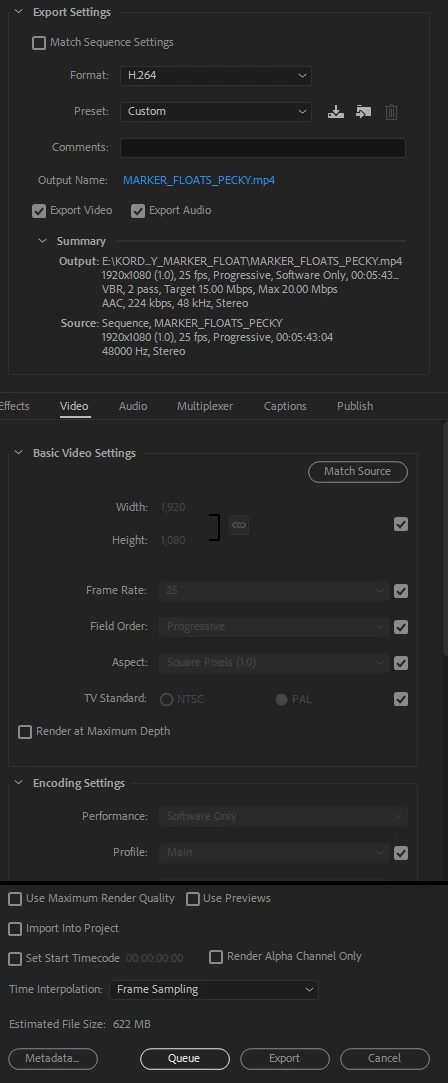
This topic has been closed for replies.
Correct answer R Neil Haugen

To explain again. It's very simple.

The newest Intel CPU chips have a built-in (therefore "hardware") encoder for H.264.

If you see "hardware" or "software only" in the Export summary box, that is ALL that this refers to. Whether or not the CPU has the new, faster H.264 encoder inside.

It has absolutely nothing to do with the GPU or the use of the GPU as normal in PrPro exports. PERIOD.

Your GPU will still be used for exactly what it is used for, which are those things on the GPU Accelerated list. And nothing else,  as it has been.

There is nothing whatsoever for Adobe to fix.

Neil

22 replies

Participant
July 18, 2021

Hello there! i know im 2 years late but if anyone is still having this issue, just watch this vid to enable Hardware Encoding.


[Moderator note: It is Adobe policy to not allow comments about the Console on their forums. That is for engineer work, and users can seriously screw up their installation by messing there. The link has been removed.]

Participant
May 25, 2020

Ok so since u seem to not wanna listen to others how do u explain after updating to 2020 my videos now take 2 hrs and never once finish, it always freezes half way now which is why I'm here. I notice ld before update my 1080ti was selected and encoding took 20 to 30 mins easy. For the past 3 days I have been trying to finish exporting my work I have buyer my ass on and pay for a software that crashes. My PC is perfect and top of the line hardware and worked in previous builds now freezes on them all 

Participant
January 11, 2020

Here the fix thank me later https://youtu.be/obWeExQMxsg

Participant
December 19, 2019

But if that's the case, why does my render time get cut in half when I choose hardware rather than software encoding?

Participant
January 21, 2019

Hello

I managed to activate hardware decoding for Premiere Pro, but in Media Encoder this is still software only.

I tried all kind of things to add sequence to queue, never got to see the hardware accelerated encoding, only CUDA, not Intel iGPU 630.

Any thoughts?

Thanks

R Neil Haugen
Legend
January 21, 2019

I managed to activate hardware decoding for Premiere Pro, but in Media Encoder this is still software only.

I tried all kind of things to add sequence to queue, never got to see the hardware accelerated encoding, only CUDA, not Intel iGPU 630.

I'd like a bit more explanation here ... where, what and how did you "activate hardware encoding for Pr" ... ?

Screen-grabs would be good.

Neil

Everyone's mileage always varies ...
drloksoft
Known Participant
March 17, 2019

Hi folks,

I know I'm jumping on someone elses thread. I've just updated my CPU from Intel I7 5930K to I9 9900K.

I've tried to render the exact same video across different settings of CPU and GPU. Myself I'm using a nvidia GeForce 980ti.

A friend of mine has borrowed my a Titan X as well as a GeForce 2080ti refernece card.

Hence I've rendered the video a couple of times on my PC as well as on the MacBook.

The actual VLOG about my testing here:  I9 9900K rendering with Adobe Premiere - YouTube

Result:

MacBook Pro I7 2.8GHz (2018) 13 min

Intel I7 5930K PC 9min

Intel I9 9900k PC lower than 5 minutes

It did not matter which GPU I was using for my rendering. I assume I've setup everything correct. I'm just curious why I cannot select hardware rendering in Adobe Media Encoder as it tells me "software encoding" in the settings and it's grey. A hover over tells me: "Hardware encoding is unavailable."

Based on this Adobe Forum entry and the explanation by @R%20Neil%20Haugen (Thanks!!) I think this is correct, since the H264 encoding is being done by the CPU anyways, but I'm not 100% sure. I was not able to find out where to setup Quick Synce (in fact, I did not understand so far what it means ...)

Any suggestion helps! Even if I'm good, it would be great to get a feedback!

Oh, the final video (for the fun of it) here: Balearic Trip 2018, from Mallorca to Ibiza - YouTube

Inspiring
November 12, 2018

Great work Neil, but can I jump in here?  It's a great thing that "there's nothing to fix", but the "WHY" of your answer is a bit confusing.  Let's go into that a little more, shall we?  Again, nice work on the find with intel's built in codec.  I loved that part.

For the rest:

I've always used a single pass encode, mainly because it takes a shorter time, and gives me the result I want.  I was using a mac laptop with an intel core 2 duo topping out at 2.16ghz and an nvidia geforce with 256mb of vram, all attached to 4gb of internal ram.  Now I'm working an acer predator with 16gb ram, quad i7 gen 6, nvidia gforce gtx980 with 4gb vram, and optimus set up through the nvidia toolsets provided by some developers (windows apparently removed it from their fileset, quoted some kind of redundancy and then apps started breaking; redundancy?  no.  Dependence.  I guess they don't know the difference).  I fly through those single pass clips with ease.  For every minute of video, it takes about 30s to process an ingest operation that keeps them all in line, and thats on battery power.

Like all of you, I entered the realm of 4k thinking, hmm, 2 passes can decrease file size and slightly increase quality, why not use all my power.  Here's the RUB:  The standard H.264 encoder uses an older 32bit algorithm to render out the second pass.  This slows things down immensely on 64bit systems.  By running a built in encoder with your intel processor, you are making use of a more accurate, and much better algorithm, and it's lightning fast.  The downside?  Nobody can render across two different cards at once anymore.  This used to work just fine when windows allowed optimus usage in the system itself.  Renders were fast, and this "BUG" did not appear, as the app could see the intel card, but with a cuda header attached as a secondary renderer, and it allowed the app to offload to cuda when effects were used.  NOW: you are running an older algorithm that is less accurate, slower and clunkier, on a cuda card of course, but still clunky.  It takes longer for the 2 passes, as it has to run the algorithm in a software layer on top of your card.  THUS a mesage about software rendering in your settings box, even though you have CUDA enabled in your main renderer.

THE FIX:

2pass VBR is useful mostly for space saving.  Since you only get about 10% space and a small bump in quality, you can estimate the quality effect, and use a single pass, taking up a little more space, but retaining the quality.  IF you are on your final output, use the 2Pass method instead, as it will make your video deliverable, with excellent quality.

IF you are handling 3k and higher video, you are better off with HEVC codecs that are meant for higher depth.  They are just as fast, if not faster, and they compress a 4k to about the same dataspace as a 1080p (2k).  The other difference is that sites who take a deliverable of HEVC are more likely to incorporate fault tolerance with VFR issues.  They run it as a split codec, using two streams, interleaved on two separate clocks, which are then put back together on your end to play the video.  This means video and audio are separately streamed, and their clocks can alter midstream without affecting one another.  Don't bank on it though.  Always check the delivery format needed, and look for VFR notations.  If they don't show anything about it, or they note only specific context of audio and video together, chances are, you'll need to fix the VFR yourself.

R Neil Haugen
Legend
November 12, 2018

That software only render notice in the Summary box, as noted, is only referring to whether or not your CPU has the Intel QuickSync added  ... node?

That is a special processing core similar in function to what camera's have to write H.264 so quickly.

Now ... from what I've seen here and elsewhere, that can be a mixed blessing. Some rigs with say 10 fast cores in their CPU with a ton of RAM per core and a 1080/11GB GPU have found they exported to H.264 faster without using the QuickSync section of the CPU.

It seems of most help with rigs that are middling in "native" processing power.

Neil

Everyone's mileage always varies ...
Heathenlamb
Known Participant
August 12, 2018

Have we found a fix for this yet. I am having the same issue. Despite my GPU being selected it refuses to use it. It will only use the CPU's. All my renders also say Software only. I have 2 GPU's in my workstation and both just sit idle while the Media Encoder runs through renders.

R Neil Haugen
Legend
August 12, 2018

Please actually read the above. Your comments show you do not understand what that says. Period.

The problem here isn't in the computer.

Neil

Everyone's mileage always varies ...
Heathenlamb
Known Participant
August 12, 2018

I understand exactly what it says. And it is wrong. My gpus should be doing the encoding ... they are not. There is a problem.

OMD 2020 Marwah
Participant
August 8, 2018

why you so mad ?

adityas99625444
Adobe Employee
Adobe Employee
August 2, 2018

Premiere Pro supports hardware-accelerated H.264 encoding on Windows 10 with 6th Generation (or later) Intel® Core™ processors and Intel Graphics enabled, and hardware-accelerated H.264 and HEVC encoding on Mac OS 10.13 systems with supported hardware.

On supported systems, you can select Hardware Encoding in the Encoding Settings section of the Export Settings dialog. If the specified combination of Export Settings is not supported by the hardware, Premiere Pro falls back to Software Encoding.

Hope this helps

R Neil Haugen
Legend
August 2, 2018

And just to keep it clear, that is totally separate from any GPU settings or use. This is only about CPU utilization and QuickSync in some newer Intel CPU's versus those without QuickSync equipped chips.

But good clear stating of the options there.

Neil

Everyone's mileage always varies ...
danm58881498
Known Participant
August 2, 2018

So it just doesn't utilise the GPUs we pay so much for. Thats pretty annoying.

Sent from ProtonMail mobile

Participant
June 30, 2018

What happened in the 2018 update? I'm getting Software Only in the export settings for H264. Running a 4970K and a 1080ti. Cmon adobe.

danm58881498
Known Participant
June 30, 2018

Yeah its stupid. Some strange intel related explanation that don't cut it for me too. Fix this dammit!

Sent from ProtonMail mobile

R Neil Haugen
R Neil HaugenCorrect answer
Legend
June 30, 2018

To explain again. It's very simple.

The newest Intel CPU chips have a built-in (therefore "hardware") encoder for H.264.

If you see "hardware" or "software only" in the Export summary box, that is ALL that this refers to. Whether or not the CPU has the new, faster H.264 encoder inside.

It has absolutely nothing to do with the GPU or the use of the GPU as normal in PrPro exports. PERIOD.

Your GPU will still be used for exactly what it is used for, which are those things on the GPU Accelerated list. And nothing else,  as it has been.

There is nothing whatsoever for Adobe to fix.

Neil

Everyone's mileage always varies ...